

Required permission:
- Edit Organization
What is Organization Currency Setting?
The organization currency setting allows you to configure the default currency that will be used across your MileApp organization. This setting affects:- Bill components in task flows - Price displays and calculations
- Task data export - Currency formatting in exported reports
- Dashboard analytics - Financial metrics and summaries
- Invoice generation - Billing and payment displays
Accessing Currency Settings
The currency setting is part of the Organization Management page. Step 1: Navigate to Organization Settings From the main navigation, click on the Settings icon (gear icon) in the left sidebar, then click on “Organization” tab.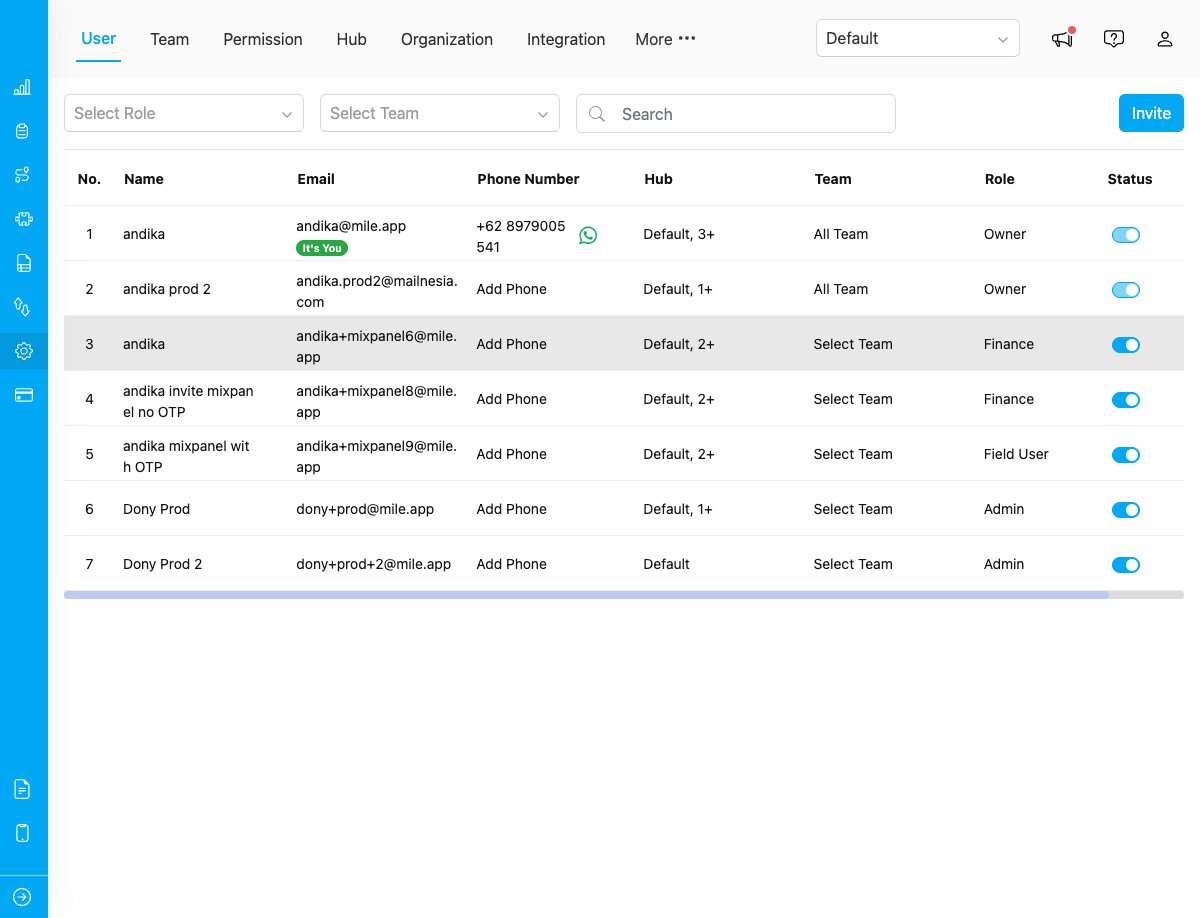
Settings page showing Organization option
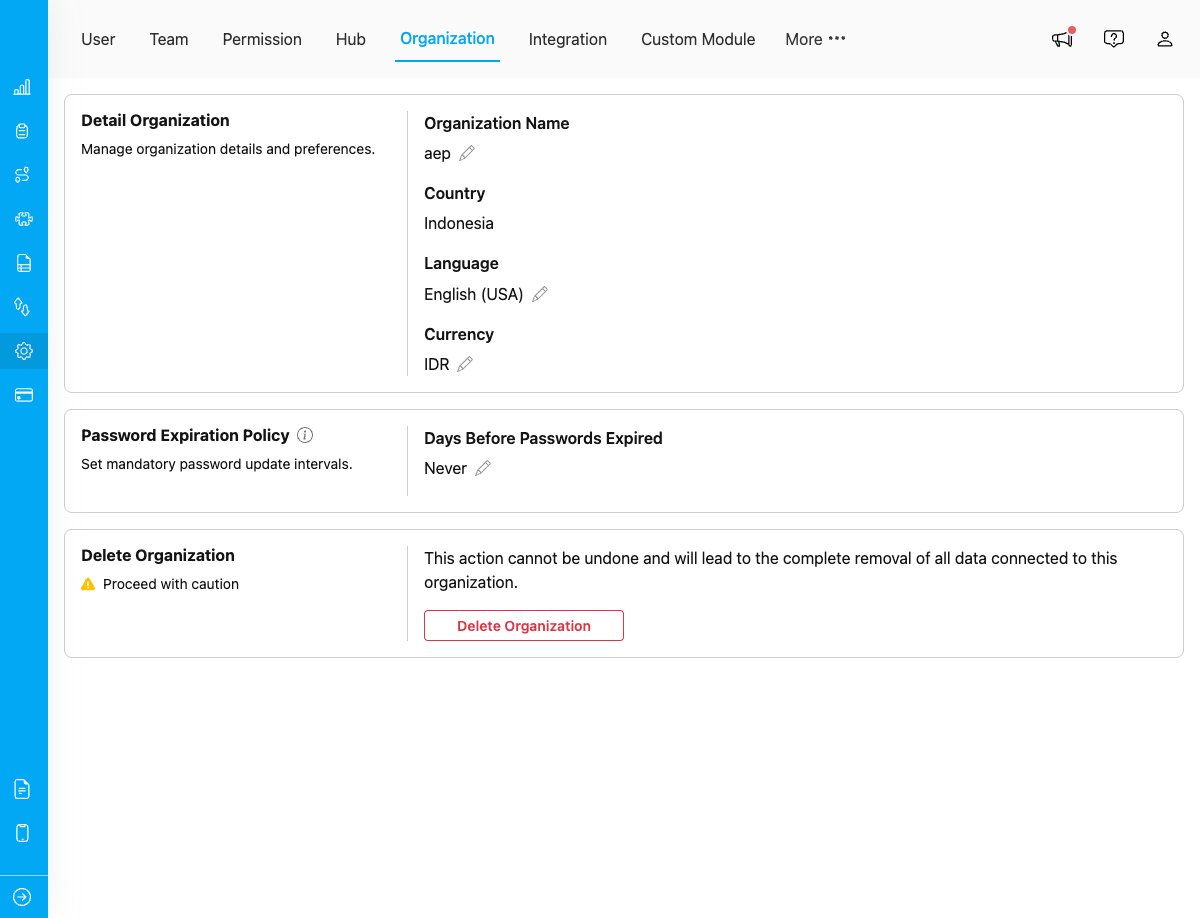
Organization page with Currency setting displayed
Changing Currency
To change your organization’s currency: Step 1: Click the Edit Icon Click the pencil icon next to the currency display to enable editing mode.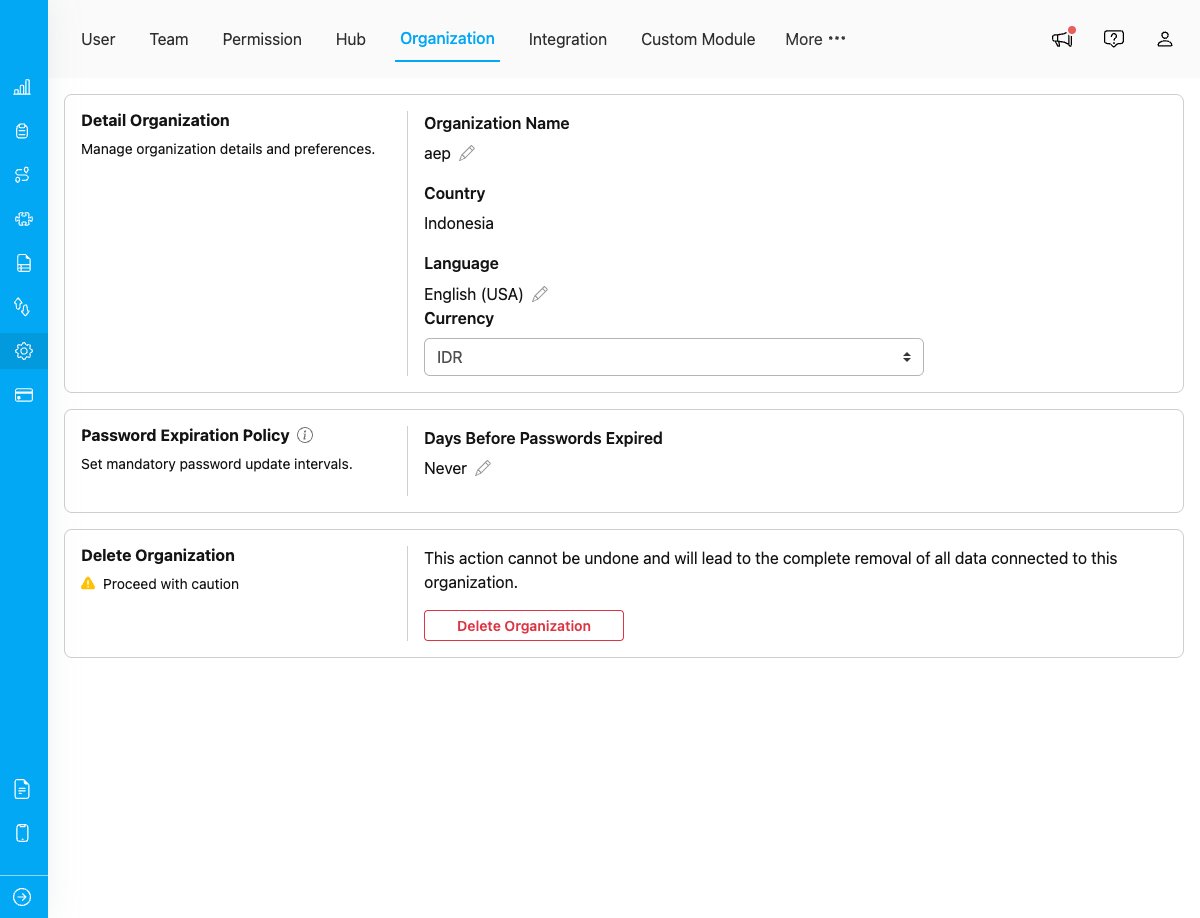
Currency field in edit mode with dropdown selector
- AUD - Australian Dollar
- CNY - Chinese Yuan
- IDR - Indonesian Rupiah
- JPY - Japanese Yen
- KRW - South Korean Won
- MYR - Malaysian Ringgit
- NZD - New Zealand Dollar
- PKR - Pakistani Rupee
- PHP - Philippine Peso
- SGD - Singapore Dollar
- THB - Thai Baht
- USD - United States Dollar
- VND - Vietnamese Dong
Currency Display Format
Different currencies have different display formats and decimal precision:
The currency format is automatically applied based on your selection.
Impact on Existing Data
Important Considerations: When you change the currency:- Existing task data - Values remain unchanged but will display with the new currency symbol
- New tasks - Will use the new currency for bill components and monetary fields
- Exported data - Will show values with the new currency format
- Historical reports - May show mixed currencies if the setting was changed over time
- Export existing financial data before making the change
- Communicate the change to your team members
- Update any external systems that integrate with MileApp
Currency in Flow Components
Bill Component
When creating or editing a Flow with a Bill component, the currency setting determines:- Price input format - How prices are entered and displayed
- Total calculations - Currency symbol shown in totals
- Mobile app display - How field workers see monetary values
Currency Input Component
The Currency input component type in Flows respects the organization currency setting:- Default currency matches organization setting
- Can be overridden per component if needed
- Displays appropriate decimal precision
Use Cases
Multi-Country Operations If your organization operates in multiple countries:- Set the primary currency to your main operating currency
- Use currency conversion rates in your accounting system
- Consider creating separate organizations for different countries if needed
- Set the currency to match your primary market
- Use custom fields or notes to track original currency values if needed
- Consider using the bill component’s custom pricing fields for multi-currency scenarios
- Keep currency setting consistent throughout reporting periods
- Document any currency changes in your records
- Use data export features to track currency changes over time
Troubleshooting
Currency Not Changing If the currency doesn’t update:- Verify you have “Edit Organization” permission
- Refresh the page after selecting the new currency
- Check if there are any error messages displayed
- Contact support if the issue persists
- The task may have been created before the currency change
- Check if the task flow has a custom currency setting
- Verify the organization currency setting is correct
- Contact MileApp support to request additional currency support
- Check if your subscription plan includes the required currency
- Consider using a similar currency as a workaround