Required permission:
- Manage Personal Access Token
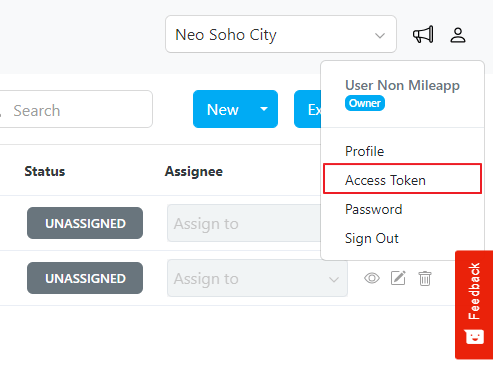
- Navigate to the Profile section located in the right corner.
- Within the Profile, click on the “Access Token” option.
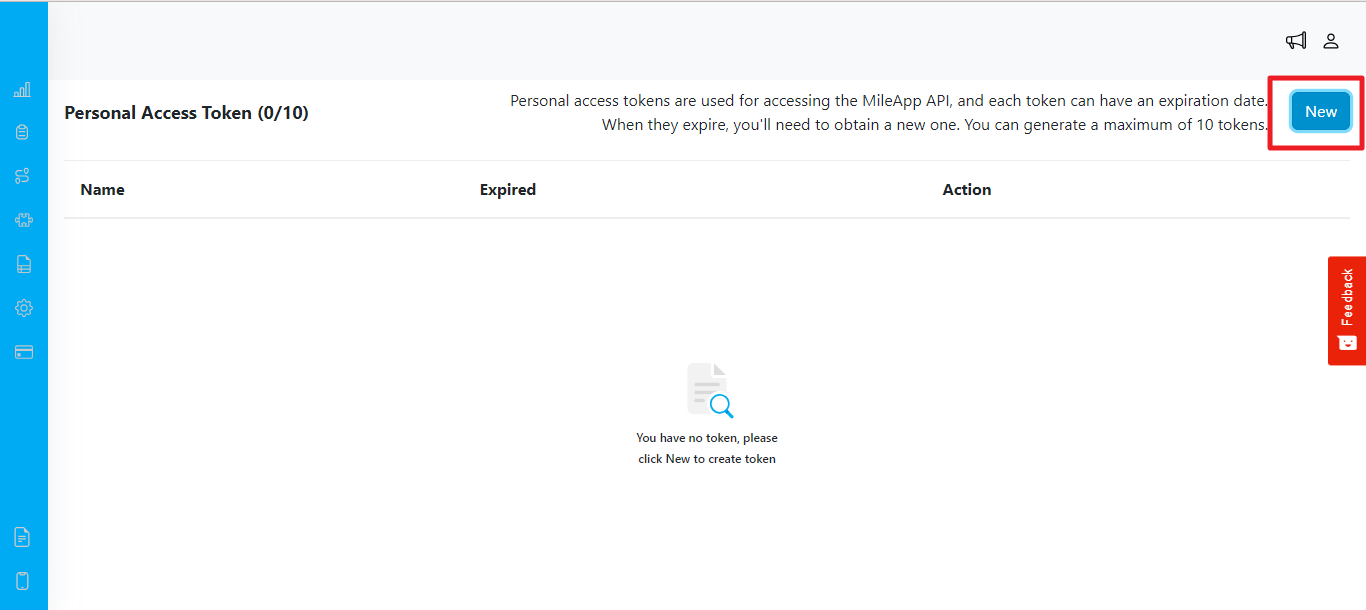
- Click on the “New” button to initiate the token generation process.
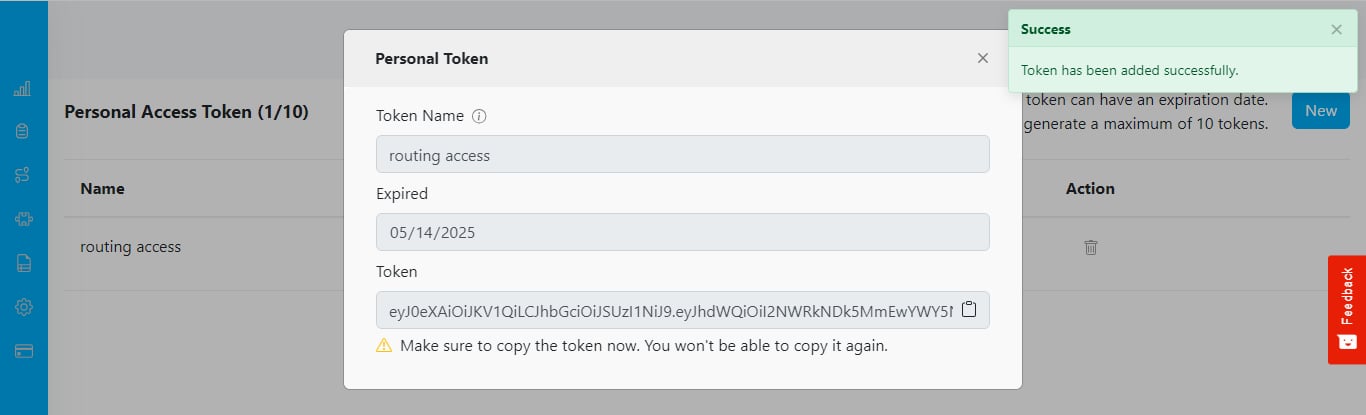
- Provide a descriptive name for the token. This name should represent the purpose or intended use of the token.
- Select an expiration date for the token. This date determines when the token will expire and no longer be valid for accessing the MileApp API.
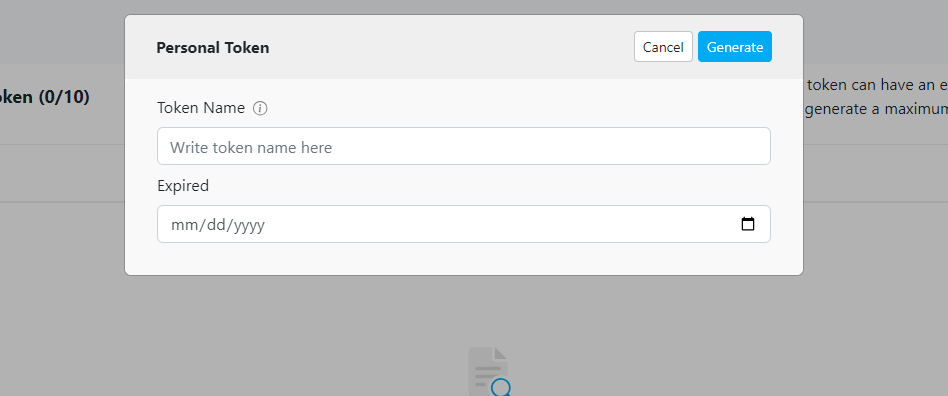
- After defining the token name and expiration date, click on the “Generate” button to create the token. Important Notes:
- Once generated, the token will be displayed only once. Ensure that you copy and save it securely as it will not be visible again within the MileApp interface.
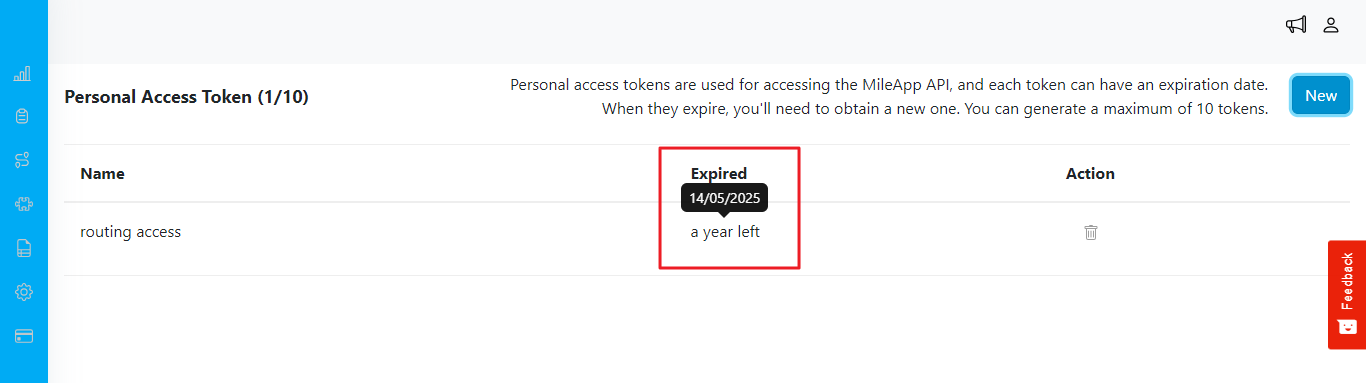
- When you hover over the ‘expired’ column, a tooltip will appear showing the exact expiration date.