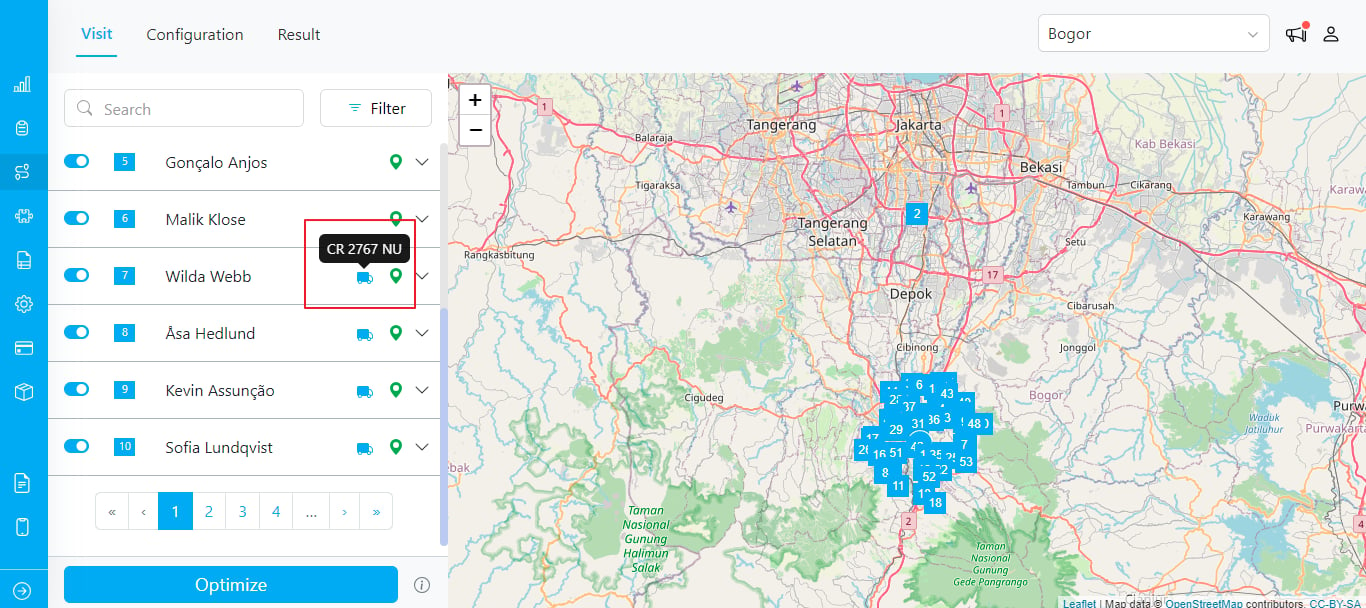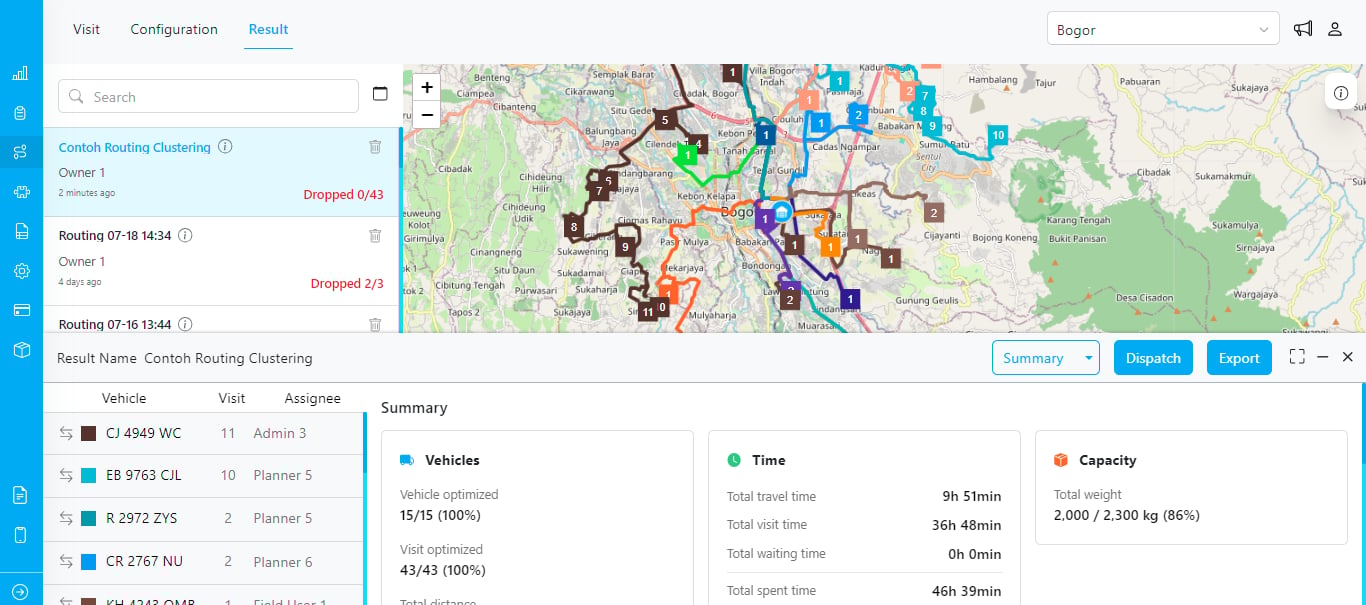
Routing Result in MileApp
Available Parameters
Routing parameters are configurations that the routing engine uses to produce the best possible result. You can configure these parameters at either the visit level, the vehicle level, or in the routing configuration. Each parameter is either a hard constraint or a soft constraint:- Hard constraint: the resulting solution will not violate this rule.
- Soft constraint: the solution may violate this rule if no fully feasible solution can be found.
Time Window
This parameter defines when a visit can and should be served. In most cases, time windows are used to specify when a shipment or delivery should arrive or be picked up before the location closes. Time windows help ensure logistics operations run smoothly by setting clear expectations and reducing uncertainty. Example: If an outlet opens at 8 AM and closes at 5 PM, you can set the visit’s open time to 8 AM and close time to 5 PM. This ensures delivery is scheduled only within that time range. You can configure this in Routing ➝ Visit: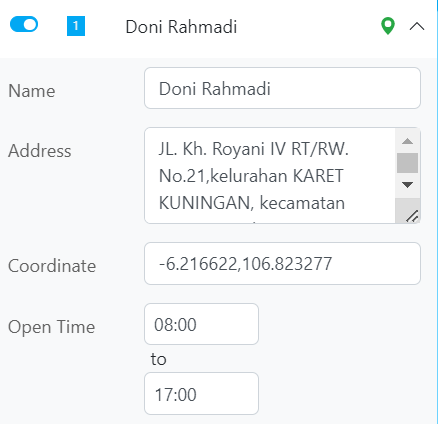
Visit Time
This parameter defines how long the vehicle is expected to remain at each visit before departing to the next stop. This is often called unloading time, because in most cases it represents the time needed to unload goods. You can configure this in Routing ➝ Visit: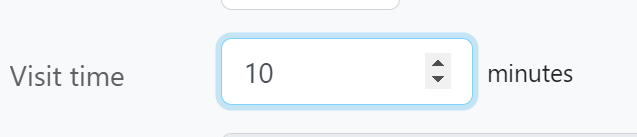
Tag
The tag parameter indicates which vehicle should serve a visit. The routing system will try to match visits and vehicles that share the same tag.Use case: Road class
A common use case is road access / vehicle class. Each visit can be tagged based on what vehicle type can physically reach that location.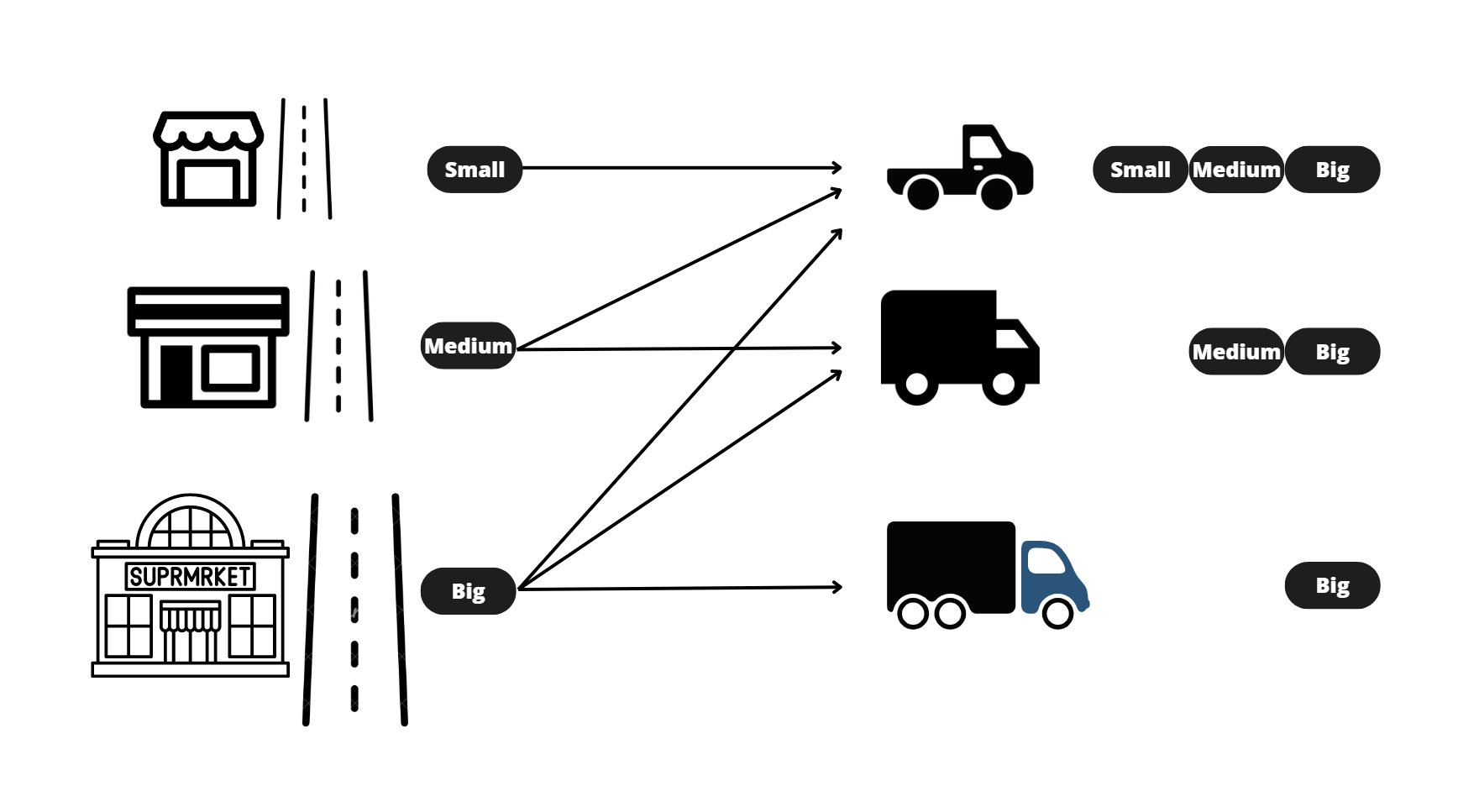
Use case: Dedicated vehicle
Another common tag use case is for dedicated vehicles. Example: if you have vehicles dedicated to Cash on Delivery collection, those vehicles can be tagged"COD", and visits that require COD collection can use the same tag so they are matched together.
Capacity Constraint
Capacity is critical in logistics because it determines a vehicle’s ability to fulfill orders and deliver on time. MileApp supports up to 10 capacity constraints. Common examples include:- Weight:
- Volume:
- Packs:
- Boxes:
- Frozen-weight:
- Chilled-weight
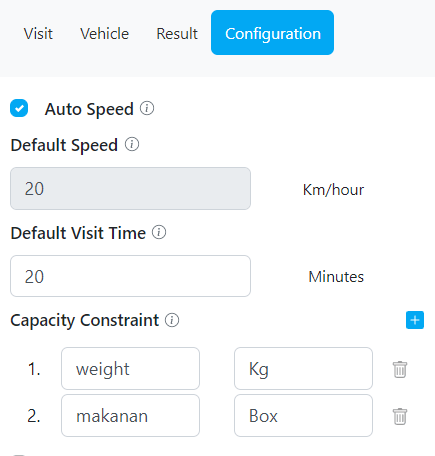
- First, define the capacity constraint configuration and its unit in Routing ➝ Configuration:
-
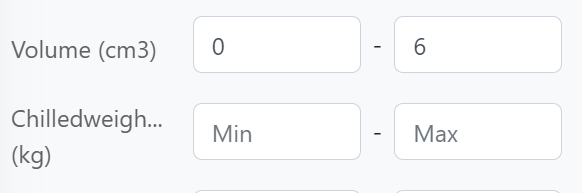
Then, set each vehicle’s minimum and maximum capacity.
- Maximum is a hard constraint (the engine will not exceed it).
- Minimum is a soft constraint (the engine may go below it if no feasible result is found).
-
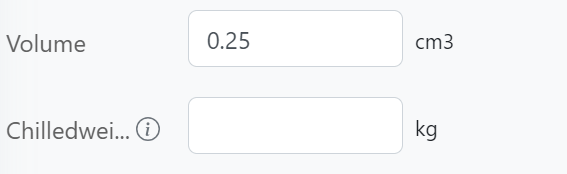
Each visit can also define how much capacity it consumes.
If nothing is filled in the visit, it is treated as
0. You can configure this in Routing ➝ Visit for each visit:
You can create more capacity constraint definitions, but each hub can only select up to 10 constraints. The list of available constraints is the same across all hubs in your organization, but each hub can choose which constraints to actually use.
Working Time
Working time defines the time range during which a vehicle is allowed to operate. The routing engine will not assign visits outside this range. If Return to hub is enabled, the return trip to the hub must still fit within this allowed working time. You can also set working time to span more than one day if you want to plan multi-day routes in one run. You can configure this in Routing ➝ Vehicle for each vehicle: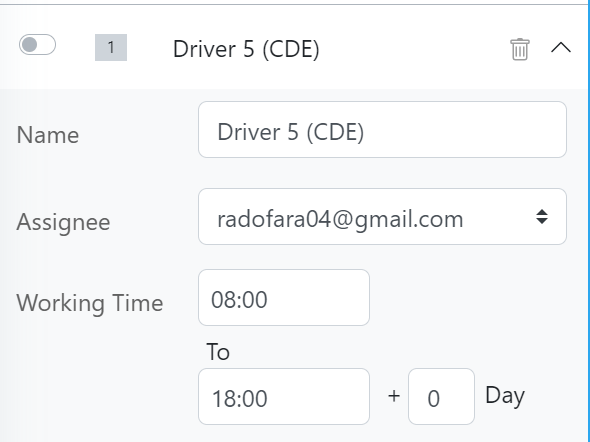
Cost Factor
The cost factor defines vehicle priority. It represents a cost multiplier. Example: If Vehicle A has a cost factor of1 and Vehicle B has a cost factor of 10, then using Vehicle B is considered ten times “more expensive” than Vehicle A.
This is useful when you have internal fleet and external vendor fleet.
You can assign a low cost factor (e.g. 0) to your internal fleet and a higher cost factor (e.g. 10) to vendor vehicles. The engine will try to use cheaper vehicles first.
You can configure this in Routing ➝ Vehicle for each vehicle:

Auto Speed
When Auto speed is enabled, the engine will estimate each vehicle’s speed based on historical performance in that area. If Auto speed is disabled, you can manually define the vehicle’s speed in km/h. This is useful if you want to assume slower or faster movement than historical data. You can configure this in Routing ➝ Configuration: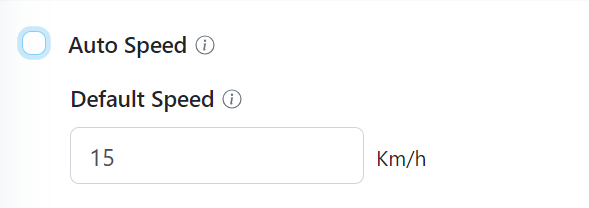
If Auto Speed is enabled, the per-vehicle speed field will be disabled.
Return to Hub
Return to hub makes sure that each vehicle returns to the hub as the final leg of its trip. The return trip must still respect the vehicle’s working time. For example, if a vehicle’s working time is 8 AM–5 PM, it will be routed to return to the hub before 5 PM.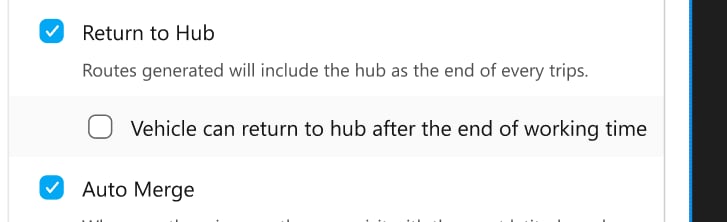
false, the vehicle does not have to return to the hub. The trip can end at the last visit.
This option is automatically enabled when Multi Trip is turned on.
Multi Trip
Multi Trip allows a vehicle to return to the hub, reset its capacity constraints, and then continue with another trip in the same day.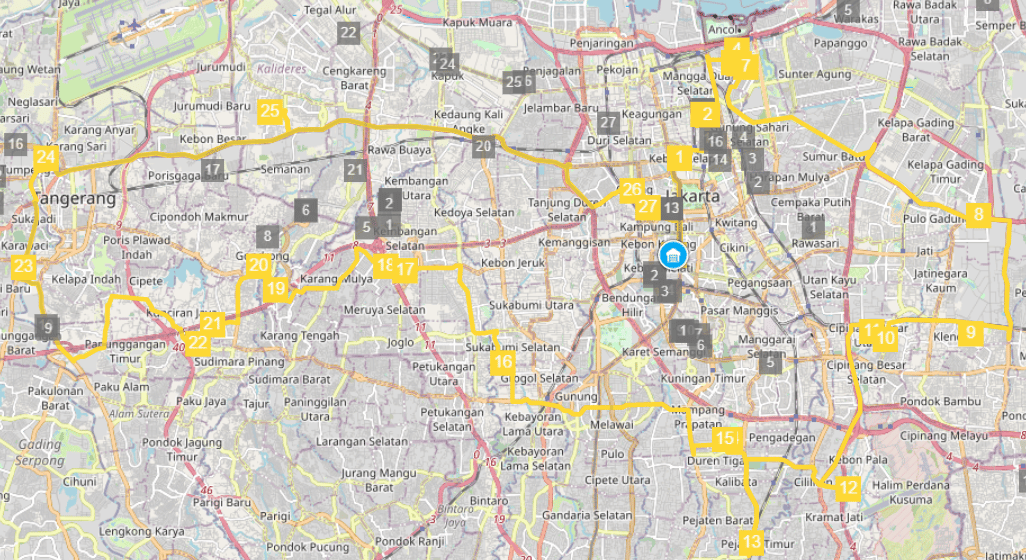
Clustering
When Clustering is enabled, the routing engine groups nearby visits together to reduce overlap between vehicles’ service areas. Without Clustering: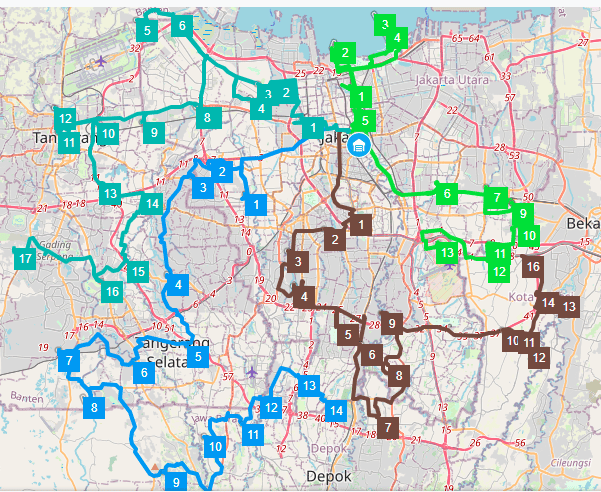
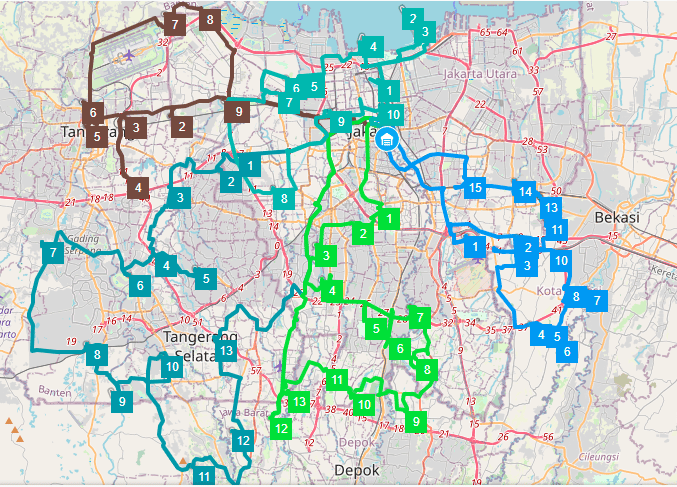
Use All Vehicle
When Use all vehicle is enabled, the routing engine will try to use all available vehicles instead of trying to minimize the number of vehicles used. This is useful if you want to distribute work more evenly.Auto Split
When Auto Split is enabled, if a visit’s capacity is larger than what any single vehicle can carry (among vehicles with matching tags), that visit will be automatically split into multiple smaller visits. This allows the system to generate a solution without dropping that visit. Read more here for details.Auto Merge
When Auto Merge is enabled, multiple visits with the exact same coordinates will be treated as a single combined visit and scheduled back-to-back on the same vehicle. This prevents the same customer (same location) from being assigned to multiple vehicles. Read more here for details.Visit Group
Similar to the tag system: When enabled, visits that are assigned to the same vehicle will be grouped and ordered by priority. A lower number indicates a higher priority. Read more here.Flow Configuration for Routing Parameters
Before using the routing system, you need to connect Flow components to routing visit parameters. You can configure this in Flow ➝ Configuration ➝ Route: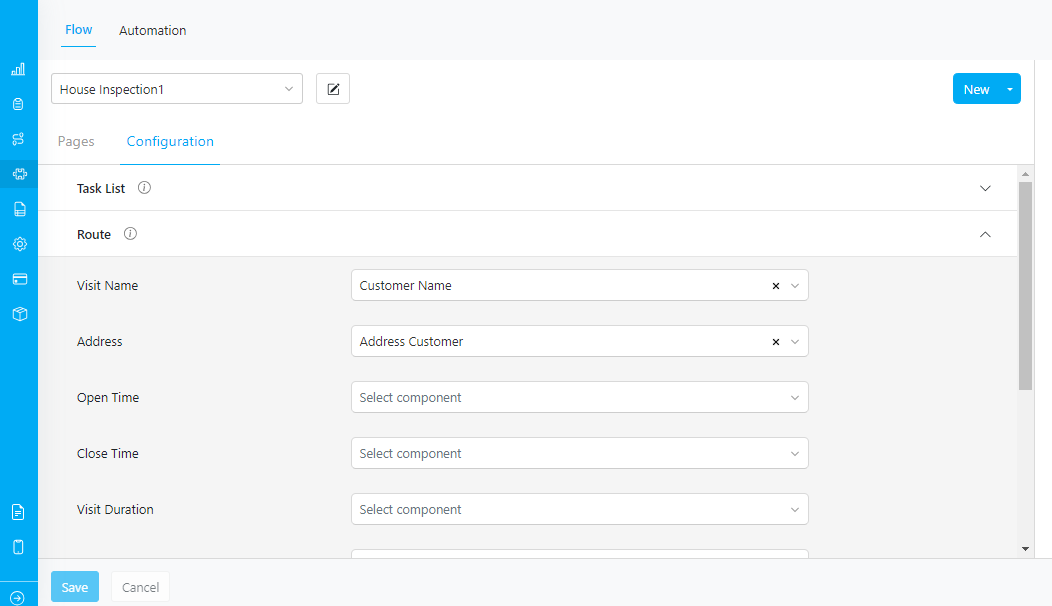
Feature: Dynamic Routing
Dynamic routing ensures that routed visits stay with the same vehicle even after re-routing. If new visits are added after optimization, previously assigned visits will not be reassigned to different vehicles. The package icon will be displayed next to the visit name, as shown below: