

Defining Visit Groups
You will find two new inputs: Grouped Visit and Priority: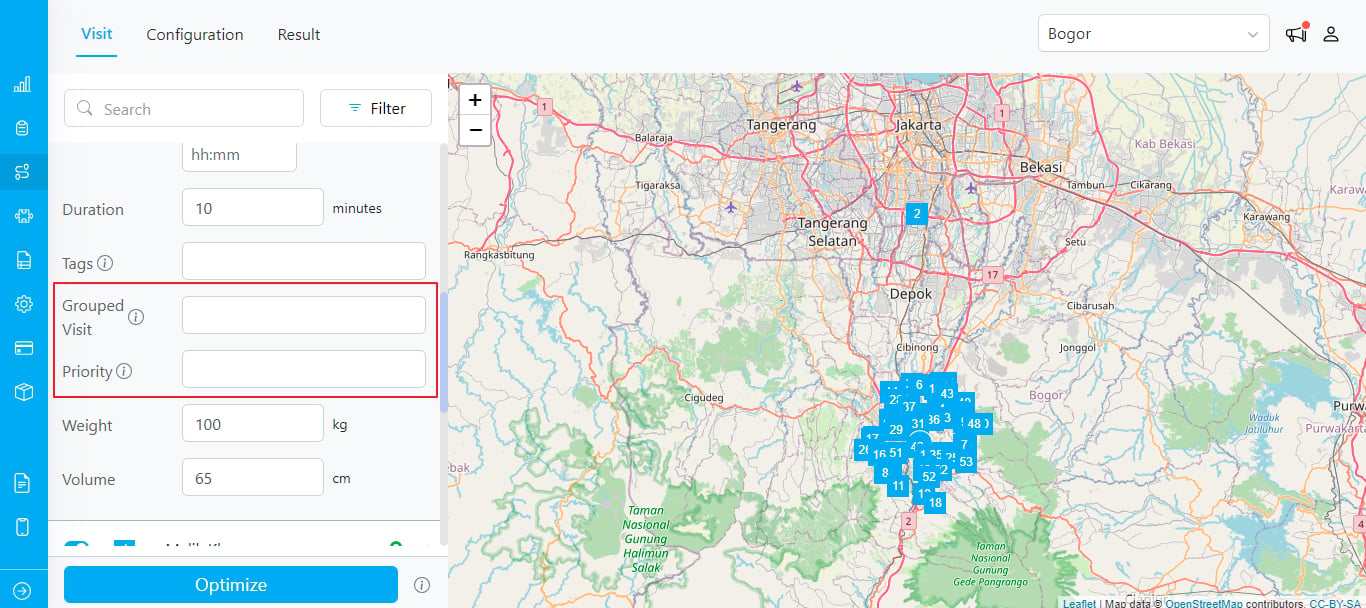
- Visit Group: This field allows you to assign visits to specific groups and ensure the same group is assigned to the same vehicle. Leave it empty if you want the routing to ignore visit grouping.
- Priority: Specify the priority of visits within a group. The default priority is set to 0, with a range from 0 to 100. A lower number indicates a higher priority.
- Per Vehicle Sheet: New columns “Visit Group” and “Visit Priority” are included.
- Support for Multiple Visits: The Visit Group feature supports not only two visits but also multiple visits.
- Sequential Execution: While Visit Group Priority ensures visits are executed in the specified order within a group, it does not guarantee sequential execution. Other visits might be interleaved between sequential visits.
- If you need to save the visit group in the task data, you must map it first in Flow > Configuration > Route. This ensures that when the dispatch routing result is sent, the visit group and priority are also included in the task data.