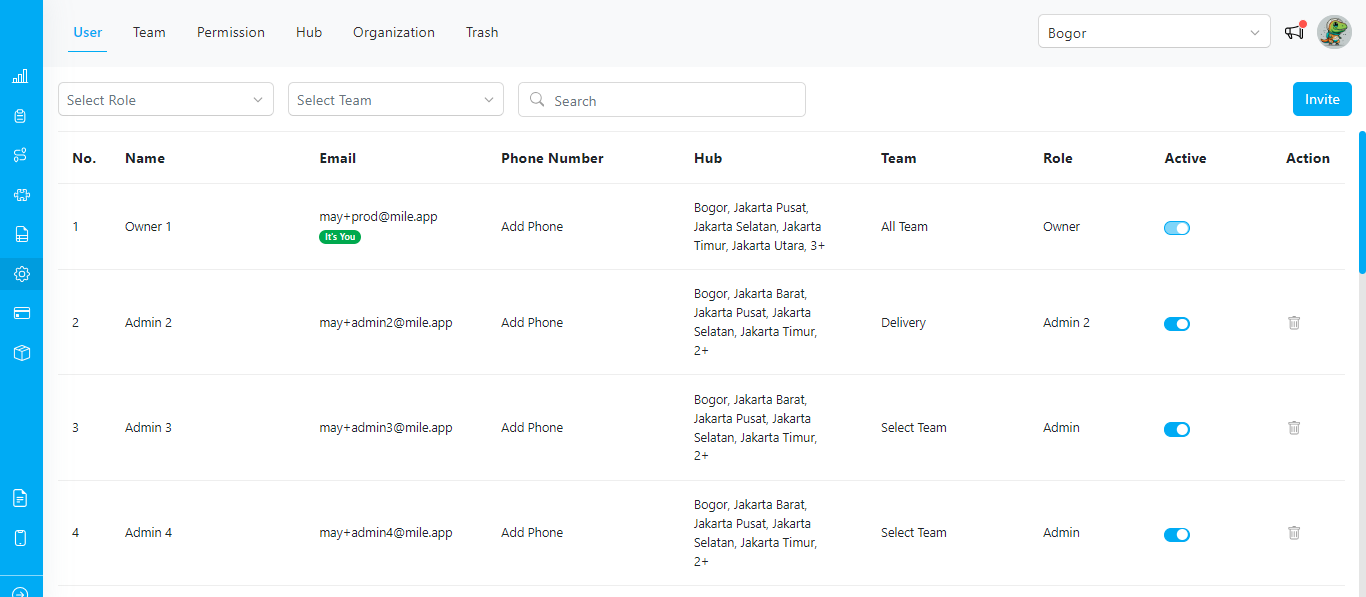
- User Management: Within the Settings menu, you will find the “Setting-User” option, which allows you to manage users. This feature enables you to create, edit, and delete user accounts.
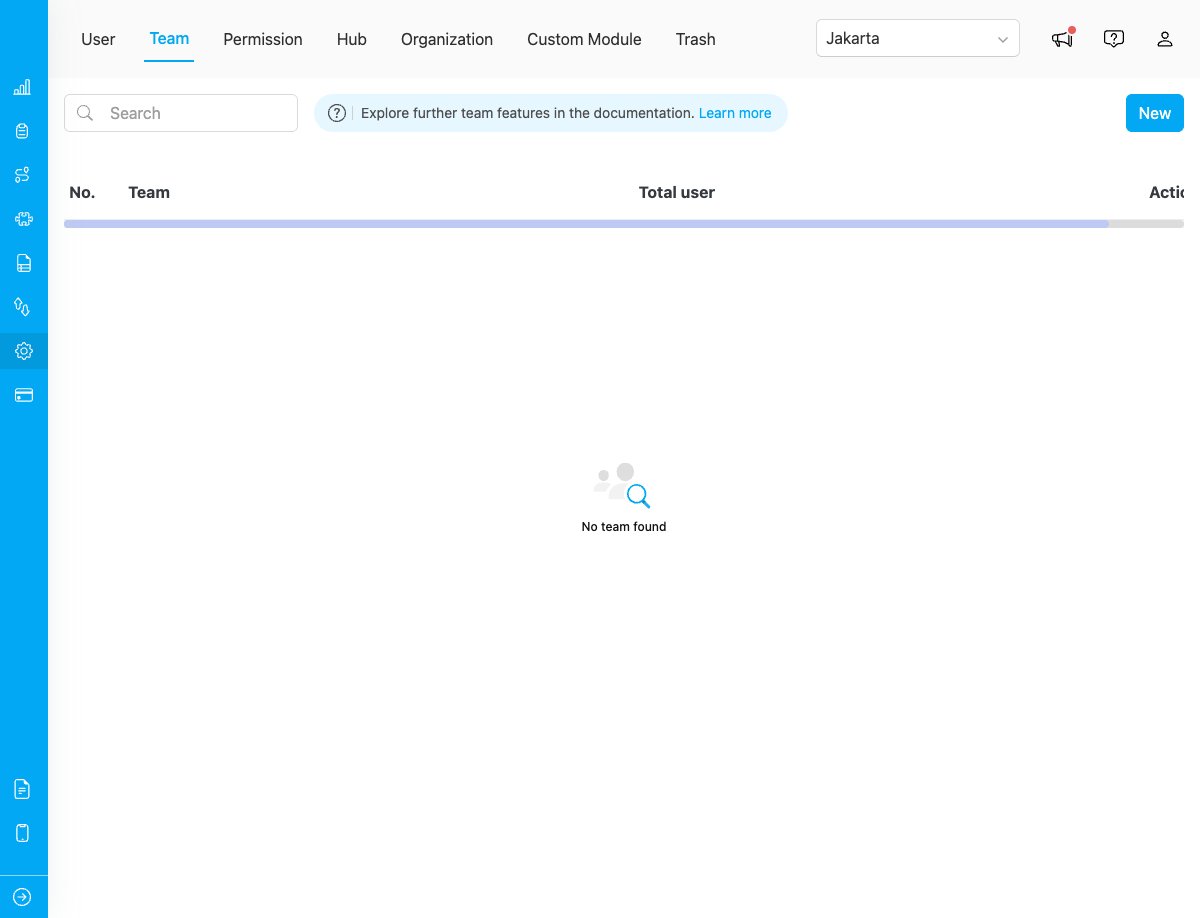
- Team Management: The “Setting-Team” option enables you to organize users into teams for better collaboration and assignment management. This feature allows you to create teams and assign users to teams. Refer to this section for more detail about Team.
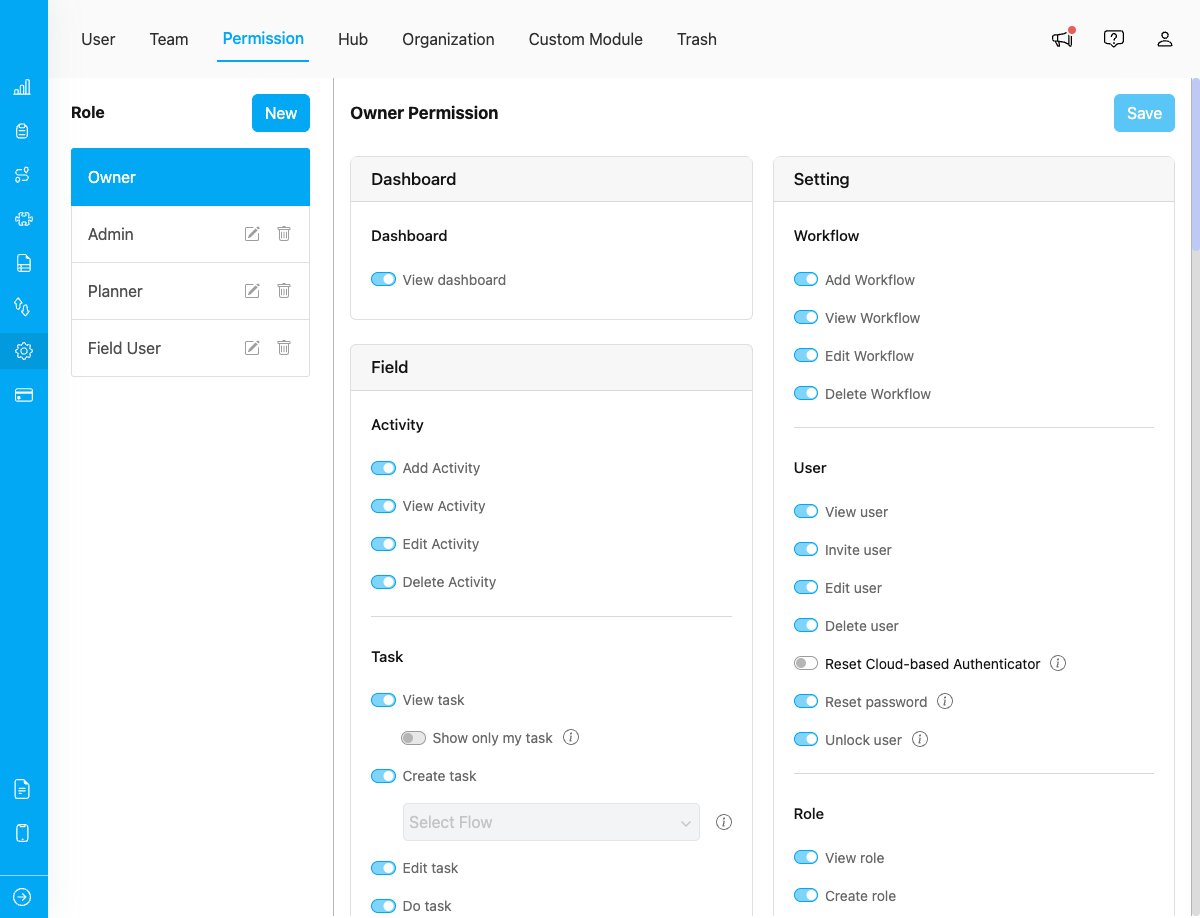
- Role and Permission Management: To effectively control access and privileges within your system, the “Setting-Permission” option provides a comprehensive role and permission management feature. This allows you to define roles and assign specific permissions to each role. By doing so, you can establish a structured hierarchy of access levels, ensuring that users have appropriate permissions based on their responsibilities and requirements.
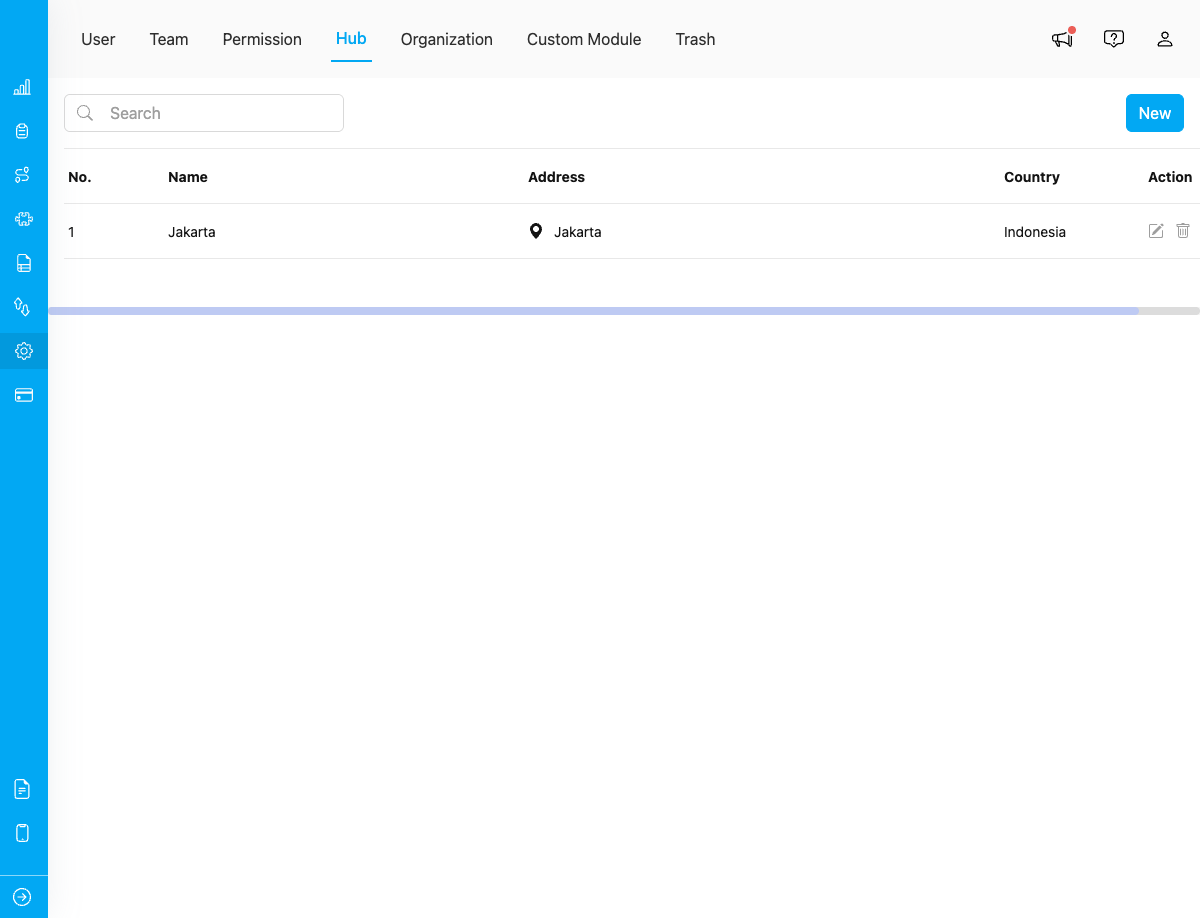
- Hub Management: The Settings menu also offers the “Setting-Hub” option, which facilitates the management of hubs. Hubs serve as central points for organizing and accessing information, data, or resources within a system. With the hub management feature, you can create, modify, and delete hubs as needed. This functionality helps streamline data organization and enhances efficient collaboration among users. Refer to this section for more detail about Hub.
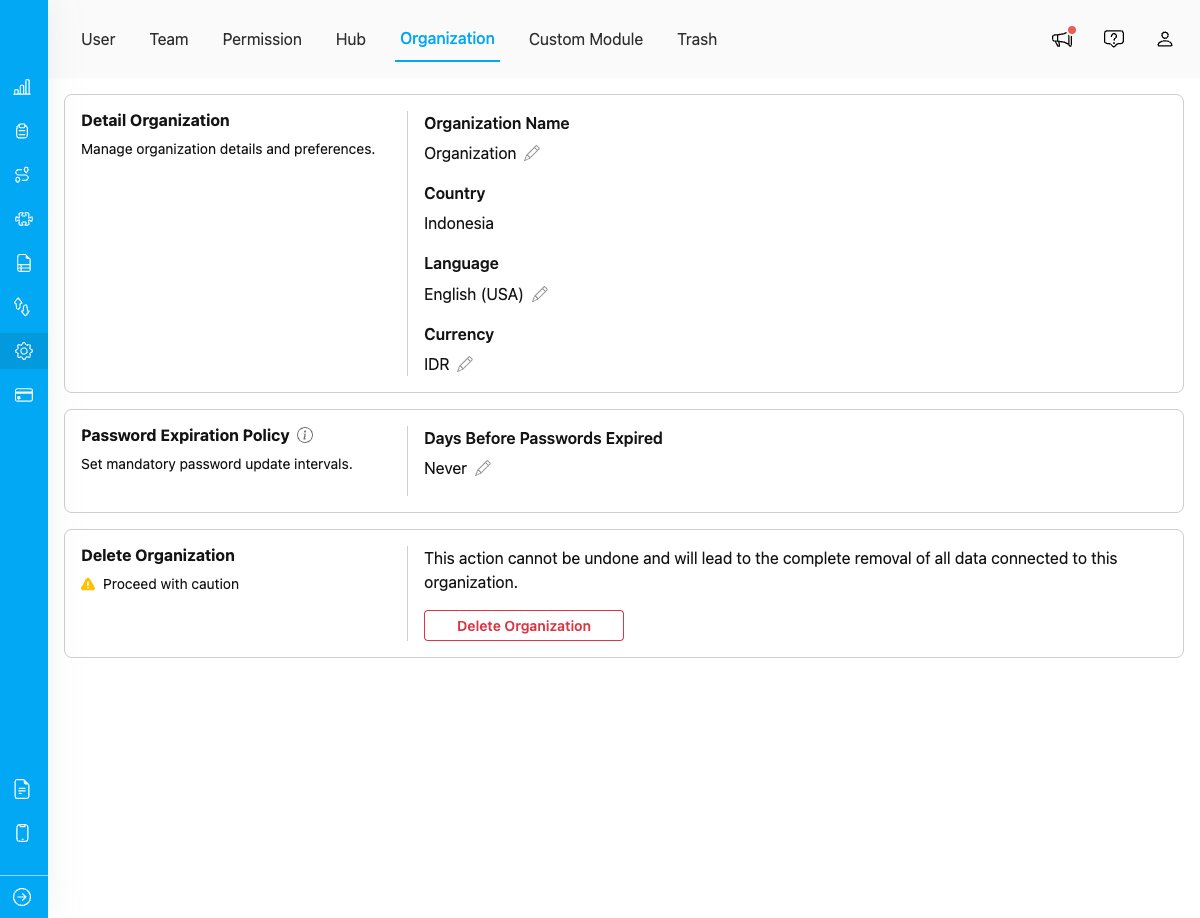
- Organization Management: The “Setting-Organization” option allows you to manage organizations within your system. This feature enables you to view and edit organization details, configure organization settings, and manage organization currency. Refer to this section for more detail about Organization.
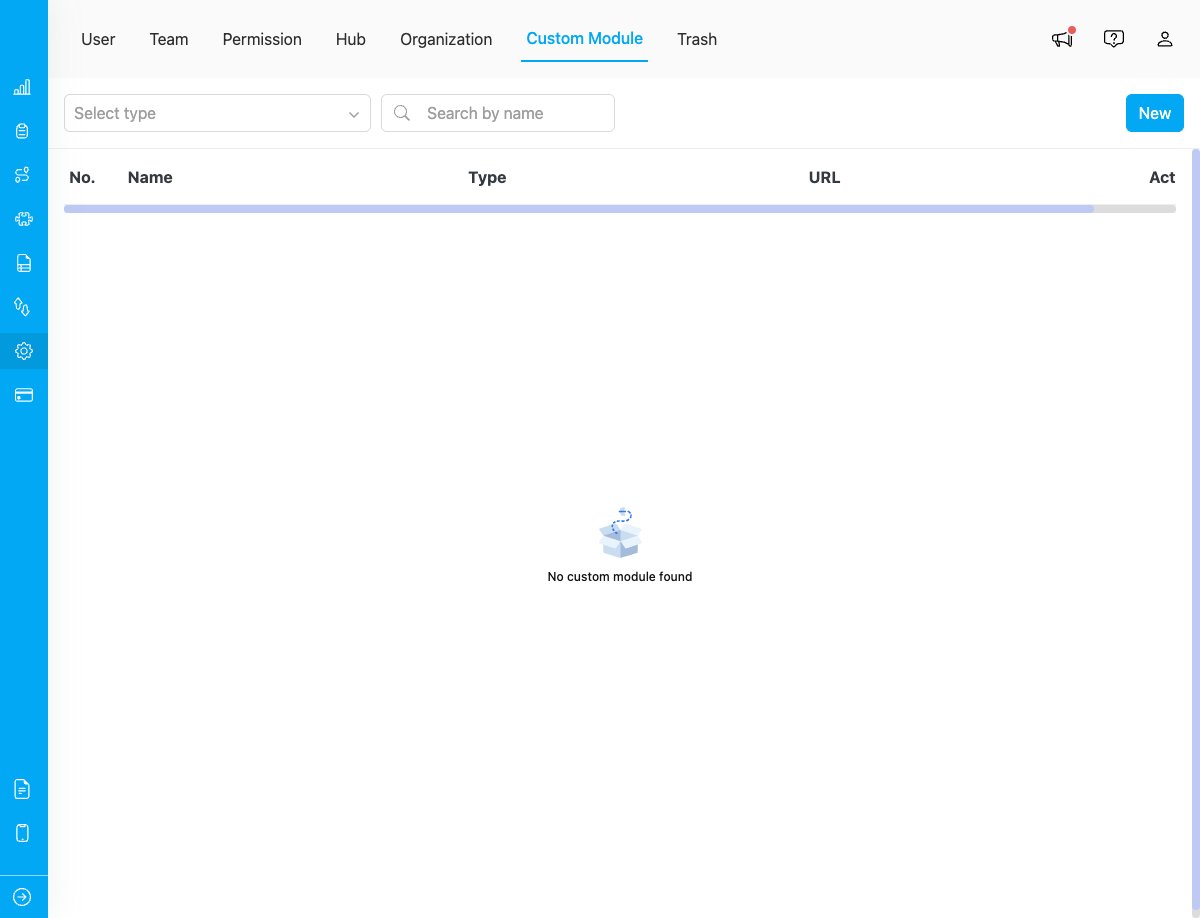
- Custom Module: The “Setting-Custom Module” option enables you to create custom menu items and integrate external applications into the MileApp interface. This feature allows you to add external links and embed iframes. Refer to this section for more detail about Custom Module.
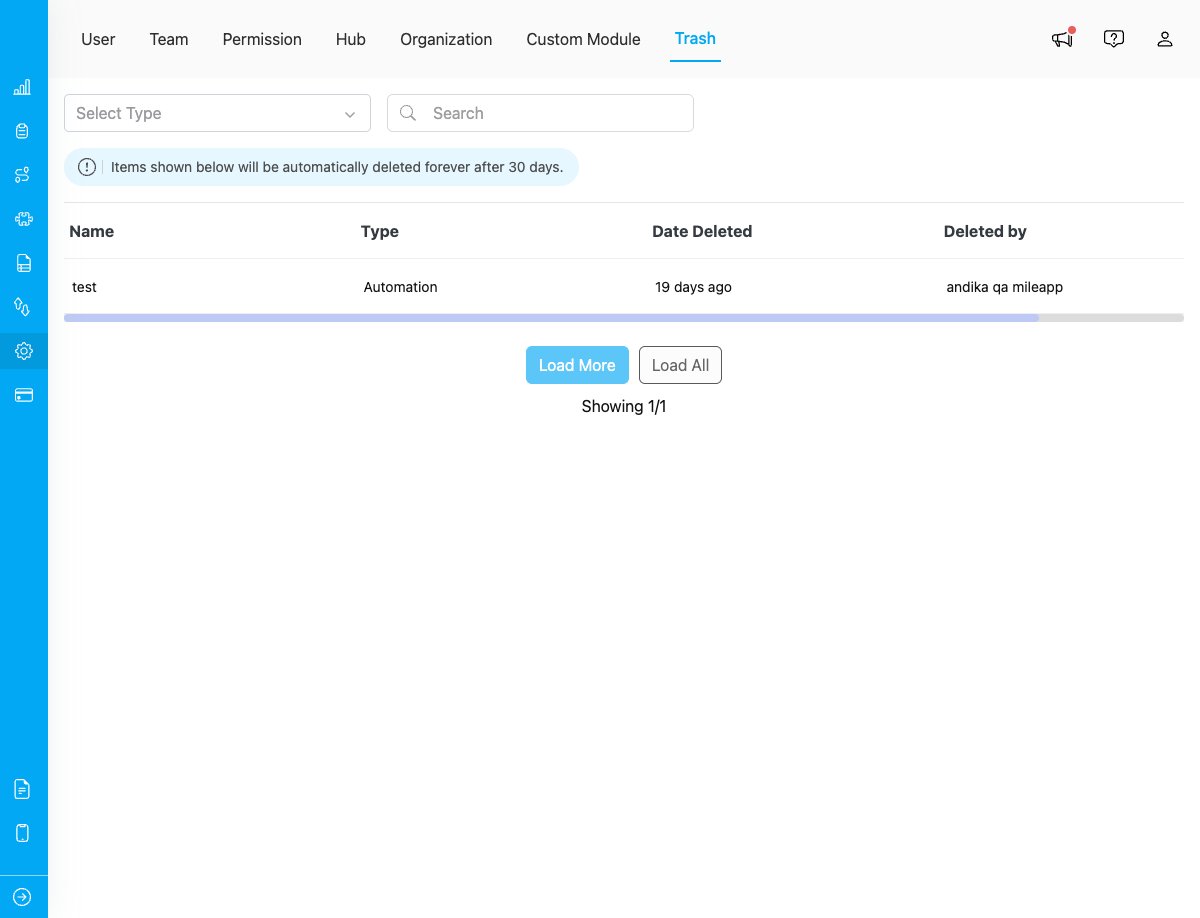
- Trash: The “Setting-Trash” option provides a recovery mechanism for deleted items across the system. This feature allows you to view all deleted items, restore them if needed, or permanently delete them. Items shown in trash will be automatically deleted forever after 30 days. Refer to this section for more detail about Trash.