

Browsing Add-Ons
To view available add-ons, navigate to Settings > Add-ons. The page displays all add-ons as cards, each showing an icon, name, and description.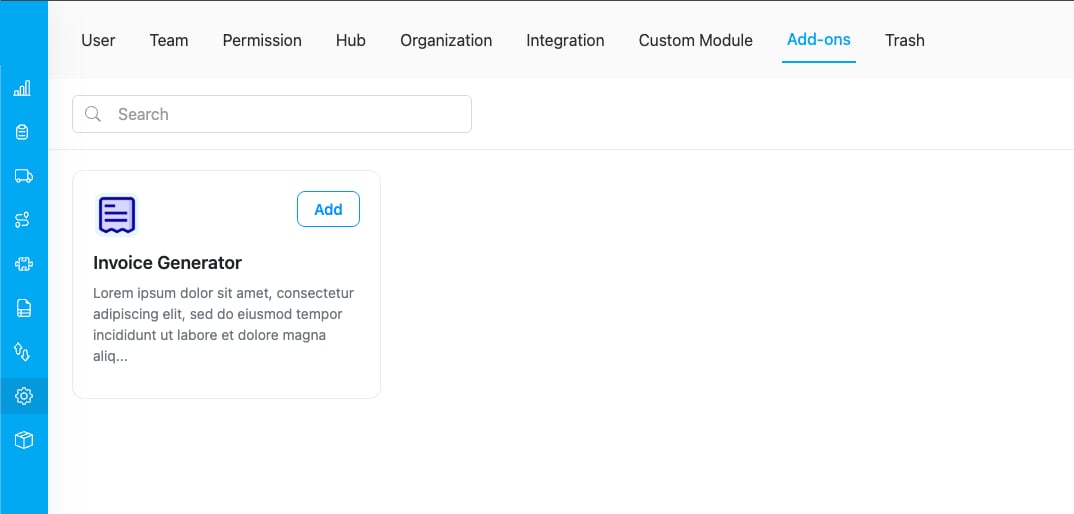
The Add-ons page lists all available add-ons. Click “Add” to install one to your organization.
Use the Search bar at the top to quickly find a specific add-on by name or description.Adding an Add-On
To add an add-on to your organization:- Go to Settings > Add-ons.
- Find the add-on you want to use and click the Add button on its card.
- A configuration dialog appears. The Name field is pre-filled with the add-on name, and the URL suffix is auto-generated from the name. You can edit both fields if needed.
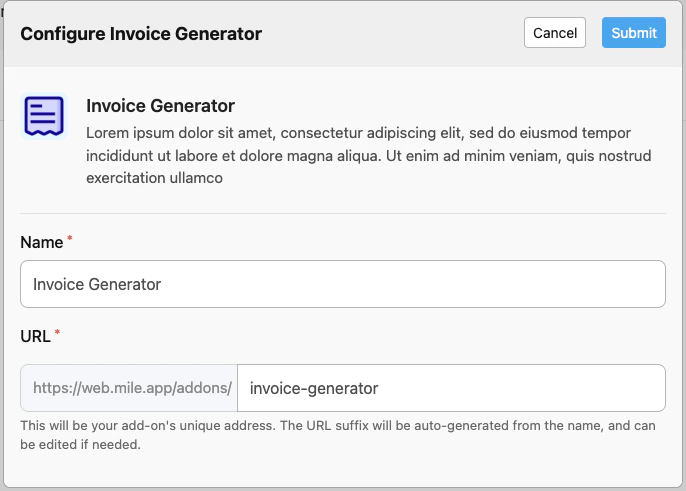
The configuration dialog lets you set a custom name and URL for the add-on. The URL suffix is auto-generated but can be edited.
- Click Submit to complete the setup.
Removing an Add-On
If you no longer need an add-on, you can remove it from your organization:- Go to Settings > Add-ons.
- Find the add-on you want to remove. Its card will show a Remove button instead of “Add”.
- Click the Remove button.
- A confirmation dialog appears. Click Yes to confirm the removal.
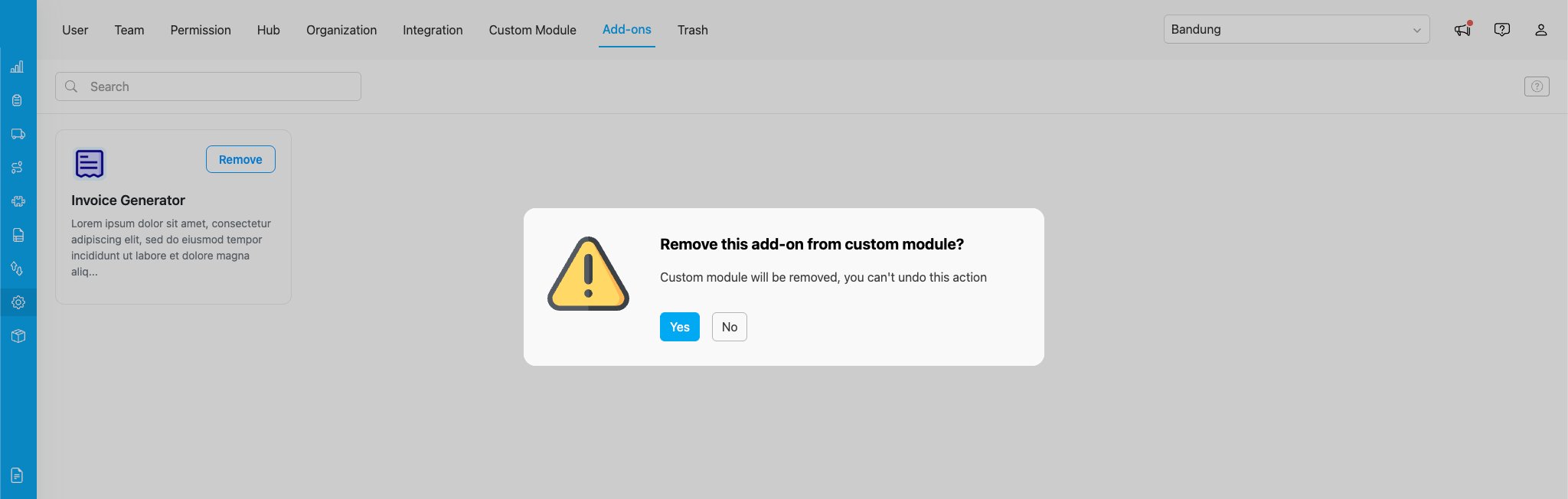
Confirm the removal. The custom module and its associated permissions will be deleted from your organization.
Available Add-Ons
Next Steps
- Discord Notification — Set up automated Discord alerts
- Invoice Generator — Create and print invoices from task data
- PDF Generator — Design multi-page PDF documents with advanced features
- Sales Target — Configure sales targets and track progress