

Understanding Activity
- Activity (main task) — the parent row that represents the whole multi-step process. Its title is the Workflow’s name.
- Step task (subtask) — one task per Workflow step, listed under the parent Activity in the order the Workflow defines.
- Workflow — the template that lists the steps, the Flow each step uses, and any field mappings that copy data from one step to the next. Workflows are configured in the Flow menu.
Creating an Activity
Step 1: Open the Create Activity form
Go to the Task menu, then open the New dropdown and choose Activity.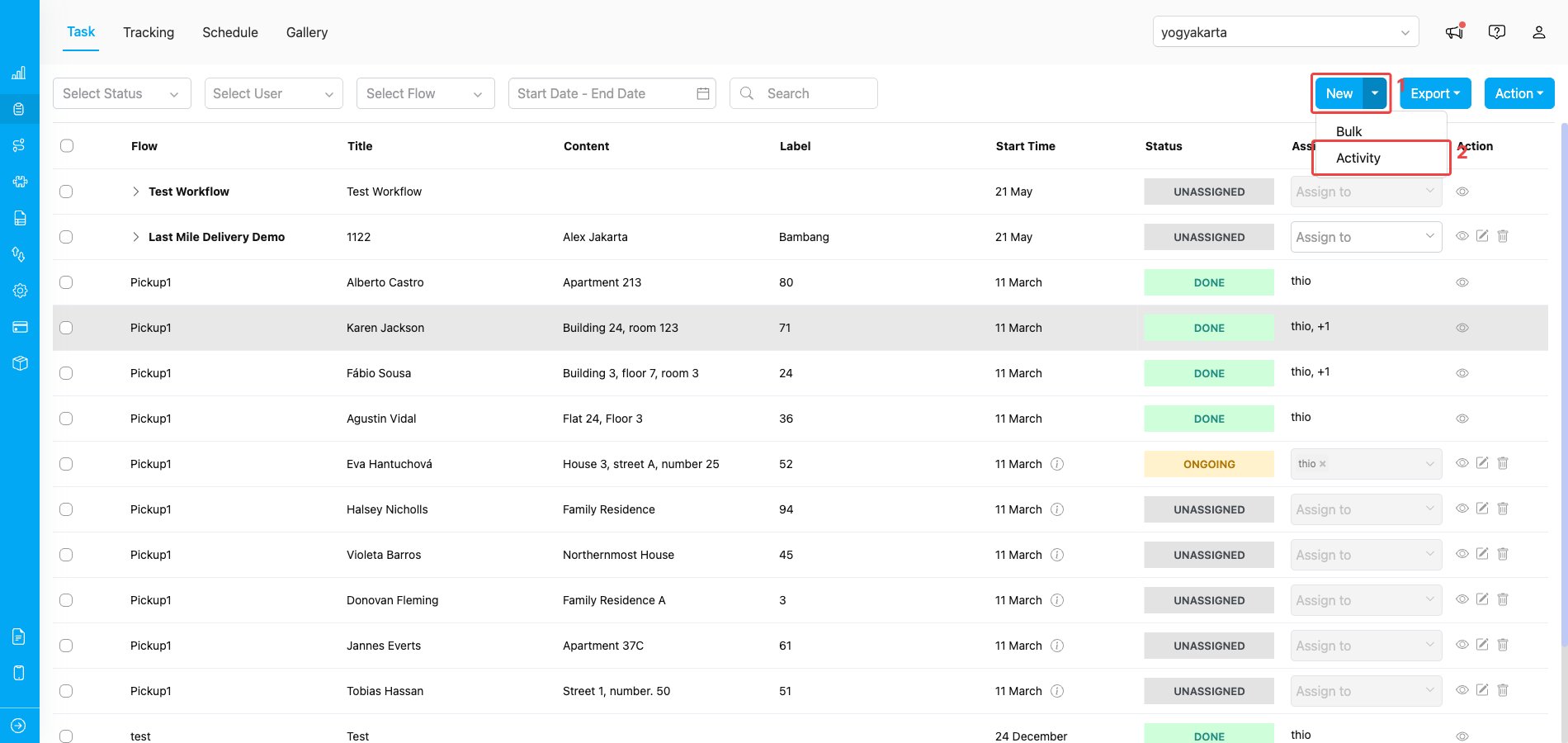
Opening the Create Activity form from the Task page
- New — click the dropdown arrow next to the New button at the top-right of the Task page.
- Activity — pick the Activity option from the dropdown to open the Create Activity form.
Step 2: Select a Workflow
The Create Activity modal opens with one field at the top: a Workflow dropdown. Pick the Workflow you want to run.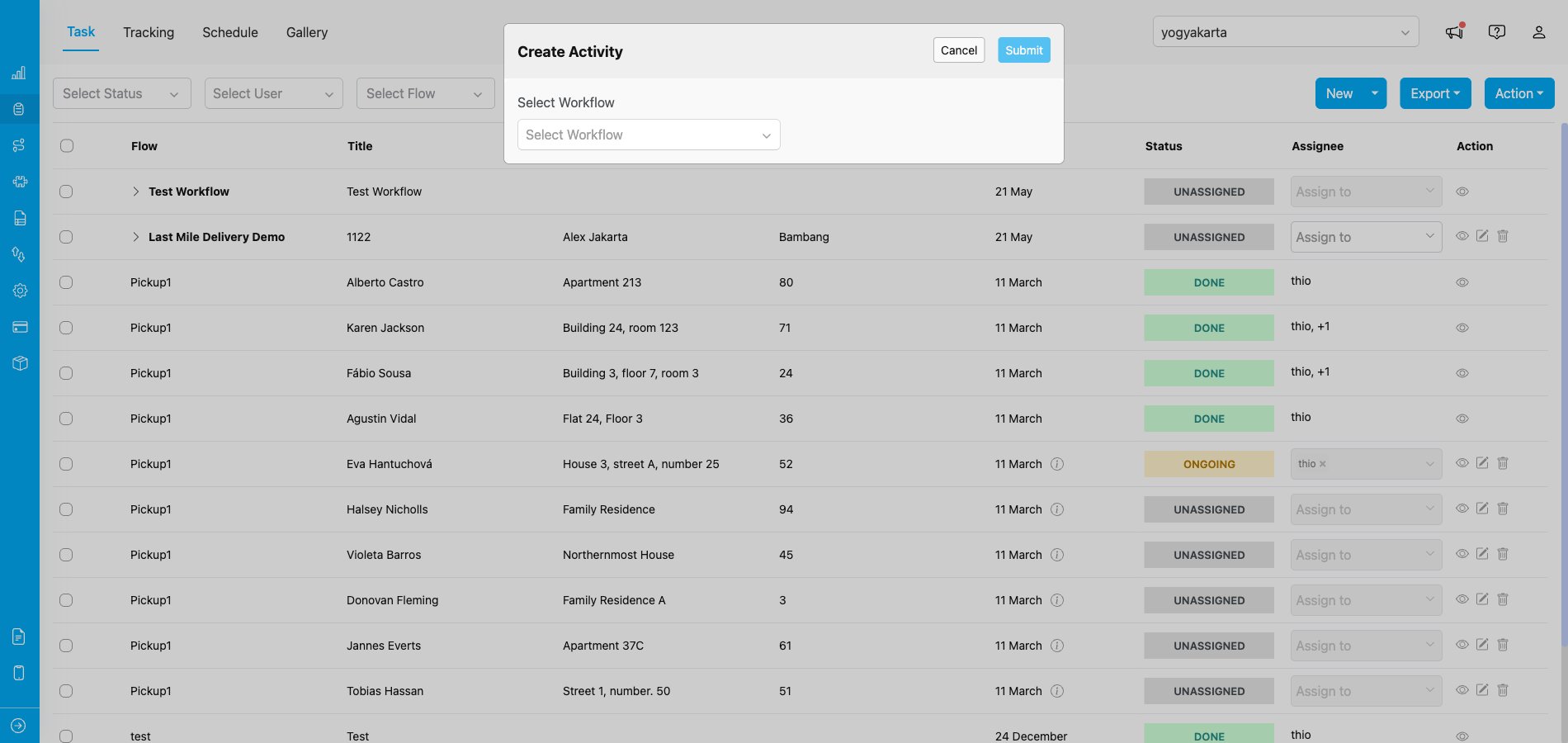
The Create Activity modal — only the Workflow dropdown is visible until you pick one
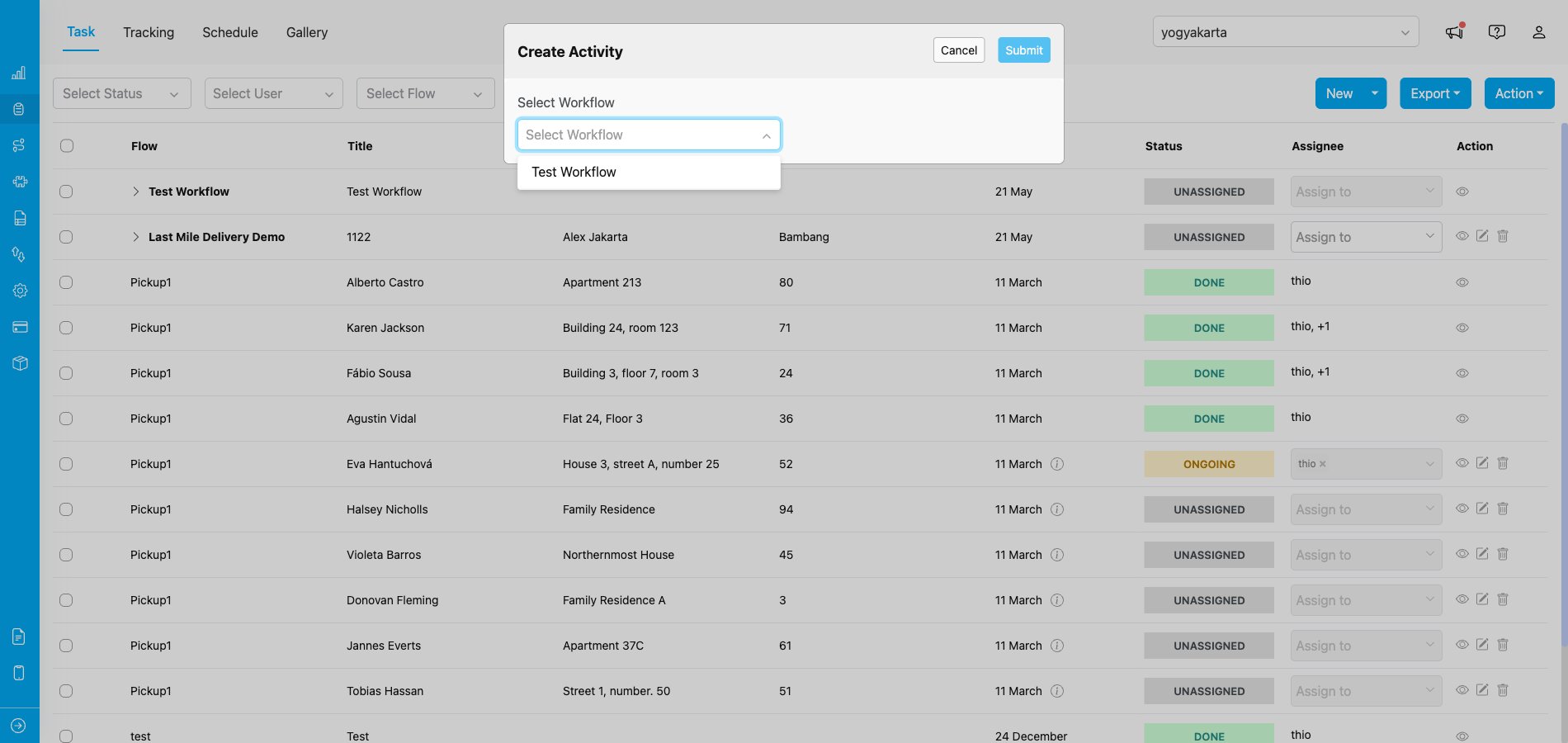
Workflow dropdown showing the Workflows you can choose
Step 3: Fill in the step form
Once you pick a Workflow, the form expands and shows one section per step, in the order defined by the Workflow. For each step you fill in:- The fields from the step’s Flow (any field already covered by a Workflow field mapping is pre-filled with the value from the earlier step).
- Start time and End time — when that step’s task should run.
- Assignee — the user who should own that step’s task (optional; can be left empty and assigned later).
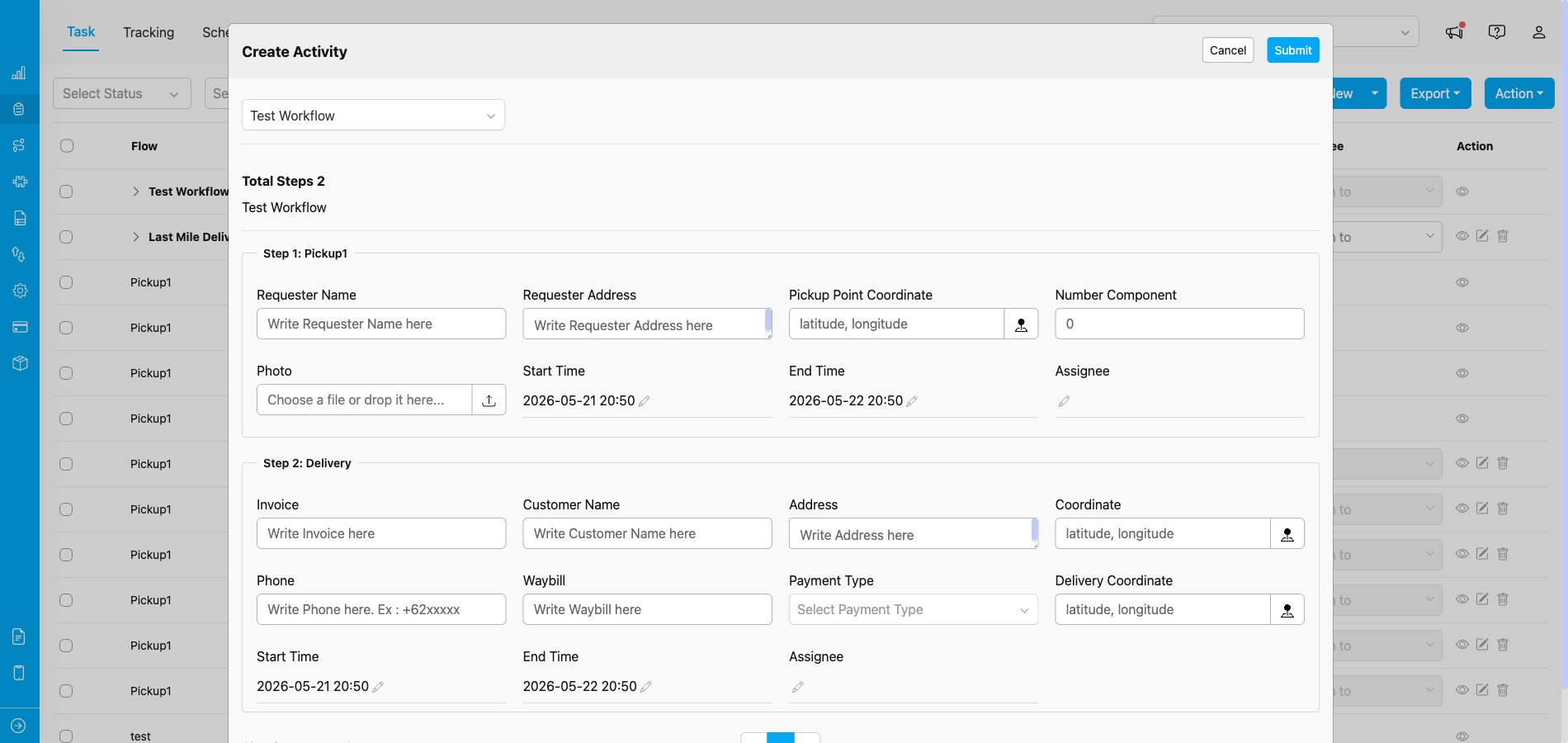
Multi-step form showing every Workflow step on one screen — here, Step 1: Pickup1 and Step 2: Delivery
Step 4: Submit the Activity
Click Submit to create the Activity. MileApp creates the parent Activity together with one task per Workflow step in a single operation, and a confirmation toast appears. The parent Activity’s Start time and End time are calculated automatically — the earliest start time and the latest end time across all step tasks. The Activity status is Ongoing if at least one step has an assignee; otherwise it stays Unassigned.Viewing Activities in the Task List
Activity row (collapsed)
In the Task list, each Activity is represented by a single parent row that can be expanded to reveal its step tasks underneath.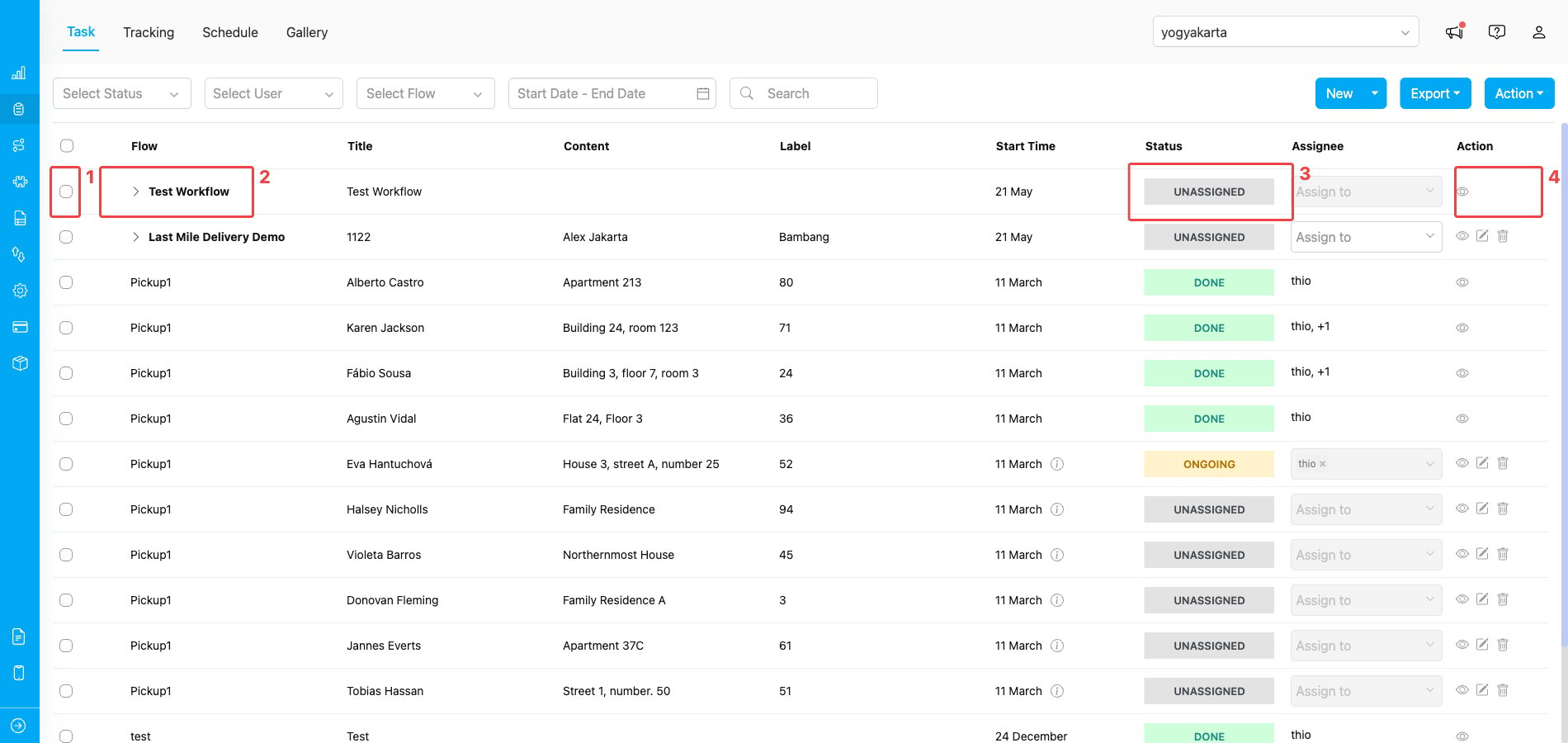
How a collapsed Activity row looks in the Task list
- Row selector — the checkbox at the left of the row, used to select the Activity for bulk actions.
- Workflow name with chevron (►) — the Activity title is the Workflow’s name. Click the chevron icon next to the name to expand or collapse the step tasks under it.
- Status — the overall status of the Activity, aggregated from its step tasks.
- Row actions — the action icons on the right of the row (e.g., the eye icon to view the Activity).
Activity row (expanded)
Click the chevron (►) next to the Workflow name to expand the row. The step tasks appear indented underneath the parent, in the order defined by the Workflow.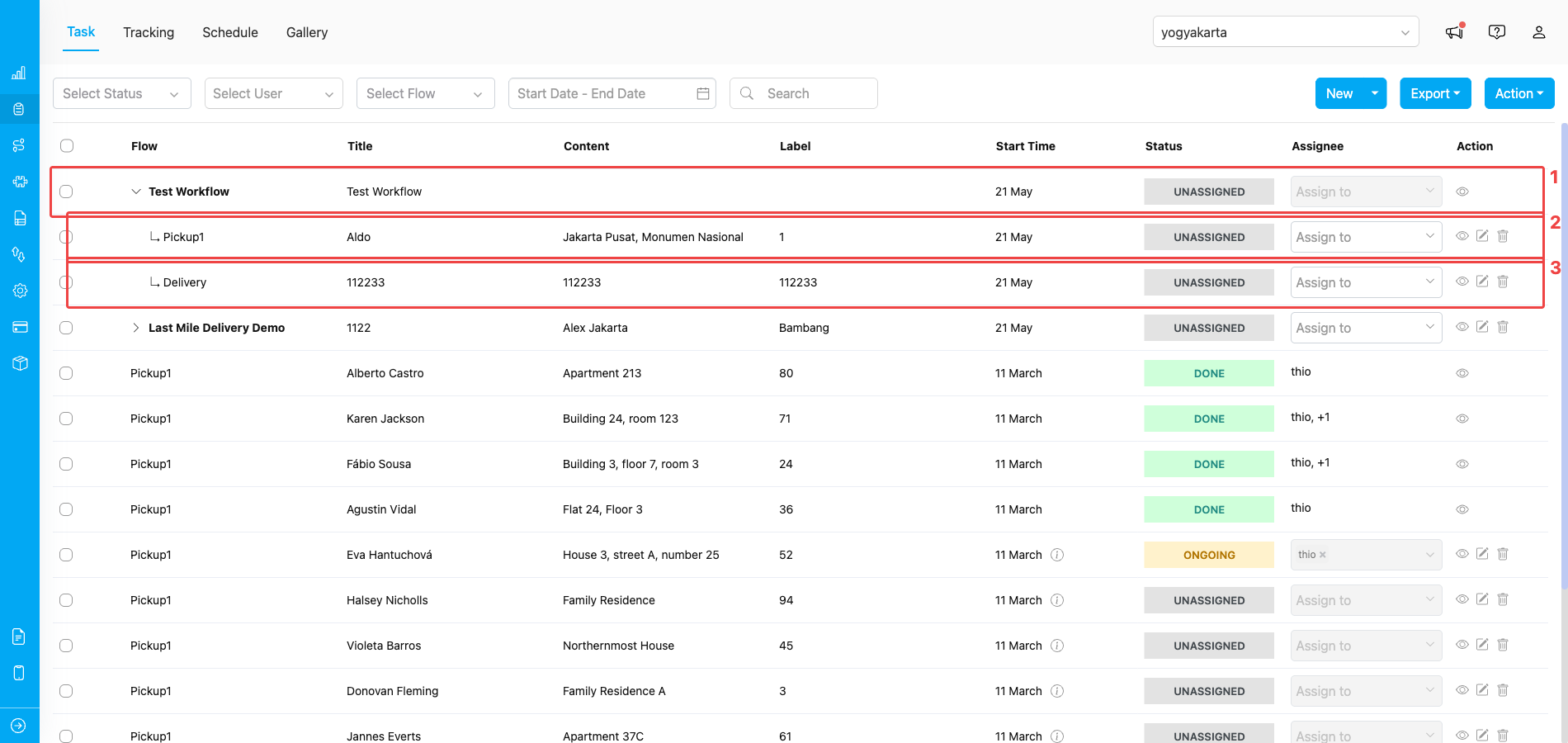
An expanded Activity revealing the step tasks underneath
- Parent Activity row — the row whose Flow column shows the Workflow name. Click the chevron again to collapse the group.
- Step 1 task — the first step task, indented with an
↳marker under the parent. - Step 2 task — the next step task, also indented under the same parent.
Viewing Activity Details
Click the eye icon on the Activity row or on any step task row to open the Detail Task dialog.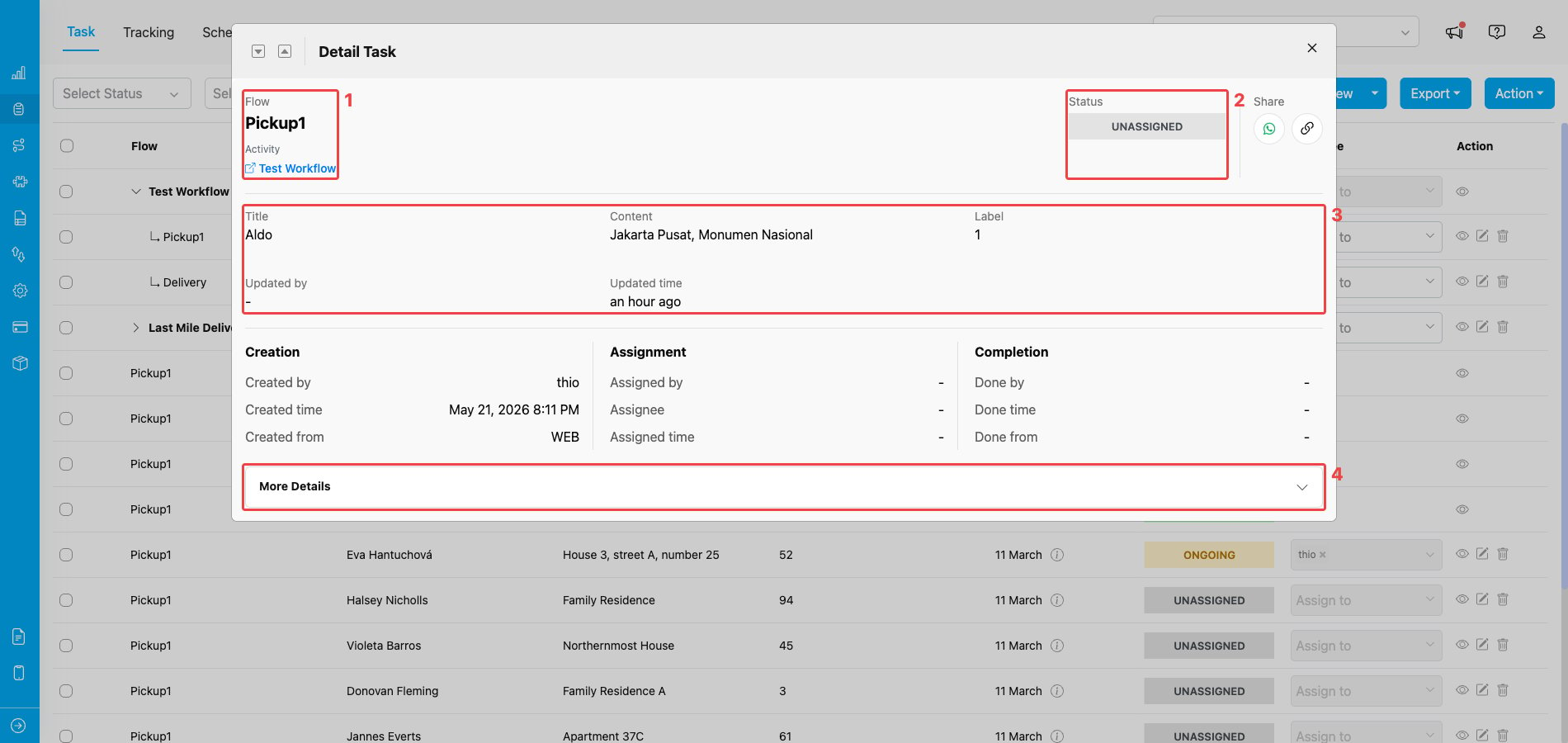
Detail Task dialog opened for a step task in an Activity
- Flow + Activity link — the Flow name of the step task, plus a link back to the parent Activity (the Workflow name). Click the link to jump to the parent Activity.
- Status — the current status badge of this step task.
- Field data area — the captured field values for this step task, plus Updated by and Updated time.
- More Details toggle — click to expand the lower section that contains the Field, History, and Other tabs.
- Creation — Created by, Created time, Created from.
- Assignment — Assigned by, Assignee, Assigned time.
- Completion — Done by, Done time, Done from (filled in only after the step task is completed).
More Details
Click More Details to expand the lower section. It shows a tab bar followed by a panel for the active tab.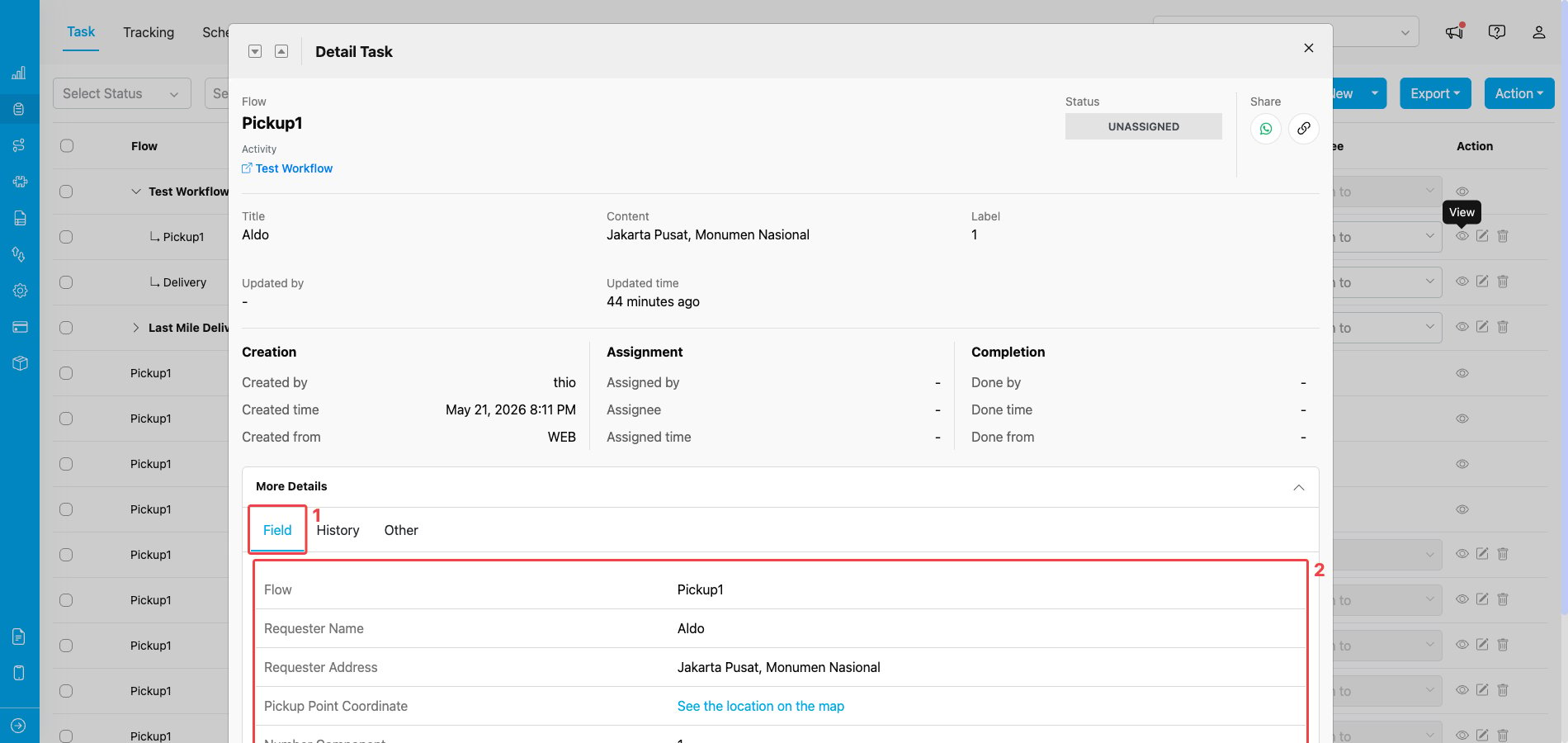
More Details expanded with the Field tab selected
- Tab bar — three tabs you can switch between: Field, History, and Other.
- Field panel — when the Field tab is selected, this panel lists every Flow field captured on the step task with its label and stored value.
- Field — all the Flow fields captured on the step task and their current values.
- History — a timeline of events recorded for this step task (creation, assignment, status changes, edits, completion).
- Other — extra metadata such as related identifiers and additional system fields.
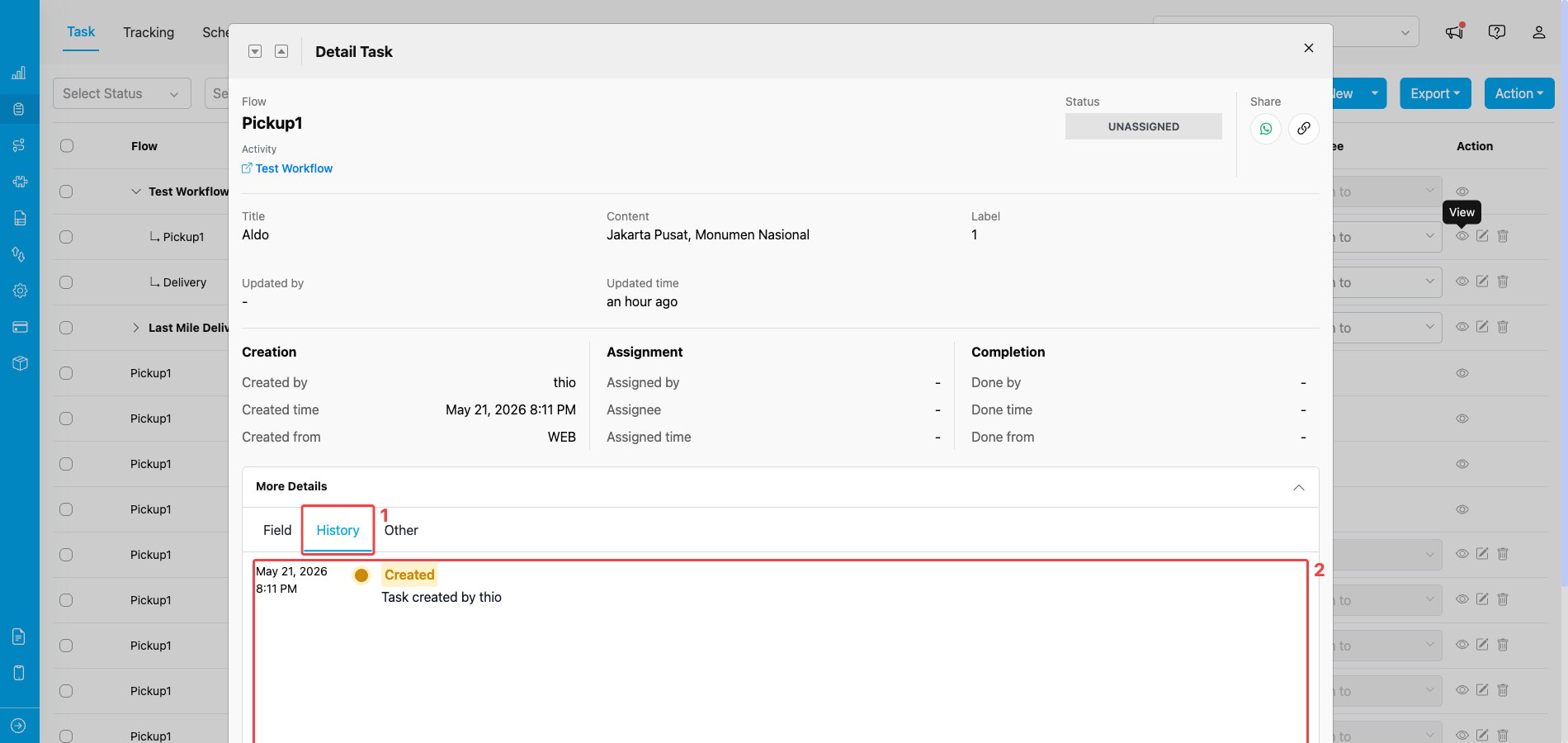
More Details with the History tab open, showing the recorded events for the step task
- History tab — selected (highlighted in blue). Click any other tab to switch back.
- Timeline panel — each entry shows a timestamp, the event type (for example Created), and a short description of what happened.
Managing Step Tasks
Each step task row in the expanded Activity view has its own action icons:- View — open the step task’s detail dialog.
- Edit — open the edit modal to change the step task’s fields, schedule, or assignee.
- Delete — open the deletion confirmation for the whole Activity (step tasks cannot be deleted individually).
- Do Task — open the task execution view to complete the step task directly from the web.