Required permission:
  • View Flow
  • Create Flow
image

Flow Menu Display

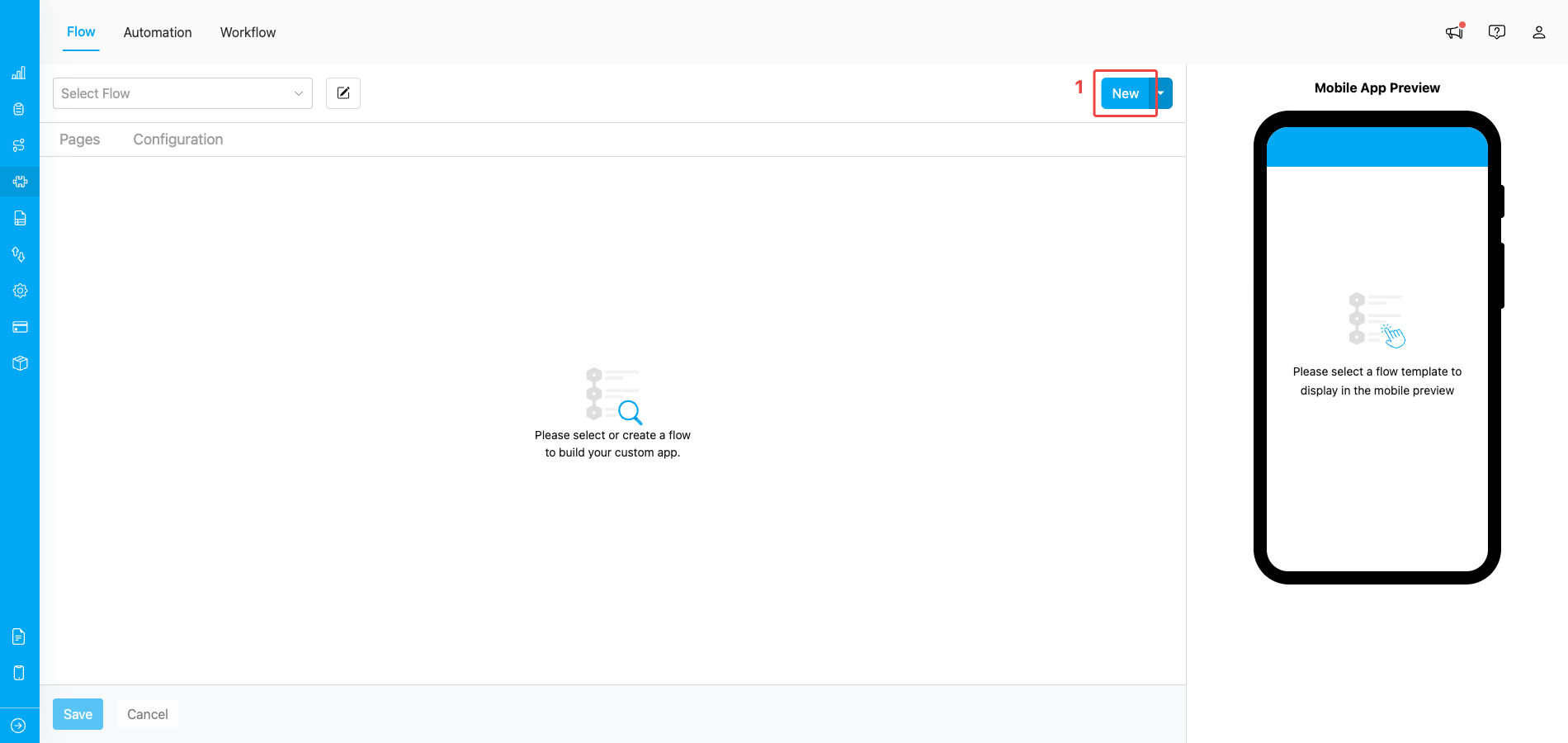
Flow settings are managed within the Pages & Configuration tab. You can only create or edit flow settings through the web interface. To create a new flow, click the New Flow button (1). The information you configure in the flow settings may appear in the web app, the mobile app, or both, depending on the flow type. Creating a flow from scratch will provide you with a blank flow that can be fully customized to suit your needs. However, for first-time users, we do not recommend starting with a blank flow, as it requires a basic understanding of how to properly configure a flow. We have also provided several ready-to-use flows that are pre-generated and automatically set up when you register your account. You can either use them as they are or customize them to suit your needs:
  • Pickup:
  • Delivery:
  • Field Sales:
  • Field Canvassing:
  • Home Cleaning:
  • House Inspection We advise first-time users to explore the ready-to-use flows or flow templates before creating one from scratch.
Building a flow using template
image

Flow Menu Display

image

Flow Use Template Display

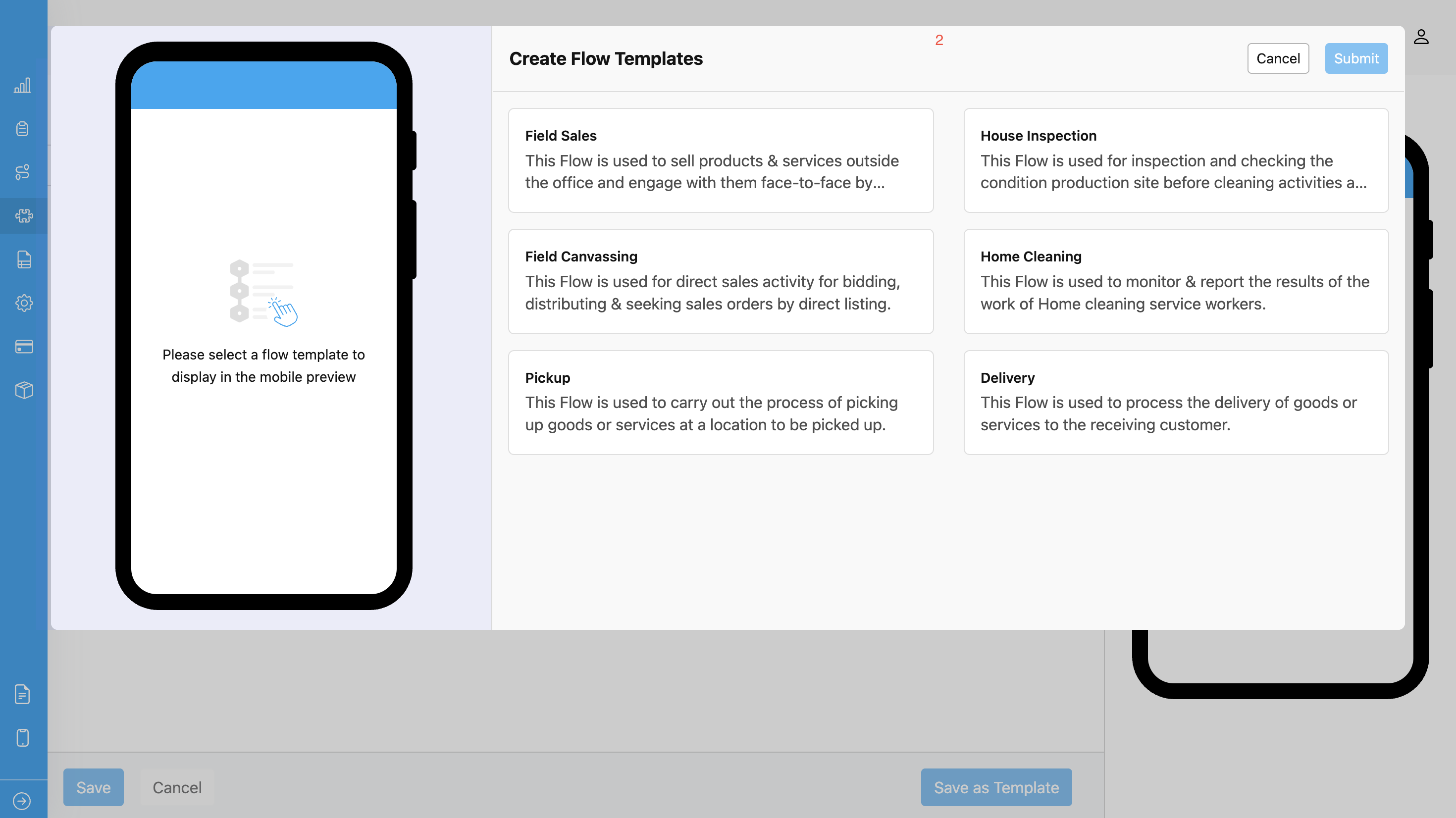
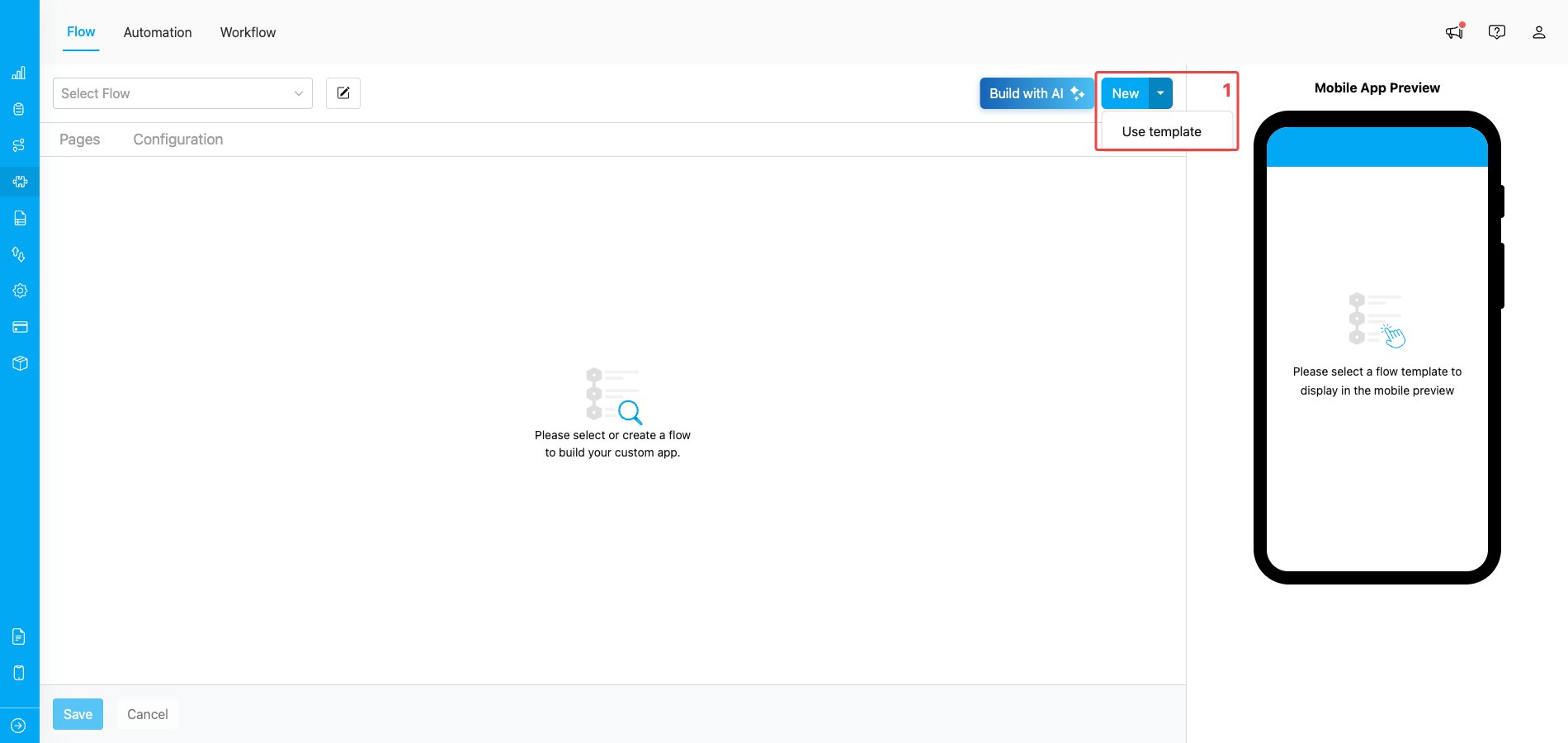
  1. Templates allow you to choose from a variety of options across different industries. Keep in mind that before using these predetermined templates, you may need to adjust them to meet your specific requirements. We recommend trying the pre-generated flow if it’s your first time, as it helps you understand how the Flow works on both the web and mobile apps.
  2. In the template menu, you can explore templates from various industries. Use the search function to quickly find the template that best suits your needs.