

Step 1: Open the Flow page
Sign in to MileApp on the web and open the Flow menu from the sidebar. This is where every Flow is created, edited, and managed. If your account has no Flow yet, the page will appear empty as shown below.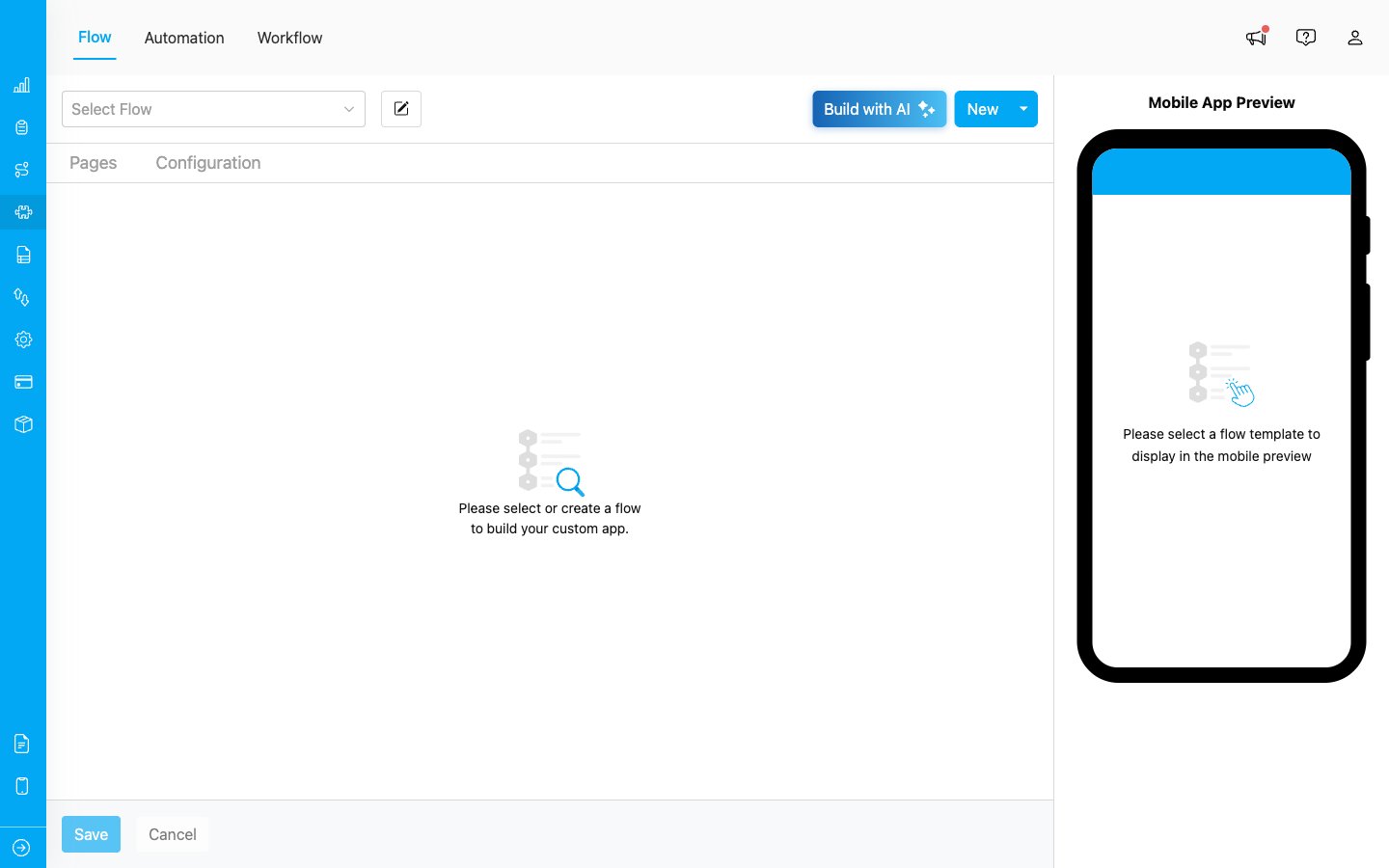
The Flow page — starting point for managing every Flow
Step 2: Create or select a Flow
You can either build a new Flow or use one of the ready-to-use templates provided by MileApp.- Click New to start a Flow from scratch or from a template (recommended for first-time users).
- Click Select Flow to open an existing Flow and continue editing it.
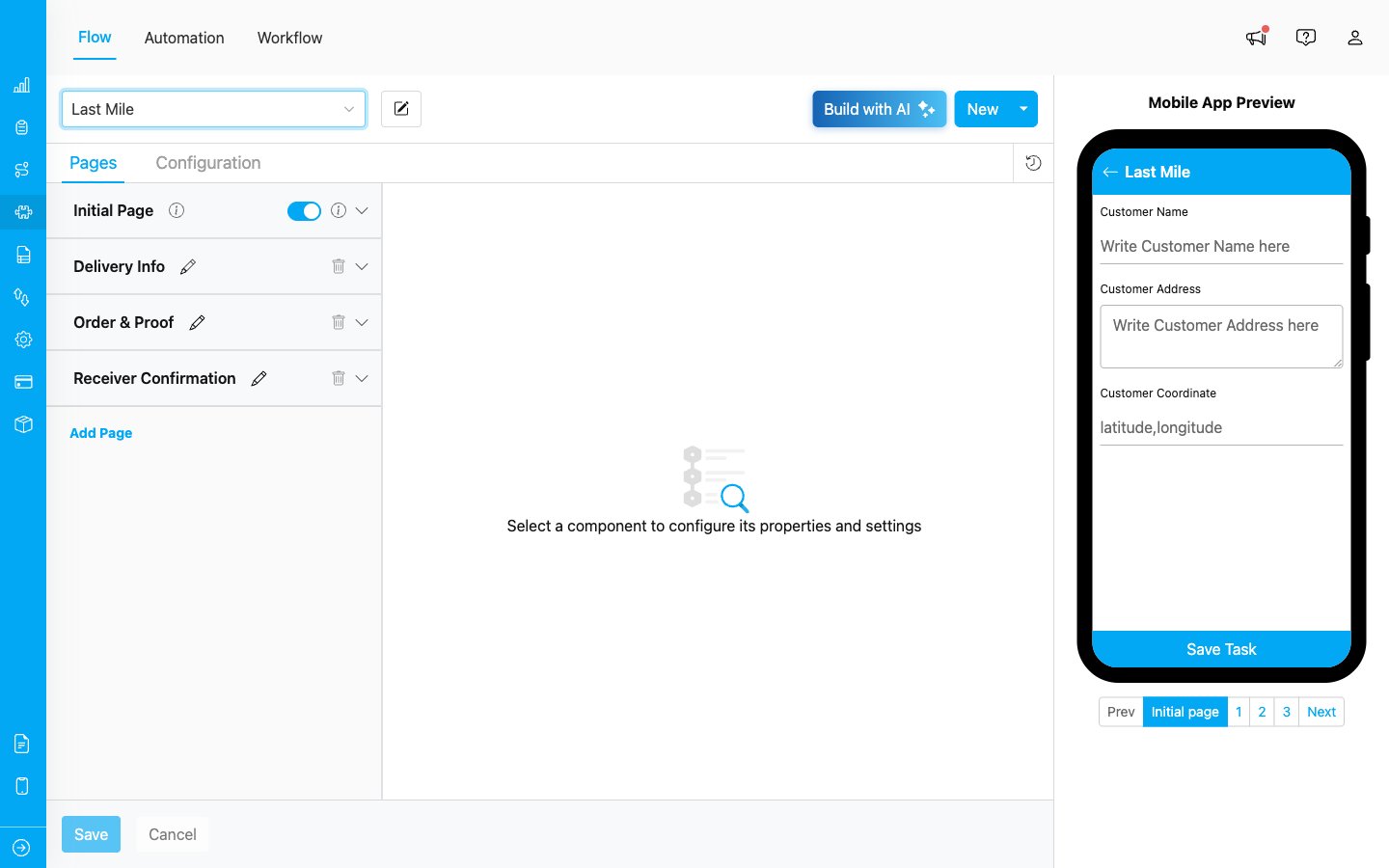
The Flow Builder — left: pages, middle: configuration, right: mobile preview
- Initial Page — the first screen, shown when the task is created. There can only be one Initial Page.
- Mobile App Page — additional screens used while the task is being done in the field. You can add multiple pages with the Add Page button.
Step 3: Use the Flow to create a Task
Once a Flow is saved, it becomes available for any Task. Open the Task menu and click New to create a new task. The system will ask which Flow to use — pick the one you just built.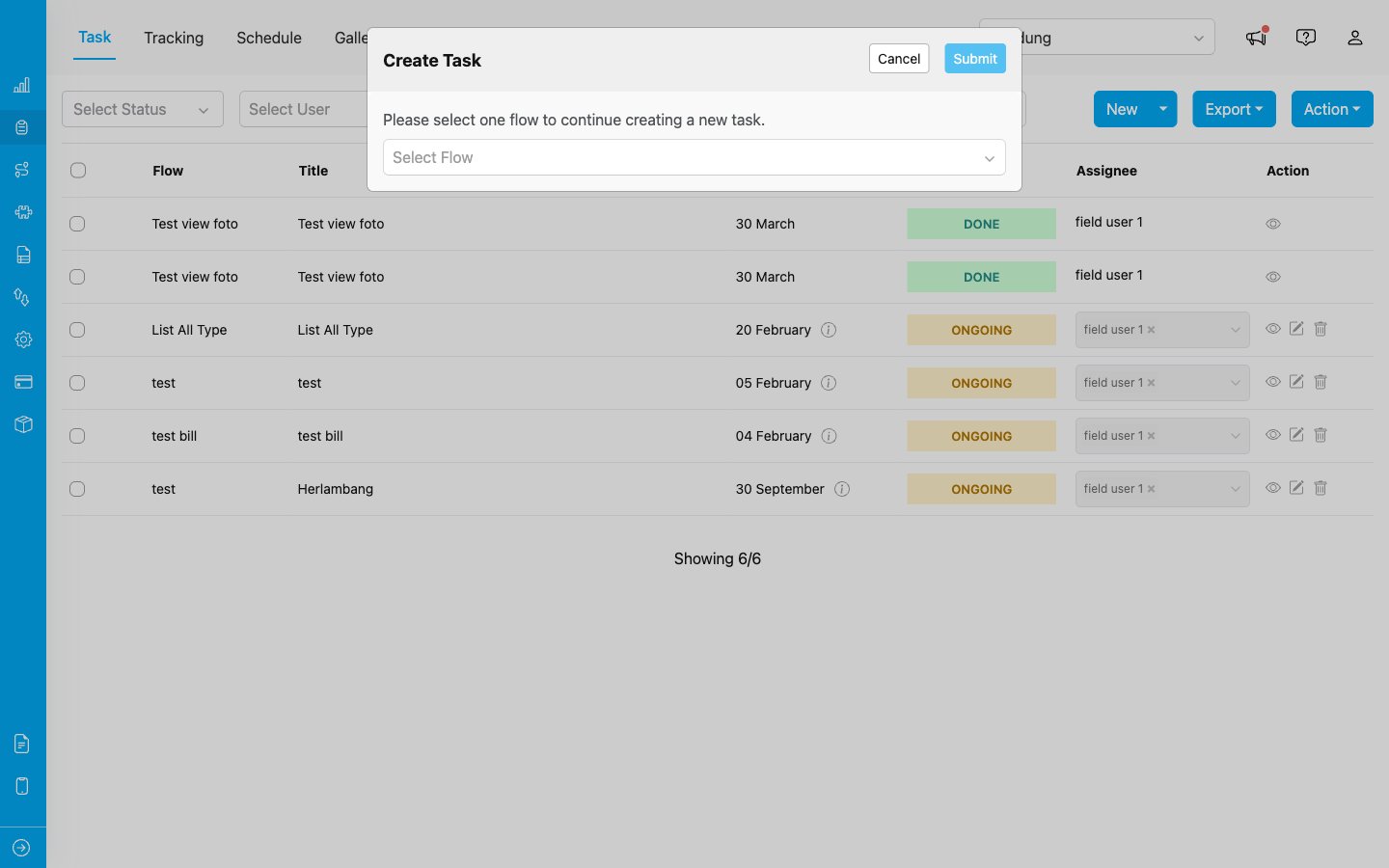
Creating a task: the Flow defines the form fields that appear next
Step 4: Field workers use the Flow on the mobile app
After a task is created and assigned, the field worker opens it on the MileApp mobile app. The pages, fields, and order shown to the worker come directly from the Flow you designed. As the worker fills in each field — text, photos, signatures, locations — the data is saved back to the task and visible on the web in real time.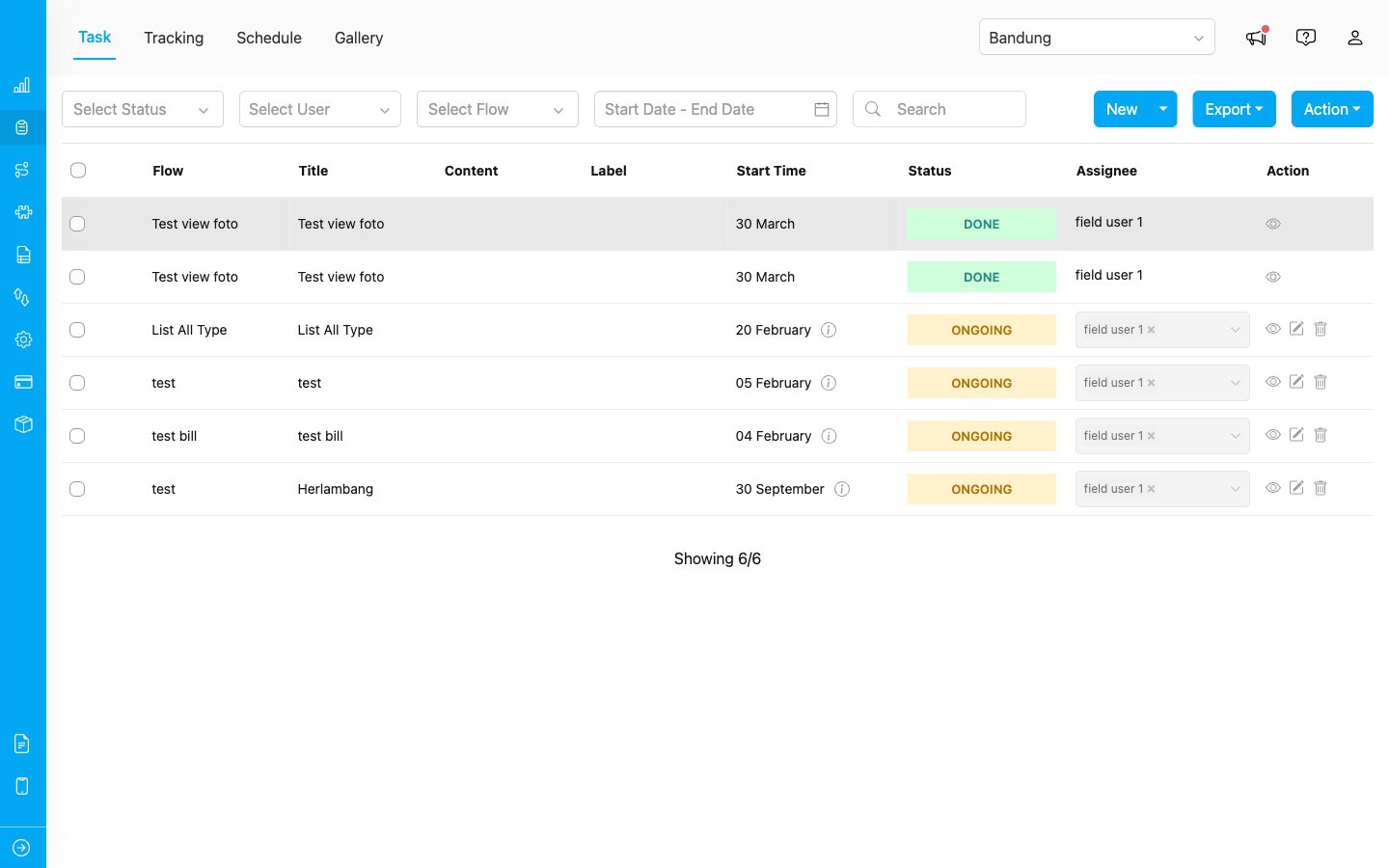
Tasks created from different Flows appear in the Task list with their Flow name
Common Flow Examples
Different industries use Flow in different ways. The examples below are the ready-to-use templates available when you create a new Flow — they cover the most common field operations and can be customized to match your business process.1. Pickup Flow
Used to pick up goods or items from a location. A courier opens the task, navigates to the requester, takes proof of pickup, and closes the task. Typical pages:- Initial Page — Requester Name, Requester Address, Pickup Coordinate
- Page 1 — Read-only summary of requester info for the courier
- Page 2 — Pickup Picture (photo) and Signature
2. Delivery Flow
Used to deliver goods to a customer, including handling COD payment and proof of delivery. Supports both Success and Failed delivery outcomes with conditional fields. Typical pages:- Initial Page — Customer Name, Customer Address, Coordinate, Order Price (Bill component with items and costs)
- Page 1 — Confirm Payment (COD / NON COD), Delivery Status (Success / Failed). If Failed, a Reason field appears.
- Page 2 — Final Order Price confirmation (Bill)
- Page 3 — Receiver Name, Proof of Delivery (photo), Signature
3. Field Sales Flow
Used by sales agents who visit customers and sell products on the spot, with billing and payment captured during the visit. Typical pages:- Initial Page — Customer Name, Address, Coordinate, Bill Item (master products and prices)
- Page 1 — Sales Status (Success to Buy / Failed to Buy) drives the next pages
- Page 2 — Bill Item confirmation with quantity and price adjustments
- Page 3 — Payment Method (Cash, Credit Card, QRIS, etc.), Proof of Sales (photo), Signature, optional Note
4. Field Canvassing Flow
Used by agents who visit prospects to take orders and survey demand. Similar to Field Sales but built around an item List instead of a Bill, so it suits order-taking without immediate payment. Typical pages:- Initial Page — Customer Name, Address, Coordinate, List Item (quantity per item)
- Page 1 — Status Canvassing (Success to Order / Failed to Order)
- Page 2 — List Item confirmation
- Page 3 — Payment Method, Proof of Canvassing (photo), Signature, optional Note
5. Home Cleaning Flow
Used by home or office cleaning service workers to record what was done and where. Typical pages:- Initial Page — Customer Name, Customer Address, Customer Coordinate
- Page 1 — Read-only customer info plus an Additional Service selector (Air Freshener, Disinfectant, Deep Cleaning, etc.)
- Page 2 — Room Photo (after) and Signature
6. House Inspection Flow
Used to inspect a property before a cleaning or service job — captures area, floor count, and condition photos so the team can plan the work. Typical pages:- Initial Page — Customer Name, Address, Coordinate
- Page 1 — Read-only customer info
- Page 2 — Building Area (m²), Number of Floors, Area Cleaning option, Current Building Conditions (photos)
- Page 3 — Total Workers, Tools Used (multi-select), Signature, optional Note
Other use cases
Beyond the ready-to-use templates, Flow is flexible enough to be tailored to many other field operations:- Installation & repair — capture before/after photos, technician notes, replaced parts (Bill component), customer signature
- Site survey — capture coordinates, building photos, measurements, environmental conditions
- Asset audit / stocktake — capture asset code (via Text or barcode Capture), quantity (Number), and condition (Select)
- Quality control / QC visit — capture inspection checklist (List), photos, and a pass/fail decision (Select)
- After-sales visit — capture customer feedback (Text/Select), product condition (Photo), and rating (Number)
Related
- Building Flow — Detailed guide on building a Flow from scratch or template
- Flow Builder Overview — Reference for every part of the Flow Builder
- Managing Flow — Edit, duplicate, archive, and delete existing Flows