

What is Return to Hub?
By default, route optimization creates routes that end at the last visit location. With Return to Hub enabled, all routes are extended to include the hub as the final destination, ensuring vehicles complete their trips back at the starting point. Key Characteristics:- Ensures vehicles return to hub at trip end
- Creates clear route endpoints for operations
- Required for Multi Trip functionality
- Optional sub-configuration for returning after working hours
Activate Return to Hub
To activate Return to Hub, follow these steps:- Go to the Routing/Configuration menu.
- Check the “Return to Hub” checkbox.
- (Optional) Enable “Allow vehicle to return after the end of working time” if needed.
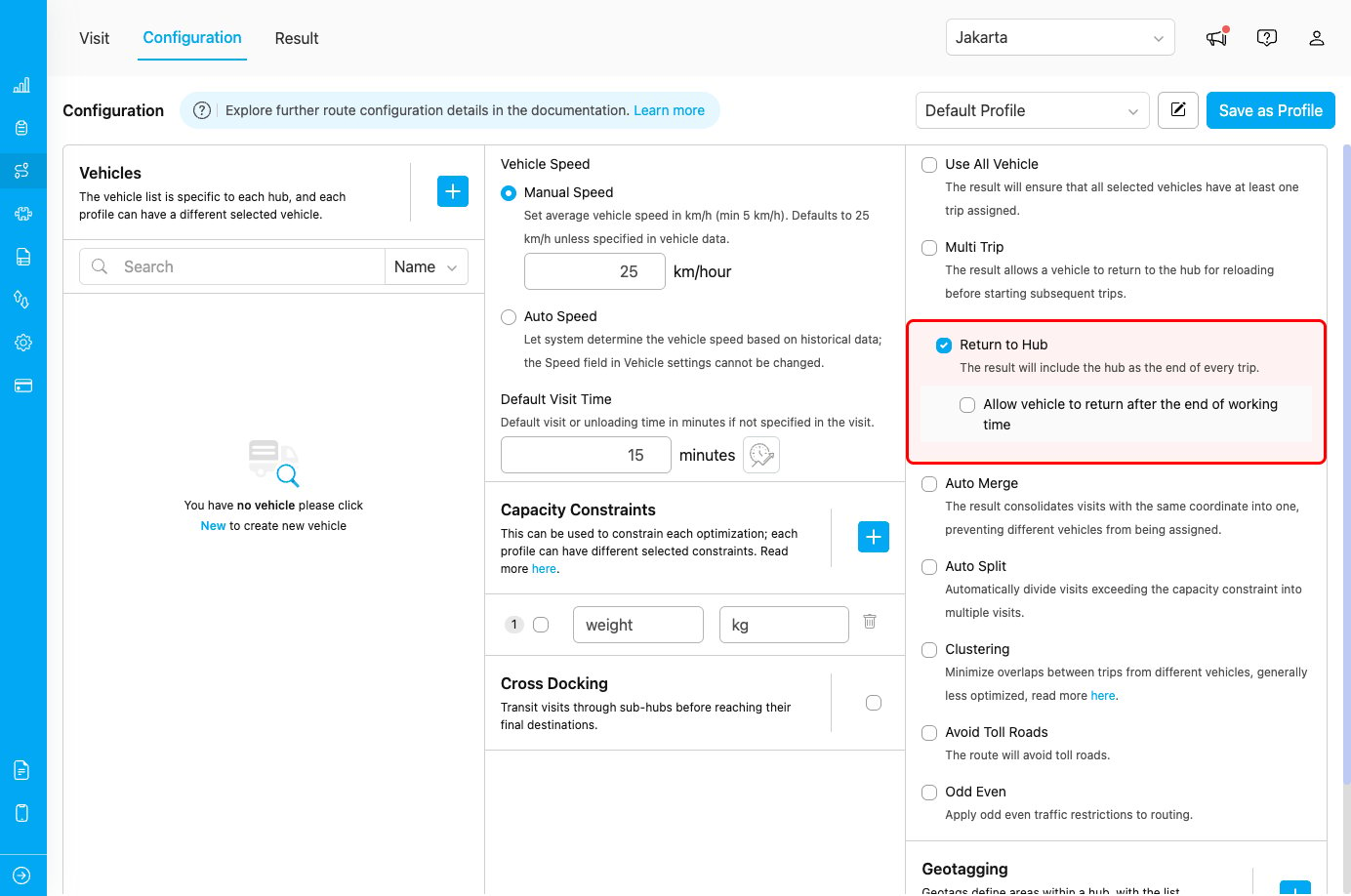
Return to Hub configuration with optional sub-config
Return to Hub Options
Main Configuration: Return to Hub
When enabled, all vehicle routes will end at the hub location, regardless of where the last visit is located.Sub-Configuration: Allow Vehicle to Return After Working Time
This optional setting controls whether vehicles can return to the hub after their working hours end. When enabled:- Vehicles can complete their return journey even if it extends beyond working hours
- The last visit must still be completed within working hours
- Only the return trip to hub can exceed the time limit
- Vehicles must complete the entire route, including return to hub, within working hours
- Routes are planned to ensure hub return happens before working hours end
How Return to Hub Works
Without Return to Hub (Default Behavior)
Routes end at the last visit location:- Route endpoint: Last visit location
- Total distance: Optimized to minimize travel
- Use case: When vehicles don’t need to return to base
- Hub → Visit 1 → Visit 2 → Visit 3 (end)
- Driver finishes at Visit 3 location
- Vehicle remains at Visit 3 until next trip
With Return to Hub Enabled
Routes include hub as final destination:- Route endpoint: Hub location
- Total distance: Includes return journey
- Use case: Standard fleet operations with central dispatch
- Hub → Visit 1 → Visit 2 → Visit 3 → Hub (end)
- Driver finishes at hub
- Vehicle ready for next dispatch from hub
Use Cases
Use Case 1: Centralized Fleet Management
Scenario: Logistics company with centralized vehicle maintenance and dispatch operations. Configuration:- Return to Hub: Enabled
- All vehicles start and end at central hub
- Vehicles available for maintenance and inspection
Use Case 2: Driver Safety and Transportation
Scenario: Company provides transportation for drivers back to central location. Configuration:- Return to Hub: Enabled
- Drivers can leave personal vehicles at hub
- Company provides safe return location
Use Case 3: Multi-Trip Operations
Scenario: High-volume delivery requiring multiple trips per vehicle per day. Configuration:- Return to Hub: Enabled (automatically)
- Multi Trip: Enabled
- Vehicles reload at hub between trips
Use Case 4: Inventory and Cash Collection
Scenario: Delivery service requiring end-of-day inventory reconciliation and cash deposit. Configuration:- Return to Hub: Enabled
- End-of-day procedures at hub
- Secure cash handling location
Use Case 5: Flexible Working Hours
Scenario: Peak season operations where return travel might exceed standard hours. Configuration:- Return to Hub: Enabled
- Allow vehicle to return after the end of working time: Enabled
- Last visit within working hours, return journey flexible
Best Practices
When to Use Return to Hub
✓ Use when:- Vehicles need centralized parking and maintenance
- Drivers require consistent start/end location
- Multi-trip operations are planned
- End-of-day procedures require hub presence
- Security protocols need vehicle return
- Fuel and maintenance facilities are at hub
- Minimizing distance is critical priority
- Vehicles are stored at distributed locations
- Next-day routes start from previous day’s endpoint
- Additional return distance significantly impacts costs
Sub-Configuration: Return After Working Time
Enable when:- Peak season requires operational flexibility
- Ensuring visit completion is higher priority than strict hour limits
- Return distance from last visit is significant
- Occasional overtime is acceptable for complete service
- Strict working hour compliance is required
- Overtime must be prevented
- Labor regulations restrict extended hours
- Planning needs to account for complete route within hours
Combining with Other Features
Works well with:Relationship with Multi Trip
Return to Hub has a special dependency with Multi Trip:
This dependency exists because multi-trip operations require vehicles to return to the hub for reloading between trips.