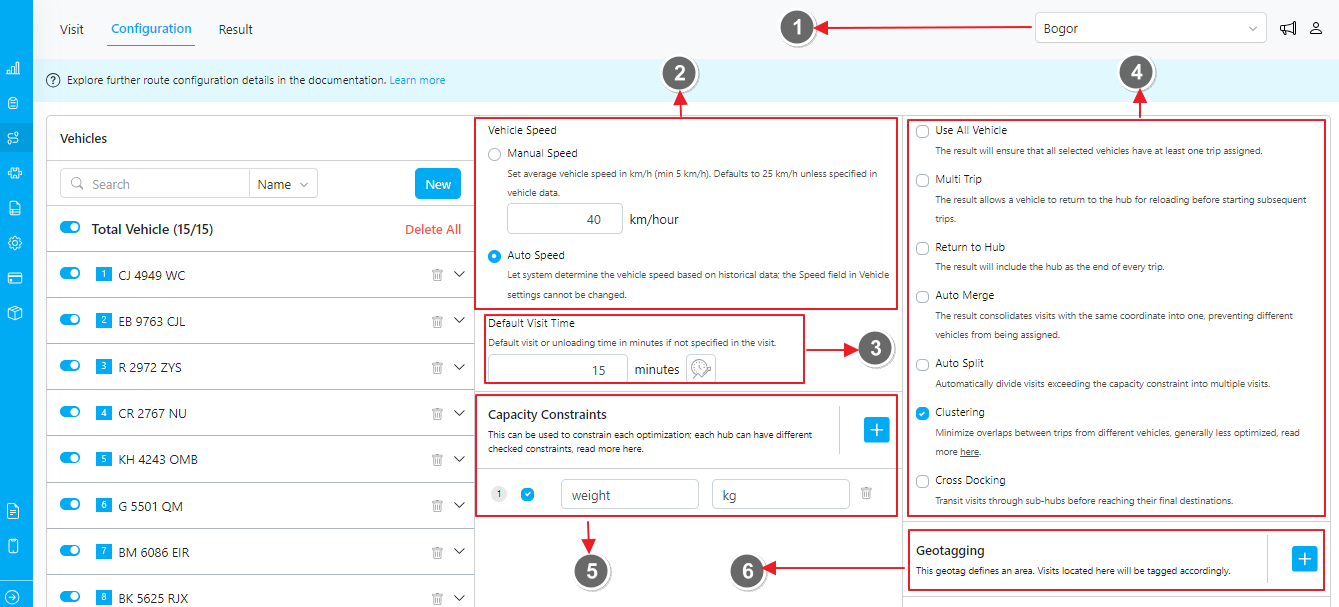
- Filter Hub. Each configuration is unique to its hub.
- Auto Speed and Default Speed.
- When unchecked, you can define the default speed manually.
- If you choose to use auto speed, it will automatically adjust based on historical data.
- Default Visit Time.
- Specifies the duration required for a worker to complete a task in one visit if not specified in the visit data.
- Additionally, there is a dynamic visit time based on the selected capacity. Read more here.
- Other Configuration. Read more here for a detailed understanding of each configuration option.
- Capacity Constraint.
- Add a new variable that can be used to constrain each optimization.
- This constraint will be persistent across all hubs in your organization, but each hub can customize which constraints are checked or used.
- Geotagging. Read more here for details. For more details on each parameter, please refer to this documentation.
Managing Routing Configuration Profiles
Managing routing configuration profiles allows you to customize and optimize routing setups for different needs without repeatedly adjusting settings. You can have multiple profiles for each hub, with no maximum limit. This allows you to set up different configurations for various routing scenarios.Profile Creation and Editing
Use the “Save as Profile” button to create a new profile. Enter a unique name for the profile when prompted.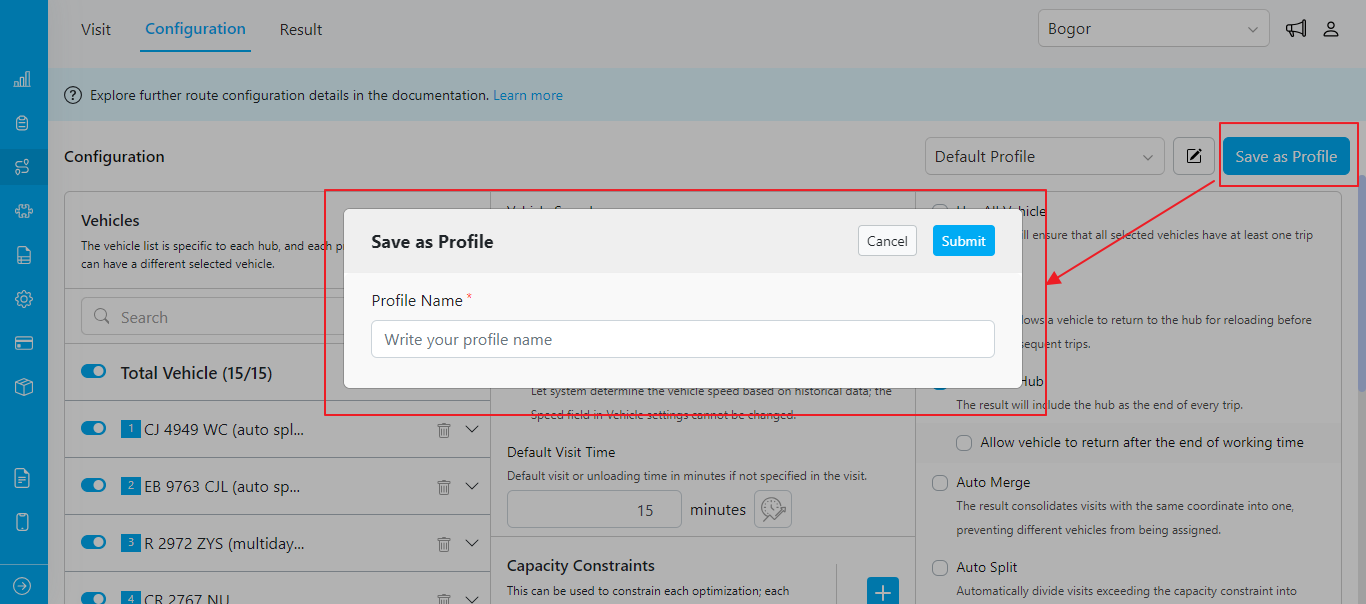
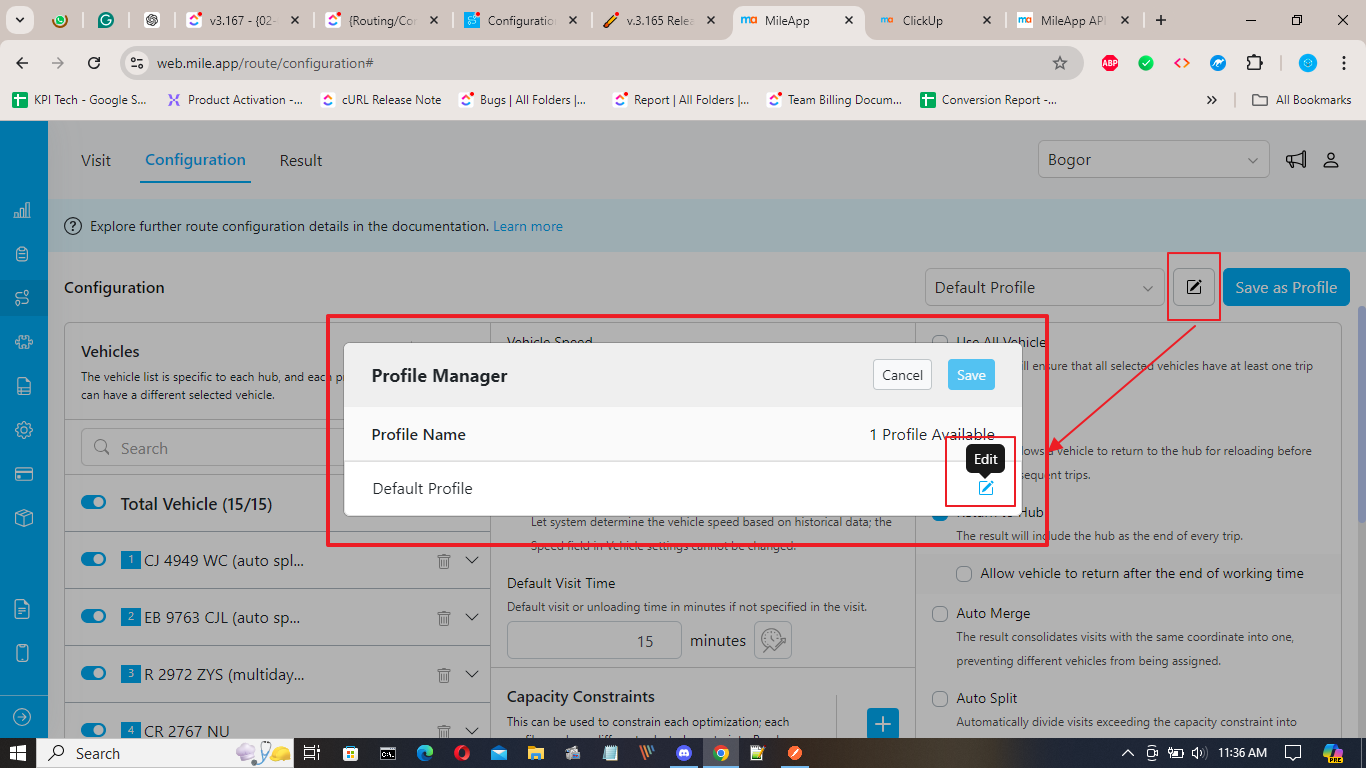
Profile Deletion
Click the delete icon next to the profile name in the Profile Manager dialog. Confirm the deletion in the pop-up dialog. Note that you cannot delete the last remaining profile in the hub.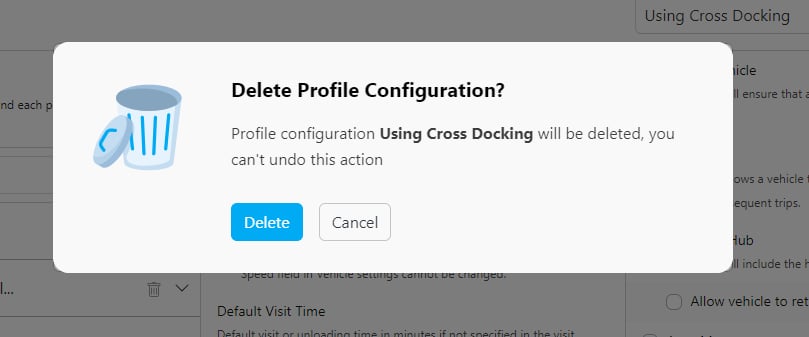
Profile Selection
Select from existing profiles using the dropdown. If no profile is created, the “Default Profile” is selected by default.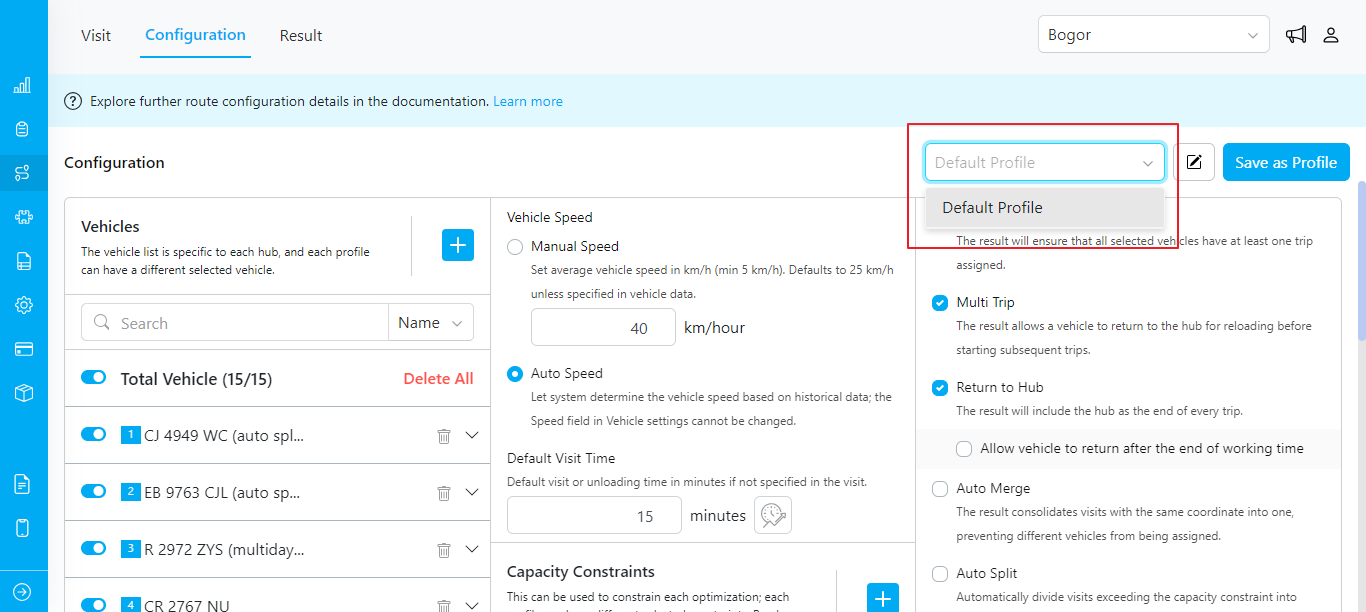
Optimize
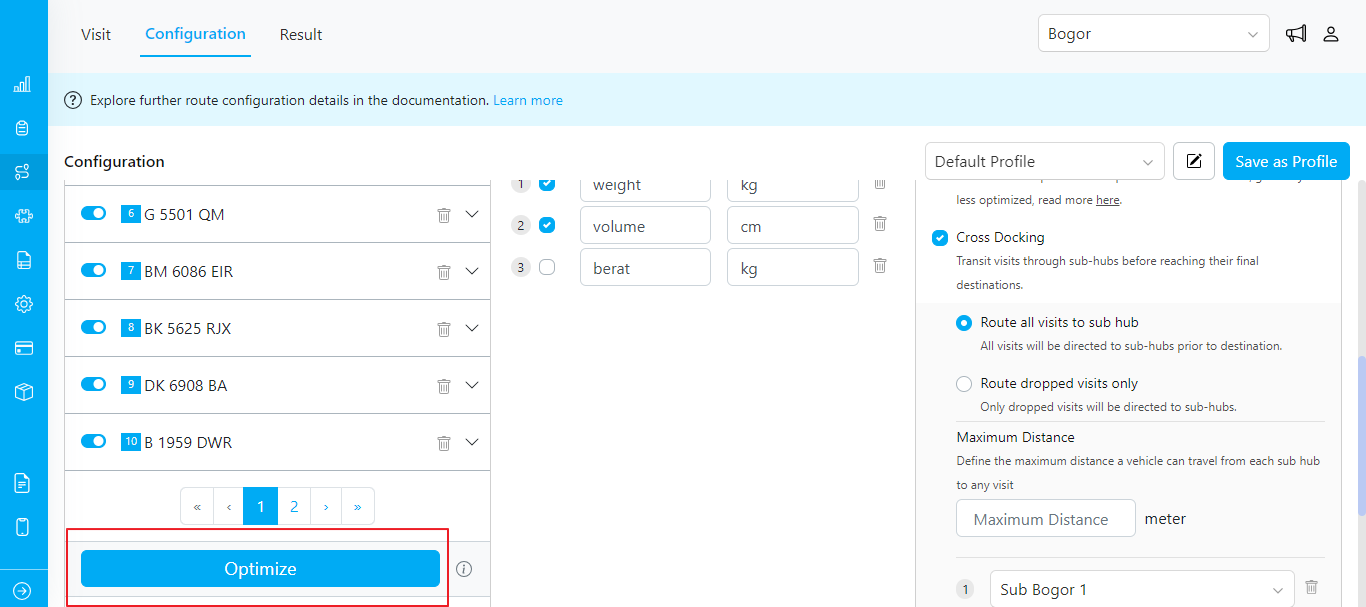
If you have visits ready and all necessary configurations set, you can start the optimization process by clicking the “Optimize” button located below the vehicle list.