

Filtering Visit
In case you need specific visit data, you can filter by:- Visit name or address:
- Task status: “Ongoing” or “Unassigned”:
- Start Date (Task Start Time):
- Task flow:
- Visit tag All searches are case-insensitive.
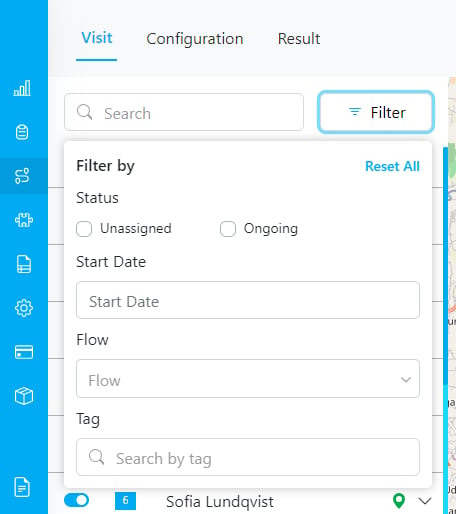
Filtering Visit
Editing Visit
When you need to see the detail visit or editing some fields, simply click the arrow button to expand.Required permission:
- View Task
- Edit Task
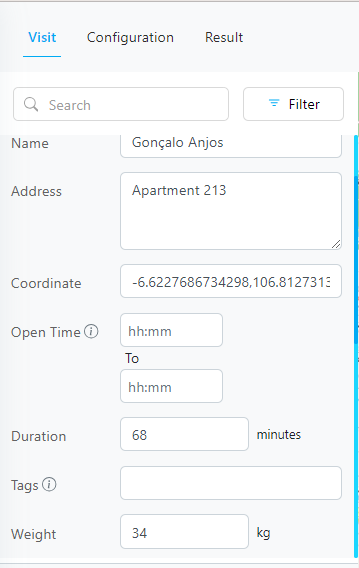
Visit Detail
- Name: Define the visit name, such as the customer name, receiver name, or store name.
- Address: Enter the full address. Ensure the address is valid, so if the coordinate is not provided, our system can geocode it to find the coordinates from the address.
- Coordinate: Enter the visit coordinates in the format: latitude, longitude.
- Open Time: Define the allowable time for the vehicle to process the task. This could be the operational hours, for example: 08:00 to 18:00.
- Visit Time: Define the time needed for unloading or handing over the load when the vehicle arrives at the destination, for example: 10 minutes.
- Vehicle Tags: When you add specific tags to the visit, the routing result will suggest visits with the same tags for the vehicle.
- Priority: Set the execution order of visits within the same group. The value is an integer from 1 to 100. A lower number indicates a higher priority, so visits with a smaller value are scheduled first within their group. Leave it empty if you do not need ordering control.
- Weight: This is a dynamic constraint based on the selected Capacity Constraint in the Configuration submenu.
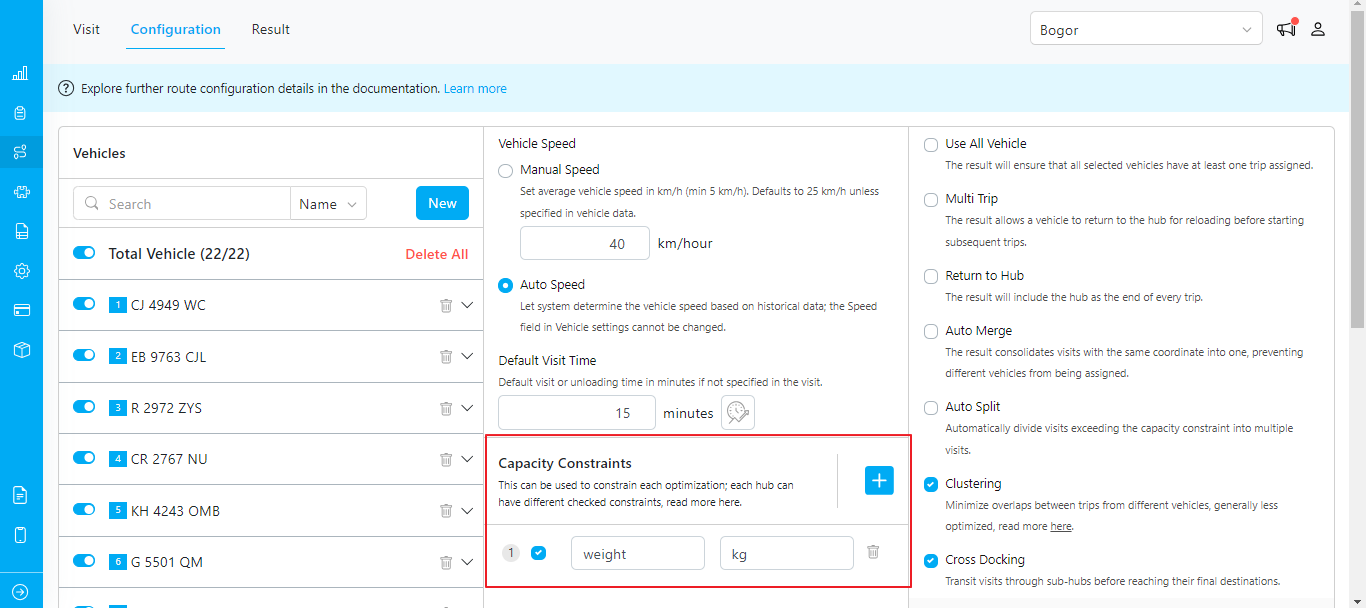
Routing Configuration Menu - Capacity Constraint
Name, Address, and Coordinate are fundamental data for routing optimization. If these fields are not set up, the Name will display as “(not_set)” as shown in the picture below, and the other fields will be empty. When you encounter this, you can manually input the data here before performing the optimization. You can still perform routing optimization without configuring the flow first, but the values will not be saved into the task data. When you dispatch, the values will not be updated to the task data.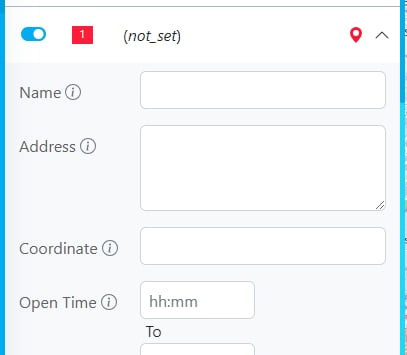
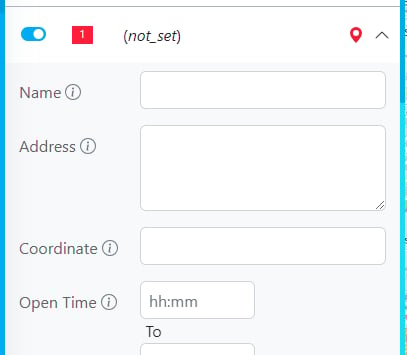
The name is not set
We recommend setting the Route Configuration from the Flow menu for easier routing optimization in the future.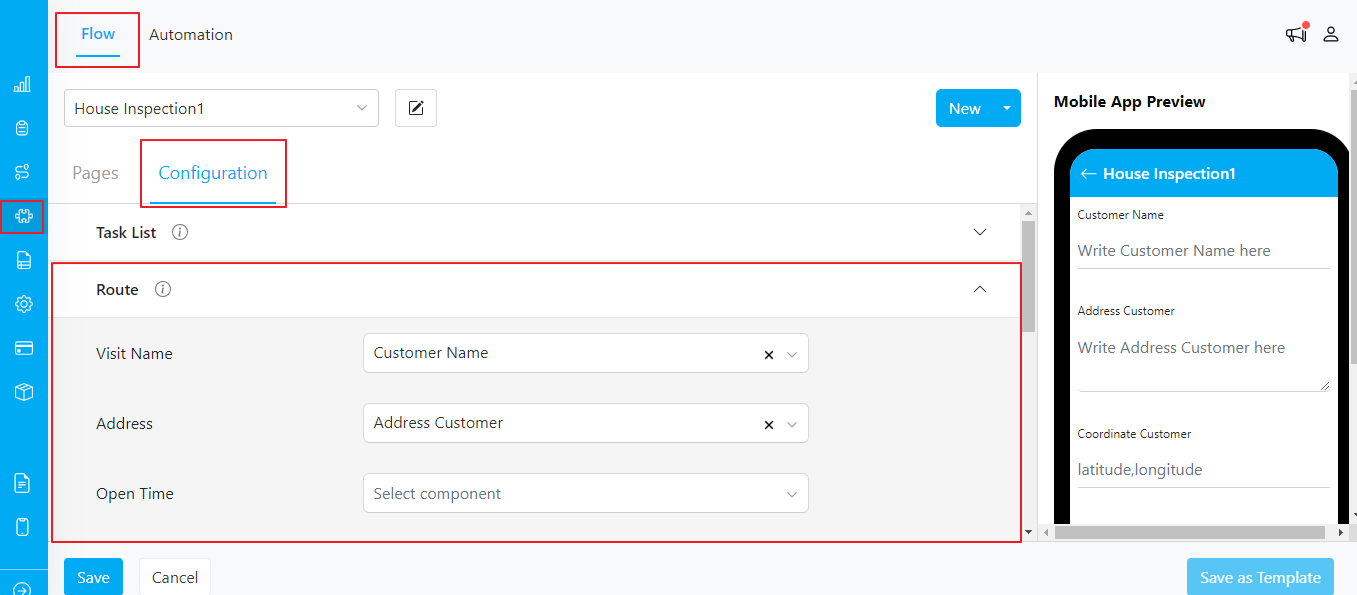
Flow Configuration Menu