

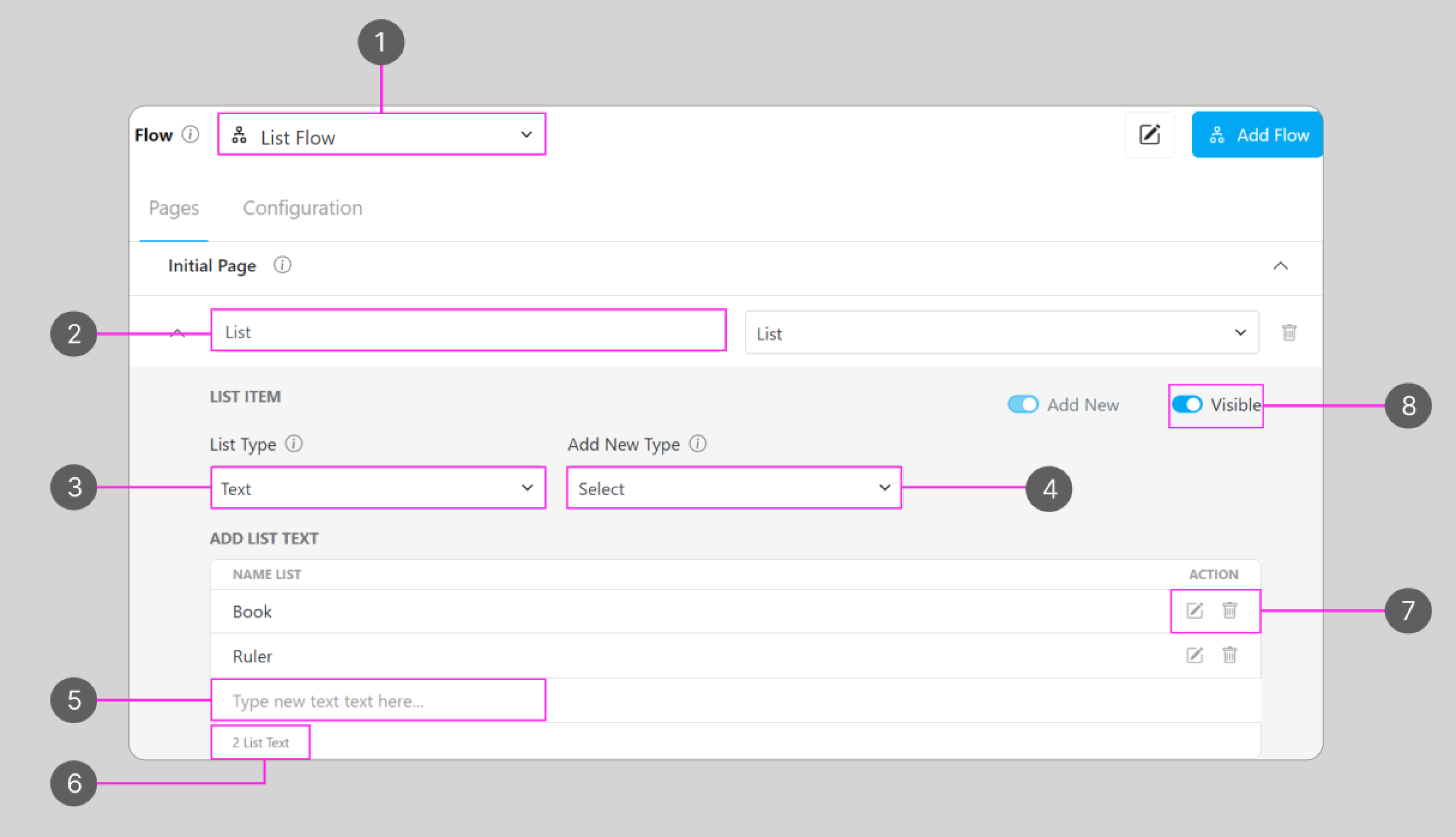
- Flow name that you would use to create a Task
- List component name on the Initial page, you should use this name to refer to the list component from the mobile app page
- List type for this flow
- Add new type to specify the type of list to be used. For example, using a new type, “select” will show the Section add list.
- In the add list section, enter the list used in the list process. The example here is a list of Book and Rules. You can add as much data as needed. All the data is stored in the list master data.
- Total list contains information about the total of the added list.
- Added list data can be edited or deleted as needed.
- Visibility of this component will affect: Create Task on the Web and Mobile; and View Task on the mobile app, if the component is not visible, it won’t be shown on the UI. But, the visibility of a component didn’t affect the export function, both Visible & Hidden component data will be exported.
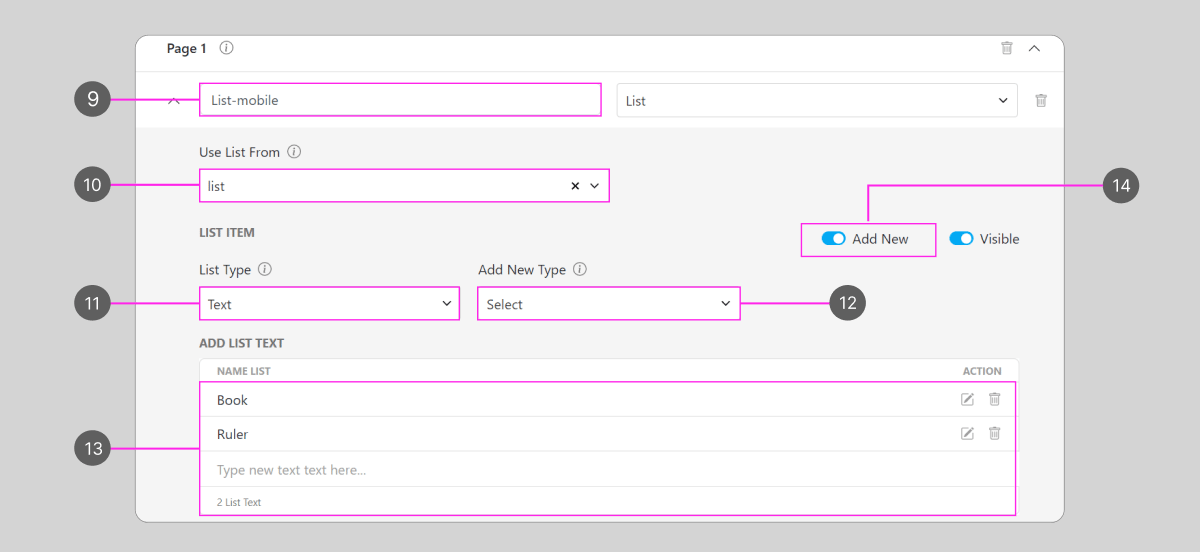
- List the component name on the mobile app page, make sure you set the Component type to “List”
- The use list form that will be referred to by this List component, in this example we have referred it to the List component in the Initial page (2).
- List type for this flow
- Add a new type to specify the type of list to be used. For example, using a new type, “select” will show the Section add list. Field use list form has been filled with a list on the initial page so that data list will be referred to on this page.
- The data in the add list section is automatically filled because it refers to the list created on the initial page that has been stored in the master data list. This data can be added, edited, or deleted according to the steps at points 5 - 7.
- Toggle to disable or enable adding a new item to this list on the mobile app’s task and affects this page so that it cannot add new lists or edit previous lists.
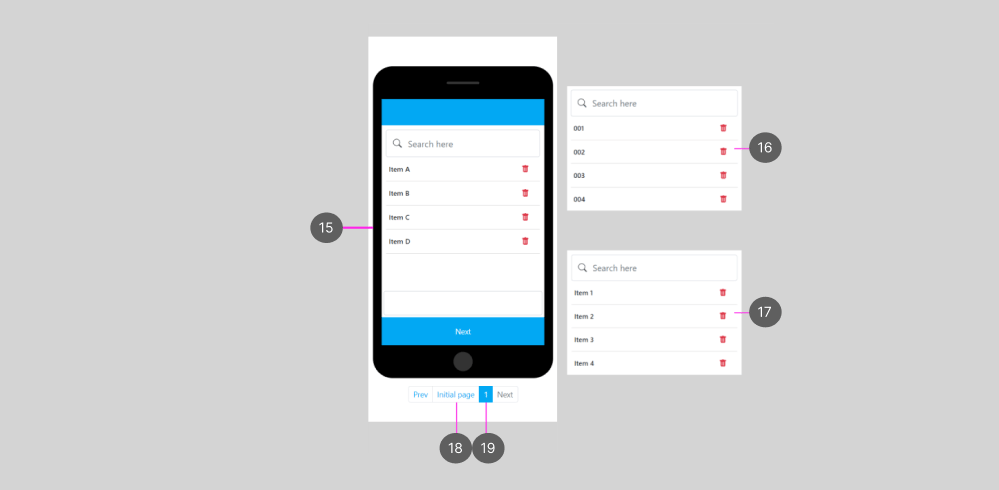
- List the type of Text
- List the type of checkbox
- List the type of quantity
- Navigate to the Initial page
- Navigate to the mobile app page, you could add more pages as you need
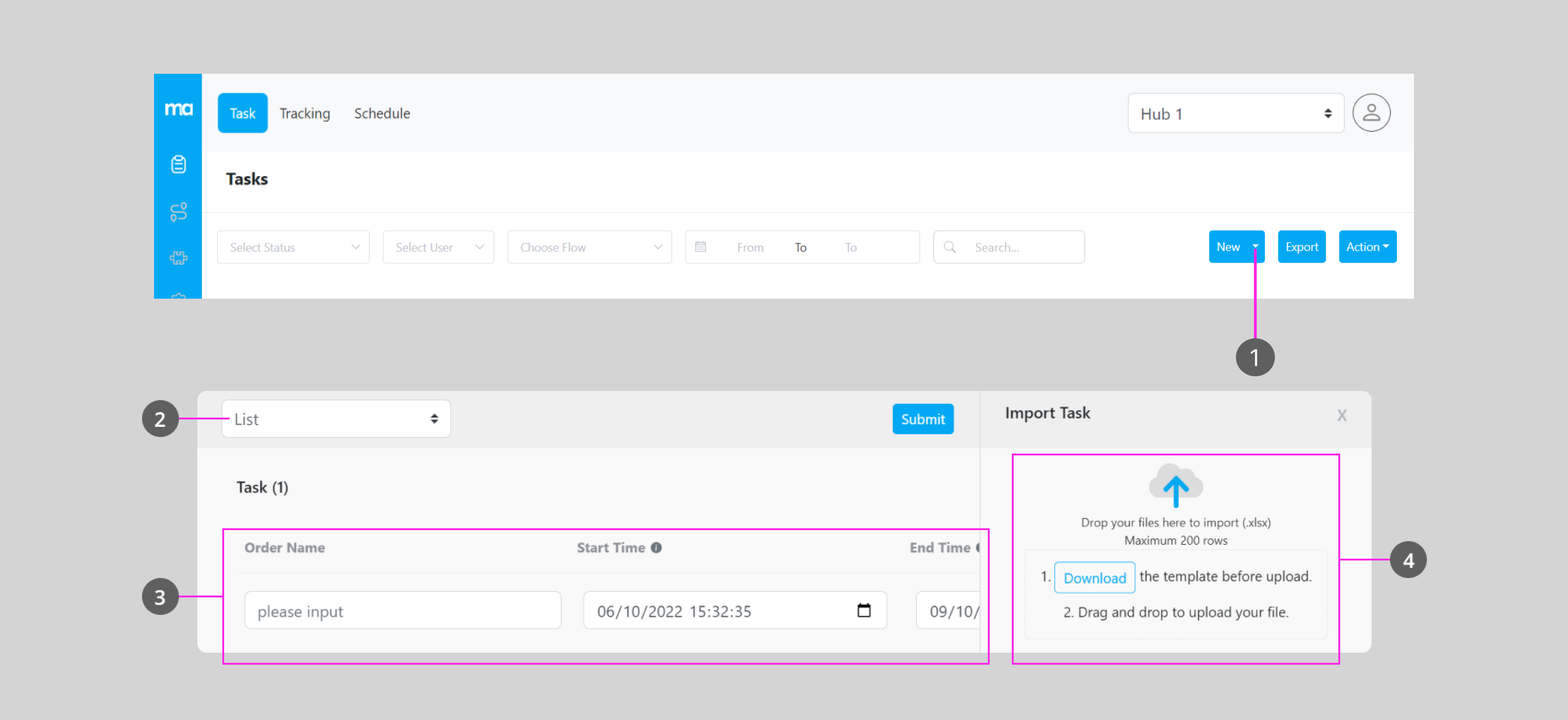
- Click this button to add a new task in bulk
- Choose the flow with a List component that you have created
- This field will be filled with information you’ve put in the .xlsx file after importing the Task; you can view and edit the information here.
- The bulk import task field
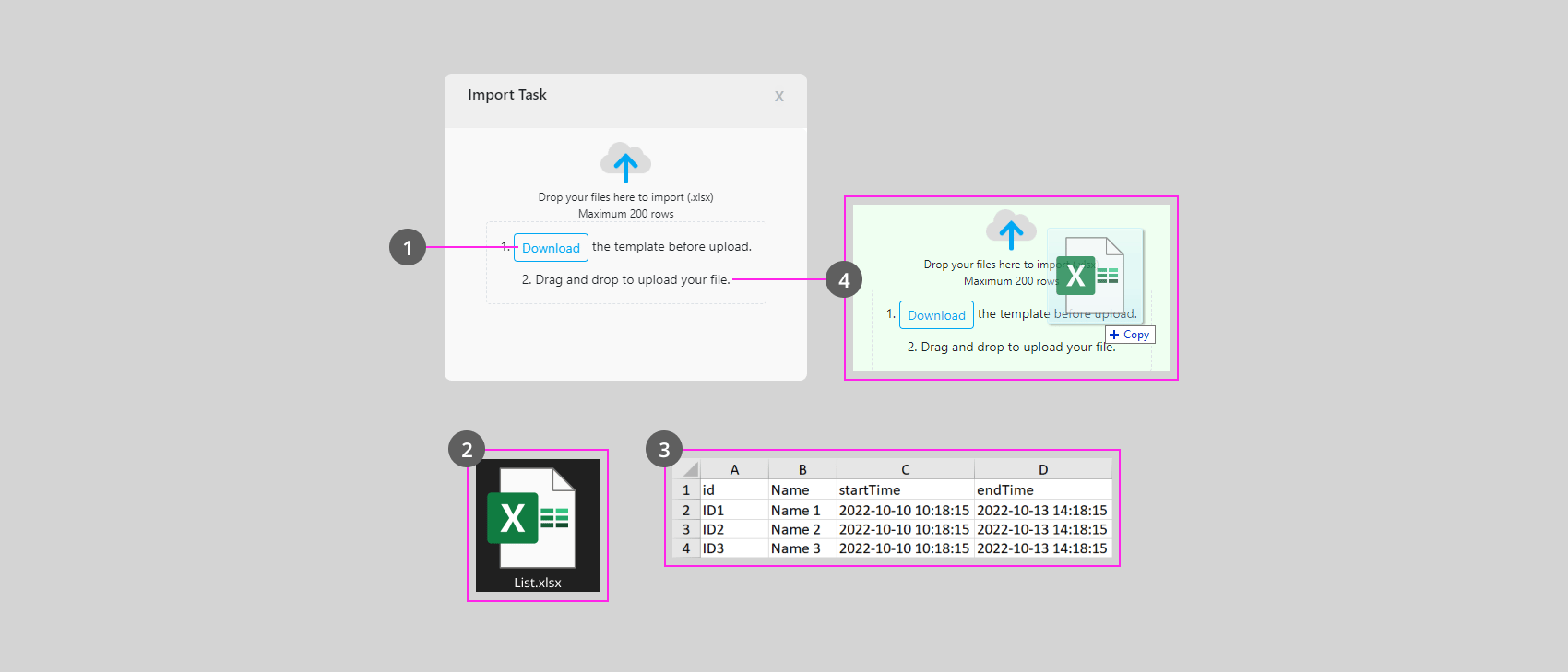
- After you choose a List flow that you want to import, download the templates for import.
- After clicking the download button, the .xlsx file should automatically download, and you should open it once it’s downloaded.
- Fill in the information in the file
- Drag and drop the file to this field to import the task from the file that you have edited
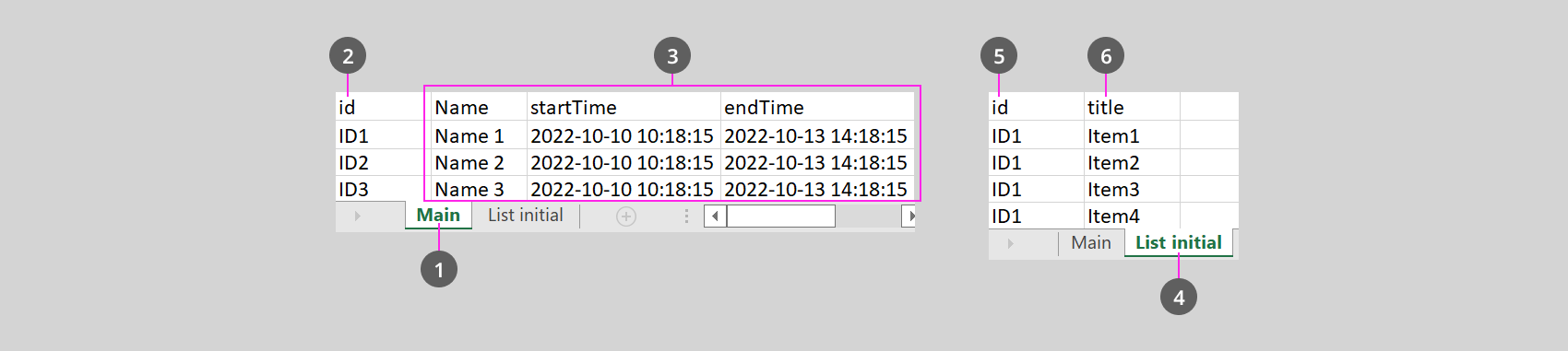
- Information from the Initial page will be needed to create a Task
- ID number of the List, different IDs will generate different tasks, and the ID should be linked with the mobile app ID (5).
- Information of the initial page, you could customize this based on your needs
- Information that will be shown on the mobile app task
- ID number of the list, a list could contain multiple items, and items will be shown separately based on ID (2).
- Title of the items that will be shown on the mobile app task