User Icon
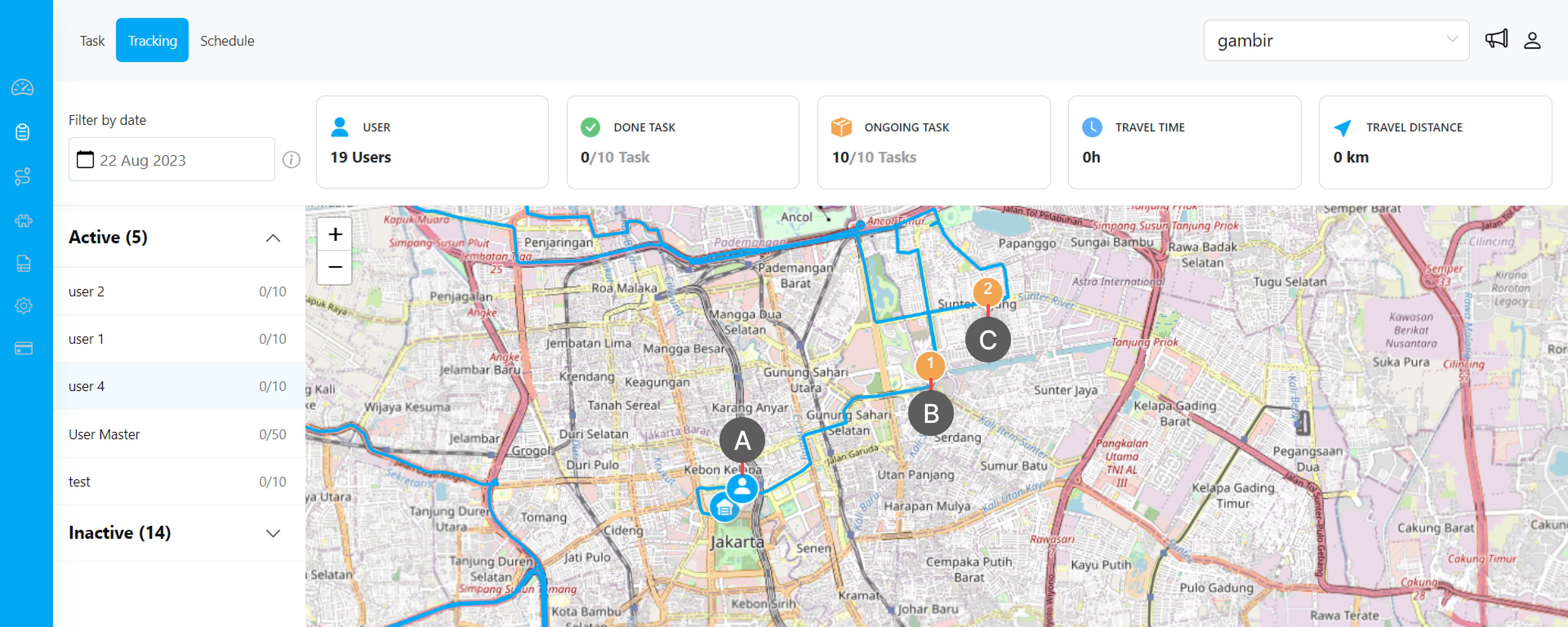
The user icon will show you the latest location of the user on the map. You could click the user icon to show a card that contains more detail about the total task, done task, ongoing task, location history, and last updated information from that user. This information is visible both when you click a user icon on the all Active User view, or when you view a specific Active User activity after you click their name on the Active list.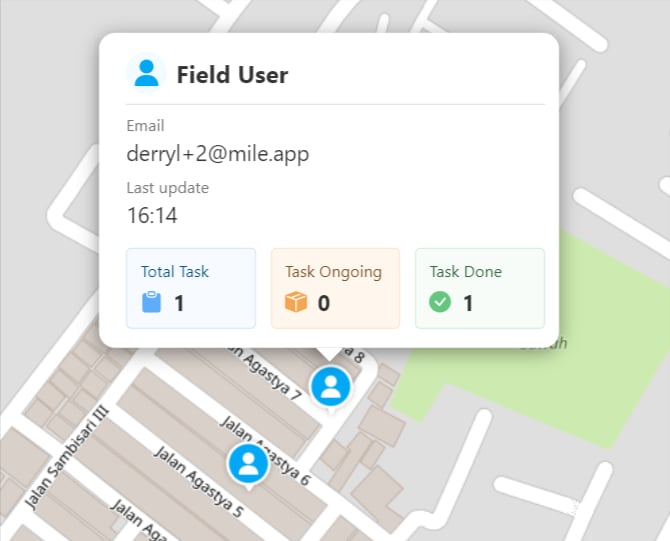
All Active User view
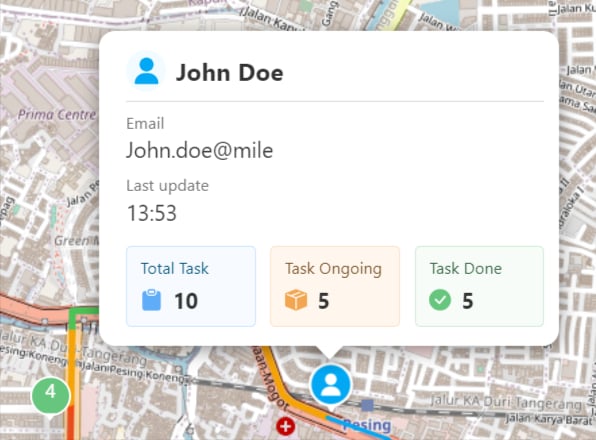
Specific Active User view
Detail explanation for each information on the information card:- Last update The last update time is the most recent location history update from this user, the location history is generated when the user uses their mobile app and for better accuracy, you should use the Start Finish feature so the location history could be generated properly.
- Total Task The total task counts both the Done & Ongoing tasks from that user on that specific date.
- Done Task The total amount of tasks that the user has finished on that specific date, the tracking page will show the finished task based on its Done time.
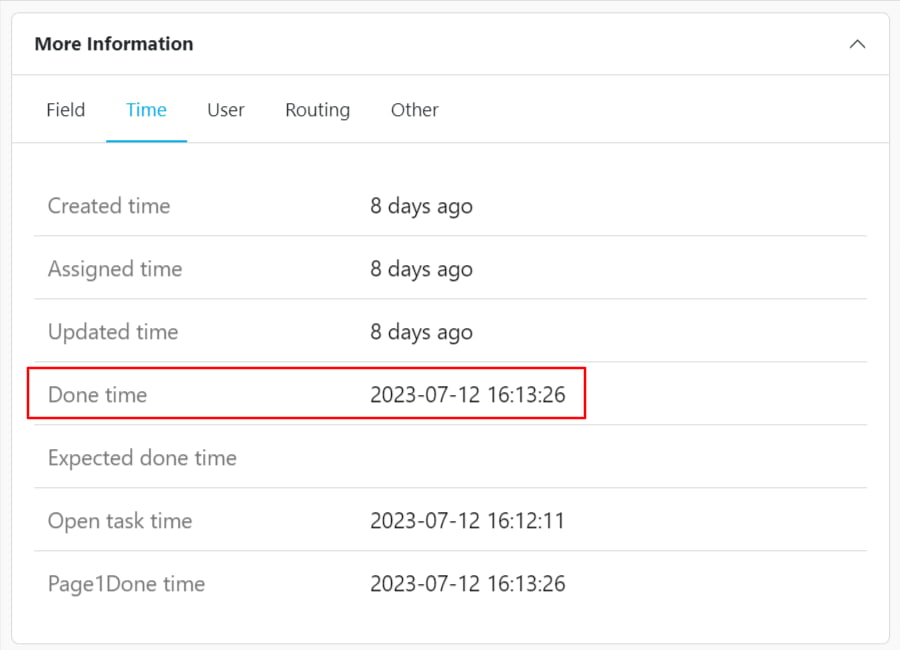
- Ongoing Task The total amount of ongoing task that the user currently worked on or haven’t done on that specific date, the tracking page will show the Ongoing task based on its Start Time. You could see the Start Time for each Task on the task list and the task detail.

Hub Icon
The Hub icon will show you the position of the hub on the map, and you could click the Hub icon to show the information card that contains the name and address of the current hub.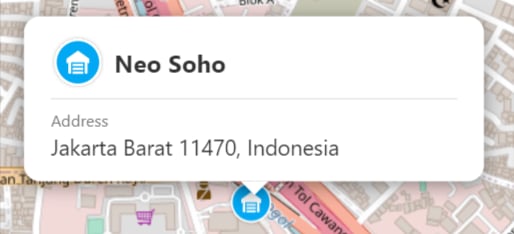
Done Task Icon
The Done Task icon will display various information related to the finished task, the icon will show you the location where the user finish the task. If you wish to know more information about the done task, you could click the icon and view the information card. The structure of the Done Task information card is: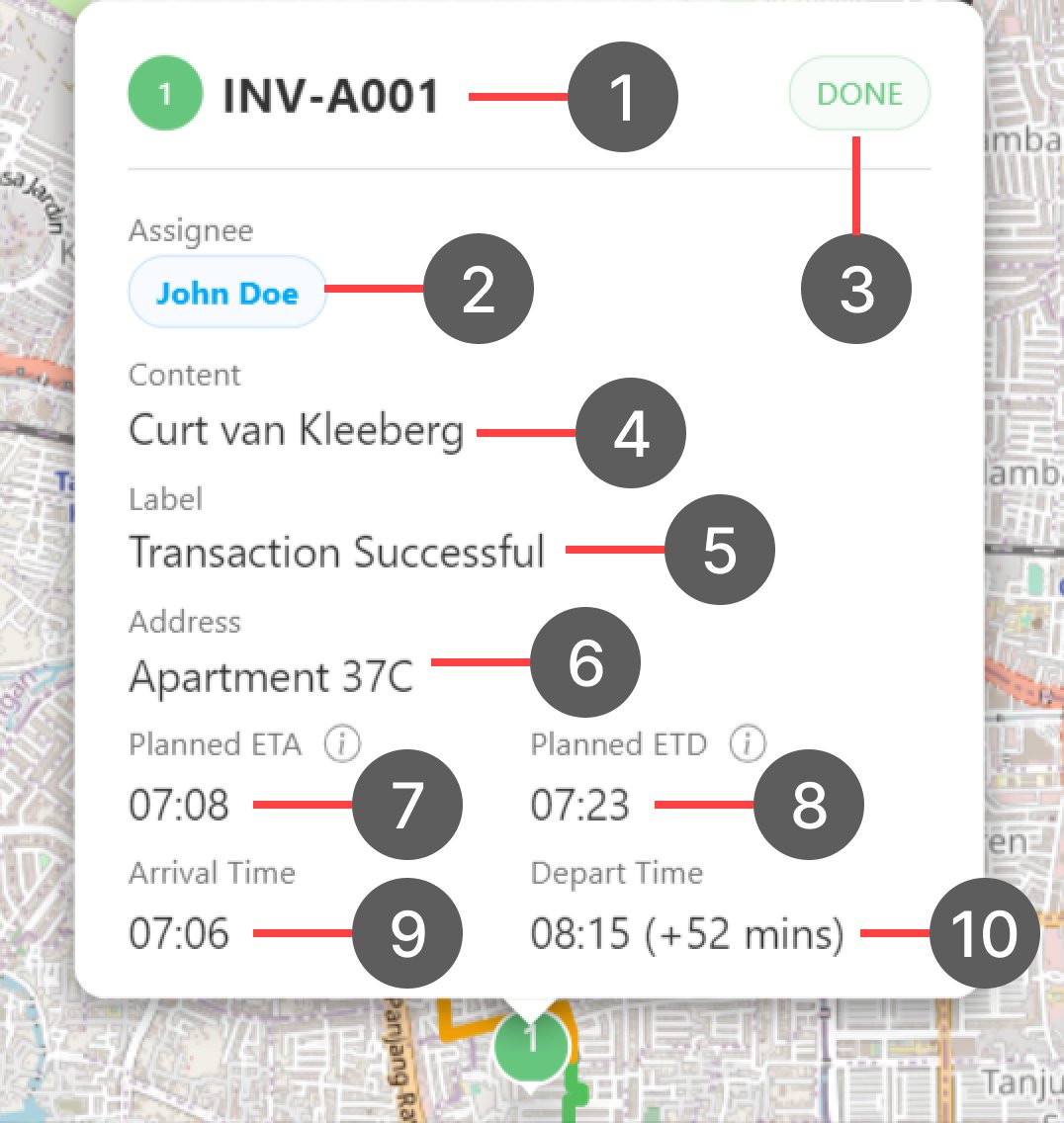
- Task Title This is generated from the task title, if the task title is not mapped at the flow configuration setting. We will show the flow name as the title of this done task information card.
- Assignee The name of the user that finishes this task.
- Task Status Status of this task. “Done” means the task has been finished.
- Task Content Customizable task content that could be mapped at the flow configuration setting. If the value is empty or the task content is not mapped, this content won’t be shown.
- Task Label Customizable task label that could be mapped at the flow configuration setting. If the value is empty or the task content is not mapped, this label won’t be shown.
- Task Address The task address will be displayed on this card if you map the routing configuration at the flow configuration setting. If the value is empty or the task content is not mapped, this address won’t be shown.
- Planned ETA Planned ETA is the estimated arrival time that is generated from the route optimization process, only the task that is optimized and dispatched from the routing result will have this value. If you didn’t optimize the task this value won’t be shown.
- Planned ETD This value is similar to the Planned ETA value, it will always display in pair because the Planned ETD is the estimated departure time that is also generated from the route optimization process. If you didn’t optimize and dispatch the task this value won’t be shown.
- Arrival Time Arrival Time is the actual time when the user arrives at the task location, this data will be sent automatically from the user’s mobile app.
- Depart Time Depart Time is the actual time when the user finishes the task, this data will be sent automatically from the user’s mobile app.
Ongoing Task Icon
The Ongoing Task icon will display plenty of information about the ongoing task, the icon will show you the location of the ongoing task. Beside that you could also hover the icon forOngoing Task that is Dispatched from the Route Optimization
When you hover over the Ongoing Task icon that is dispatched from the route optimization. A tooltip will appear that will show you the estimated arrival time of this user, and if the user is estimated to be late at their next task location, we will show the estimation of how much is the delay. This tooltip will appear if these two requirements are fulfilled:- The task has been optimized and dispatched from the route optimization menu.
- The user location history is updated, or the Start Finish feature is active for that user so the user location history and time are recorded properly.
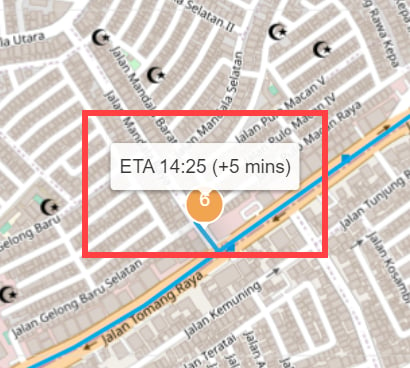
- ETA Example from the picture above: ETA 14:25 This ETA will show you the estimated arrival time of the user to this task location, the calculation is based on the Last Update location of the user and the travel time that they need to reach this task location from their latest location history.
- Delay Estimate Example from the picture above: (+5 mins) This information will only be displayed if the user is estimated to be late to reach their next task location compared to the ETA that is generated from the route optimization process. For example: if the user is expected to be late 5 minutes compared to their ETA time, the tooltip will show the extra information (+5 mins). But, if the user is expected to reach their next location within the ETA or earlier than the ETA, this extra information won’t be displayed.
Ongoing Task that is Not Optimize at Routing
If you hover above the Ongoing Task icon that is not optimized in the Routing menu, a tooltip will appear that will show you the estimated arrival time of this user. The ETA is calculated based on the user’s last update location and the location of the next task in the queue.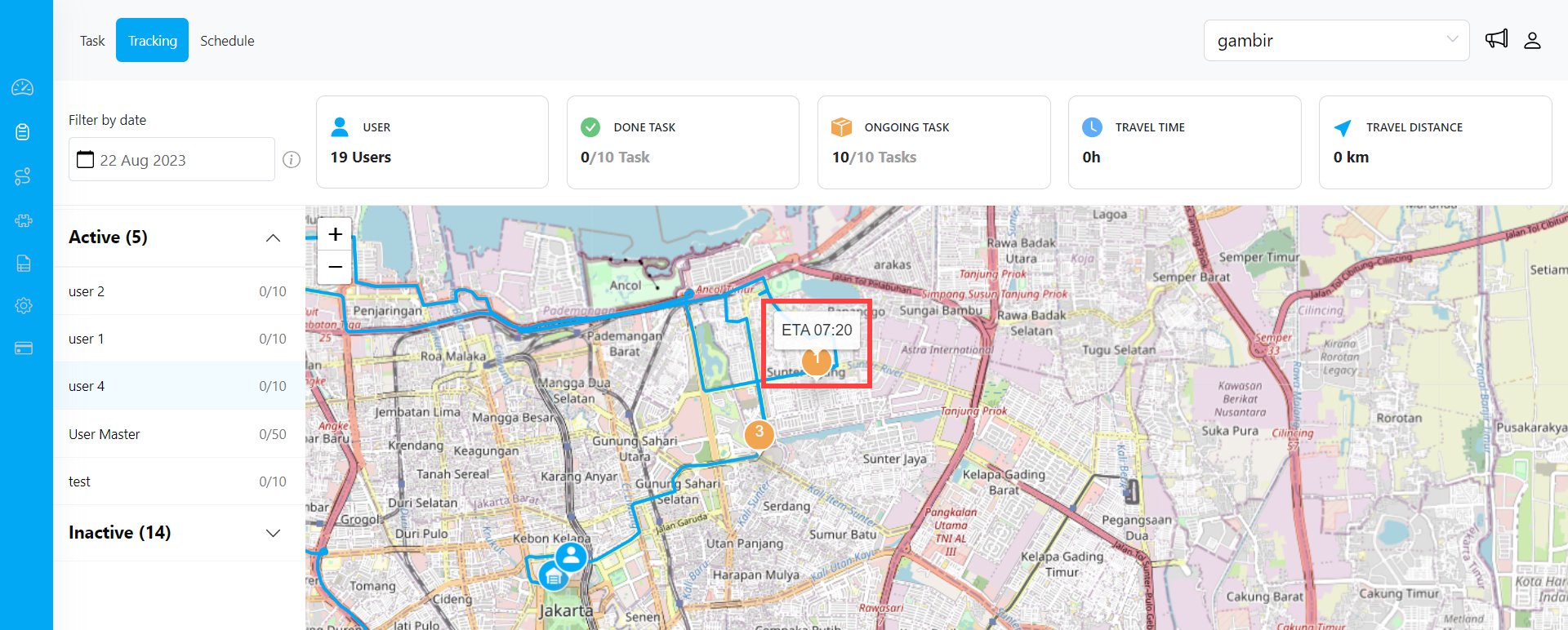
Ongoing Task Information Card
Beside the extra information when you hover on the Ongoing Task icon, you could click the icon and view the information card. The structure of the Ongoing Task information card is: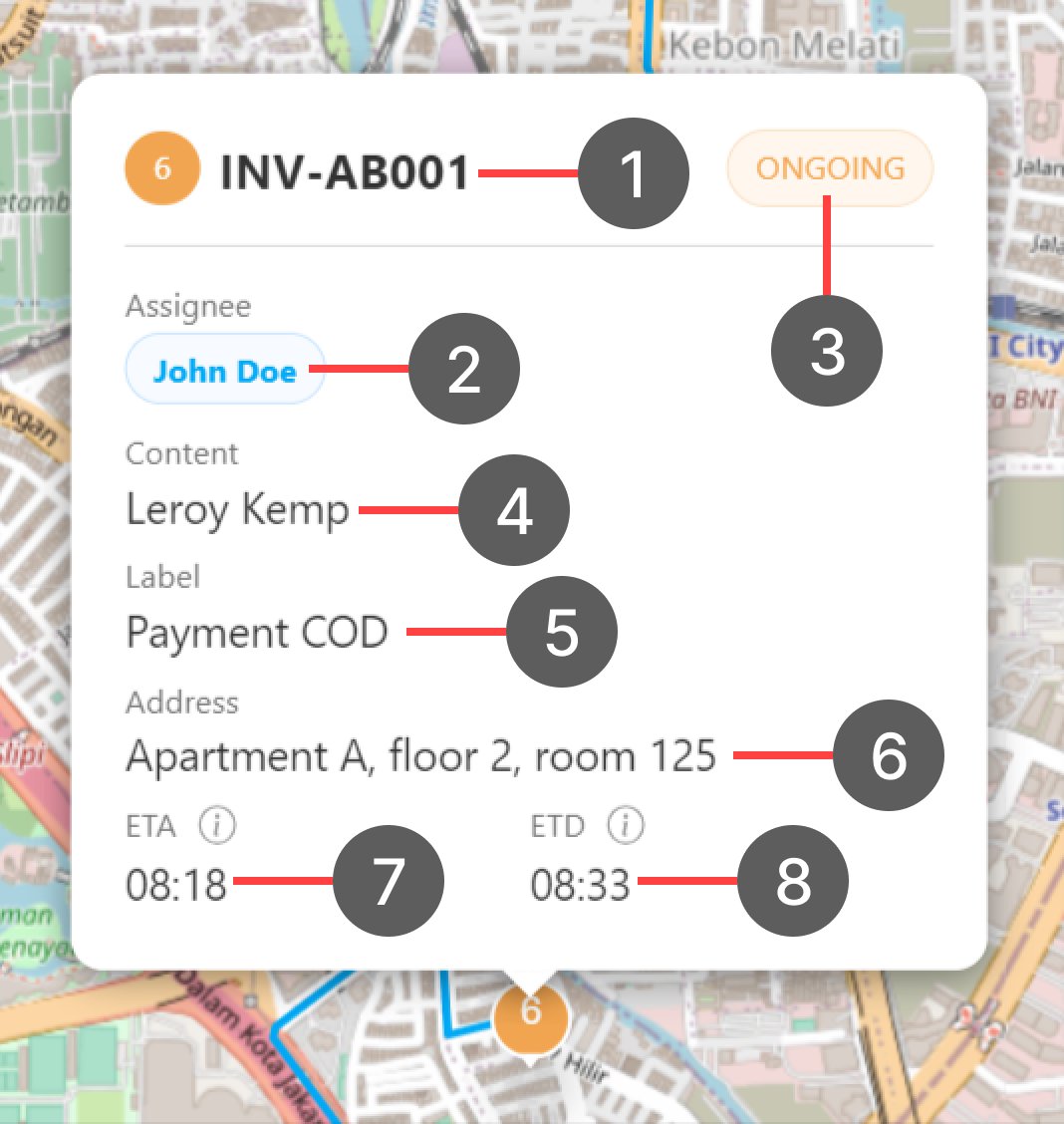
- Task Title This is generated from the task title, if the task title is not mapped at the flow configuration setting. We will show the flow name as the title of this done task information card.
- Assignee The name of the user that finishes this task.
- Task Status Status of this task. “Done” means the task has been finished.
- Task Content Customizable task content that could be mapped at the flow configuration setting. If the value is empty or the task content is not mapped, this content won’t be shown.
- Task Label Customizable task label that could be mapped at the flow configuration setting. If the value is empty or the task content is not mapped, this label won’t be shown.
- Task Address The task address will be displayed on this card if you map the routing configuration at the flow configuration setting. If the value is empty or the task content is not mapped, this address won’t be shown.
- ETA ETA is the estimated arrival time that is generated from the route optimization process, only the task that is optimized and dispatched from the routing result will have this value. If you didn’t optimize the task this value won’t be shown.
- ETD This value is similar to the ETA value, it will always be displayed in pair because the ETD is the estimated departure time that is also generated from the route optimization process. If you didn’t optimize and dispatch the task this value won’t be shown.
Start Finish Icon
The Start Finish Icon information will be generated if the Start Finish feature is active for the User’s Role. This information consists of the Start location & time, the Finish location & time, also the total time and the total distance on that Start Finish session.Start Icon
The Start icon will show you the location where the user clicks the Start button on the mobile app to begin accessing their Task. You could also click the Start icon, and an information card will appear that will display the time when the user clicks the Start button in the mobile app.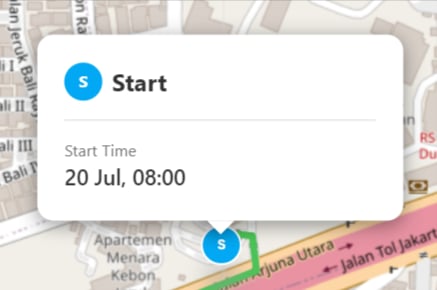
Finish Icon
The Finish icon will show you the location where the user clicks the Finish button on the mobile app to stop accessing their Task. You could also click the Start icon, and an information card will appear that will display these information below: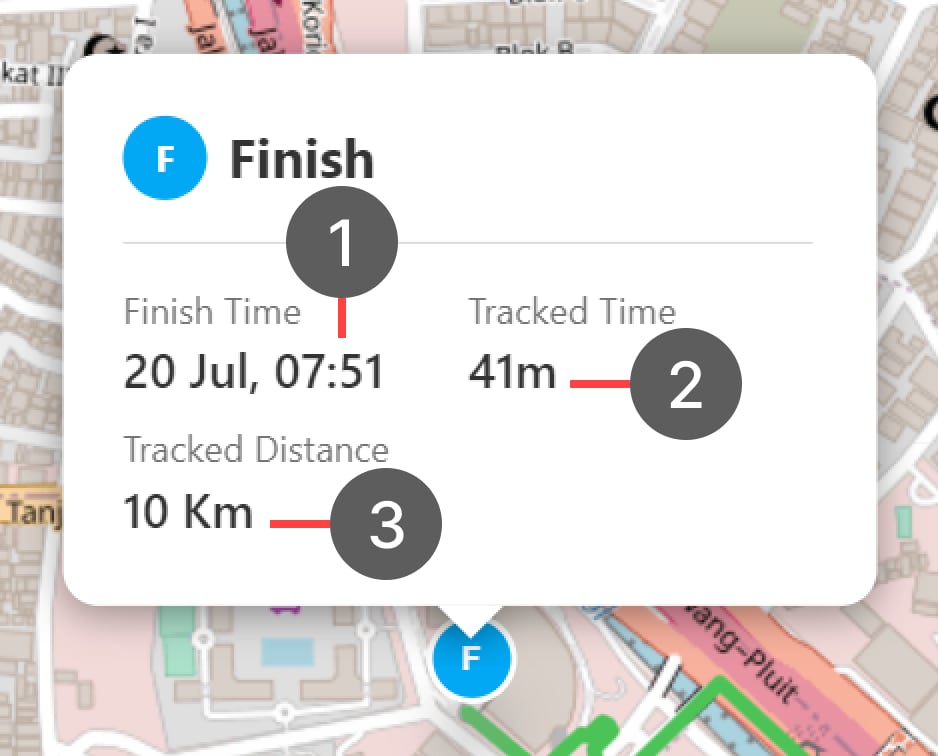
- Finish Time The Finish time is the time when the user clicks the Finish button in the mobile app.
- Tracked Time The Tracked Time is the total time since the user Start until the click the Finish button on the mobile app.
- Tracked Distance The Tracked Distance is the total distance time since the user Start until the click the Finish button on the mobile app.
Multiple Start Finish Session
If the user has more than one Start Finish session in a single day, the Start Finish icon and information card will have a number to show the connection between every Start and Finish icon. For example, the first session’s icons will show number 1 in front of the S and F icons, the second session’s icons will show number 2 in front of the S and F icons, and so on. As shown below: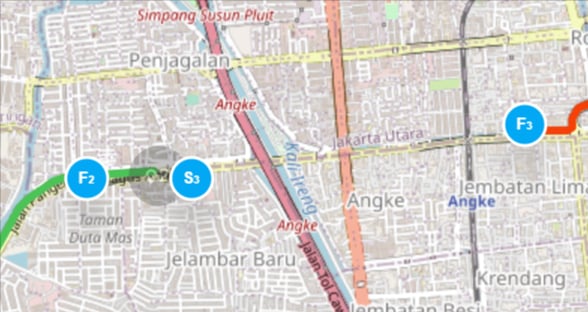
Route Line Information
These are 2 types of the Route line will be shown on the Tracking map:- Actual route based on the user location history update, and after the finish the Task.
- The Unfinished trip route was generated based on the location of the Ongoing Task.
Actual Route
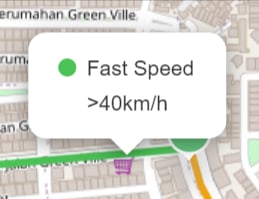
The actual route will show the speed information that is based on the user’s location history. It will show different colors that represent different speeds. You could click the line to see the information.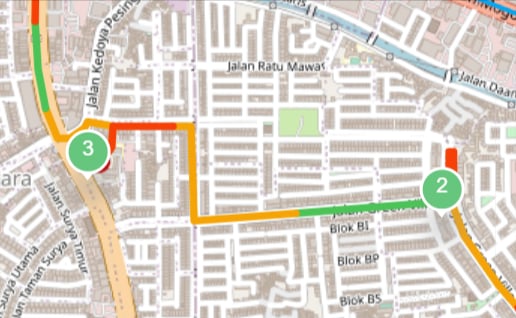
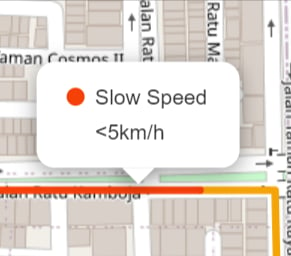
- Red line This line color represents a Slow Speed, which is 5km/h or less on average.
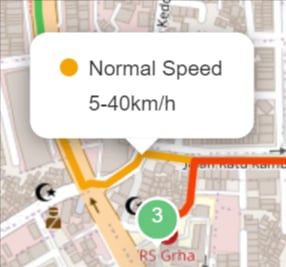
- Yellow line This line color represents a Normal Speed, which is between 5 and 40km/h on average.
- Green line This line color represents a Fast Speed, which is more than 40km/h on average.