There’s plenty of information on the Tracking page that could help you to know the latest location of each user, know the status of each task, and see the last update time of the user & task. The tracking page will show information from the current hub and the date that you choose. This is the list of information that you could find on the Tracking page.

General information

This information will show you a summary of all users’ information for that specific date, or if you haven’t chosen a specific date, it will show today’s date tracking history.

image
* Total User This counter for the Total user will show you the count of all Active & Inactive users in this Hub, this might not include some users in your organization, because the Tracking page will only show you user and location history from the active Hub that you choose. * Total Done Task This counter will show you the total number of the Done Task from all user in the Hub, if this number show 7/7 Tasks as shown in the example above, it means that all of this day’s task is done. But if it shows 0/7 Task, it means that there are still 7 Ongoing tasks on that day. * Total Ongoing Task This counter will show you the total number of the Ongoing Task from all user in the Hub, if this number show 7/7 Tasks, it means that there are still 7 Ongoing task on that day. But if it shows 0/7 Task as shown in the example above, it means that all task on that day is Done. * Total Travel Time This number is the total travel time of all users in the hub on that day, this number will only count the active user travel time. * Total Travel Distance This number is the total travel distance of all users in the hub on that day, this number will only count the active user travel distance.

Active User

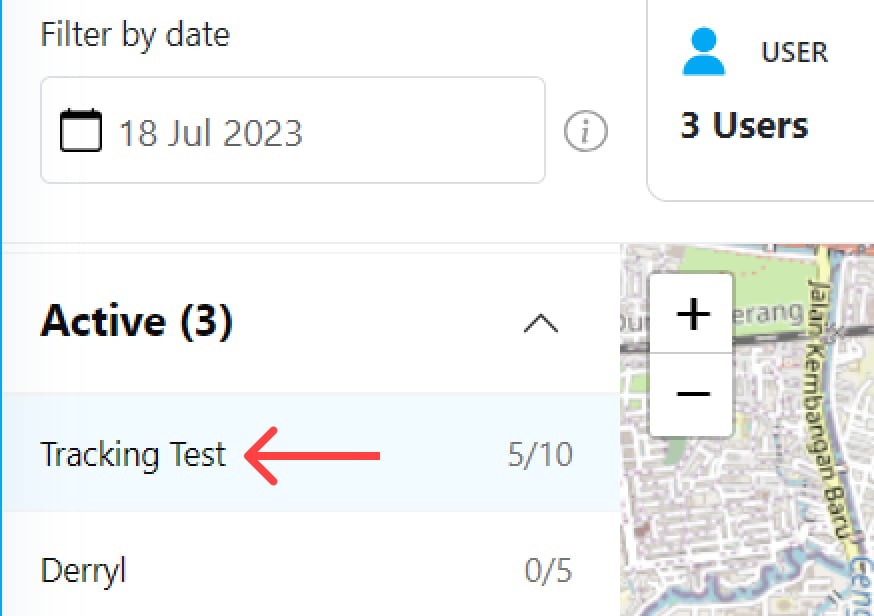
The active user list will show users that have an active Task on that day. If you wish to see the detailed tracking history of each user, click on the user on the list to view their task & location detail.

All Active User History

image
image
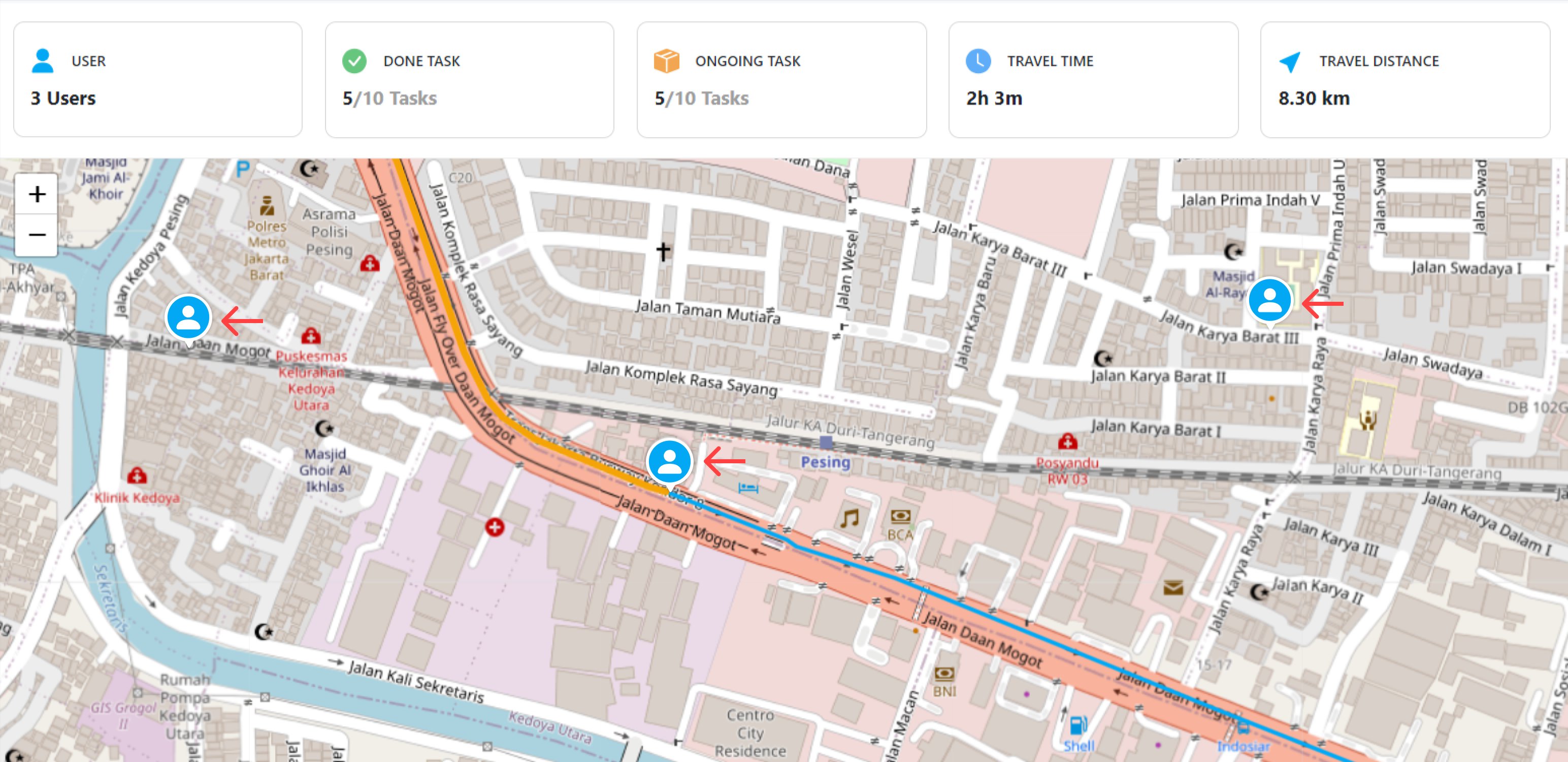
When you click this button, you will see all active user locations on the map view on the selected date. On the map, you will see multiple user icons that represent that user’s current location. This active user view will only show you the location of the user, if you wish to see the more detailed location history of each user, you should click and select the user on the list instead. The Active user button will also show the current active user number on that day. You could collapse/expand the Active user list by clicking the arrow.

Specific Active User History

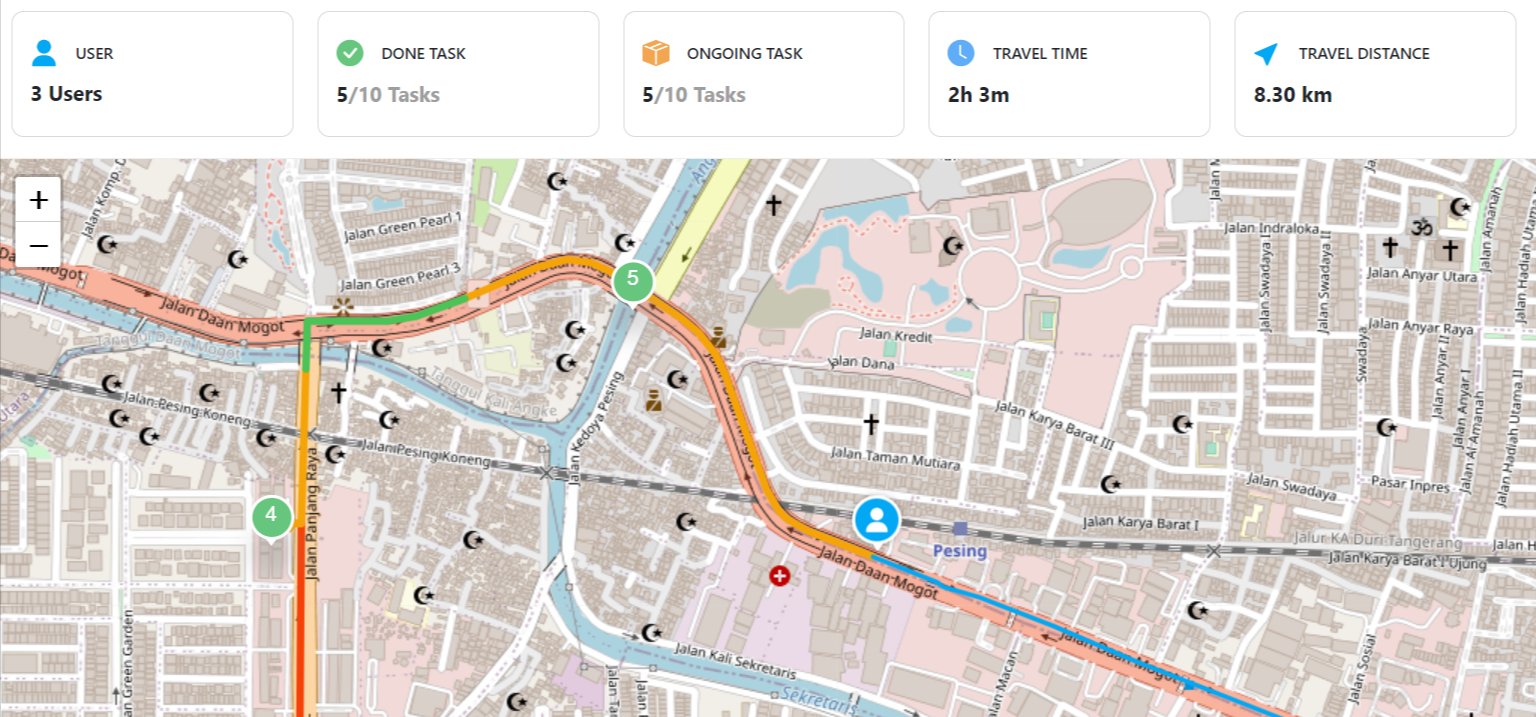
If you wish to see the detailed location history of an active user, you should click their name first on the Active user list. After you choose a user, the map will show you a more detailed history of that user that include their current location, ongoing & done task location, and their start & finish location. The planned route for the ongoing task & the actual route for the done task for this user will also be shown on the map.
image
image

Inactive User

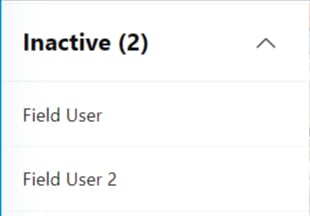
The inactive user list will show users that didn’t have a task on that day. This list will only show you the name of the inactive user, so it can’t be clicked because the inactive user didn’t send any data that could be shown on the tracking map. You could collapse or expand the inactive user list by clicking the arrow on the right side.
image