An automation sends a Discord message to a specific channel whenever a chosen event fires. You can insert dynamic variables (task data, flow fields, data source fields) and format the message with Discord markdown.
Required permission:
- Create automation
- View flows
Creating an Automation
- Click the Create button in the top-right of the Manager page.
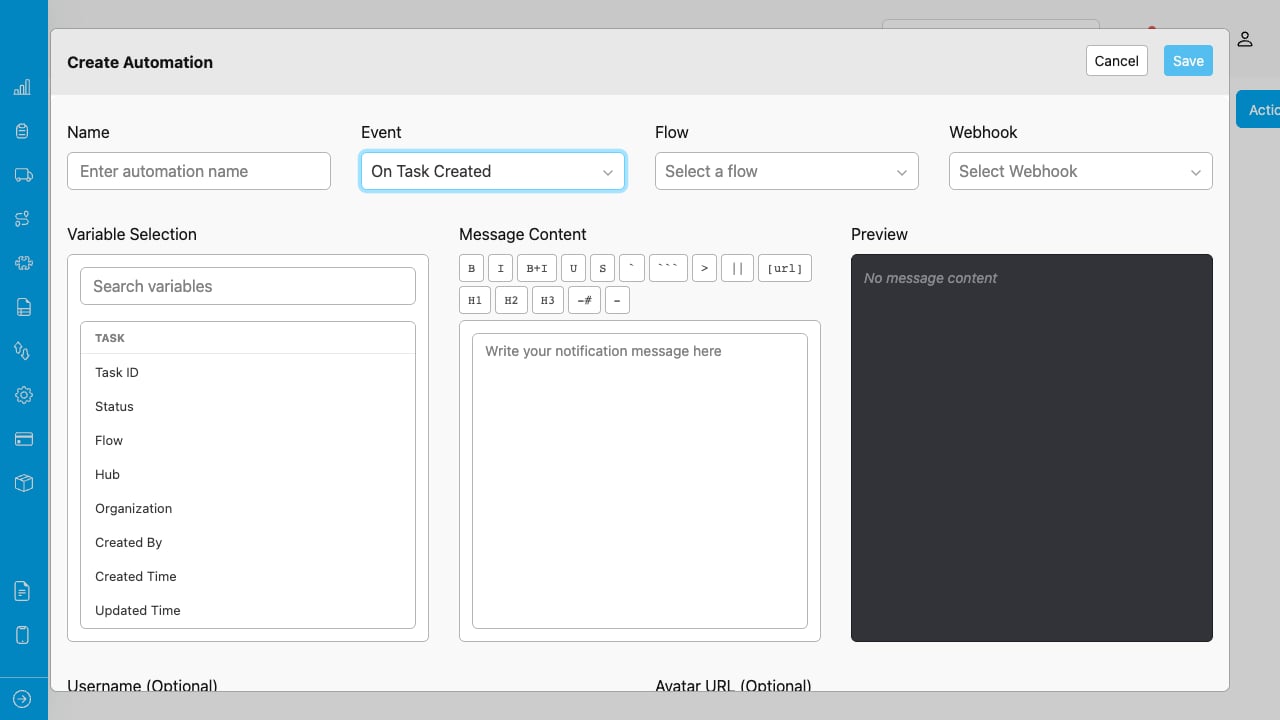
The Create Automation modal with all required fields and the message builder.
- Fill in the fields:
| Field | Required | Description |
|---|
| Name | Yes | A descriptive name for the automation (e.g., “New Task Alert”). |
| Event | Yes | The event that triggers the message. See the table below. |
| Flow | Conditional | Required for task events. Select the flow this automation applies to. |
| Data Type | Conditional | Required for data source events. Select the data type this automation applies to. |
| Webhook | Yes | The Discord channel to send the message to. Choose from your configured webhooks. |
| Message | No | The message content. Composed using the Message Builder (see below). |
| Username | No | Custom bot name for this automation. Overrides the default bot name. |
| Avatar URL | No | Custom bot avatar for this automation. Overrides the default avatar URL. |
- Click Save. The automation is created and immediately active.
Choosing an Event
The Event dropdown determines what triggers the automation and what variables are available in the message.
Task Events
These events require you to select a Flow. Only tasks from the selected flow trigger the automation.
| Event | When It Fires |
|---|
| Task Created | A new task is created under the selected flow |
| Task Assigned | A task from the selected flow is assigned to a user |
| Task Finished | A task from the selected flow is marked as complete |
Data Source Events
This event requires you to select a Data Type.
| Event | When It Fires |
|---|
| Data Source Created | A new record is added to the selected data type |
Routing and Trip Events
These events do not require additional configuration.
| Event | When It Fires |
|---|
| Routing Finished | A route optimization calculation completes |
| Routing Dispatched | An optimized route is dispatched to users |
| Start Trip | A user starts a trip |
| Finish Trip | A user finishes a trip |
Using the Message Builder
The Message Builder is a three-column editor for composing your Discord message.
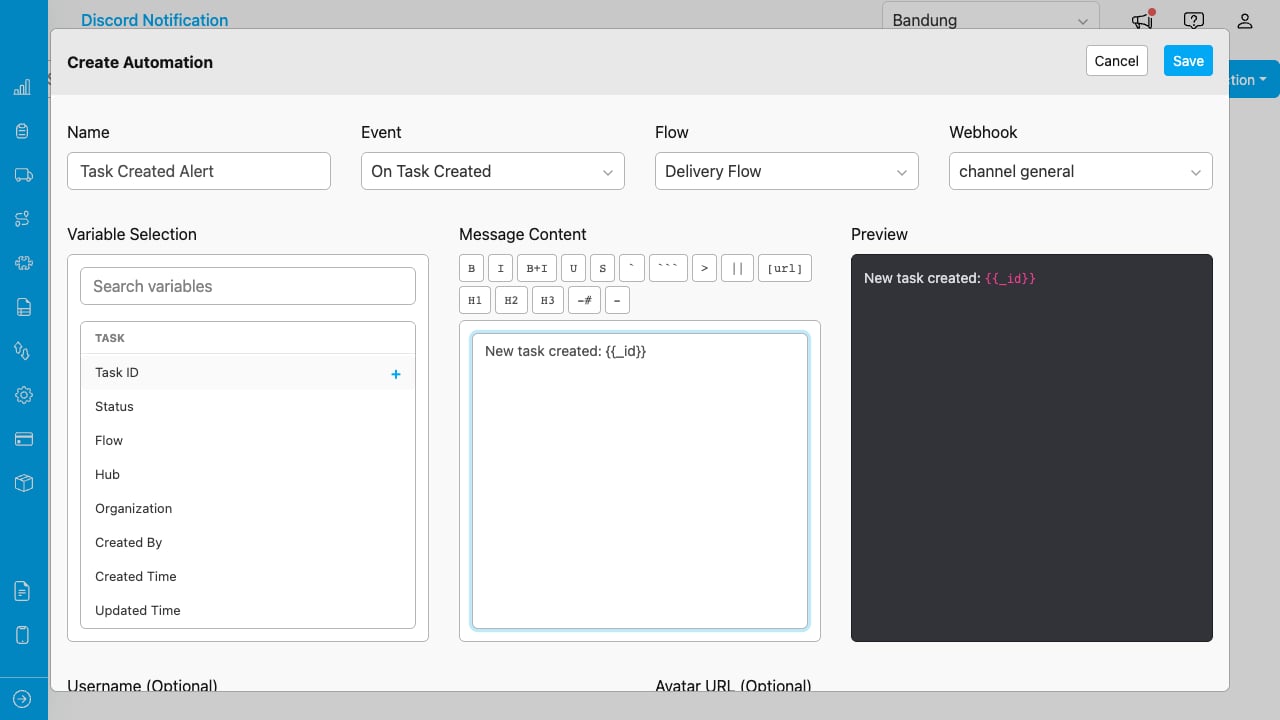
Left: available variables. Center: message editor with formatting toolbar. Right: live preview.
Inserting Variables
The left column shows all available variables based on the event type and selected flow or data type.
- Task variables (task events): Task ID, Status, Flow, Hub, Organization, Created By, Assignee, Timestamps, and more.
- Flow fields (task events): Dynamic fields from the selected flow (text, number, date, select, etc.).
- Data source variables (data source events): Data ID, Data Type ID, Created By, Organization ID, and more.
- Data type fields (data source events): Dynamic fields from the selected data type.
- Mentions: All configured mentions plus @here and @everyone.
Click a variable to insert it at the cursor position. Variables appear as {{variable_name}} in the editor and are replaced with actual values when the message is sent.
Use the search box to find variables quickly.
The formatting toolbar above the editor provides buttons for all Discord markdown styles:
| Button | Syntax | Result |
|---|
| Bold | **text** | text |
| Italic | *text* | text |
| Bold Italic | ***text*** | text |
| Underline | __text__ | underlined text |
| Strikethrough | ~~text~~ | text |
| Inline Code | `text` | text |
| Code Block | ```text``` | code block |
| Blockquote | > text | quoted text |
| Spoiler | ||text|| | hidden until clicked |
| Masked Link | [text](url) | clickable link |
| Heading 1 | # text | large heading |
| Heading 2 | ## text | medium heading |
| Heading 3 | ### text | small heading |
| Subtext | -# text | small gray text |
| List Item | - text | bulleted item |
Select text in the editor, then click a formatting button to wrap it. Or click the button first and type inside the inserted markers.
Previewing
The right column shows a live preview of the formatted message. Variables appear as colored chips, mentions appear as highlighted tags, and markdown is rendered as it will appear on Discord.
The preview updates as you type.