

Required permission:
- Edit automation
Opening Settings
Click the gear icon next to the Create button in the top-right of the Manager page.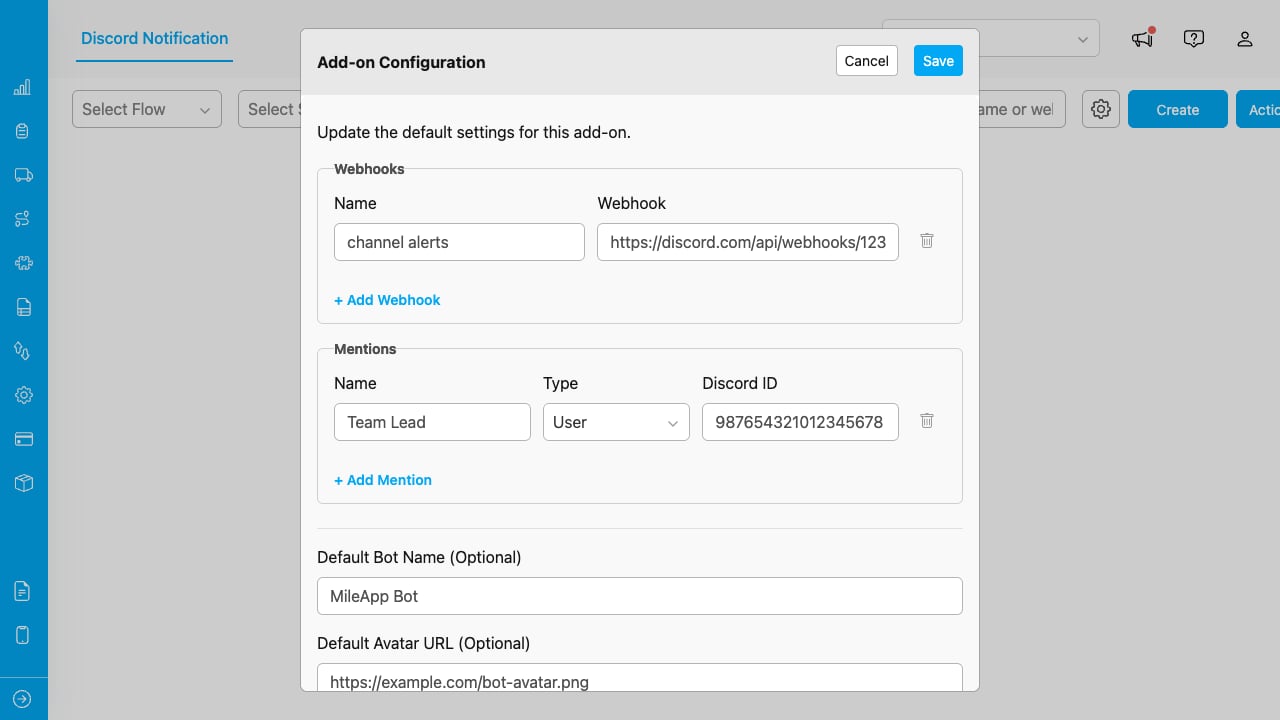
The Settings dialog with webhook, mention, and default bot configuration.
Managing Webhooks
Webhooks connect automations to Discord channels. Each webhook points to one channel.Adding a Webhook
- Click Add Webhook.
- Enter a Name (e.g., “Sales Alerts”, “Support Channel”).
- Paste the Discord Webhook URL.
- Click Save.
Editing a Webhook
Change the name or URL of an existing webhook directly in the list. Click Save to apply.Removing a Webhook
Click the trash icon next to a webhook. If any automations use this webhook, a warning dialog shows which automations are affected. Removing a webhook deactivates all automations that use it. Those automations are not deleted; they can be reactivated later by assigning a new webhook.Getting a Webhook URL from Discord
- Open your Discord server.
- Go to Server Settings > Integrations > Webhooks.
- Click New Webhook.
- Select the target channel.
- Click Copy Webhook URL.
Managing Mentions
Mentions let you tag Discord users or roles in messages so they receive notifications.Adding a Mention
- Click Add Mention.
- Enter a Name (a label for easy identification, e.g., “Operations Manager”).
- Select Type: User or Role.
- Enter the Discord ID.
- Click Save.
Finding a Discord ID
- Open Discord and go to User Settings > Advanced.
- Enable Developer Mode.
- For a user: right-click the user and select Copy User ID.
- For a role: go to Server Settings > Roles, right-click the role, and select Copy Role ID.
Removing a Mention
Click the trash icon next to a mention. The mention is removed from the list and will no longer appear in the Message Builder for future automations. Existing messages that reference this mention are not affected.Default Bot Settings
These defaults are pre-filled when creating new automations. Individual automations can override them.Resetting the Configuration
If you need to start over completely:- Scroll to the bottom of the Settings dialog.
- Click Reset Configuration.
- In the confirmation dialog, optionally check Also delete associated automations.
- Click Confirm.