

What is the Coordinate Input?
Coordinate captures alat,lng position — either from the device GPS or entered manually. It is the primary component for location-based operations: route optimization, expected-location enforcement, and map-based task visualization.
Use Cases:
- Delivery location: Capture the customer’s GPS position on the Initial Page for route optimization and proof-of-delivery geolock
- Field service check-in: Record on-site coordinates to prove the technician arrived at the correct location
- Import geocoding: Import tasks with address text and let the system forward-geocode the coordinates automatically
Coordinate Properties
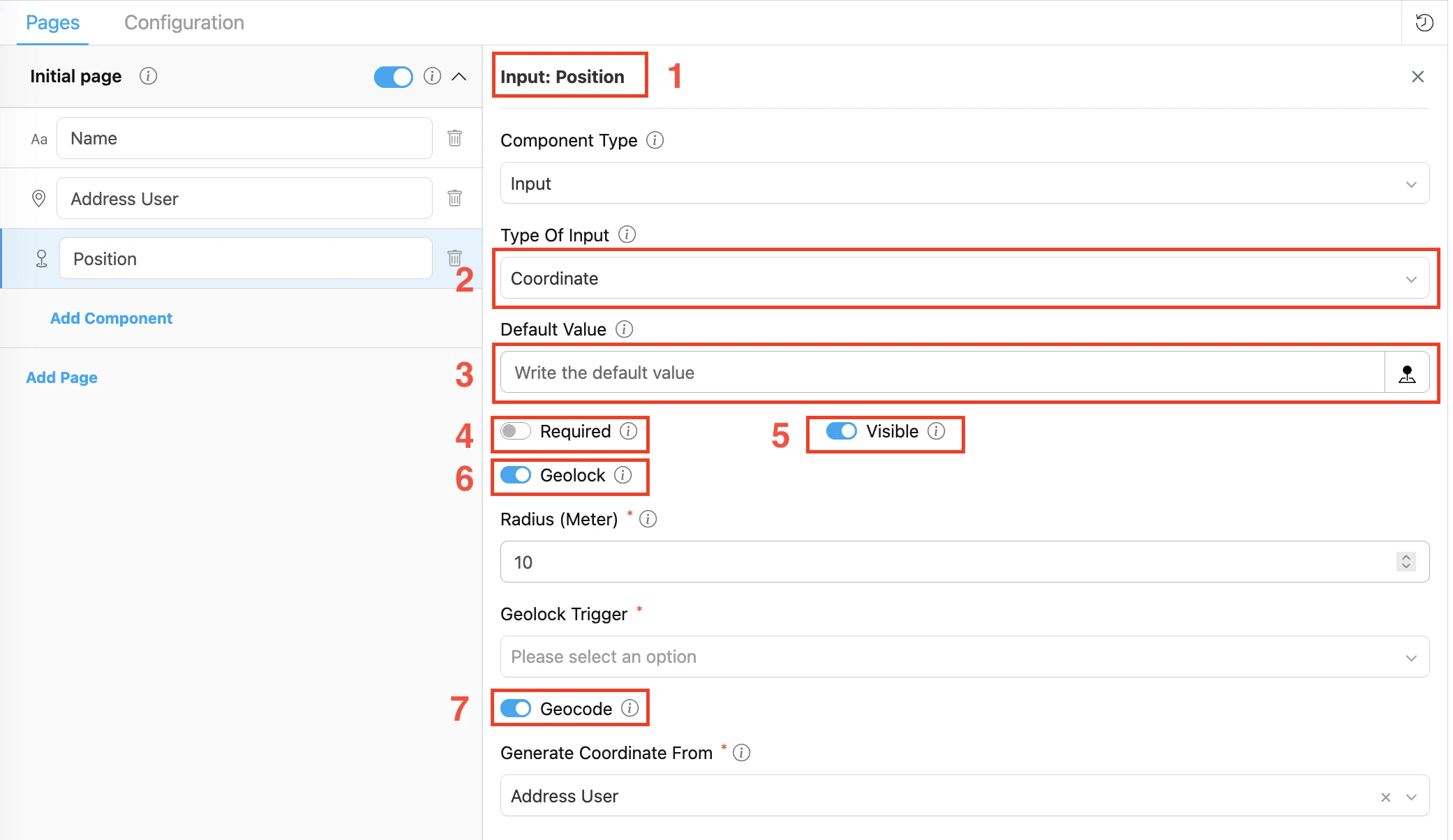
- Title — Component label shown to field workers (e.g., “Delivery Location”, “Position”)
- Data type — Set to Coordinate
- Default Value — Pre-filled
lat,lngvalue (e.g.,-6.200000,106.816666). A task created with this flow will use this value unless overridden. - Required — If on, the field must be filled before page completion
- Visible — Controls display on Create Task (web and mobile) and View Task (mobile).
- Geolock — If on, enables geofencing validation. Reveals two additional fields:
- Radius (Meter) — Defines the geofence boundary around the expected coordinate. Minimum 0.
- Geolock Trigger — When the check occurs: On Task Started or On Task Done
- Geocode — If on, automatically populates this Coordinate field from the linked Address component during task import. Reveals:
- Generate Coordinate From — Select the Address component to use as the geocoding source (e.g., select “Address User”)
How to Configure Coordinate
Step 1: Add the Component
In the Flow Builder, click Add Component on the target page. Set Component Type to Input and Type Of Input to Coordinate.Step 2: Set Basic Properties
Enter the component Title (e.g., “Position”). Toggle Required and Visible as needed. Optionally enter a Default Value inlat,lng format.
Step 3: Configure Show As / Route As (optional)
In the Configuration section at the bottom of the settings panel:- Set Show As to
expectedCoordinate— the value is copied to the task’sexpectedCoordinateroot field, used by the route optimization engine and displayed on the task list map. - Set Route As to
Coordinate— maps this field to the routing engine as the visit’s geographic position.
Step 4: Enable Geolock (optional)
Toggle Geolock on to enforce that the field worker is physically near the expected location:- Set Radius (Meter) — the acceptable distance from the expected coordinate (e.g., 100 for 100 meters).
- Set Geolock Trigger:
- On Task Started — validates proximity when the driver starts the task (useful for pick-up at a depot)
- On Task Done — validates proximity when marking the task complete (useful for delivery proof)
Step 5: Enable Geocode (optional)
Toggle Geocode on to automatically populate this Coordinate field from an Address component during task import:- Generate Coordinate From dropdown appears — select the Address component in the flow that should be used as the geocoding source (e.g., “Address User”).
- Save the flow. The two components are now linked.
- No manual coordinate entry when importing tasks — if you fill the Address field during import, the system automatically converts it to GPS coordinates and populates this Coordinate field.
Geocode: Address → Coordinate
Geocode only runs address to coordinate. For the opposite direction, coordinate to address, see Reverse Geocode on the Address Component, an internal-account-only setting configured on the Address side.
How to set up:
- Add both a Coordinate component and an Address component to the flow (same page or different pages).
- Click the Coordinate component to open its settings.
- Toggle Geocode on.
- In Generate Coordinate From, select the Address component from the dropdown.
GeoLock vs Geocode
Both features are enabled on the Coordinate component but serve completely different purposes:Validation Rules
- Radius must be an integer ≥ 0 when Geolock is on
- Geolock Trigger must be selected when Geolock is on
- Generate Coordinate From must reference a valid Address component when Geocode is on
- Maximum one
On Task Startedgeolock per flow - Maximum one
On Task Donegeolock per flow
How Coordinate Works in Tasks
When a field worker opens a task on the mobile app:- The Coordinate field shows a
latitude,longitudeinput with a map picker button - The worker taps the map picker to use their current GPS position, or enters coordinates manually
- If Geolock is configured, the app checks proximity at the trigger point:
- If within radius → task action proceeds normally
- If outside radius → the action is blocked with an error message
Related
- Address Component: Address field used as the geocoding source for this Coordinate, and that can itself be auto-populated from this Coordinate via Reverse Geocode
- Configuration: Route — Setting
Route As: Coordinate - Configuration: Task List — Setting
Show As: expectedCoordinate - Input Component Overview