

What is the Address Input?
Address captures a multi-line text string representing a physical location. Unlike the Coordinate component, Address has no GPS or geofencing features — it is a passive text field that stores whatever the worker types. Use Cases:- Delivery address display: Show the customer’s address on the task card and mobile form
- Import source for geocoding: Provide the address during task import and let the system convert it to coordinates automatically
- Manual address entry: Allow workers to record a location in plain text when GPS is not required
Address Properties
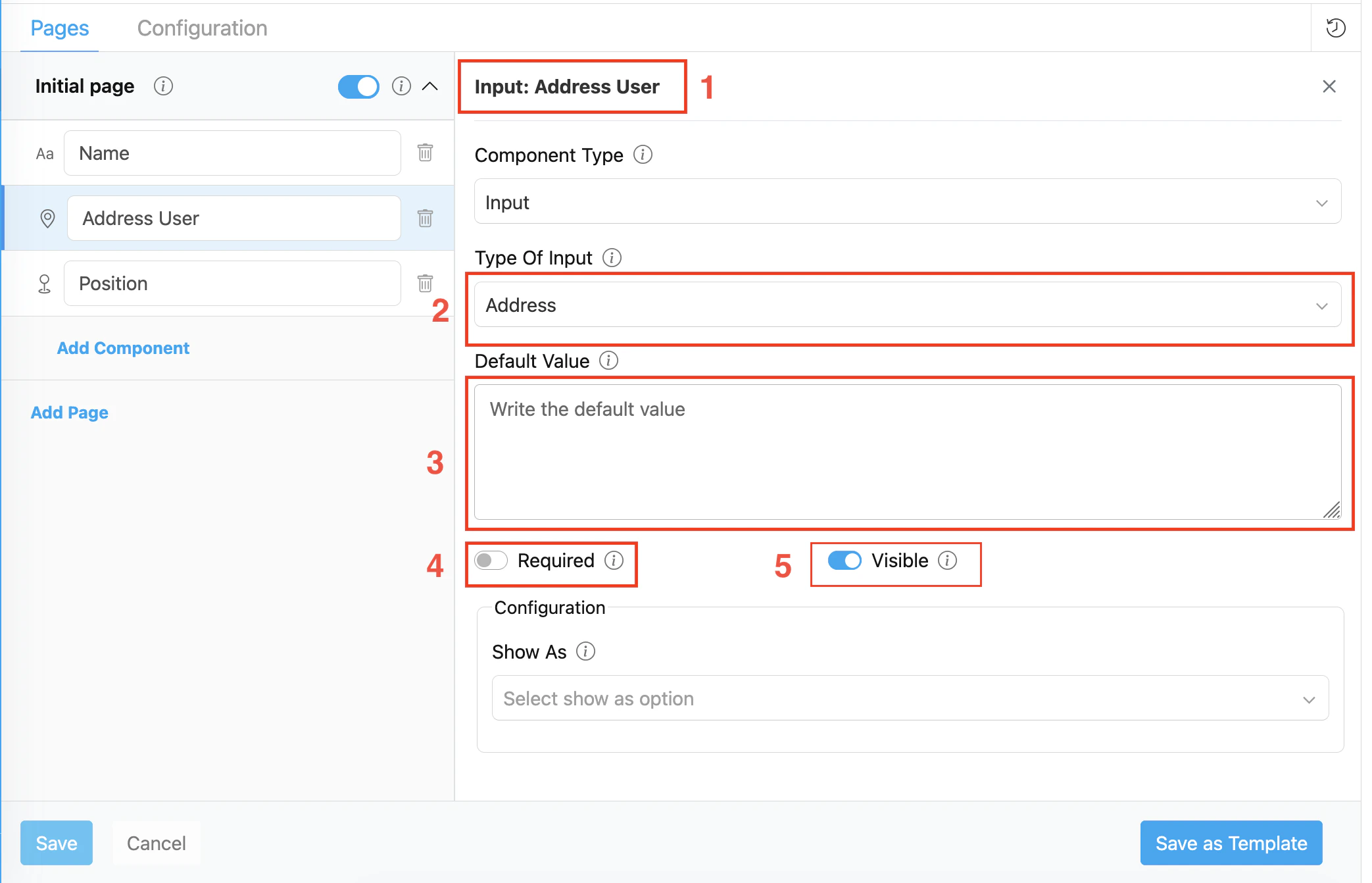
- Title — Component label shown to field workers (e.g., “Customer Address”, “Address User”)
- Type of Input — Set to Address
- Default Value — Pre-filled address text. A task created with this flow will use this value unless overridden. Supports multiple lines.
- Required — If on, the field must be filled before page completion
- Visible — Controls display on Create Task (web and mobile) and View Task (mobile).
- Reverse Geocode: If on, automatically populates this Address field from a linked Coordinate component. Reveals:
- Generate Address From: Select the Coordinate (
Geolocationtype) component to use as the reverse geocoding source
- Generate Address From: Select the Coordinate (
The Reverse Geocode toggle is only visible to MileApp internal accounts. It is not available to customer organizations in the builder UI while
mile-v3-mobile does not yet fill a paired Address on the mobile app.How to Configure Address
Step 1: Add the Component
In the Flow Builder, click Add Component on the target page. Set Component Type to Input and Type Of Input to Address.Step 2: Set Basic Properties
Enter the component Title (e.g., “Customer Address”). Toggle Required and Visible as needed. Optionally enter a Default Value — this is a multi-line textarea.Step 3: Configure Show As (optional)
In the Configuration section:- Set Show As to
content— the address text appears as the main description line on the task card in the task list. - Set Show As to
title— the address text appears as the task’s title (use only when there is no dedicated name field). - Set Show As to
label— the address appears as a smaller label on the task card.
Step 4: Link to a Coordinate component for forward geocoding (optional)
This drives coordinate population from this Address, the opposite direction of the setting below. To enable it:- Add a Coordinate component to the same flow.
- Open the Coordinate component’s settings.
- Toggle Geocode on and select this Address component in Generate Coordinate From.
Step 5: Enable Reverse Geocode (optional)
Available to MileApp internal accounts only. Customer organizations do not see this toggle in the Flow Builder.
- Add a Coordinate component to the same page.
- Open this Address component’s settings.
- Toggle Reverse Geocode on.
- In Generate Address From, select the Coordinate component that should supply the location.
- Save the flow.
Reverse Geocode: Coordinate → Address
When Reverse Geocode is enabled, the Coordinate field drives the Address field:Validation Rules
- Generate Address From must reference a valid Coordinate (
Geolocationtype) component in the same page when Reverse Geocode is on - A flow is rejected on save if the paired Coordinate also points its own Geocode setting back at this Address (circular pairing)
- Reverse Geocode has no effect for organizations without the internal-account gate; the setting cannot be turned on through the Flow Builder UI, though the underlying flow JSON keys are not blocked at the API level
How Address Works in Tasks
When a field worker opens a task on the mobile app:- The Address field shows a multi-line text area with placeholder text
- The worker can type freely, or the field may already be populated:
- From task creation: If the task was created with an address value (e.g., from Data Source or manual entry), the field is pre-filled
- The worker can edit the text before completing the page
Related
- Coordinate Component: GPS input that can be auto-populated from this Address field via Geocode, and that can auto-populate this Address field via Reverse Geocode
- Configuration: Task List — Setting
Show As: contentfor address display on task cards - Input Component Overview