

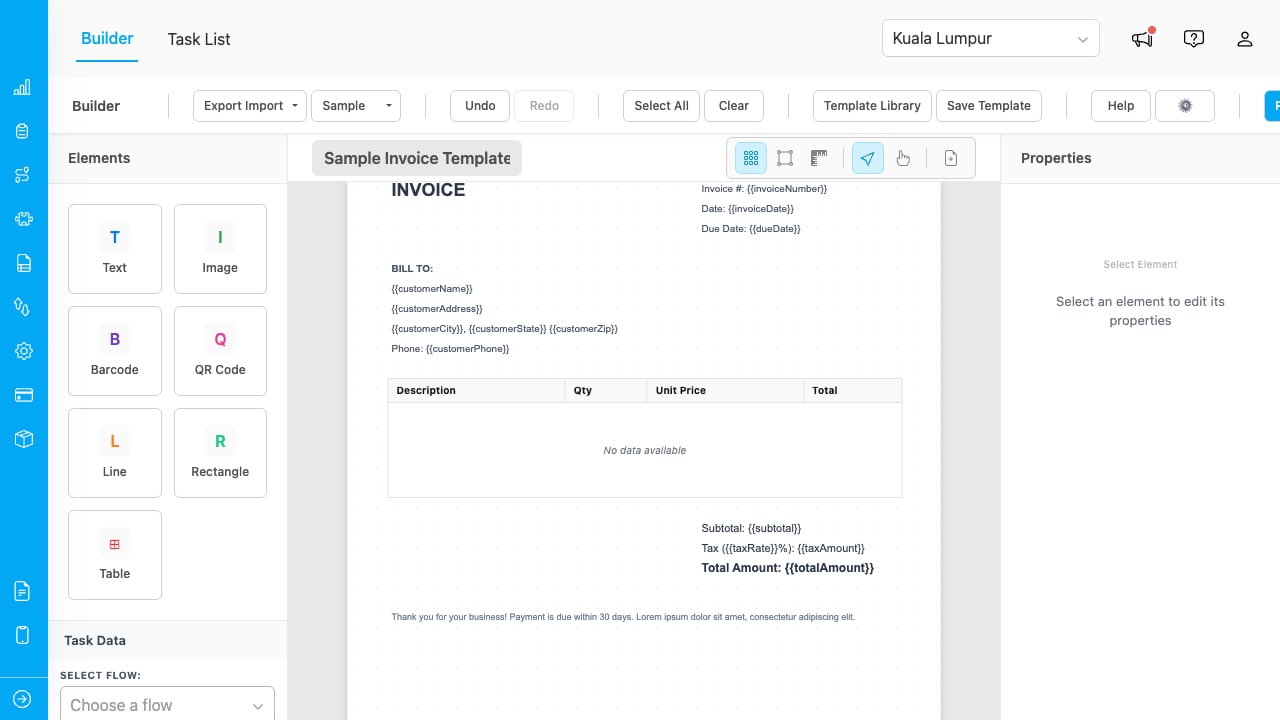
The builder canvas with a sample invoice template.
Adding Elements
Click an element type in the left sidebar to add it to the canvas.Selecting and Editing Elements
- Click an element to select it. The Properties panel on the right shows all editable properties.
- Drag an element to reposition it. Use arrow keys for 1px nudges, or Shift+Arrow for 10px.
- Drag the resize handles (8 points around the element) to resize.
- Double-click a text element to open inline editing.
- Ctrl+Click / Cmd+Click additional elements to multi-select.
Data Field Binding
Bind any element to live task data so it displays real values when printing:- Select the element and find the Plain Value / Data Field toggle in the Properties panel.
- Click Data Field to switch modes.
- Select a field from the dropdown. The element updates to show the resolved value from the loaded task.
You must load task data before data field binding works. Select a flow and task in the Task Data panel on the left sidebar. The Available Variables accordion shows all fields with type badges (String, Number, Object, Array).
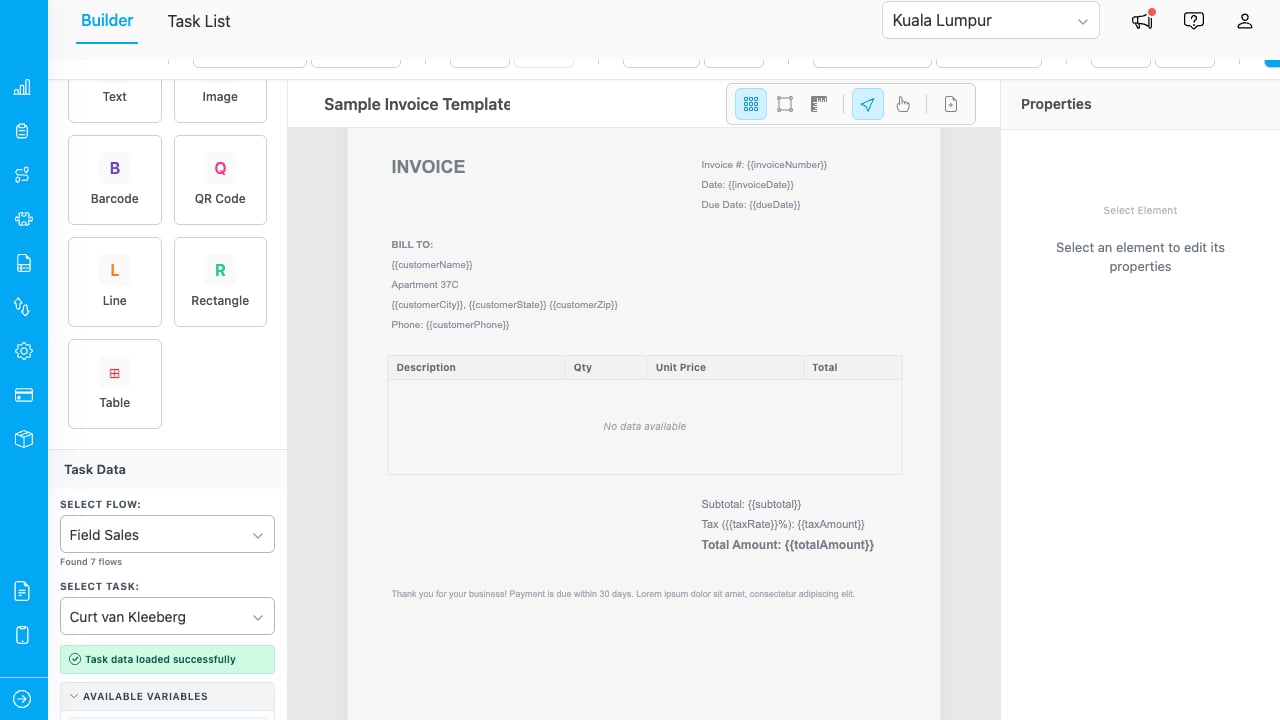
The data tree shows all available task variables with type badges.
Multi-Page Canvas
Templates can span multiple pages. Each page is a separate canvas area stacked vertically.- Click the Add Page button (file icon in the toolbar) to add a new page.
- Each page has a Page N label and a trash icon to delete it.
- Elements belong to the page they are placed on. Select All (Ctrl+A / Cmd+A) only selects elements on the active page.
- Drag an element past the bottom edge of a page to move it to the next page.
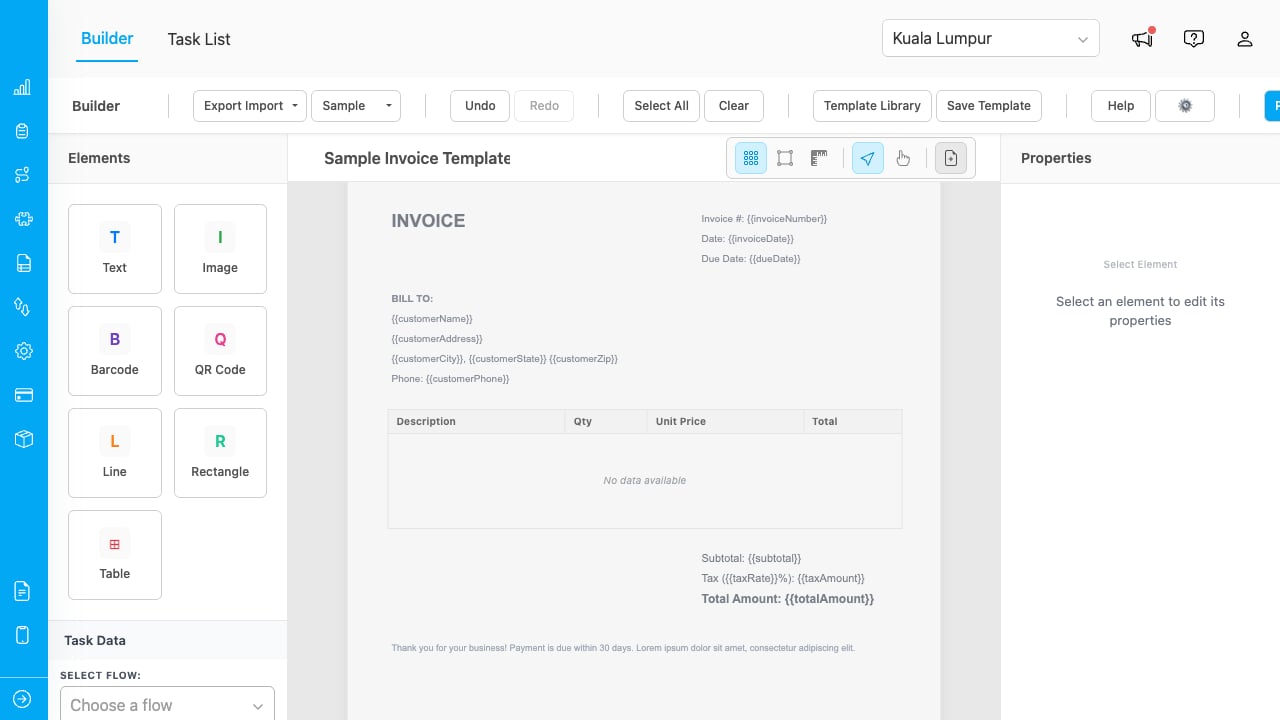
A two-page template with page labels and element counts.
Header and Footer Zones
Header and footer zones let you place elements that repeat on every page, like company logos, page numbers, or document titles.- Click the gear icon (⚙) and select Header & Footer.
- Set the Header Height (e.g., 80px) and Footer Height (e.g., 50px).
- Place elements within the zone area (above the header line or below the footer line). These elements appear on every page automatically.
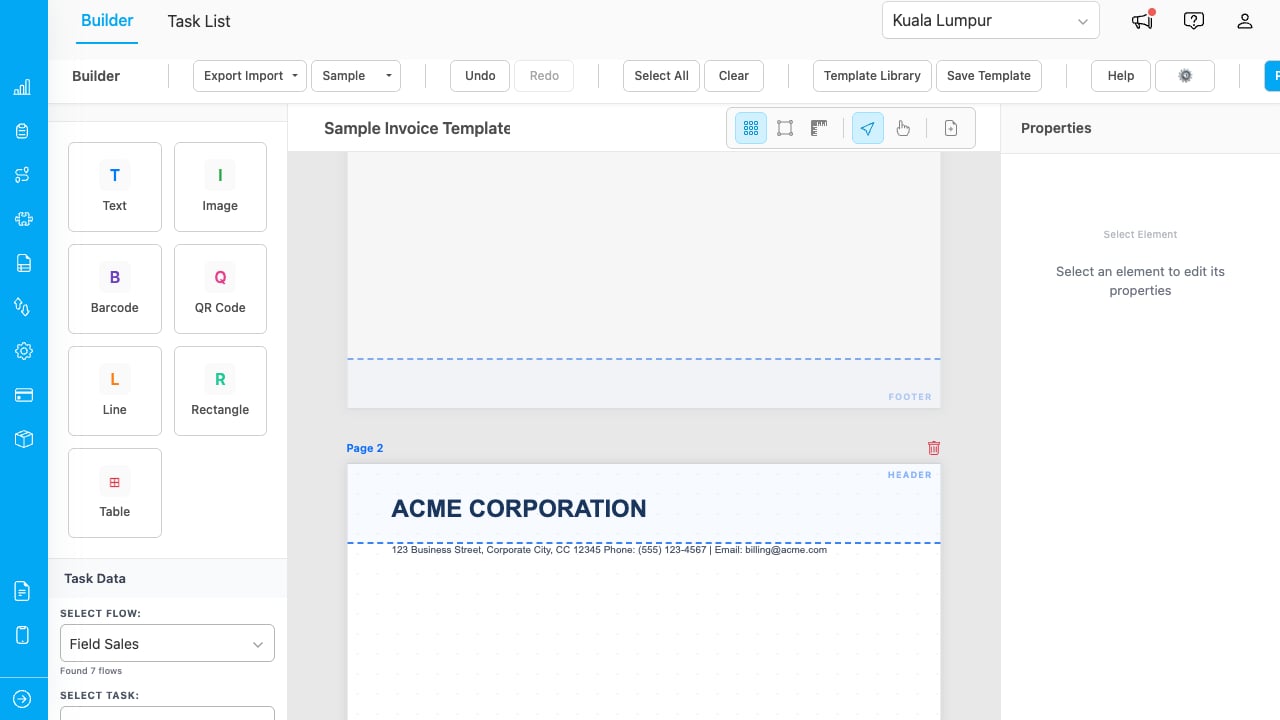
Blue dashed lines mark the header and footer zones on the canvas.
Use the variables{{pageNumber}} and {{totalPages}} in text elements placed in zones. They resolve per page in preview and PDF output (e.g., “Page 1 of 3”).
Watermark
Add a text watermark that appears behind all elements on every page.- Click the gear icon (⚙) and select Watermark.
- Enable the watermark toggle.
- Configure the text content, font size, color, opacity, and rotation.
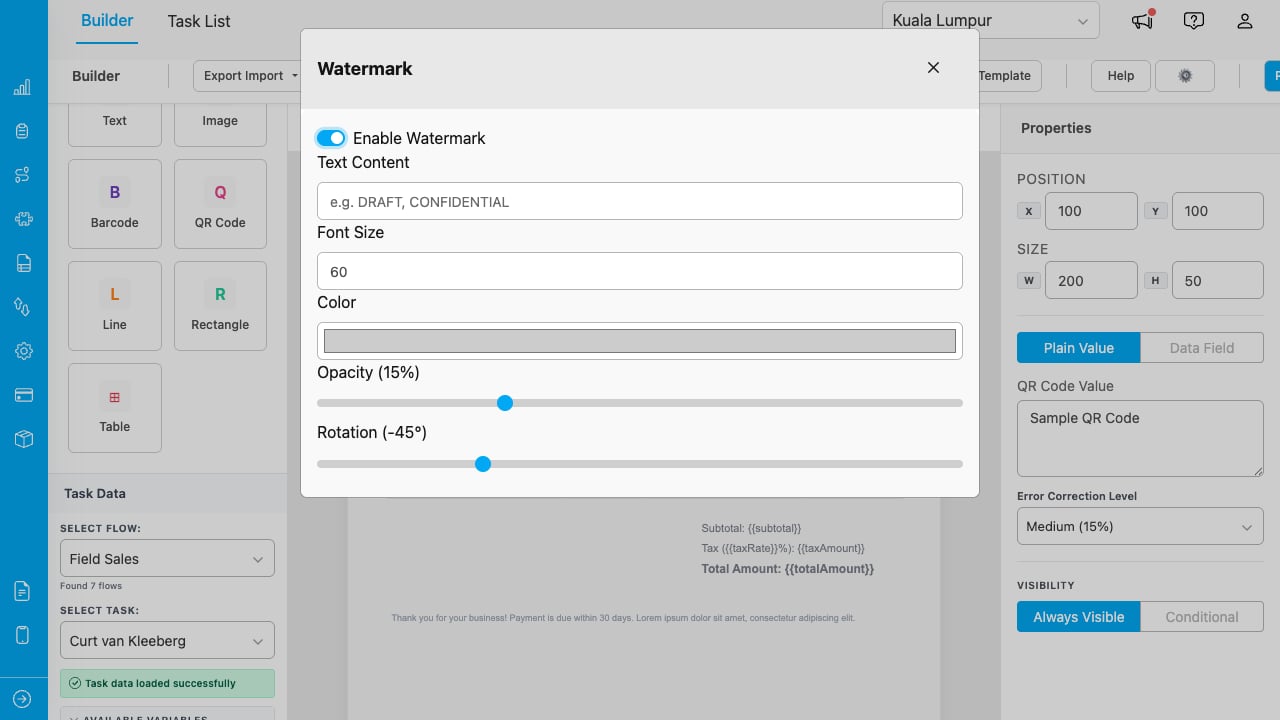
Watermark settings with text, font size, color, opacity, and rotation controls.
The watermark renders identically on the canvas, in preview, and in the exported PDF. Disable the toggle to remove it.Conditional Visibility
Show or hide elements based on task data values. This lets a single template adapt to different scenarios without creating separate templates.- Select an element and scroll to the Visibility section in the Properties panel.
- Click Conditional (instead of “Always Visible”).
- Choose a Data Field, an Operator (Equals, Does Not Equal, Contains, Is Empty, Is Not Empty), and a Value.
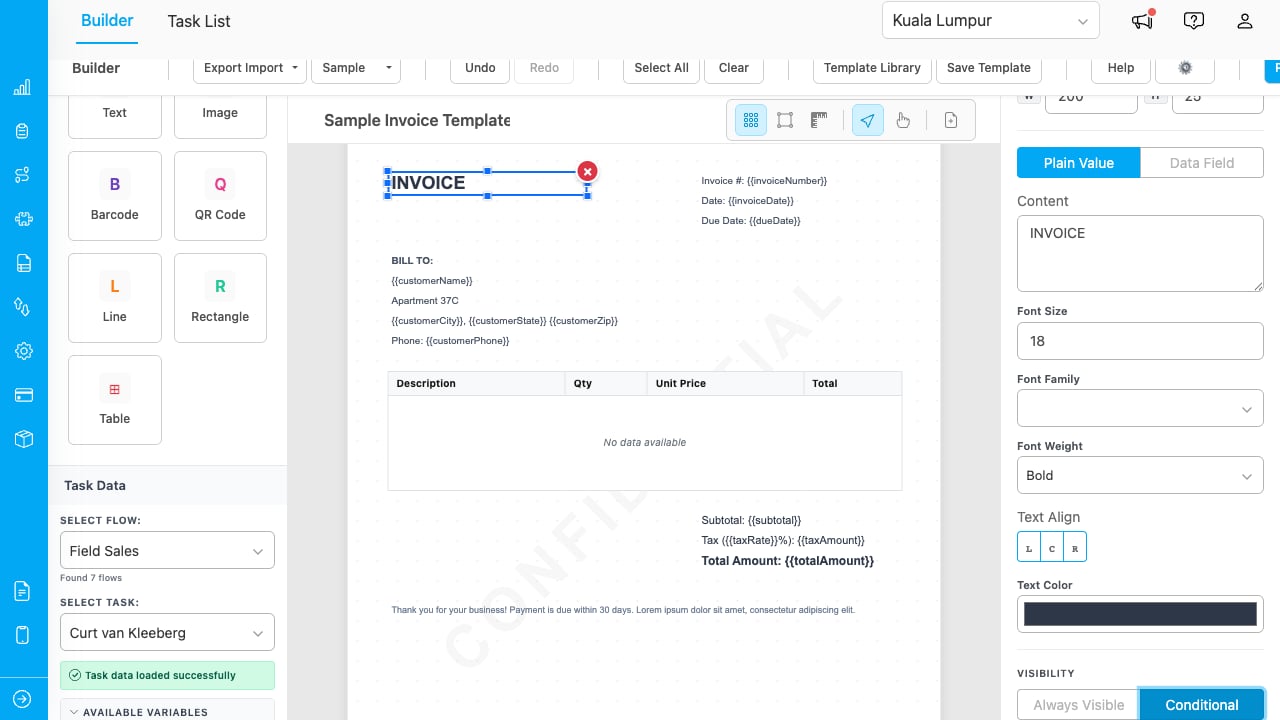
Conditional visibility with Data Field, Operator, and Value controls.
When the condition is not met, the element appears dimmed with diagonal stripes on the canvas (still selectable for editing). In preview and PDF output, the element is hidden entirely.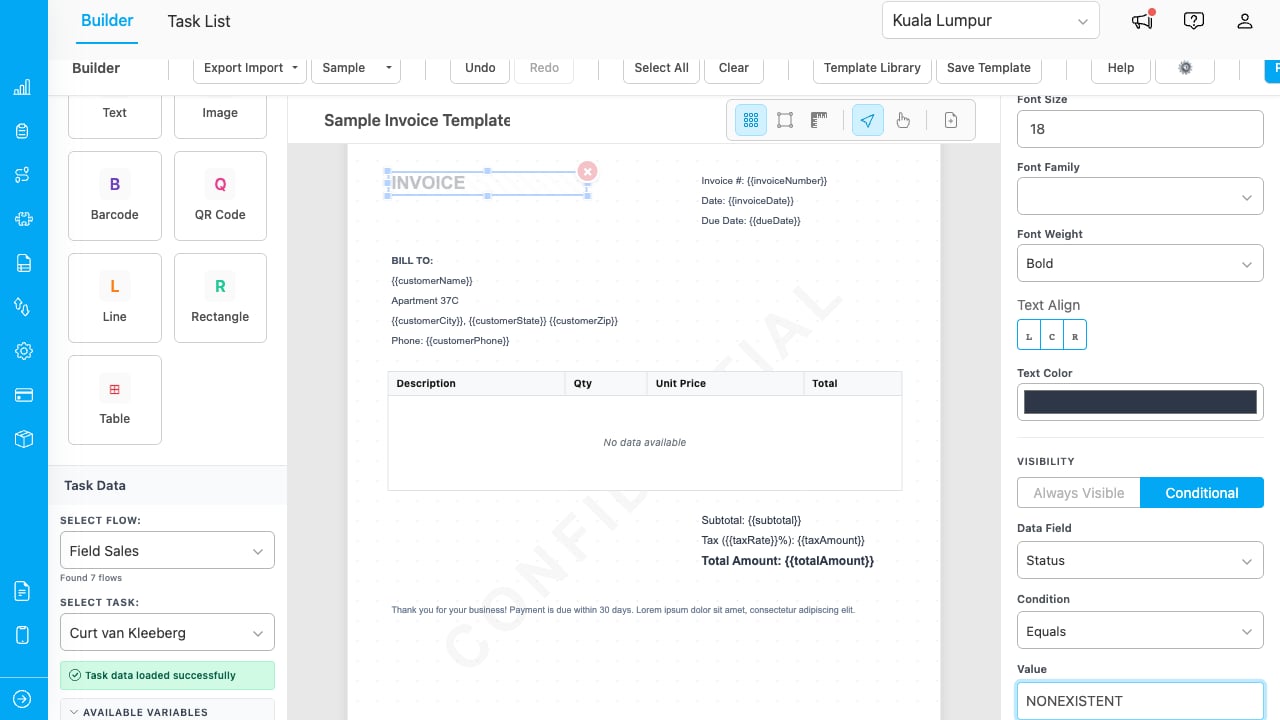
A conditionally hidden element shown dimmed on the canvas.
Grid and Snap
- Press Ctrl+G / Cmd+G to toggle grid dots on the canvas.
- Press Ctrl+; to toggle snap-to-grid alignment.
- Click the rulers button to show measurement labels on selected elements.
- Use Ctrl+Shift+H to align selected elements horizontally, or Ctrl+Shift+V to align vertically.
Keyboard Shortcuts
Press F1 or click the Help button to see all available shortcuts.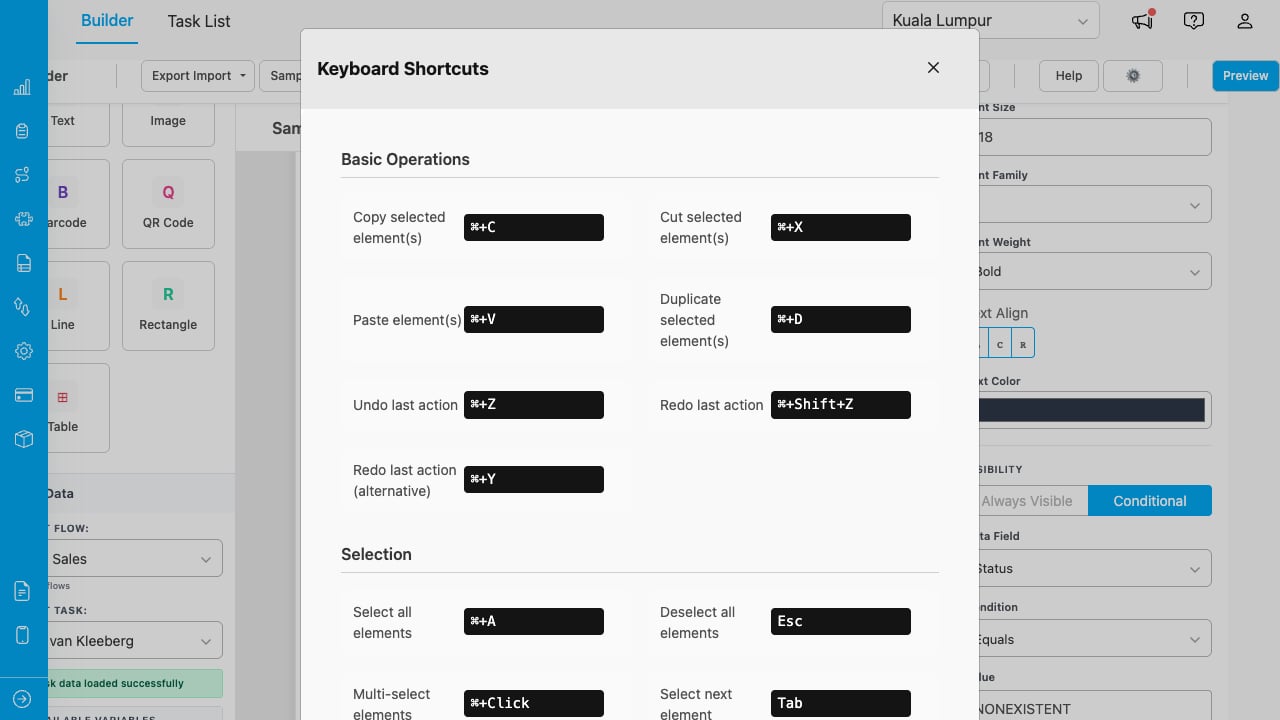
The keyboard shortcuts reference modal.
Saving Templates
- Click Save Template in the toolbar.
- Enter a Template Name and optional Description.
- Click Save. The template name is used as the default PDF filename when exporting.
Template Library
Click Template Library to browse, load, or delete saved templates.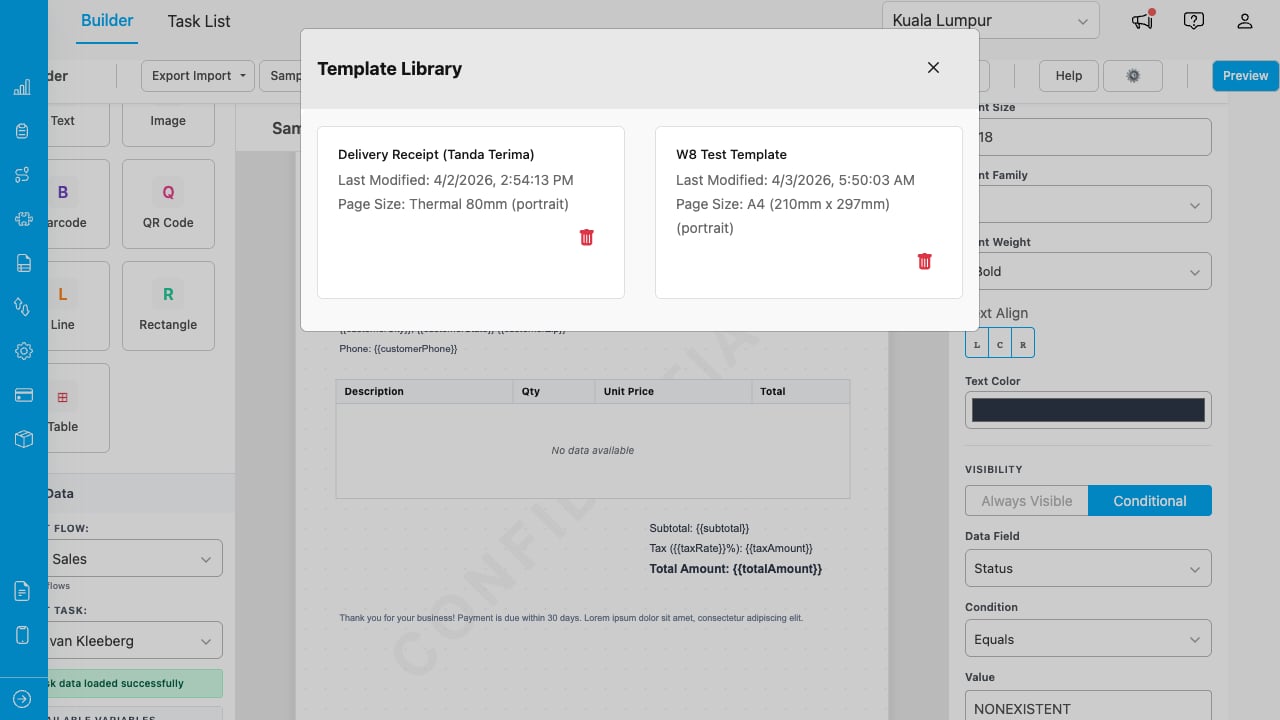
The Template Library shows saved templates as cards with name, date, and page size.
- Click a template card to load it. All elements, page count, watermark settings, and header/footer zones are restored.
- Click the trash icon on a card to delete that template.
- Each card shows the last modified date and page size.
Import and Export
- Export as JSON: Click Export Import > Export as JSON to download the current template as a
.jsonfile. This includes all elements, positions, page count, watermark, header/footer heights, and custom page sizes. - Import from JSON: Click Export Import > Import from JSON to load a previously exported template file.
Sample Templates
Click Sample to load a pre-built template:- Sample Template Invoice — A full invoice with header, bill-to section, item table, and footer (16 elements).
- Sample Template Delivery Receipt — A delivery receipt layout.
- Sample Template Thermal Receipt (80mm) — A narrow receipt designed for 80mm thermal printers.
Print Settings
Click Print Settings to configure the page size and orientation before printing or exporting.- Page Size: Choose from A4, A5, A6, B5, Letter, Legal, Thermal 58mm, Thermal 80mm, or create a custom size.
- Orientation: Portrait or Landscape.
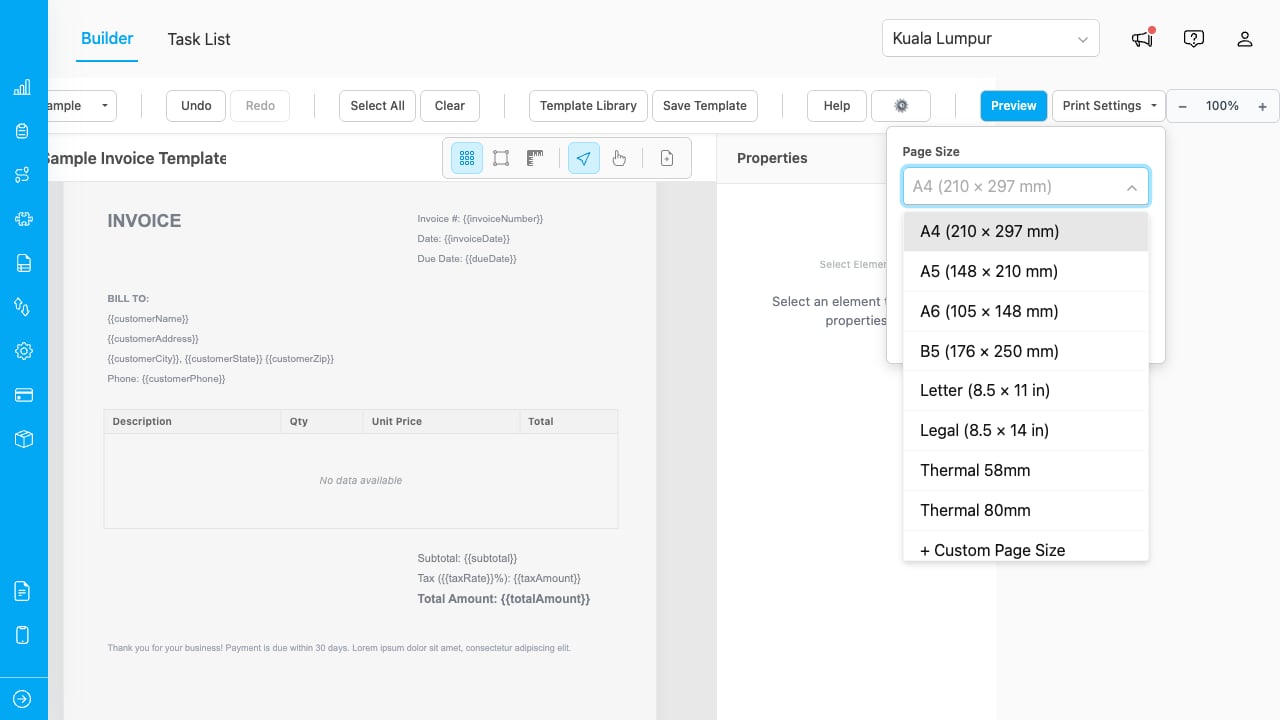
Page size dropdown with all built-in sizes and custom page size option.
Custom page sizes can be created, edited, and deleted. They appear in the dropdown alongside built-in sizes.