

Print Preview (Builder)
Click Preview in the toolbar to open the Print Preview modal. The preview shows exactly how the document will look when printed or exported, including watermarks, conditional elements, and multi-page layouts.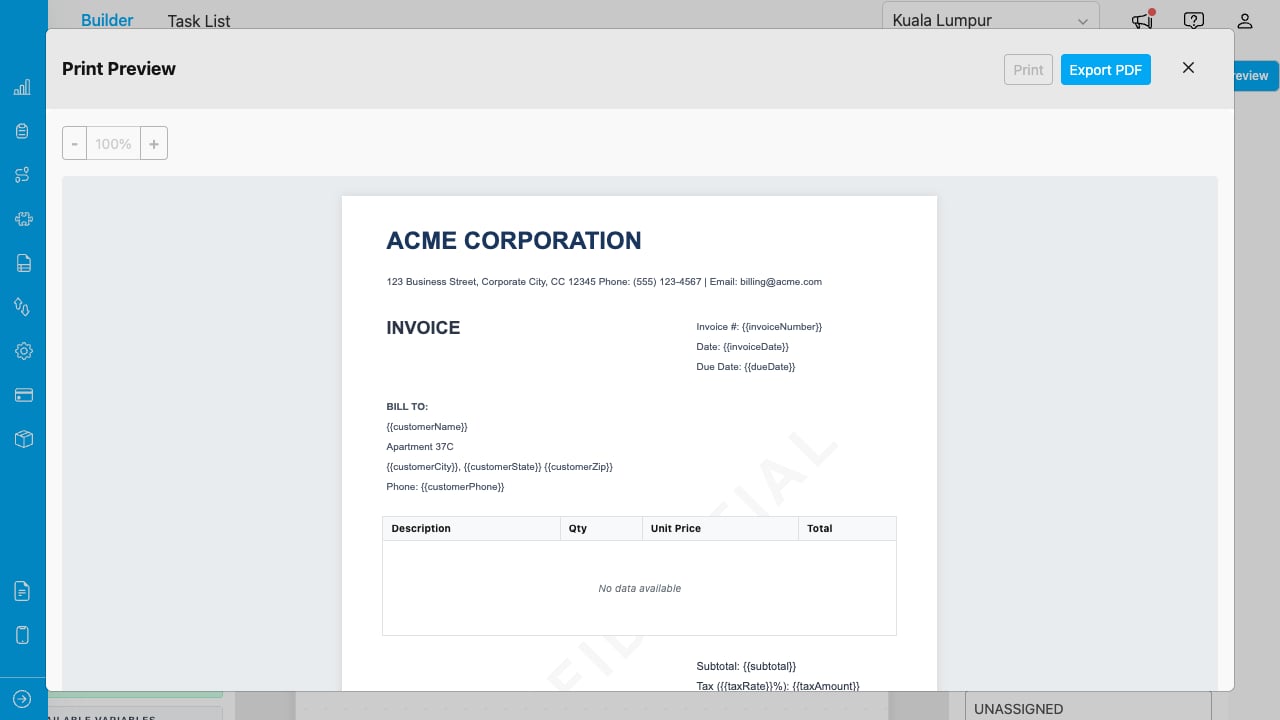
Print Preview showing a multi-page document with watermark.
Zoom Controls
- Click + or - to zoom in and out (50%–200%).
- The current zoom percentage is displayed between the buttons.
- Click Print to open the browser’s print dialog. The document is scaled using CSS zoom to match the physical page dimensions at 72 DPI.
Export PDF
- Click Export PDF to download the document as a PDF file. Text in the PDF is selectable and searchable (vector-based, not a screenshot).
If the primary PDF export fails, the system automatically falls back to a screenshot-based export using html2canvas. The resulting PDF will have rasterized text.
{Template Name}-{YYYYMMDD}-{HHMMSS}.pdf. For example, Delivery Receipt-20260403-141500.pdf.
Print Preview (Print Settings)
You can also access Preview, Print, and Export PDF from the Print Settings dropdown in the toolbar. This lets you change the page size and orientation immediately before producing the document.Single Task Print (Task List)
Print a document for one task directly from the Task List:- Navigate to the Task List tab.
- Select a flow to load tasks.
- Click the printer icon on the task row.
- Select a saved template from the template picker.
- The Print Preview opens with that task’s data. All data-bound elements show real values.
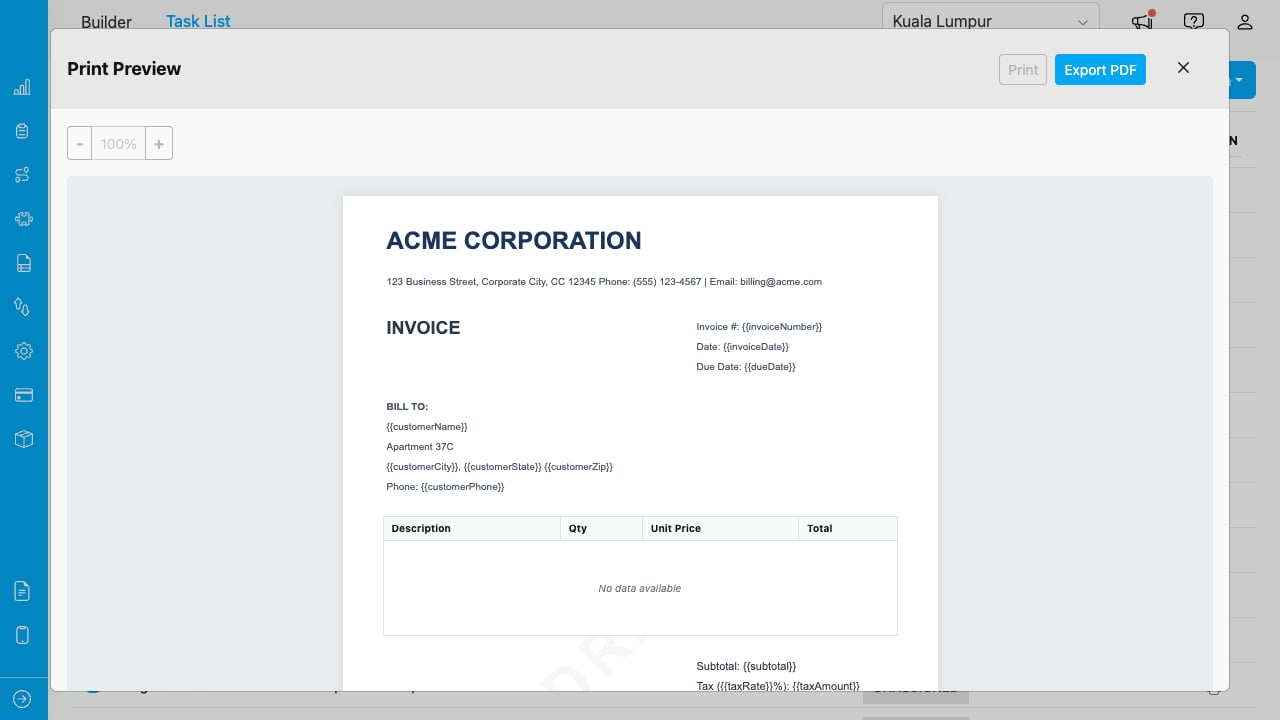
Print preview for a single task showing resolved field values.
Multi-Task Print (Task List)
Print documents for multiple tasks at once:- In the Task List, check the checkboxes next to the tasks you want to print.
- Click the Action dropdown and select Print.
- Select a saved template from the template picker.
- The Multi-Print modal opens with a sidebar listing all selected tasks and a preview panel on the right.
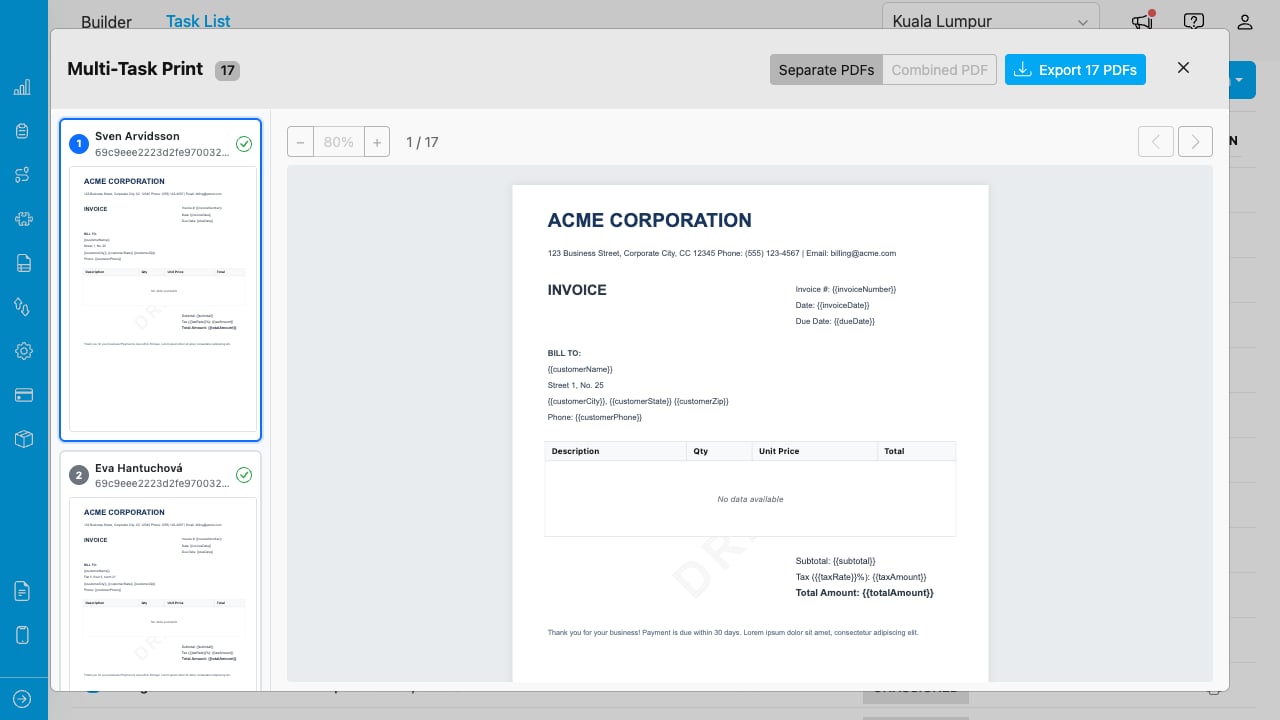
Multi-Print modal with task cards in the sidebar and preview on the right.
Navigating Between Tasks
- Click a task card in the sidebar to preview that task’s document.
- A green checkmark indicates the task data loaded successfully.
- The preview updates to show the selected task’s data.
Separate vs Combined PDF
Toggle between two export modes:- Separate PDFs: Downloads one PDF file per task. Each file is named
{Template Name}-{N}-{datetime}.pdfwhere N is the task number. - Combined PDF: Downloads a single PDF containing all tasks. Each task starts on a new page. Watermarks and zone elements repeat on every page.