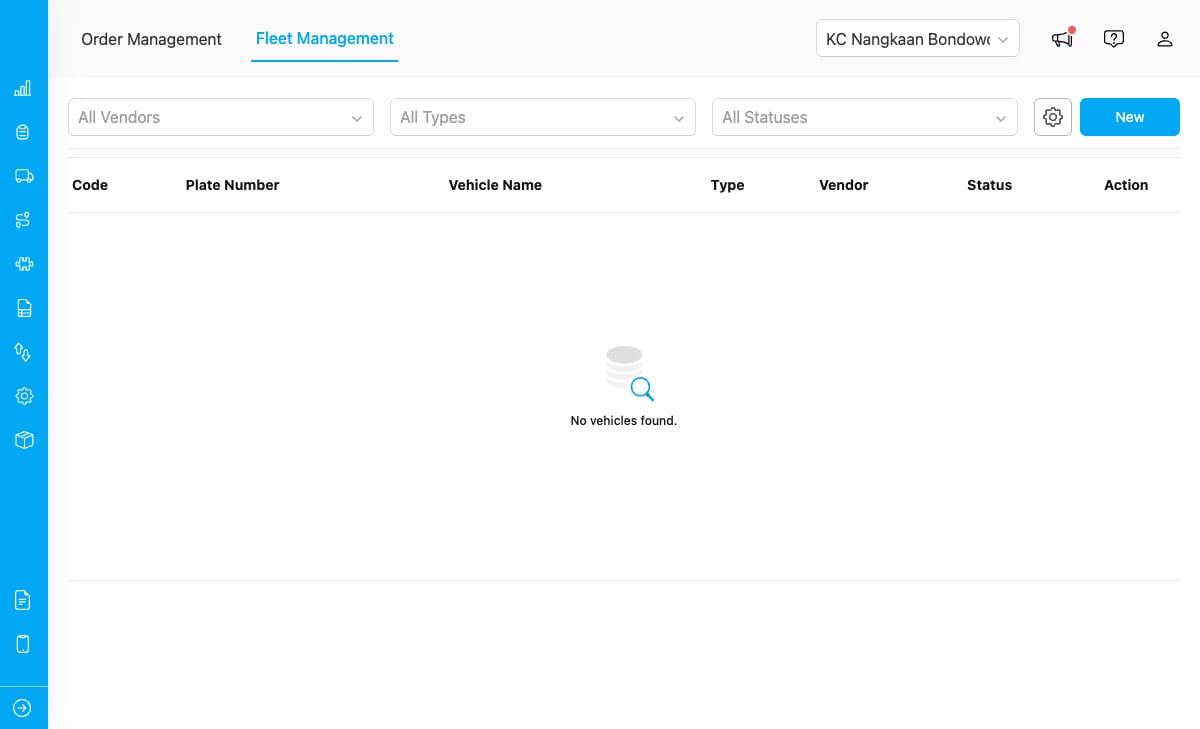
The Fleet Management page lets you manage vehicles belonging to vendor teams. From here you can add vehicles, assign drivers, update availability status, and ensure your fleet is ready for delivery assignments.
Required permission:
  • View Data Source
  • Create Data Source
  • Edit Data Source
  • Delete Data Source
  • View Team
  • View User

The Vehicle Table

Fleet Management page

The Fleet Management page showing a list of vendor vehicles with code, plate number, type, vendor, and status columns.

Each row displays:
ColumnDescription
Vehicle CodeA unique identifier for the vehicle
Plate NumberThe vehicle’s license plate number
Vehicle NameAn optional display name
TypeVehicle type: Truck, Van, Pickup, Motorcycle, or Other
VendorThe vendor team that owns the vehicle
StatusCurrent availability: Active, Inactive, or Maintenance
ActionsEdit and Delete buttons

Searching and Filtering

Use the filter bar at the top of the page to narrow down vehicles.
ControlWhat It Filters
Vendor TeamShows only vehicles belonging to the selected team (admin only)
Vehicle TypeShows only vehicles of the selected type
StatusShows only vehicles with the selected status
Filters combine. For example, selecting Type “Truck” and Status “Active” shows only active trucks.

Adding a Vehicle

  1. Click the + New button on the Fleet Management page.
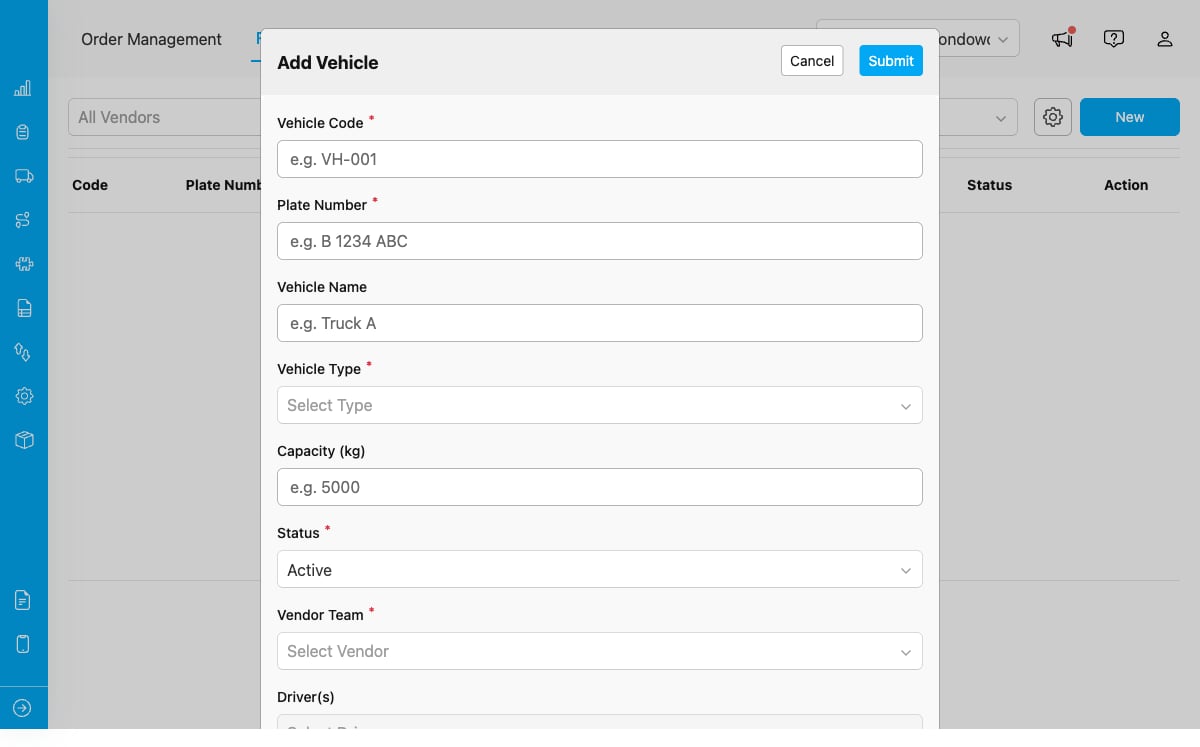
  2. Fill in the vehicle details in the form.
Vehicle form

The vehicle form with fields for code, plate number, type, capacity, driver assignment, vendor team, and status.

FieldRequiredDescription
Vehicle CodeYesUnique identifier. Must be unique across all vehicles
Plate NumberYesThe vehicle’s license plate number
Vehicle NameNoOptional display name (e.g., “Truck A” or “Unit 5”)
Vehicle TypeYesTruck, Van, Pickup, Motorcycle, or Other
Capacity (kg)NoMaximum carrying capacity in kilograms
Driver(s)NoOne or more drivers from the vendor team’s members
Vendor TeamYesThe vendor team that owns this vehicle
StatusYesActive, Inactive, or Maintenance
  1. Click Save to add the vehicle to the fleet.

Editing a Vehicle

  1. Click the pencil icon on a row to open the edit form.
  2. Update the vehicle details.
  3. Click Save to apply changes.

Deleting a Vehicle

  1. Click the trash icon on a row.
  2. Confirm the deletion in the popup dialog.
You cannot delete a vehicle that is currently assigned to an active order. Complete or cancel the associated orders first.

Vehicle Status

StatusDescription
ActiveAvailable for assignment. Shown in the vehicle dropdown when a vendor accepts an order
InactiveNot in service. Hidden from the vehicle selection during order acceptance
MaintenanceTemporarily unavailable due to maintenance
Only vehicles with Active status appear in the vehicle selection dropdown when a vendor accepts an order. Keep your fleet status updated to ensure smooth operations.

Admin vs Vendor Access

ActionAdminVendor
View all vehiclesYesOwn team only
Add vehicleYesYes (own team)
Edit vehicleYesYes (own team)
Delete vehicleYesYes (own team)
Filter by vendor teamYesNo
Administrators can see and manage vehicles across all vendor teams. Vendors can only manage vehicles belonging to their own team.