

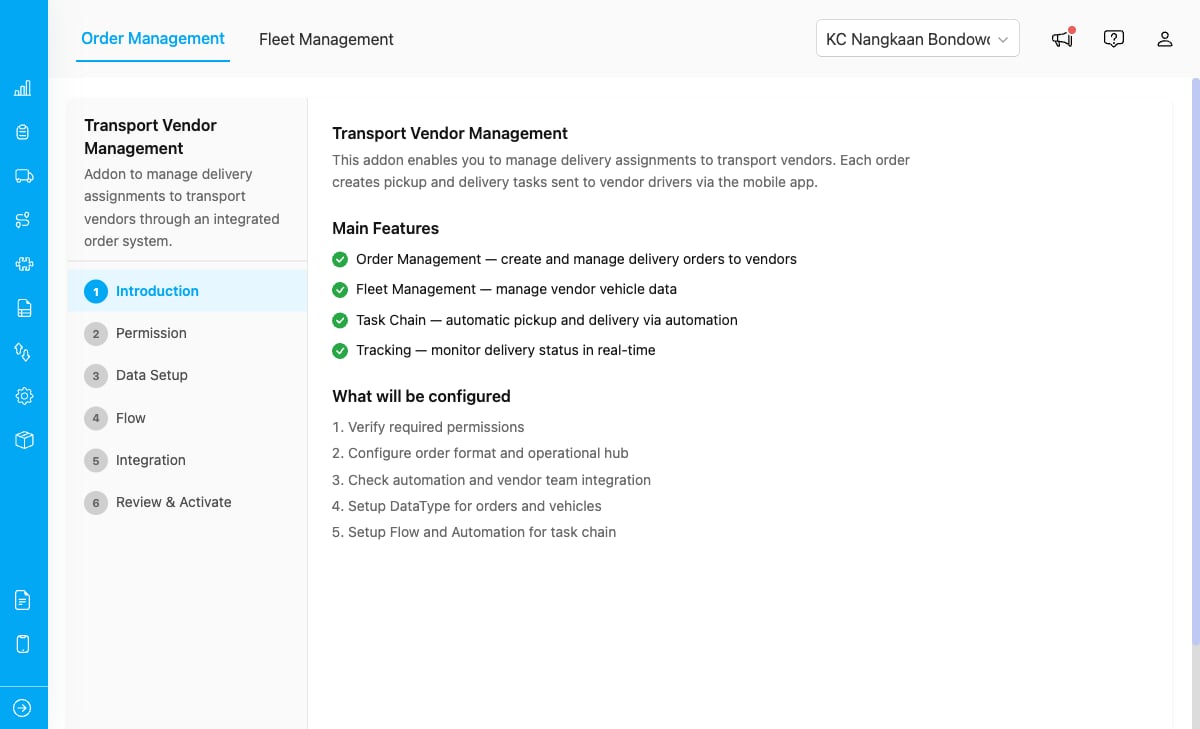
The Transport Vendor Management add-on showing the setup wizard with its main features and configuration steps.
Key Concepts
- Order: A delivery assignment containing pickup and delivery addresses, item list, vendor team, and priority level. Orders progress through a lifecycle from draft to completed.
- Vendor Team: An external transport partner assigned to fulfill delivery orders. Each vendor manages their own fleet of vehicles and drivers.
- Fleet: A collection of vehicles belonging to a vendor team, each with assigned drivers, capacity, and availability status.
- Task Chain: When a vendor accepts an order, a pickup task is created automatically. After pickup completes, a delivery task is created via automation. When delivery finishes, the order is marked completed.
- Setup Wizard: A guided 6-step process that creates the required data types, flows, and automations for the add-on to work.
Who Uses Transport Vendor Management
- Administrators: Set up the add-on, create delivery orders, send them to vendor teams, and monitor order progress across all vendors.
- Vendor Teams: Receive delivery orders, accept or reject them, assign drivers and vehicles from their fleet, and manage their vehicles.
- Drivers: Receive pickup and delivery tasks on the MileApp mobile app and complete them in the field.
What You Can Do
- Set up the add-on with a guided wizard that creates data types, flows, and automations
- Configure vendor teams — create roles, teams, invite vendor admins and drivers
- Manage delivery orders — create, send, track, accept, reject, and complete orders
- Manage vendor fleets — add vehicles, assign drivers, and track availability