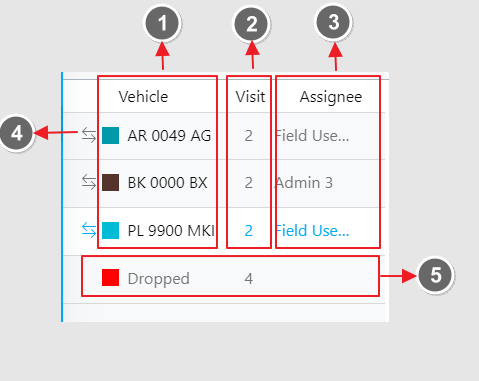
- Active Vehicle. Displays the vehicle currently in use for the optimization. The box on the left side is uniquely colored for each vehicle, corresponding to the route color on the map view.
- Visit. Shows the total number of visits assigned to each vehicle.
- Assignee. Indicates the user assigned to the vehicle, typically the field user name. The available users in this list depend on the location of the route optimization, as it is based on the hub.
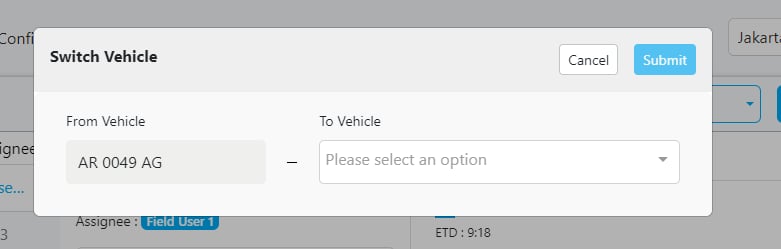
- Switch Vehicle. Allows you to transfer all visits from one vehicle to another. Refer to the next section for more detail.
- Dropped. Lists the visits that were not routed.
Switch Vehicle
If you need to transfer all visits from one vehicle to another, you can use the “Switch Vehicle” feature. Ensure both vehicles have sufficient capacity for the transferred visits.