

Required permission:
- View Task
Finding the Task ID
Every task in MileApp has a unique Task ID that serves as the access key for public tracking. Step 1: Navigate to the Task page Go to the Task page from the main menu.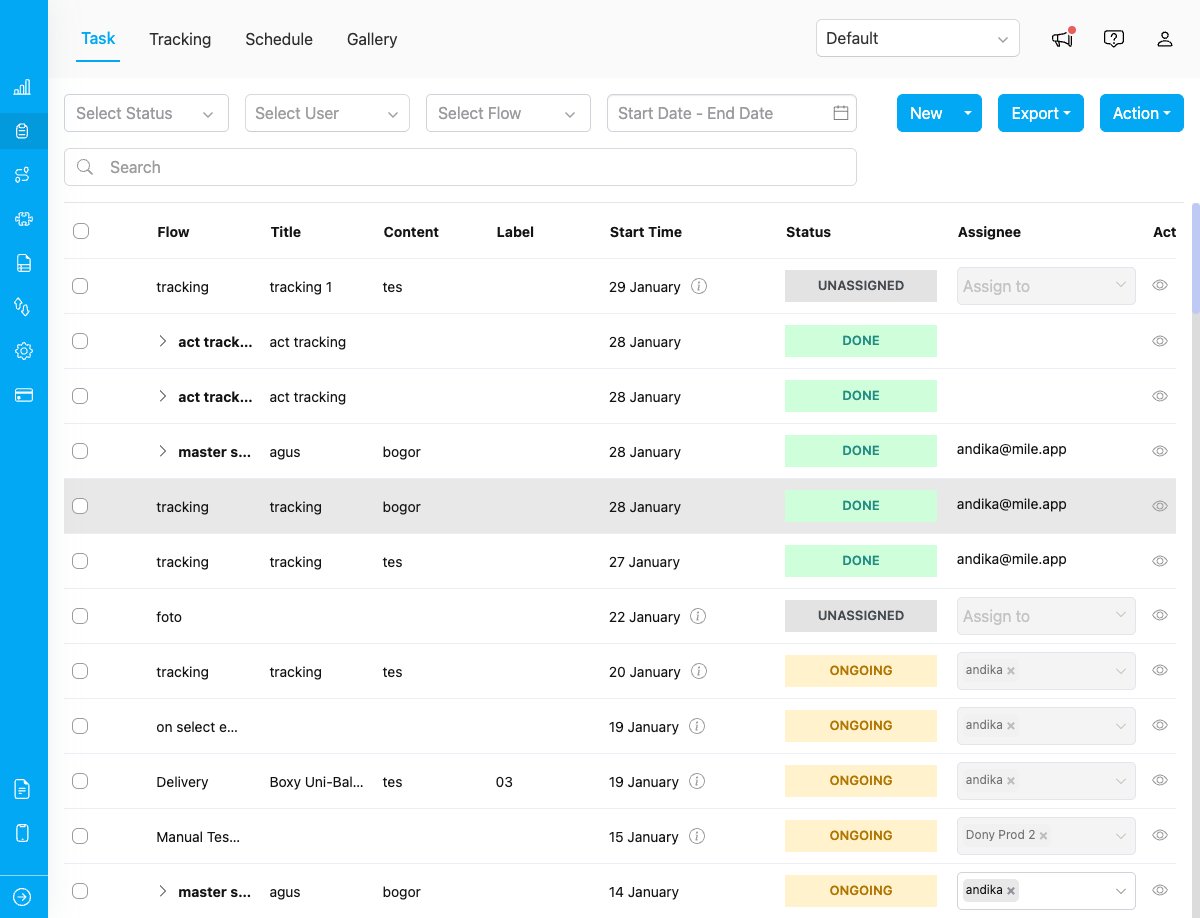
Task list showing all tasks in the selected hub
Task details panel displaying the Task ID
Sharing Options
Once you have the task ID, you can share tracking access in several ways:Option 1: Direct URL (Recommended)
Share the complete tracking URL with the task ID included:{taskId} with the actual task ID. For example:
- One-click access for recipients
- No need to copy and enter the task ID manually
- Easy to share via email, messaging apps, or SMS
Option 2: Portal Access + Task ID
Direct users to the public tracking portal and provide the task ID separately:- Portal URL:
https://web.mile.app/tracking - Task ID:
66ABCDEF12345679XXXXXX
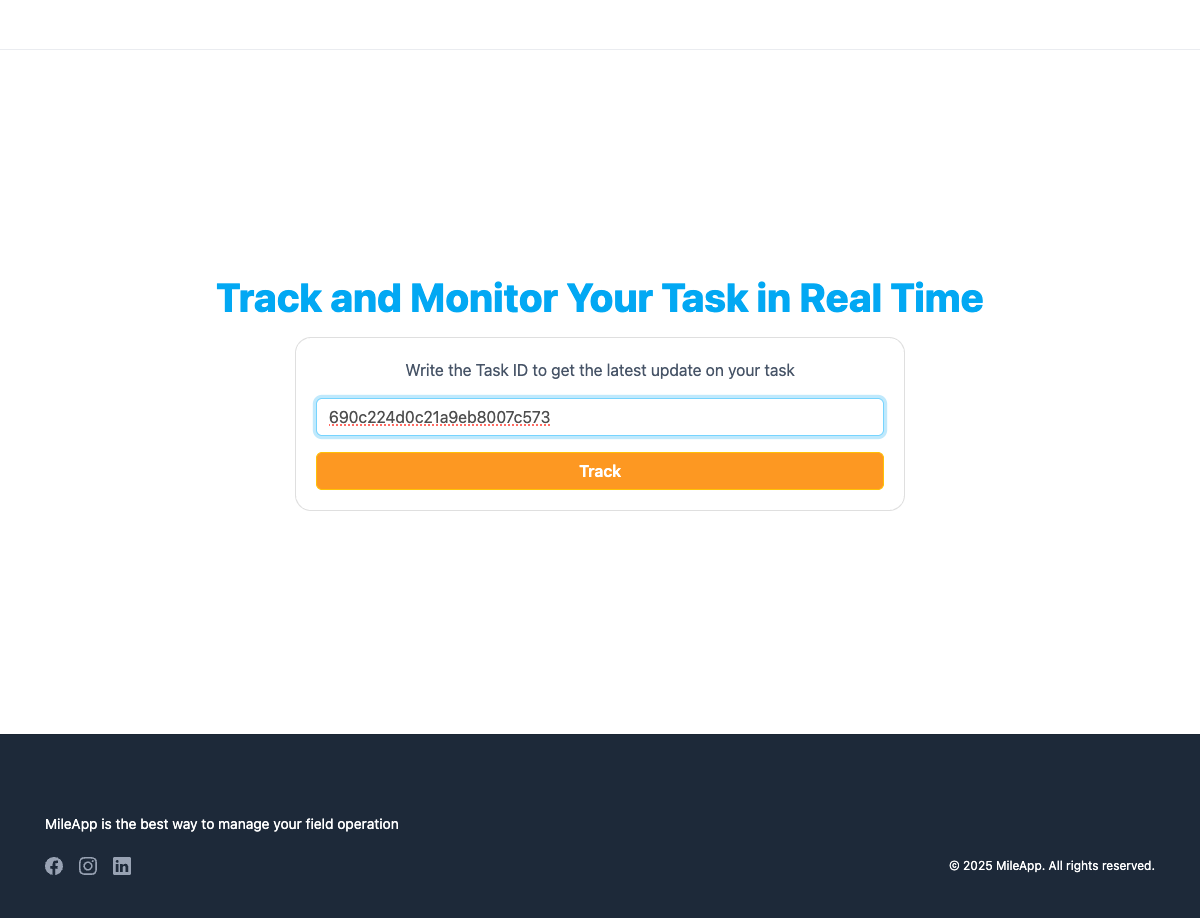
- Visit the portal URL
- Enter the task ID in the input field
- Click the “Track” button
Public tracking portal with task ID input field
- Useful when verbally sharing the task ID
- Works well for support scenarios
- Can be used if the direct link is not available
Option 3: Using Share Button in Task Detail (Easiest)
The quickest way to share public tracking is using the built-in share feature in the task detail panel:- Open the task from the task list
- Choose your sharing method:
- WhatsApp: Share directly via WhatsApp
- Copy Link: Copy the public tracking URL to your clipboard
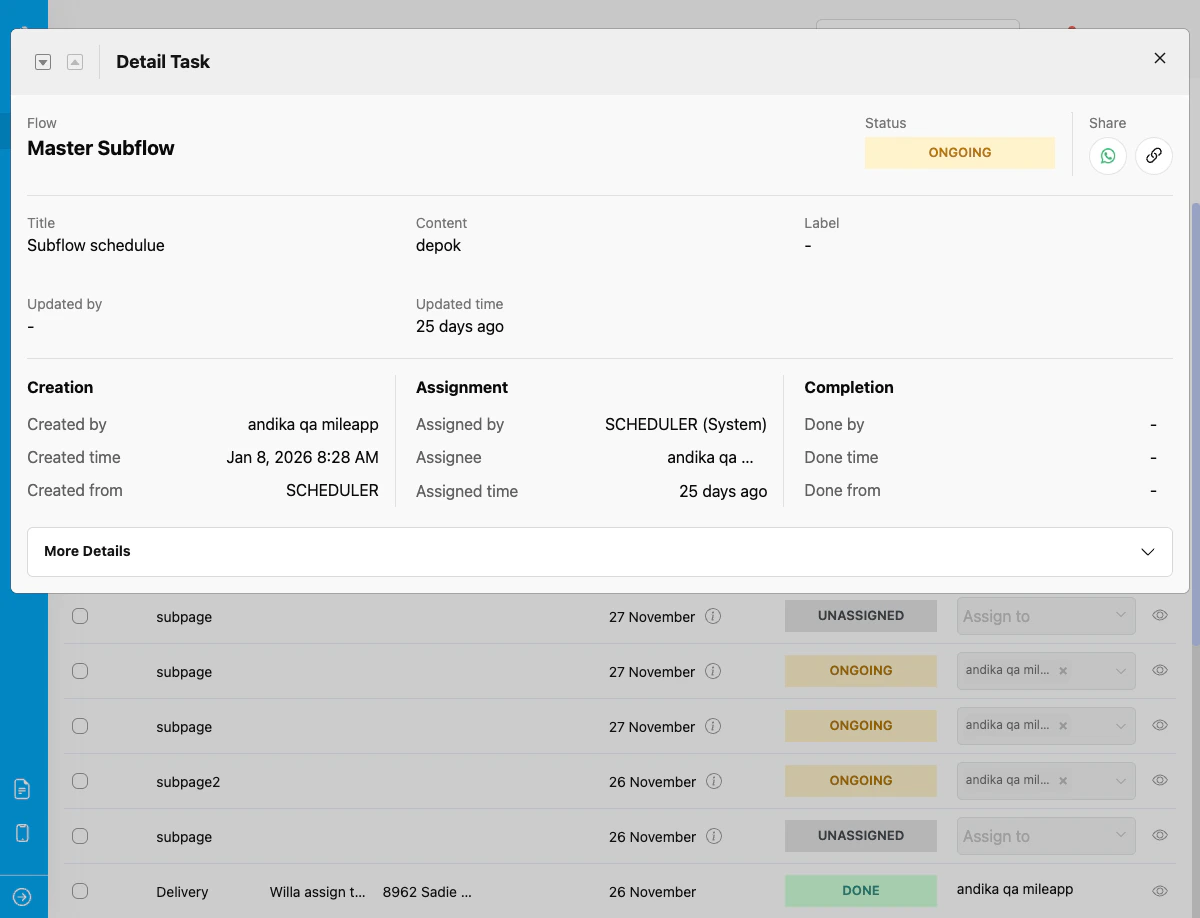
Task detail panel showing Share section with WhatsApp and Copy Link options
- Fastest method - no need to manually copy task ID
- Direct integration with WhatsApp for instant sharing
- Automatically generates the complete tracking URL
- One-click copy link functionality
Best Practices
1. Share Immediately After Task Creation Send the tracking link as soon as the task is created so customers can monitor from the start. 2. Include Clear Instructions Provide simple instructions on what recipients can expect to see and how to use the tracking page. 3. Set Expectations Inform users about:- When the task will be updated
- What information they’ll see
- How often location updates occur
What Recipients Will See
When external users access the public tracking page, they will see:-
Task Information
- Title
- Content/Description
- Label/Category
-
Task History Timeline
- All status changes with timestamps
- Task events (assigned, started, completed)
- Display notes for each action
-
Map View (if location data available)
- Current task and field user location
- Route information
-
Task Details (based on flow configuration)
- Media
- Bill information
- List information
Troubleshooting
“Task not found” error This occurs when:- The task ID is incorrect or incomplete
- The task has been deleted
- There’s a typo in the task ID
- Network connectivity issues
- Server maintenance