

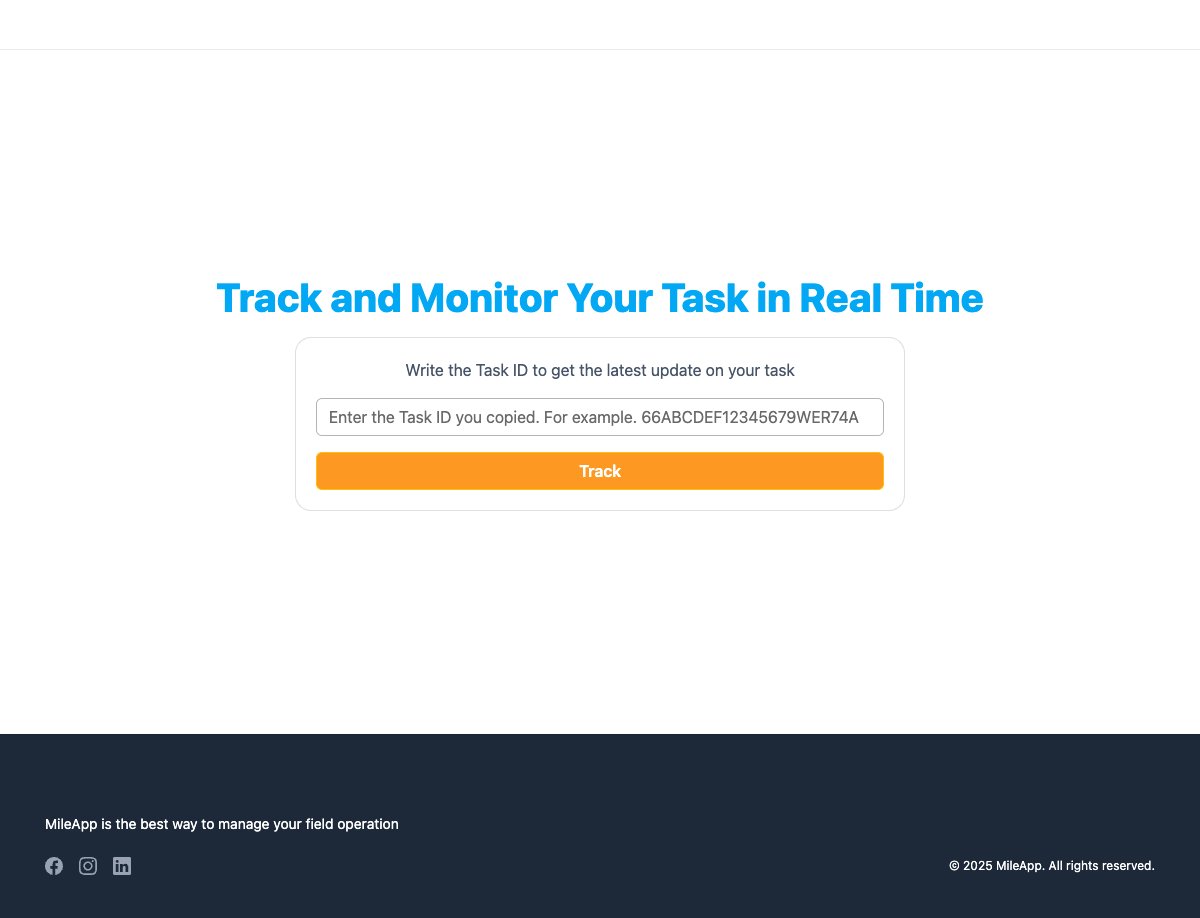
Public tracking portal where anyone can enter a task ID to view task details
What is Public Tracking?
Public Tracking enables external users to track task status, view task progress including current status and history, see task location on an interactive map, and monitor task updates in real-time—all without logging into MileApp. This feature is commonly used for customer delivery tracking (e.g., “Track your order”), service appointment monitoring, shipment status visibility, and partner collaboration and transparency.How Public Tracking Works
The public tracking flow consists of three simple steps:- Share the Task ID
- Access the Public Tracking Portal
https://web.mile.app/tracking and enter the task ID.
- View Task Information
- Task information (title, content, label)
- Current status and task history
- Location on map (if available)
- Task timeline and updates
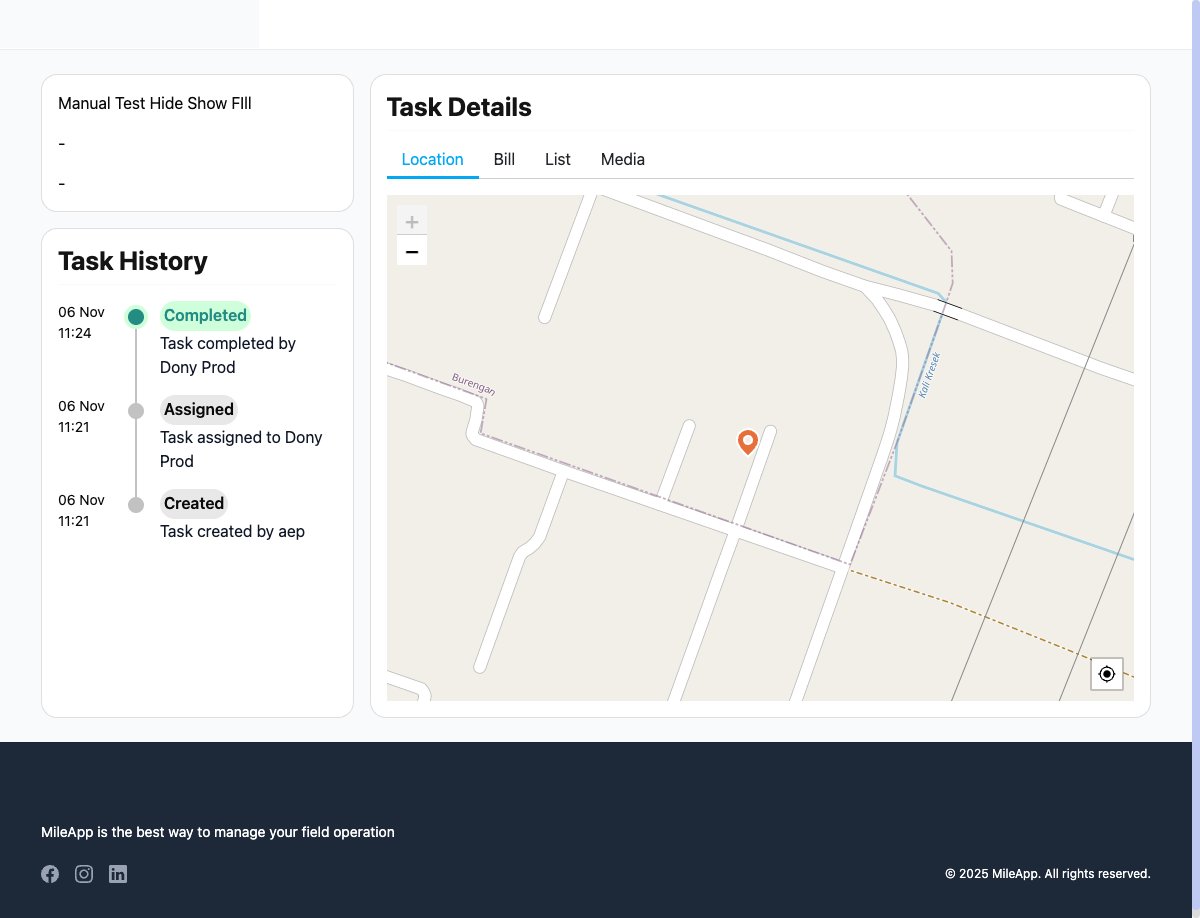
Task details page showing status, history, and location information
Key Features
1. No Login Required
External users can track tasks without creating an account or logging in. Simply enter the task ID to access tracking information.2. Real-Time Updates
Task information is displayed in real-time, showing the latest status, location updates, and task progress as it happens.3. Task History Timeline
View a complete timeline of task events including:- Task creation
- Status changes (assigned, ongoing, completed)
- Location updates
- Completion time
4. Interactive Map View
See the task location on an interactive map with:- Current task location marker
- Route information (if available)
- Location history tracking
5. Secure Access
Each task has a unique ID that acts as an access token. Only users with the task ID can view the specific task information.Use Cases
E-commerce & Deliveries Share tracking links with customers so they can monitor their delivery status and estimated arrival time. Field Services Allow clients to see when a technician is assigned, en route, or has completed their service appointment. Logistics & Shipping Provide partners and recipients with real-time shipment tracking without granting system access. Last-Mile Delivery Enable customers to track the exact location of their delivery driver in real-time.Getting Started
To use Public Tracking, you need to:- Create a task in MileApp with all necessary information
- Copy the task ID from the task details page
- Share the tracking URL with external parties:
https://web.mile.app/tracking/{taskId}