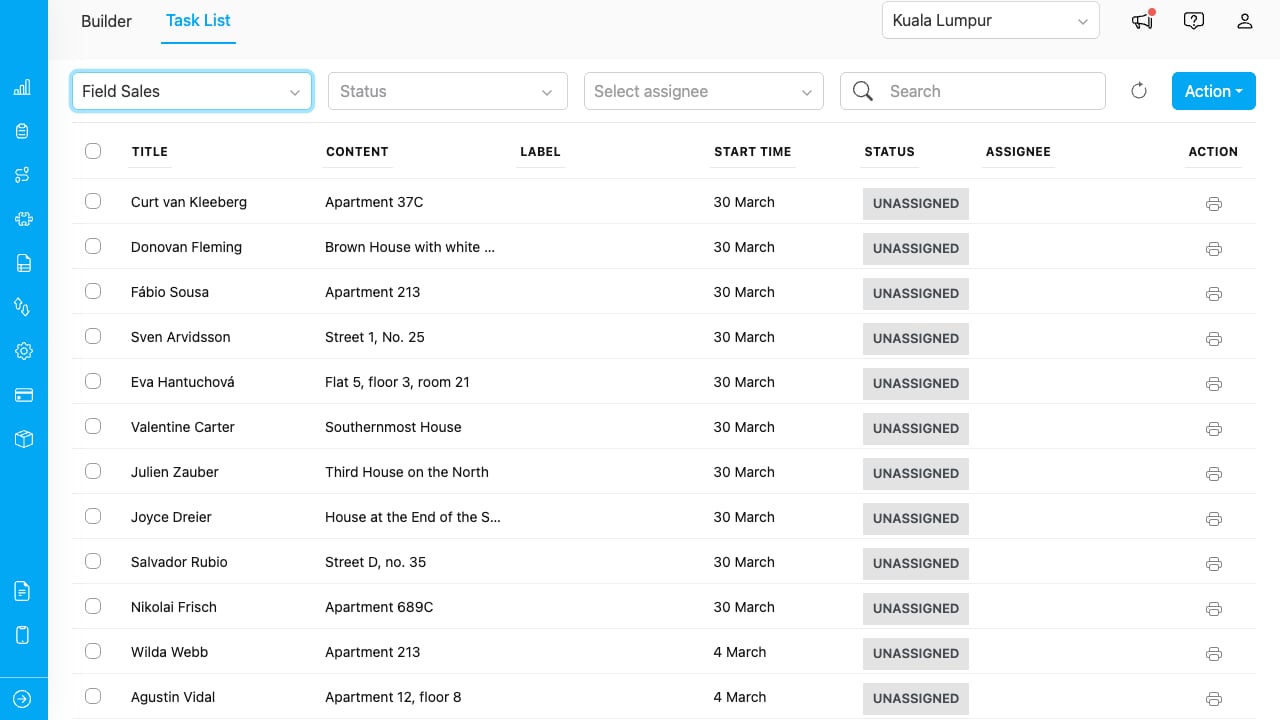
The Task List page lets you browse tasks from your flows, filter them, and print invoices or receipts for one or multiple tasks.
Task List

The Task List page with Field Sales flow selected, showing tasks with title, content, label, start time, status, and assignee columns.

Selecting a Flow

The Task List requires a flow to be selected before tasks appear. Click the Choose a flow dropdown and select the flow you want to work with.
Tasks are always filtered by flow. You must select a flow to view any tasks.

Filtering Tasks

The filter bar provides four filters in this order:
FilterTypeDescription
FlowSingle selectRequired. Determines which tasks are shown.
StatusMulti-selectFilter by Unassigned, Ongoing, or Done. Select multiple statuses.
AssigneeSingle select with searchFilter by assigned user. Users are pre-loaded. Type to search.
SearchText inputServer-side search across task fields. Debounced at 400ms.
The Refresh button (circular arrow icon) reloads the task list with current filter settings.

Printing from the Task List

Single Task

Click the printer icon in the Action column of any task row. This opens the template selection modal, then the Print Preview with that task’s data.

Multiple Tasks

  1. Select tasks using the checkboxes in the first column.
  2. Click Action > Print.
  3. Choose a template.
  4. The Multi-Task Print modal opens with all selected tasks.
See Printing and Exporting for details on the print preview and export options.

Task Data Columns

The task list displays the following columns:
ColumnDescription
CheckboxSelect tasks for bulk actions
TitleThe task’s title field
ContentThe task’s content/description
LabelOptional label field
Start TimeWhen the task starts
StatusCurrent task status (Unassigned, Ongoing, Done)
AssigneeThe user assigned to the task
ActionPrint icon for single-task printing