

Overview
The On Start Trip automation event triggers when a field worker starts their trip using the MileApp Field mobile application. This event captures the moment when field operations begin, allowing you to automate workflows, send notifications, or integrate with external systems at the start of a trip.When Does This Event Trigger?
The “On Start Trip” event is triggered when:- They tap the “Start Trip” button
- The trip start action is successfully recorded in the system
Prerequisites
Before setting up an automation with this event, ensure:- You have access to the Automation feature in MileApp
- You have appropriate permissions to create and manage automations
- Field workers are using the MileApp Field mobile application
- The “Start Trip - End Trip” feature is enabled in your organization settings
Required permission:
- View Automation
- Create Automation
Use Cases
1. Trip Start Notifications
Scenario: Operations team needs to be notified immediately when field workers begin their trips. Configuration:- Event: On Start Trip
- Automation Type: Webhook
- Action: Send notification to operations dashboard or messaging system
2. Trip Logging and Tracking
Scenario: Company requires detailed trip logs for compliance and audit purposes. Configuration:- Event: On Start Trip
- Automation Type: Webhook
- Action: Log trip start data to external compliance system with timestamp, user, and location
3. Checkpoint Task Creation
Scenario: Create initial checkpoint or preparation tasks when field work begins. Configuration:- Event: On Start Trip
- Automation Type: Create Task
- Action: Automatically create a vehicle inspection checklist task
4. External System Integration
Scenario: Synchronize trip start status with fleet management or dispatch system. Configuration:- Event: On Start Trip
- Automation Type: Webhook
- Action: Update field worker status to “Active” in external fleet management system
Setting Up On Start Trip Automation
Step 1: Navigate to Automation Settings
- Log in to MileApp web portal
- Click on Flow in the main navigation
- Click on the Automation tab
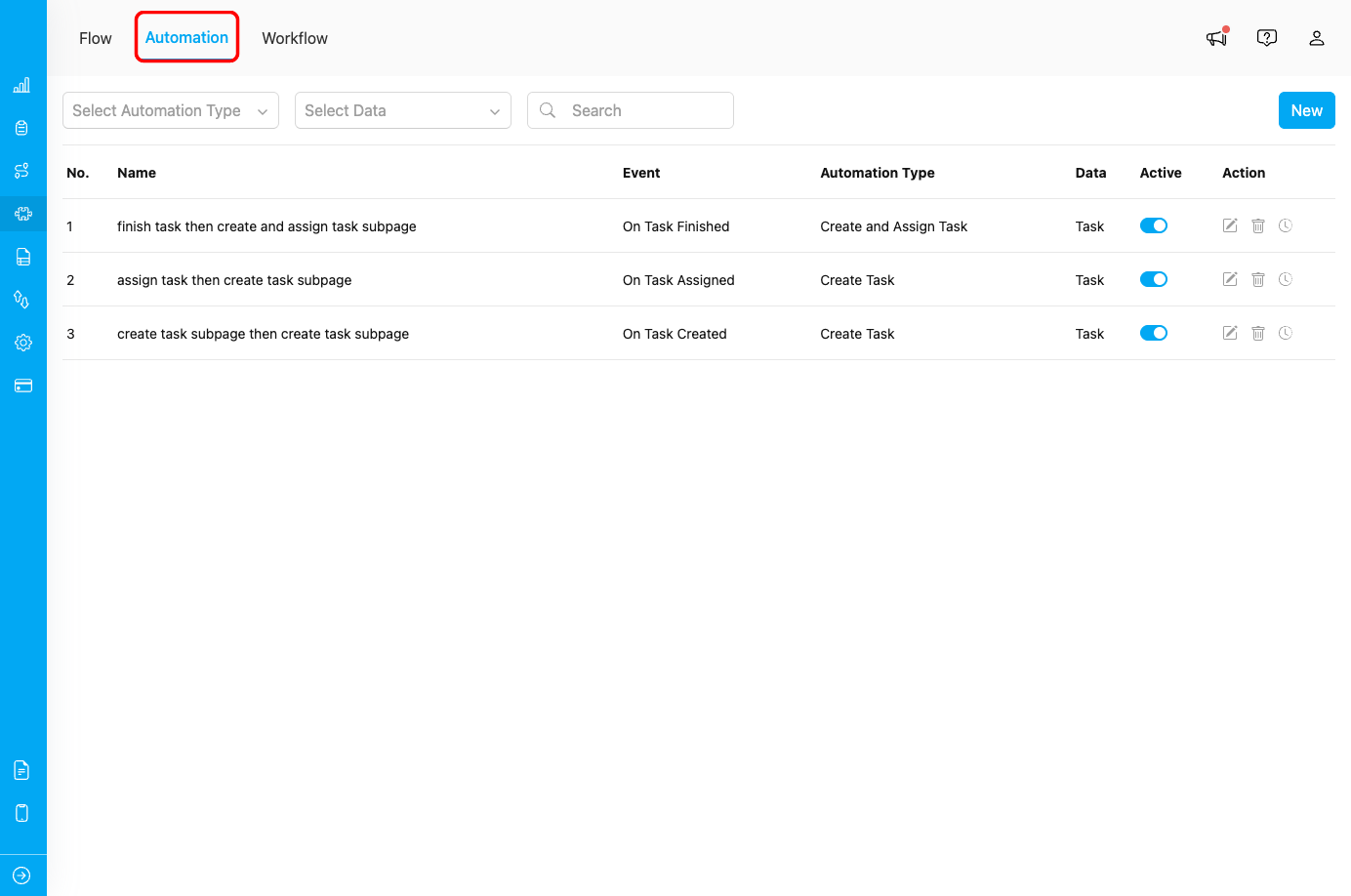
Automation tab in Flow menu
Step 2: Create New Automation
- Click the New button in the Automation page
- The “Create Automation” dialog will appear
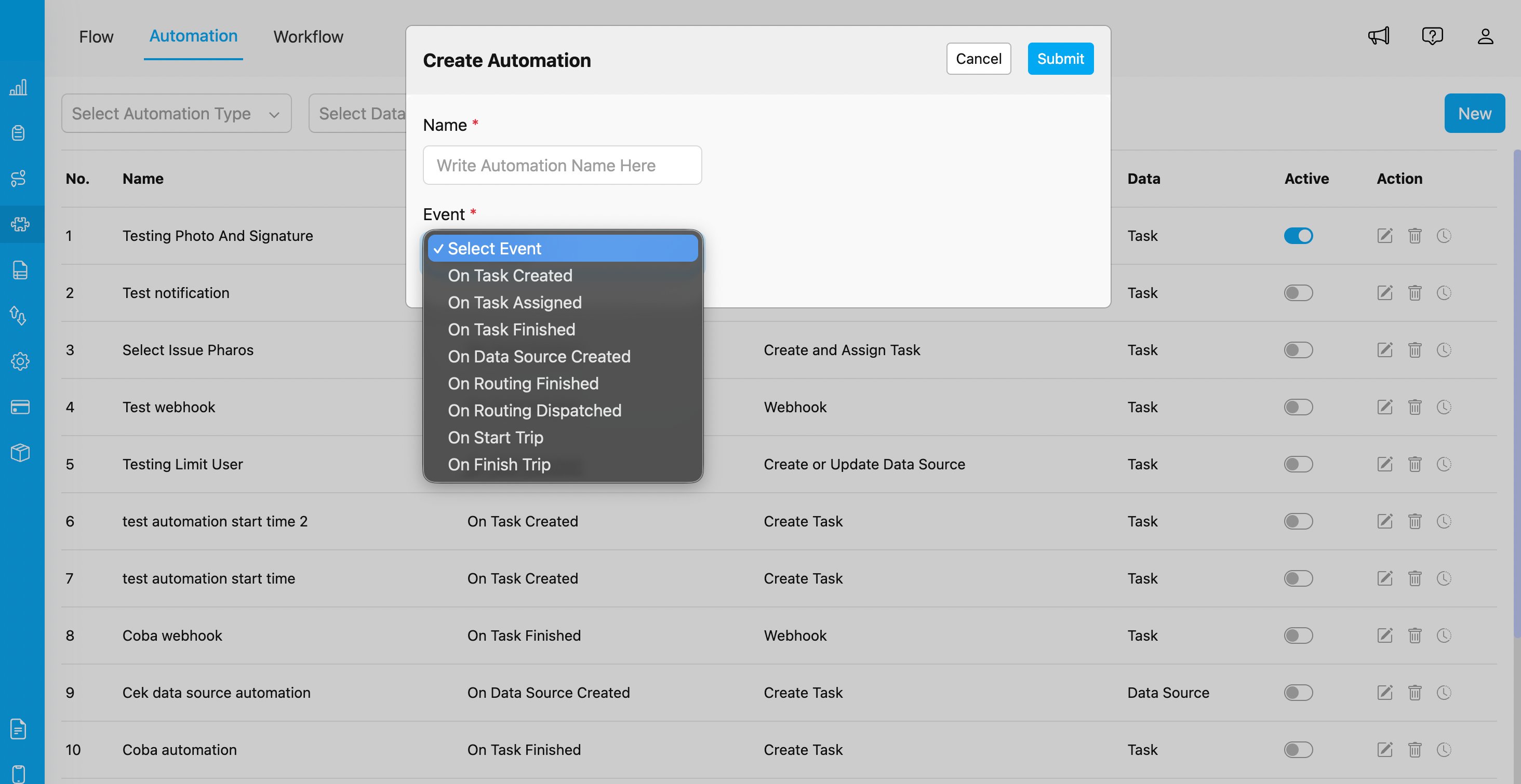
Create Automation dialog with event selection showing all available automation events
Step 3: Configure Automation Details
Fill in the following information:- Automation Name: Provide a descriptive name (e.g., “Notify on Trip Start”)
- Event: Select “On Start Trip” from the dropdown
-
Automation Type: Choose the action type:
- Webhook - Send data to external URL
- Configure type-specific settings based on your chosen Automation Type
Step 4: Configure Webhook (If Selected)
If you selected “Webhook” as the Automation Type:- URL: Enter the endpoint URL where trip start data should be sent
- Header (Optional): Add custom HTTP headers if required (e.g., Authorization, Content-Type)
- Value (Optional): Provide corresponding header values
Step 5: Save and Activate
- Click Submit to create the automation
- Ensure the automation is set to Active (toggle enabled)
- Test the automation by having a field worker start a trip
Webhook Payload Structure
When using the Webhook automation type with “On Start Trip”, MileApp sends a POST request with the following data structure:Monitoring and Troubleshooting
Viewing Automation Logs
To verify your “On Start Trip” automation is working correctly:- Go to Flow > Automation
- Find your automation in the list
- Click the clock history icon to view execution logs
- Review successful executions and any errors
Common Issues
Issue: Automation not triggering when trip starts Possible Causes:- Automation is not set to Active
- Field worker doesn’t have proper permissions
- Start Trip feature is disabled in organization settings
- Network connectivity issues on mobile device
- Verify automation is enabled (toggle is ON)
- Check user permissions in Settings > Permission
- Verify Start Trip feature is enabled in Settings > Organization
- Ensure field workers have stable internet connection
- Incorrect webhook URL
- Authentication headers missing or incorrect
- External endpoint is down or unreachable
- Verify webhook URL is accessible
- Check authentication credentials
- Review automation logs for error details
- Test webhook endpoint independently