

Overview
Automation Type defines the action that will be executed when an automation event is triggered. Each automation type has specific configuration settings that determine how the action will be performed. Think of automation types as the “what happens next” in your automation workflow:- Event (trigger) = When something happens
- Automation Type (action) = What should be done
- Automation Detail (configuration) = How it should be done
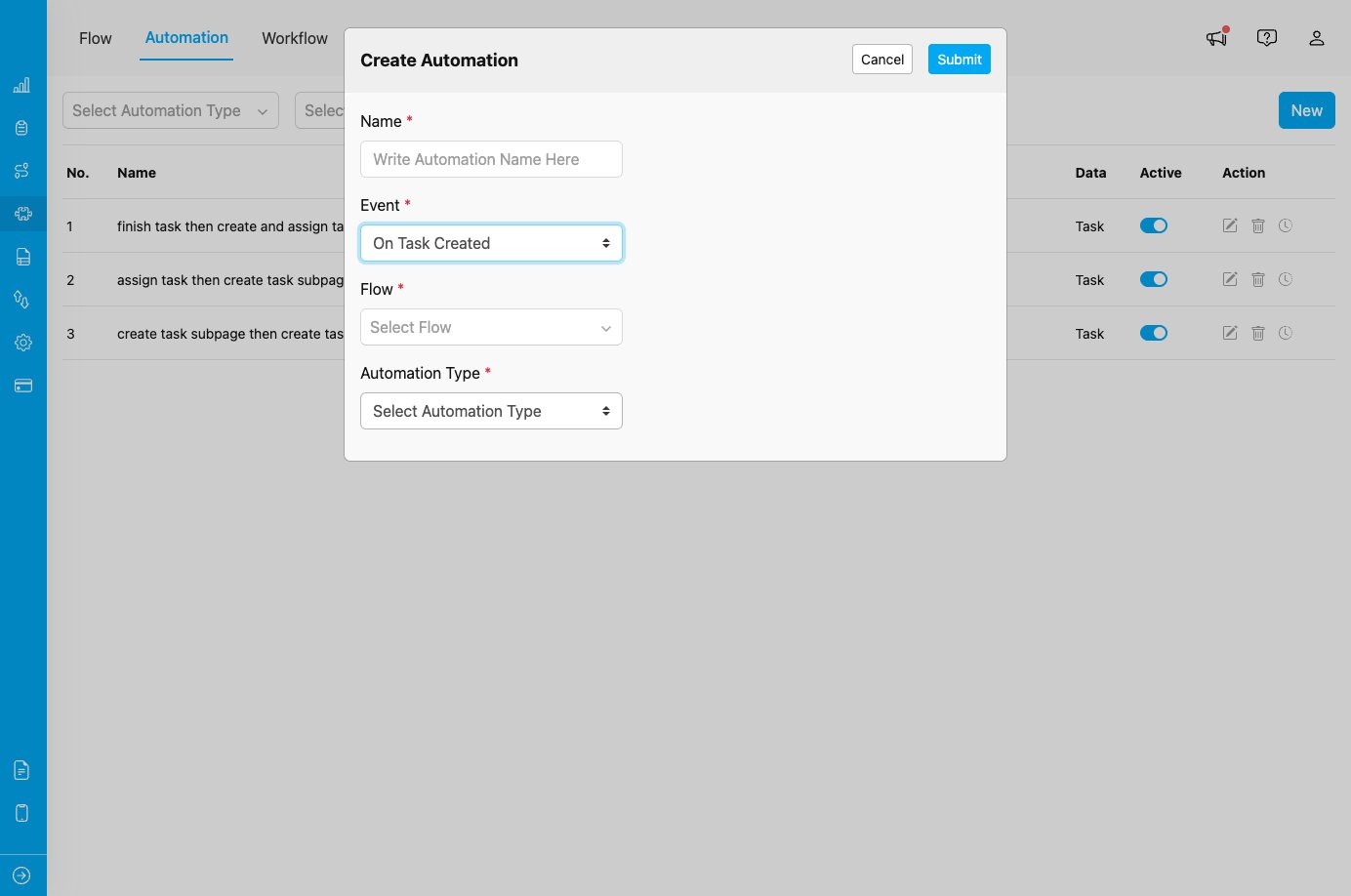
Create Automation dialog showing Event, Flow, and Automation Type selection fields
Available Automation Types
MileApp provides 7 different automation types to handle various operational needs:1. Create Task
Automatically creates a new task when the automation is triggered. Use Cases:- Create follow-up tasks after task completion
- Generate inspection tasks when deliveries are finished
- Create documentation tasks after service completion
- On Task Created
- On Task Assigned
- On Task Finished
- On Data Source Created
- Select the Flow for the new task
- Map field values from trigger to new task
- Set default values for required fields
2. Create and Assign Task
Creates a new task and immediately assigns it to a specific user or team. Use Cases:- Assign pickup tasks to drivers when delivery tasks are created
- Create and assign quality check tasks after service completion
- Automatically distribute work to available team members
- On Task Created
- On Task Finished
- Select the Flow for the new task
- Define assignee (user or assignment rules)
- Map field values and set defaults
3. Move Task
Moves a task to a different workflow status or hub location. Use Cases:- Automatically progress tasks through workflow stages
- Route tasks to appropriate hubs based on location
- Move tasks to quality review status after completion
- On Task Created
- Select target status or hub
- Define conditions for the move action
4. Assign Task
Assigns or reassigns a task to a specific user or team. Use Cases:- Auto-assign tasks based on location or workload
- Implement round-robin assignment logic
- Reassign tasks based on priority or skill requirements
- On Task Created
- Select user or team for assignment
- Configure assignment rules (location-based, round-robin, etc.)
5. Create or Update Data Source
Modifies data in your Data Source by creating new records or updating existing ones. Use Cases:- Update inventory after delivery completion
- Record customer feedback in database
- Sync task completion data to external systems
- On Task Finished
- Select target Data Type
- Map task fields to Data Source fields
- Configure field transformations
6. Webhook
Sends HTTP POST requests to external URLs with event data, enabling integration with external systems. Use Cases:- Send completion notifications to customer systems
- Trigger external workflows in other platforms
- Integrate with ERP, CRM, or custom applications
- Real-time data synchronization
- All events (On Task Created, On Task Assigned, On Task Finished, On Data Source Created, On Routing Finished, On Routing Dispatched, On Start Trip, On Finish Trip)
- Webhook URL endpoint
- Optional HTTP headers (Authorization, Content-Type, etc.)
- Optional custom header values
7. Notification
Sends automated notifications through communication channels like WhatsApp and Email. Use Cases:- Send delivery notifications to customers
- Alert field workers about new assignments
- Notify managers about critical events
- On Task Created
- On Task Assigned
- On Task Finished
- Select notification channel: WhatsApp (via Fonnte) or Email
- For WhatsApp: choose the recipient phone number field and enter the Fonnte API Key
- For Email: set To/Cc/Bcc recipients (static addresses or task text fields), and write a subject and rich text body
- Customize the message or email content with placeholders/variables
Automation Type Availability Matrix
Different events support different automation types. Here’s the complete availability matrix:Choosing the Right Automation Type
When setting up automation, consider these factors:1. What is your goal?
- Create new work → Use Create Task or Create and Assign Task
- Update existing data → Use Create or Update Data Source
- Change task status/location → Use Move Task
- Distribute work → Use Assign Task
- Integrate with external systems → Use Webhook
- Communicate with users → Use Notification
2. Which event are you using?
Check the availability matrix above to see which automation types are supported for your chosen event.3. What level of complexity do you need?
- Simple task-based workflows → Use task automation types (Create, Assign, Move)
- Data management → Use Create or Update Data Source
- External integrations → Use Webhook
- User communication → Use Notification
4. Do you need real-time external integration?
If yes, Webhook is your best option as it’s available for all events and provides maximum flexibility.Best Practices
- Start Simple: Begin with basic automation types (Create Task, Notification) before implementing complex webhooks or data source updates.
- Test Thoroughly: Always test automation in a non-production environment before activating it for live operations.
- Use Appropriate Types: Don’t use Webhook for simple task creation when Create Task would suffice, save webhooks for external integrations.
- Consider Performance: Multiple automation rules on the same event can impact performance. Consolidate when possible.
- Document Your Automation: Keep clear documentation of what each automation does, especially for complex webhook integrations.
- Monitor and Maintain: Regularly review automation logs to ensure they’re working as expected and update configurations as your workflows evolve.