

Overview
The Move Task automation type automatically moves tasks to a different hub when an automation event is triggered. This enables automatic task routing based on workflow requirements, ensuring tasks are organized in the correct hub for operational efficiency.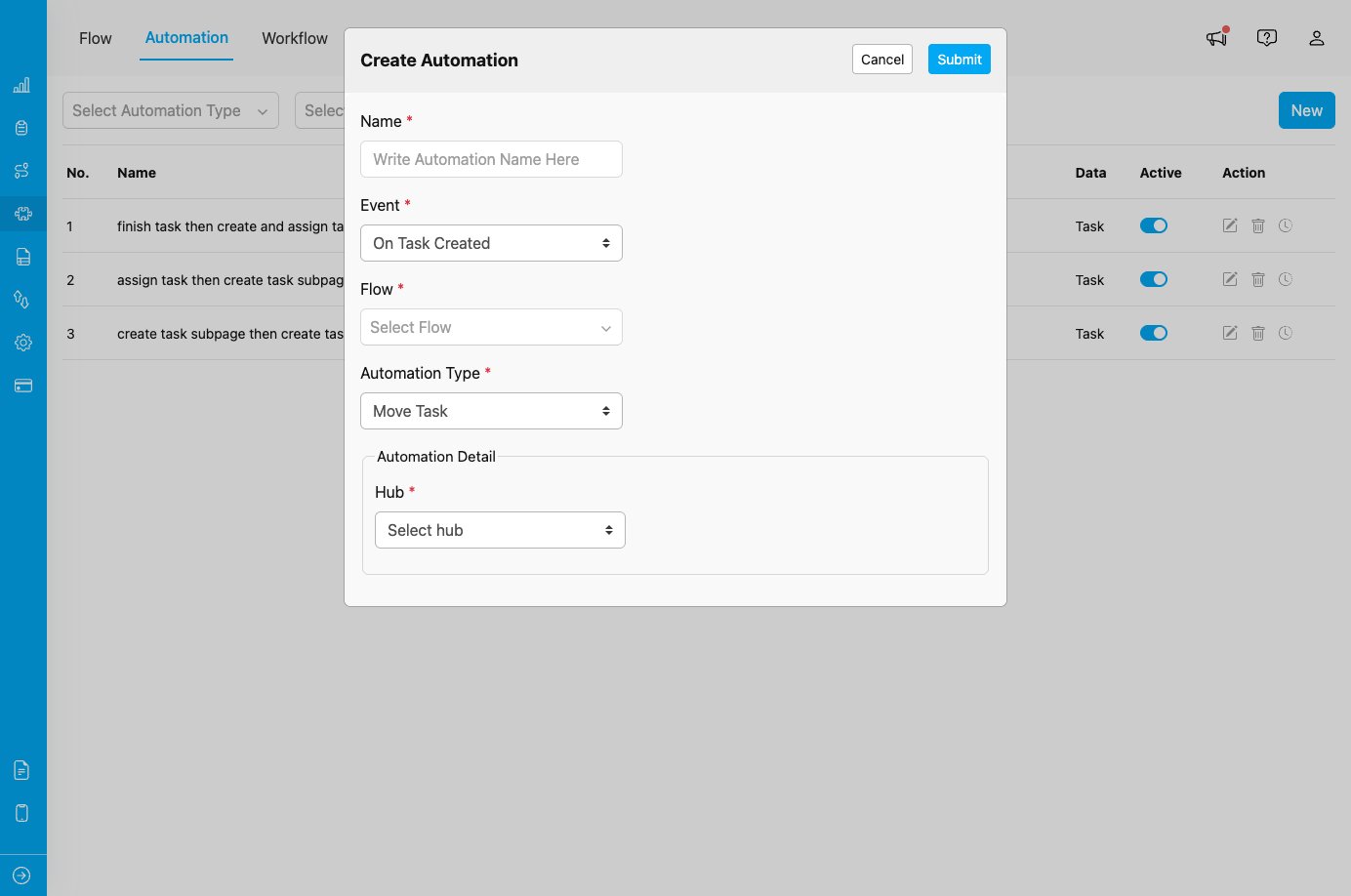
Move Task automation configuration showing Hub destination field
When to Use Move Task
Use this automation type when you need to:- Automatically route tasks to appropriate hubs based on workflow stages
- Move tasks between regional or departmental hubs
- Organize tasks by location or operational area automatically
- Implement multi-stage workflows where tasks progress through different hubs
Event Availability
Move Task automation type is only available for:- On Task Created - Automatically move tasks to a different hub when they are created
Configuration Fields
When you select Move Task as the automation type, you must configure one required field:Hub *
Select the destination hub where the task will be moved. Purpose:- Defines the target hub for task relocation
- Ensures tasks are organized in the correct operational area
- Enables automatic routing based on workflow requirements
- When automation triggers, the task will be immediately moved to the selected hub
- The task will appear in the destination hub’s task list
- Users with access to the destination hub will be able to view and manage the task
- The original hub assignment is replaced with the new hub
Use Cases
1. Regional Task Distribution
Scenario: Automatically route tasks to regional hubs based on delivery location. Configuration:- Event: On Task Created
- Flow: Delivery
- Automation Type: Move Task
- Hub: Jakarta Hub
- Rules: Add conditions to filter tasks by region (e.g., address contains “Jakarta”)
2. Department-Based Routing
Scenario: Move tasks to specialized department hubs for processing. Configuration:- Event: On Task Created
- Flow: Service Request
- Automation Type: Move Task
- Hub: Technical Support Hub
- Rules: Filter by service type or priority level
3. Multi-Stage Workflow Progression
Scenario: Progress tasks through different operational stages by moving between hubs. Configuration:- Event: On Task Created
- Flow: Quality Inspection
- Automation Type: Move Task
- Hub: QA Hub
- Rules: Filter tasks that require quality checks
4. Hub Consolidation
Scenario: Consolidate tasks from multiple sources into a central processing hub. Configuration:- Event: On Task Created
- Flow: Multiple flows
- Automation Type: Move Task
- Hub: Central Hub
- Rules: Apply to all tasks from specific flows
How It Works
- Event Occurs: A task is created that matches the Flow specified in automation
- Rules Evaluated: If Rules are configured, they are checked against the task
- Automation Triggers: The Move Task automation is activated
- Task Relocated: Task is automatically moved to the specified destination hub
- Hub Updated: Task appears in the destination hub’s task list
- Access Control: Users with access to the destination hub can now manage the task
Important Notes
Task Movement Behavior
- Immediate Movement: Tasks are moved as soon as they are created
- Hub Replacement: The original hub assignment is replaced, not duplicated
- Access Control: Only users with access to the destination hub can view the task after movement
- No Task Duplication: The task is moved, not copied
- Assignment Preservation: If the task was assigned to a user, the assignment is preserved if the user has access to the destination hub
Hub Access Requirements
- The destination hub must be active and accessible
- Users need appropriate permissions to view tasks in the destination hub
- If assigned user doesn’t have access to destination hub, assignment may be affected
Best Practices
- Clear Hub Selection: Ensure the destination hub matches the intended operational area or workflow stage.
- Use Rules for Precision: Combine with automation Rules to move only specific tasks that meet certain criteria (location, priority, type).
- Test Movement Logic: Create test tasks to verify automation moves tasks to the correct hub.
- Consider User Access: Ensure users who need to work on moved tasks have access to the destination hub.
- Monitor Movement Logs: Regularly review automation logs to ensure tasks are being moved correctly.
- Document Hub Structure: Maintain clear documentation of what each hub represents and when tasks should be moved there.
- Avoid Circular Movements: Don’t create automation rules that could cause tasks to be moved in a loop.
- Coordinate with Assignment: If tasks need to be assigned to specific users, ensure those users have access to the destination hub.
Troubleshooting
Issue: Task is not being moved when created Possible Causes:- Automation is not set to Active
- Task’s Flow does not match automation’s Flow configuration
- Rules in automation exclude the task
- Destination hub is inactive or deleted
- Verify automation toggle is ON
- Check Flow settings match task being created
- Review automation Rules for conflicts
- Confirm destination hub exists and is active
- Task was moved to a hub you don’t have access to
- Hub filter on task list is hiding the moved task
- Check destination hub in automation configuration
- Request access to destination hub if needed
- Clear hub filters on task list to see all tasks
- Review automation logs to confirm movement
- Assigned user doesn’t have access to destination hub
- Hub-based access control is restricting visibility
- Grant assigned user access to destination hub
- Reassign task to user with appropriate hub access
- Review hub access permissions in user management