

Overview
The Create or Update Data Source automation type automatically creates or updates records in a Data Source when a task is completed. This enables seamless data synchronization between task execution and external data management, allowing you to build dynamic databases that update based on field operations.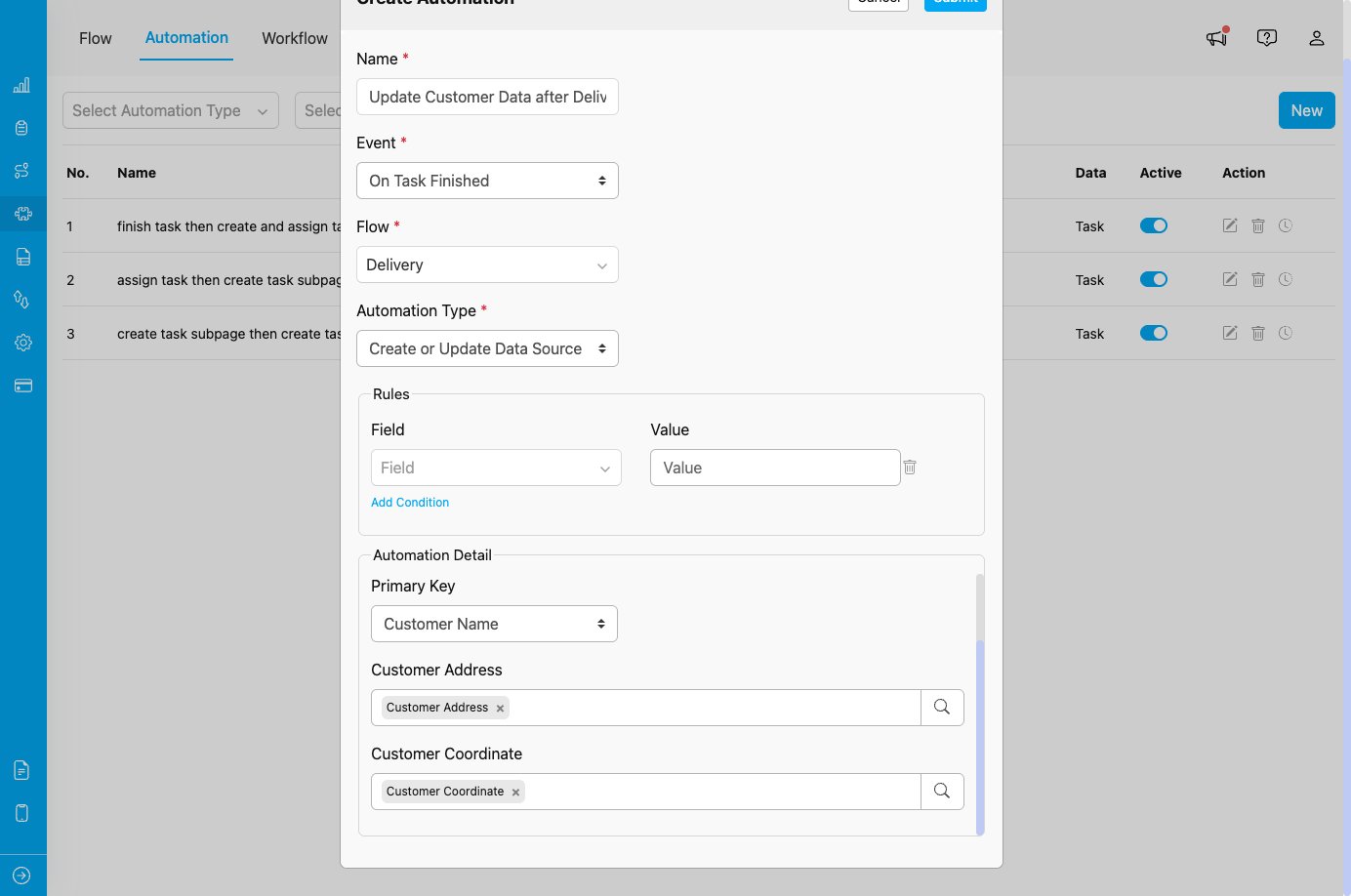
Create or Update Data Source automation configuration showing Data Type selection, Primary Key configuration, and field mapping
When to Use Create or Update Data Source
Use this automation type when you need to:- Update customer databases after delivery completion
- Create or update inventory records after field inspections
- Sync task completion data with external data sources
- Build dynamic databases that reflect field operation results
- Maintain up-to-date records based on task outcomes
Event Availability
Create or Update Data Source automation type is available for:- On Task Finished - Create or update Data Source records when a task is completed
Configuration Fields
When you select Create or Update Data Source as the automation type, you need to configure the following:1. Data Type *
Select the Data Type where records will be created or updated. Purpose:- Defines which Data Source will receive the data
- Determines what fields are available for mapping
- Controls the structure of created/updated records
- Choose from any Data Type configured in your organization
- Once selected, the Data Type’s fields will appear for mapping
- The system will use the Primary Key to determine whether to create or update
2. Primary Key *
Select the field that will be used as the unique identifier for matching records. Purpose:- Determines how the automation identifies existing records
- Controls create vs. update behavior
- Ensures data integrity and prevents duplicates
- Select a field from the Data Type that serves as a unique identifier
- When a task finishes, the automation checks if a record with this Primary Key value exists:
- If exists: Updates the existing record
- If not exists: Creates a new record
- Common Primary Key fields: Customer Name, Customer ID, Order Number, etc.
3. Field Mapping
After selecting the Data Type and Primary Key, you’ll see all the fields from that Data Type. For each field, you can: Option A: Manual Input- Type a static value directly into the field
- Useful for default values that don’t change
- Click the search icon next to the field
- Select a field from the trigger Flow to map its value
- The value from the completed task will be copied to the Data Source
- Fields can be left empty if they are optional
- Required fields must be filled either manually or via reference
- Customer Address (Data Source) → Customer Address (from Delivery task)
- Customer Coordinate (Data Source) → Delivery Coordinate (from Delivery task)
- Last Delivery Date (Data Source) → Completion Date (from task)
Use Cases
1. Customer Database Update After Delivery
Scenario: Update customer information in a central database when delivery tasks are completed. Configuration:- Event: On Task Finished
- Flow (Trigger): Delivery
- Automation Type: Create or Update Data Source
- Data Type: Customer Database
- Primary Key: Customer Name
- Field Mapping:
- Customer Address → Customer Address (from Delivery)
- Customer Coordinate → Delivery Coordinate (from Delivery)
- Last Delivery Date → Completion Date (from Delivery)
- Customer Phone → Customer Phone (from Delivery)
2. Inventory Update After Stock Check
Scenario: Update inventory records when field inspection tasks are completed. Configuration:- Event: On Task Finished
- Flow (Trigger): Stock Inspection
- Automation Type: Create or Update Data Source
- Data Type: Inventory Database
- Primary Key: Product ID
- Field Mapping:
- Product Name → Inspected Product (from Stock Inspection)
- Current Stock → Stock Count (from Stock Inspection)
- Last Inspection → Completion Date (from task)
- Warehouse Location → Inspection Location (from Stock Inspection)
3. Service History Tracking
Scenario: Create service history records for each completed service task. Configuration:- Event: On Task Finished
- Flow (Trigger): Home Cleaning
- Automation Type: Create or Update Data Source
- Data Type: Service History
- Primary Key: Service ID (auto-generated from task)
- Field Mapping:
- Customer Name → Customer Name (from Home Cleaning)
- Service Date → Completion Date (from task)
- Service Type → Service Category (from Home Cleaning)
- Technician → Assignee (from task)
4. Sales Lead Database from Canvassing
Scenario: Create or update sales lead records from field canvassing activities. Configuration:- Event: On Task Finished
- Flow (Trigger): Field Canvassing
- Automation Type: Create or Update Data Source
- Data Type: Sales Leads
- Primary Key: Prospect Name
- Field Mapping:
- Prospect Name → Canvassed Name (from Field Canvassing)
- Contact Number → Phone Number (from Field Canvassing)
- Interest Level → Survey Result (from Field Canvassing)
- Last Contact Date → Completion Date (from task)
- Canvasser → Assignee (from task)
How It Works
- Task Completion: A task in the configured Flow is completed
- Rules Evaluated: If Rules are configured, they are checked against the task data
- Automation Triggers: The Create or Update Data Source automation is activated
- Primary Key Check: The automation checks if a record with the Primary Key value exists
- Create or Update Decision:
- If record exists: Updates the existing record with mapped field values
- If record doesn’t exist: Creates a new record with mapped field values
- Data Synced: The Data Source is updated and reflects the latest task completion data
Field Mapping Best Practices
Understanding Field Types
When mapping fields from the trigger Flow to the Data Source: Direct Mapping:- Map fields with similar data types (text to text, coordinate to geolocation)
- Example: Customer Name → Customer Name
- You can map any field from trigger task to any field in Data Source
- Example: Delivery Date → Last Updated Date
- Use for fields that should always have the same value
- Example: Record Type → “Customer” (always set to Customer)
- Required fields in Data Type must be filled
- Optional fields can be left empty
Field Mapping Strategies
- Complete Mapping: Map all relevant fields for comprehensive data capture
- Partial Mapping: Map only essential fields, leave others for manual input later
- Hybrid Approach: Map some fields automatically, add static defaults for others
Important Notes
Create vs. Update Behavior
- Primary Key Matching: The automation uses the Primary Key to determine if a record exists
- Update Strategy: If a record exists, only mapped fields are updated (unmapped fields remain unchanged)
- Create Strategy: If no record exists, a new record is created with mapped field values
- Data Integrity: Primary Key must be unique to ensure proper matching
Data Source Requirements
- The Data Type must exist before creating the automation
- Primary Key field should be configured in the Data Type
- User must have permissions to create/update records in the Data Source
- Data Type fields should match or be compatible with Flow fields being mapped
Best Practices
- Choose Unique Primary Keys: Select fields that uniquely identify records (Customer ID, Order Number, etc.)
- Map Essential Fields: Focus on fields that provide meaningful data for your Data Source.
- Use Field References: Prefer field references over manual input to ensure data consistency.
- Test with Sample Tasks: Create test tasks to verify field mapping works correctly before activating.
- Document Automation Purpose: Use clear automation names (e.g., “Update Customer DB when Delivery Finished”).
- Leverage Rules: Combine with Rules to update Data Source only when specific conditions are met.
- Monitor Data Quality: Regularly review Data Source records to ensure automation is working as expected.
- Handle Common Data: For organization-wide data (common data), ensure the Data Type is configured as common data.
Advanced Configuration
Limit User (Access Control)
The automation supports access control for created/updated Data Source records: Option A: Static User List- Specify users who can access the record
- Example:
["user1@example.com", "user2@example.com"]
- assignee - Grants access to the task assignee
- assignedBy - Grants access to the user who assigned the task
- doneBy - Grants access to the user who completed the task
- updateLimitUser: Merges new users with existing access list
- replaceLimitUser: Replaces entire access list with new users
Validation and Error Handling
- Data Type field validation rules are enforced
- Required fields must have values (mapped or static)
- Field type validation ensures data compatibility
- Failed automations can be retried (max 2 attempts)
Troubleshooting
Issue: Data Source record is not being created or updated Possible Causes:- Automation is not set to Active
- Task Flow does not match automation configuration
- Rules exclude the completed task
- Primary Key field is empty in the task
- Required Data Type fields are not mapped
- Verify automation toggle is ON
- Check Event and Flow settings match trigger
- Review Rules for conflicts
- Ensure Primary Key field has a value in completed tasks
- Ensure all required Data Type fields have values (mapped or static)
- Primary Key value in task doesn’t match existing records
- Primary Key field mapping is incorrect
- Case sensitivity in Primary Key matching
- Verify Primary Key values match exactly (including case)
- Check Primary Key field mapping configuration
- Review existing Data Source records for matching Primary Keys
- Fields are not mapped in automation configuration
- Source task field is empty
- Field type mismatch
- Verify all desired fields are mapped in automation
- Check that source task has values in mapped fields
- Ensure field types are compatible
- Incorrect Data Type selected in automation
- Multiple automations with different Data Types
- Edit automation and verify correct Data Type is selected
- Review all automations for the same event
- limitUser or limitType not configured
- User doesn’t have permissions to Data Type
- Common data configuration mismatch
- Configure limitUser or limitType in automation details
- Grant appropriate Data Type permissions to users
- Verify Data Type common data setting matches requirements