

Overview
The Assign Task automation type automatically assigns tasks to specific users when an automation event is triggered. This eliminates manual task assignment and ensures work is immediately distributed to the right team members.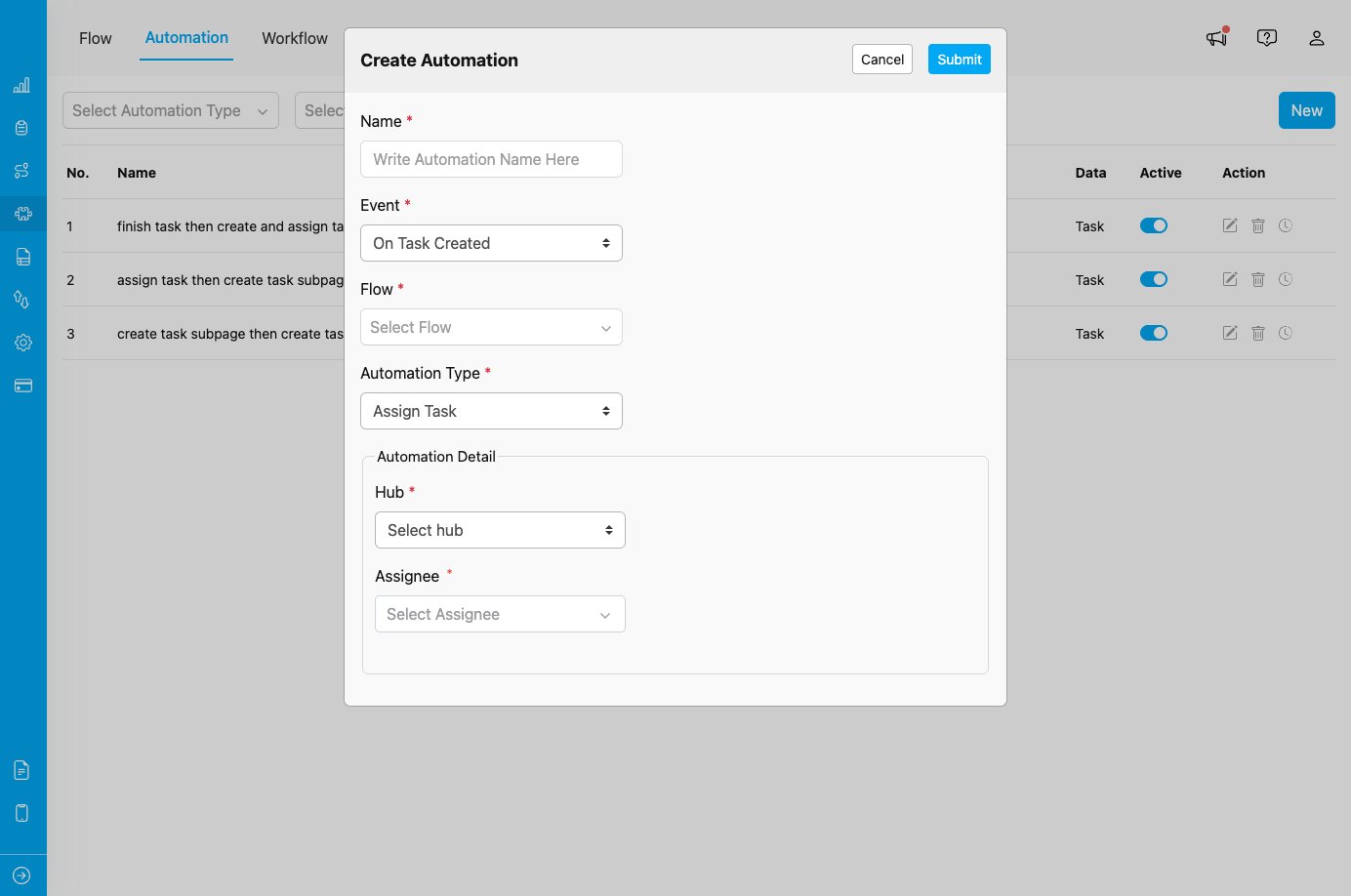
Assign Task automation configuration showing Hub and Assignee field settings
When to Use Assign Task
Use this automation type when you need to:- Automatically assign newly created tasks to specific field workers
- Distribute work based on location (hub)
- Ensure tasks are immediately assigned without manual intervention
- Implement automatic workload distribution rules
Event Availability
Assign Task automation type is only available for:- On Task Created - Automatically assign tasks when they are created
Configuration Fields
When you select Assign Task as the automation type, you must configure two required fields:1. Hub *
Select the hub where the assignee works. This ensures the task is assigned to a user in the correct location. Purpose:- Filters available assignees to users in the selected hub
- Ensures tasks are assigned to field workers in the appropriate location
- Helps organize tasks by geographic or operational areas
2. Assignee *
Select the specific user who will receive the task assignment. Options:- Individual field workers
- Team leads or supervisors
- Any user with appropriate permissions in the selected hub
- The dropdown shows users who have access to the selected hub
- When automation triggers, the task will be immediately assigned to this user
- The assignee will receive notifications based on their notification settings
Use Cases
1. Location-Based Assignment
Scenario: Automatically assign tasks to field workers based on hub location. Configuration:- Event: On Task Created
- Flow: Delivery
- Automation Type: Assign Task
- Hub: Jakarta
- Assignee: Specific field worker in Jakarta
2. Workload Distribution
Scenario: Distribute incoming tasks to specific team members to balance workload. Configuration:- Event: On Task Created
- Flow: Service Calls
- Automation Type: Assign Task
- Hub: Customer Service Hub
- Assignee: Designated service representative
3. Specialized Task Assignment
Scenario: Assign technical tasks to specialists automatically. Configuration:- Event: On Task Created
- Flow: Technical Repair
- Automation Type: Assign Task
- Hub: Maintenance Hub
- Assignee: Lead technician
How It Works
- Event Occurs: A task is created that matches the Flow specified in automation
- Automation Triggers: The Assign Task automation is activated
- Assignment Executed: Task is automatically assigned to the specified user in the specified hub
- Notification Sent: Assignee receives notification about the new task
- Task Appears in Queue: Task immediately appears in the assignee’s task list
Important Notes
Assignment Behavior
- Immediate Assignment: Tasks are assigned as soon as they are created
- No Reassignment: If task is already assigned, the automation will not reassign it
- Single Assignee: Each automation assigns to one specific user
- Hub Dependency: Assignee must have access to the specified hub
For Advanced Assignment Logic
If you need more sophisticated assignment rules, consider:- Using multiple Assign Task automations with different Rules
- Implementing custom assignment logic via Webhook automation type
- Using API integrations for dynamic assignment algorithms
Best Practices
- Clear Hub Selection: Ensure the hub matches the geographic or operational area of the assignee.
- Verify User Permissions: Confirm the selected assignee has appropriate permissions to view and work on tasks in the selected hub.
- Test Assignments: Create test tasks to verify automation assigns to the correct user.
- Use Rules for Filtering: Combine with automation Rules to assign different types of tasks to different users (e.g., urgent tasks to senior staff).
- Monitor Assignment Logs: Regularly review automation logs to ensure assignments are working as expected.
- Backup Assignment: Have a manual assignment process in place in case automation fails or needs to be temporarily disabled.
- Communicate with Team: Ensure assigned users know they will receive automatic assignments and understand the workflow.
Troubleshooting
Issue: Task is not being assigned when created Possible Causes:- Automation is not set to Active
- Task’s Flow does not match automation’s Flow configuration
- Rules in automation exclude the task
- Assignee no longer has access to the specified hub
- Verify automation toggle is ON
- Check Flow settings match task being created
- Review automation Rules for conflicts
- Confirm assignee still has hub access
- Incorrect assignee selected in automation configuration
- Multiple automations with conflicting assignment rules
- User account has changed hub assignments
- Edit automation to select correct assignee
- Review all active automations for the same Flow
- Verify user’s current hub assignments in user management