

Overview
The Email channel is one of two channels available for the Notification automation type (the other is WhatsApp). When selected, it replaces the WhatsApp-specific fields with a Gmail-style compose card: Recipients (To/Cc/Bcc), Subject, and a rich text Body. Unlike WhatsApp, Email doesn’t need a third-party API key, it sends through MileApp’s own mail service. Email is available for the same events as the Notification automation type: On Task Created, On Task Assigned, and On Task Finished.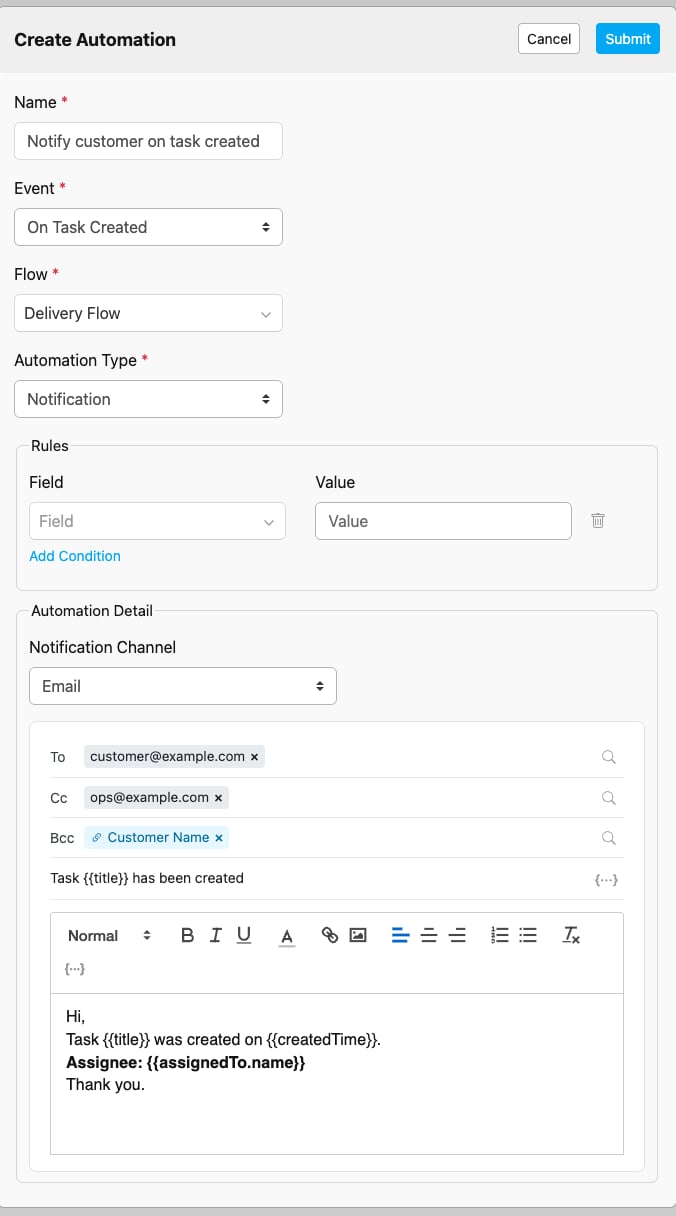
Automation Type set to Notification with Channel set to Email, showing the full compose card (Recipients, Subject, Body).
Enabling the Email Channel
- In the automation form, set Automation Type to Notification.
- Set Channel to Email. The WhatsApp fields (Receiver Phone Number, API Key, Message) are replaced by the compose card described below.
- Fill in at least one To recipient, a Subject, and a Body, then save the automation.
Recipients
Recipients are organized into three rows, matching a typical email client: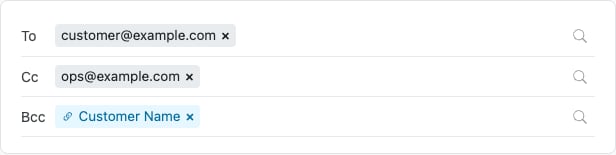
Recipients section with a To address filled in and the Cc and Bcc rows revealed.
Each row accepts two kinds of recipient:- Static email address. Type an address and add it as its own entry. You can add multiple static addresses to the same row, but each one must be added individually, a comma- or semicolon-separated list (
a@x.com, b@x.com) is rejected as a single malformed entry rather than being split into two addresses. - Task field recipient. Use the field picker to pull the recipient from a value on the triggering task. The picker only lists plain text
inputfields from the Flow’s initial page (a text field that happens to hold an email address). Fields of other types (Select, Number, Date, Phone Number, Address, etc.) never appear in this picker, even if their value looks like an email. The picker’s tooltip reads: “Add a recipient from a task field (text input only).”
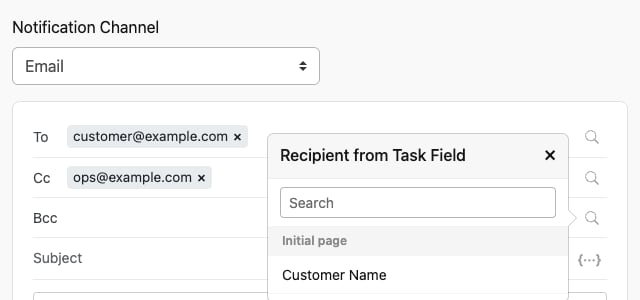
The task-field picker open on a recipient row, listing only plain text input fields from the Flow’s initial page.
Recipient Rules
- Text fields only. Only plain text
inputcomponents from the Flow’s initial page can be picked as a task field recipient. This is validated both in the automation form and again at send time. - No comma/semicolon lists. A single entry containing multiple addresses separated by commas or semicolons is rejected as one malformed value, add each address as a separate entry instead.
- 50 recipients maximum. The combined total of To + Cc + Bcc recipients cannot exceed 50. This matches the hard limit of Mailjet, the email delivery service MileApp uses to send automation emails. Exceeding 50 is rejected both when you save the automation and again when it tries to send.
- Cross-field deduplication. If the same email address ends up in more than one row (for example, the same address is both a static Cc entry and the resolved value of a Bcc task field), MileApp keeps it in the highest-precedence row only, in the order To > Cc > Bcc, and removes it from the lower rows. A deduplicated address is billed once, not once per row it appeared in.
Subject and Body
Subject is a plain text field that supports variables (see below). Body is a rich text editor supporting bold, italic, underline, font color, headings, text alignment, ordered and bullet lists, links, and inline images.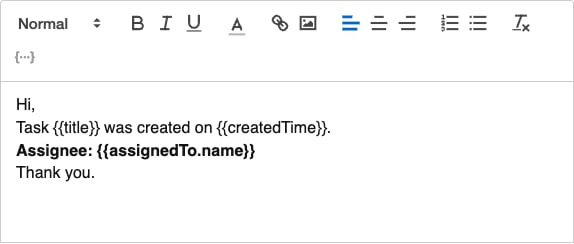
The Body editor toolbar, with formatting options for text style, alignment, lists, links, and inline images.
Variables
Click the variable picker to insert a{{token}} placeholder into the Subject or Body. Placeholders are replaced with the actual task values when the email is sent.
Two kinds of variables are available:
- Flow fields. Every primitive component from the Flow’s initial page (Text, Number, Date, Time, Select, Phone Number, Address, Currency, URL, Coordinate) appears in the picker automatically, using the field’s own name as the token. Container-type components (Bill, List, Subpage, Subflow, Photo, Signature) are not available as variables.
- Standard task tokens:
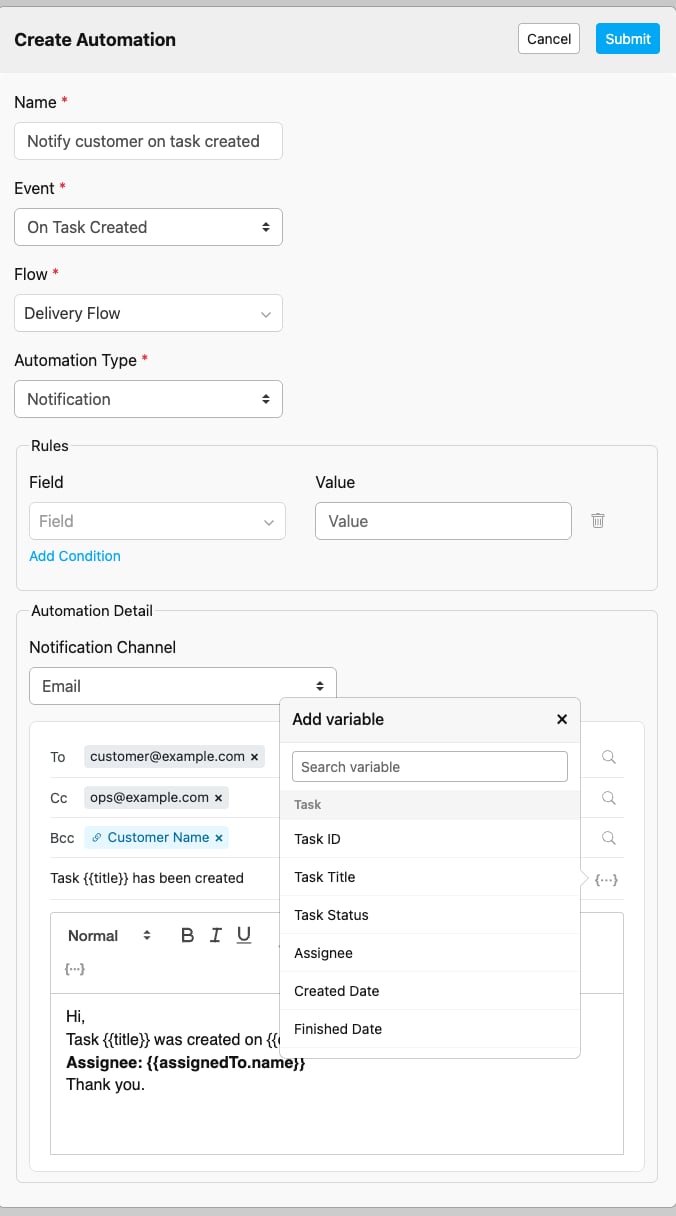
The variable picker dropdown open over the Subject field, listing Flow fields and standard task tokens.
Example Subject:Your delivery {{title}} is on its way
Example Body:
Adding Images to the Body
You can insert inline images directly into the Body editor, either by pasting an image straight into the editor or by using the image button on the toolbar to pick a file. The image previews inline with your text right away. While you’re editing, images are held as base64 data, nothing is uploaded to MileApp until you save the automation. On save, MileApp uploads each image and swaps itssrc for a hosted URL. If you close the form without saving, no image is uploaded.
Accepted image formats are JPEG, PNG, GIF, and WEBP, with a maximum size of 5 MB per image. The same limits apply whether you paste the image or pick it from the toolbar.
Credit Cost
Sending an email automation consumes your organization’s shared Credits balance, the same balance used for WhatsApp and SMS OTP sends (see How to Top Up Your OTP Balance). Email costs 1 credit per unique recipient, calculated from the deduplicated union of To, Cc, and Bcc.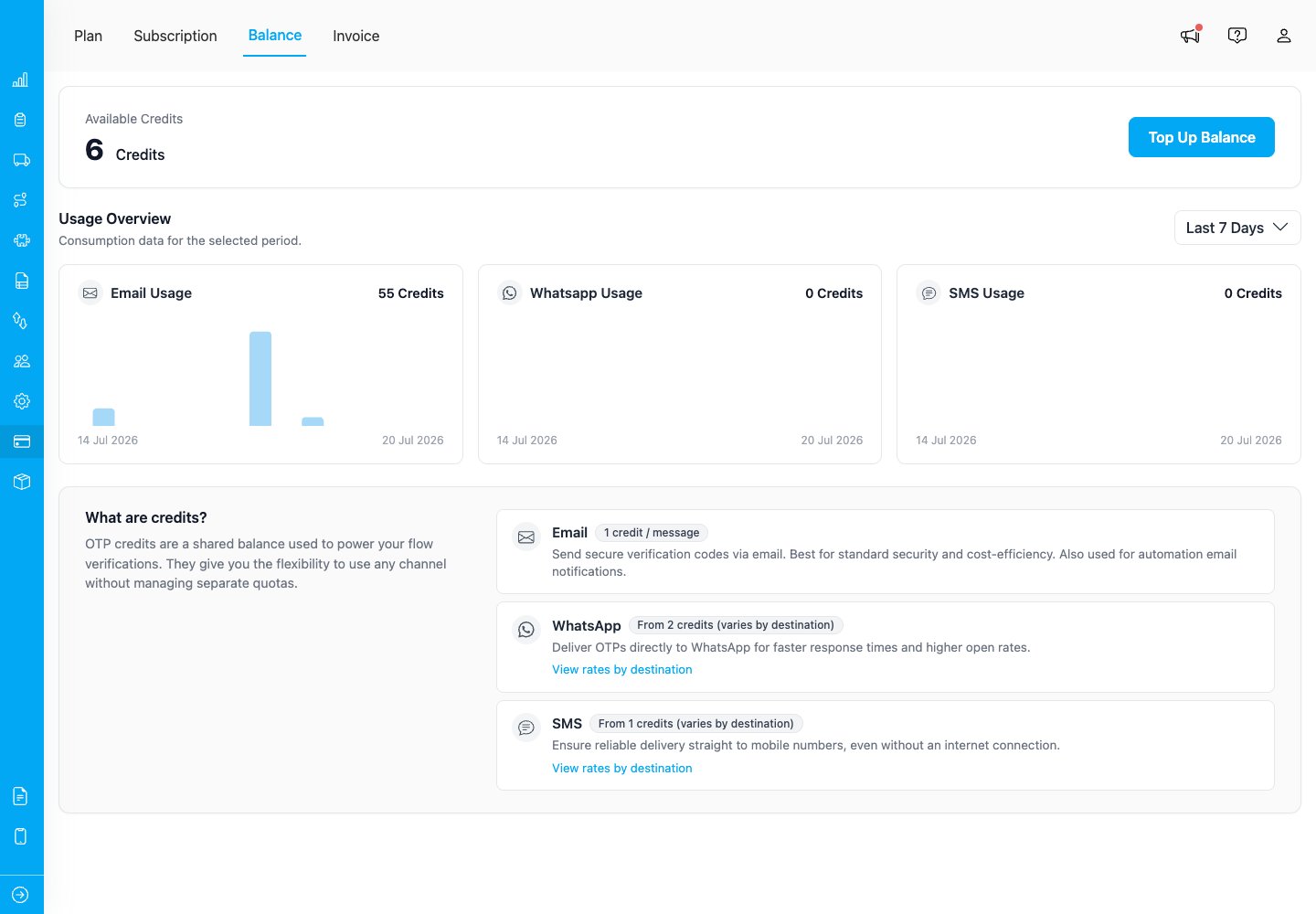
The Credits / Balance page, showing Available Credits and per-channel usage, including Email.
Organizations on an unmetered (typically Enterprise) license are not charged and always receive the full recipient list. For metered organizations, MileApp checks your Credits balance before sending:- If the balance covers every recipient, the email sends to everyone as configured.
- If the balance only covers part of the list, MileApp sends to as many recipients as the balance allows, prioritized To, then Cc, then Bcc, and drops the remaining recipients. The automation log records these drops with the reason “insufficient credit.”
- If the balance is 0, nothing is sent.
- If MileApp can’t verify your balance at send time (for example, a temporary billing service issue), it fails closed: nothing is sent, and the log records “Could not verify email credit balance.” This protects you from being charged for a send MileApp couldn’t confirm you could afford.
Automation Log
Open the Automation Log for an email automation to see which recipients were sent to and which were dropped. Two drop reasons are logged separately:- Recipients dropped for an invalid or malformed address.
- Recipients dropped for insufficient credit.
Frequently Asked Questions
Q: Do I need an API key or third-party account for the Email channel? A: No. Unlike WhatsApp, Email sends through MileApp’s own mail service. There’s no external provider to configure. Q: Can I use a comma-separated list to add several recipients at once? A: No. Each recipient must be added as its own entry in the To, Cc, or Bcc row. A comma- or semicolon-separated value is rejected as one malformed entry. Q: Why doesn’t my Select or Number field show up in the recipient picker? A: The recipient picker only lists plain textinput fields from the Flow’s initial page. Fields of other types are excluded even if they contain an email-like value.
Q: What happens if my To, Cc, and Bcc add up to more than 50 recipients?
A: The automation is rejected at save time. If you somehow reach 50+ recipients later (for example, a task field resolves to a new address), the send itself is also rejected until you bring the total back under 50.
Q: Will the same address ever be emailed twice if it appears in both To and Cc?
A: No. MileApp deduplicates across rows, keeping the address in the highest-precedence row (To over Cc over Bcc), and bills it once.
Q: What happens if my organization runs out of Credits mid-send?
A: MileApp sends to as many recipients as your remaining balance covers, prioritized To, then Cc, then Bcc, and drops the rest. Check the automation log for the exact list of dropped recipients, then top up your Credits balance.
Q: Are recipients who received the email charged if I retry a failed automation log entry?
A: No. Credits are deducted per successful send. Retrying a log entry only charges for recipients that are actually sent to on that retry.
Related Documentation
- Notification: the parent automation type, covering the WhatsApp channel
- How to Top Up Your OTP Balance: topping up the shared Credits balance
- Automation Log: viewing send results and drop reasons
- Automation Events: events that can trigger a Notification automation