

Available Automation Events
MileApp supports the following automation events: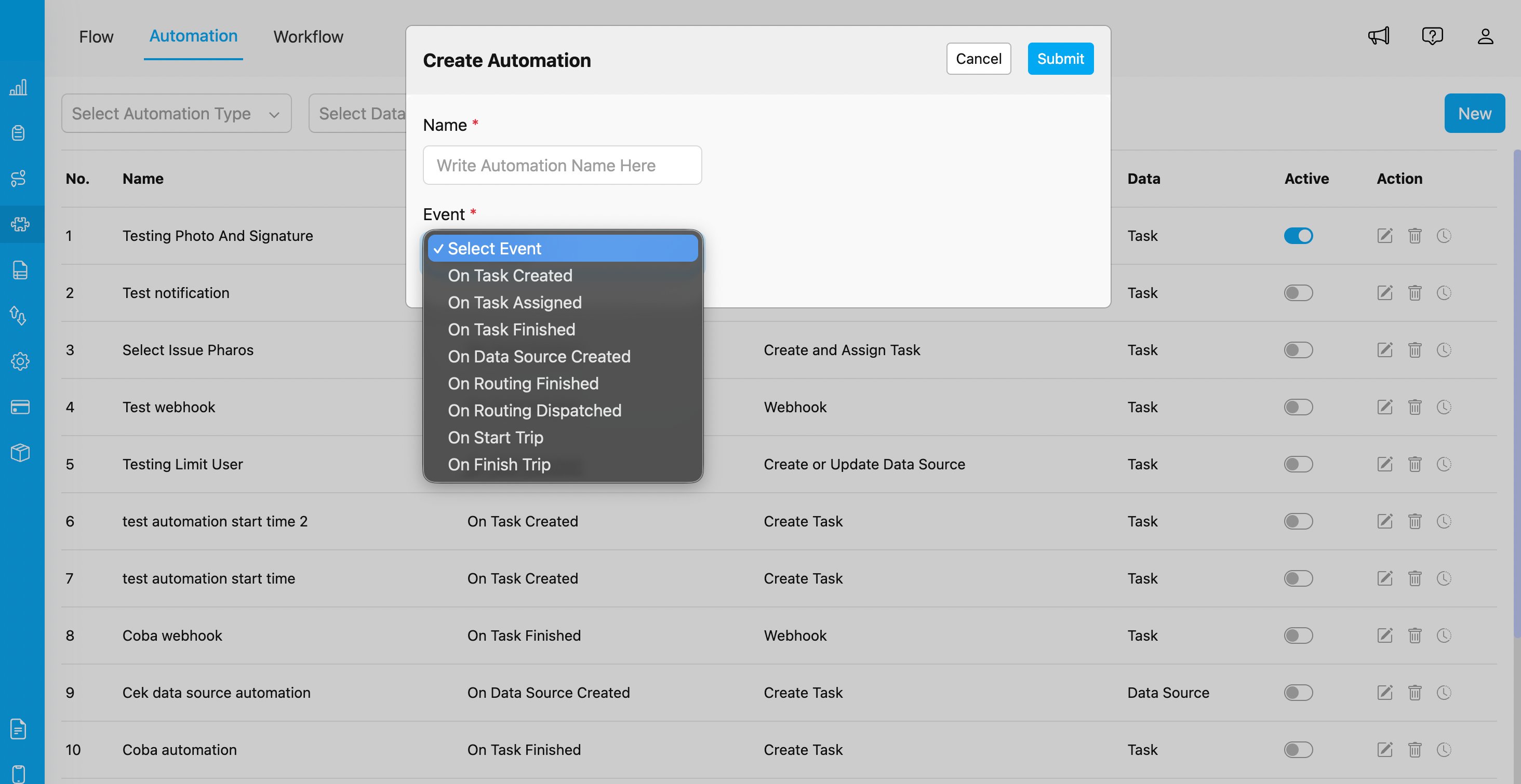
Event selection dropdown in Create Automation dialog showing all available automation events
1. On Task Created
The event will trigger immediately after you create a Task with the selected Flow. This automation is useful for:- Automatically creating related tasks
- Sending notifications when new tasks are created
- Updating external systems via webhook
2. On Task Assigned
The event will trigger after you assign a Task to a user with the selected Flow. This automation is useful for:- Notifying the assigned user
- Creating follow-up tasks
- Logging assignment events to external systems
3. On Task Finished
The event will trigger after you finish/complete a Task with the selected Flow. This automation is useful for:- Creating subsequent tasks in a workflow
- Sending completion notifications
- Updating task completion status in external systems
4. On Data Source Created
The event will trigger when a new Data Source entry is created. This automation is useful for:- Automatically creating tasks based on new data entries
- Synchronizing data with external systems
- Triggering workflows based on data creation
5. On Routing Finished
The event will trigger when the route optimization calculation is completed. This automation is useful for:- Sending optimized routing results to external systems
- Notifying planners that routes are ready
- Auto-dispatching routes after optimization
6. On Routing Dispatched
The event will trigger each time you hit the Dispatch button in the Routing/Result menu. This automation is useful for:- Receiving updated routing result data after manual adjustments
- Notifying drivers that routes have been dispatched
- Synchronizing dispatch status with external systems
7. On Start Trip
The event will trigger when a field worker starts their trip in the mobile app. This automation is useful for:- Notifying operations team that field work has begun
- Logging trip start times to external systems
- Creating checkpoint tasks
8. On Finish Trip
The event will trigger when a field worker finishes their trip in the mobile app. This automation is useful for:- Generating trip summary reports
- Calculating trip duration and metrics
- Triggering post-trip workflows
Event-Flow Matching
Important: For task-related events (On Task Created, On Task Assigned, On Task Finished), the automation will only be triggered if the task’s Flow matches the Flow selected in the automation configuration. This allows you to create Flow-specific automation rules. For example:- If you configure an automation with Event “On Task Created” and Flow “Delivery”, the automation will only trigger when a task with Flow “Delivery” is created
- Tasks with other Flows (e.g., “Pickup”, “Visit”) will not trigger this automation