

Overview
The On Task Assigned automation event triggers when a task is assigned to a user with the selected Flow. This event captures the moment when task ownership is established, allowing you to automate notifications, create follow-up activities, or integrate with external workforce management systems at the point of assignment.When Does This Event Trigger?
The “On Task Assigned” event is triggered when:-
A task is assigned to a user through any of these methods:
- Manual Assignment - Assigning via web portal task management
- Bulk Assignment - Multiple tasks assigned at once
- Routing Dispatch - Tasks assigned through route optimization results
- Automation - Task assigned by another automation rule
- API Assignment - Task assignment via MileApp API
- The assignment is successfully saved to the system
- The task’s Flow matches the Flow selected in the automation configuration
The automation will only trigger if the task’s Flow matches the Flow specified in the automation settings. This allows you to create Flow-specific automation rules for different types of field operations.
Prerequisites
Before setting up an automation with this event, ensure:- You have access to the Automation feature in MileApp
- You have appropriate permissions to create and manage automations
- You have at least one Flow configured in your organization
- Field workers exist in your system to receive task assignments
Required permission:
- View Automation
- Create Automation
Use Cases
1. Preparation Task Creation
Scenario: Automatically create preparation or equipment checklist tasks when field service tasks are assigned. Configuration:- Event: On Task Assigned
- Flow: Technical Repair
- Automation Type: Create Task
- Action: Create “Equipment Preparation” task for the assigned user
2. External System Synchronization
Scenario: Update workforce management or field service management systems when tasks are assigned. Configuration:- Event: On Task Assigned
- Flow: Customer Visit
- Automation Type: Webhook
- Action: Send assignment data to external scheduling system
Setting Up On Task Assigned Automation
Step 1: Navigate to Automation Settings
- Log in to MileApp web portal
- Click on Flow in the main navigation
- Click on the Automation tab
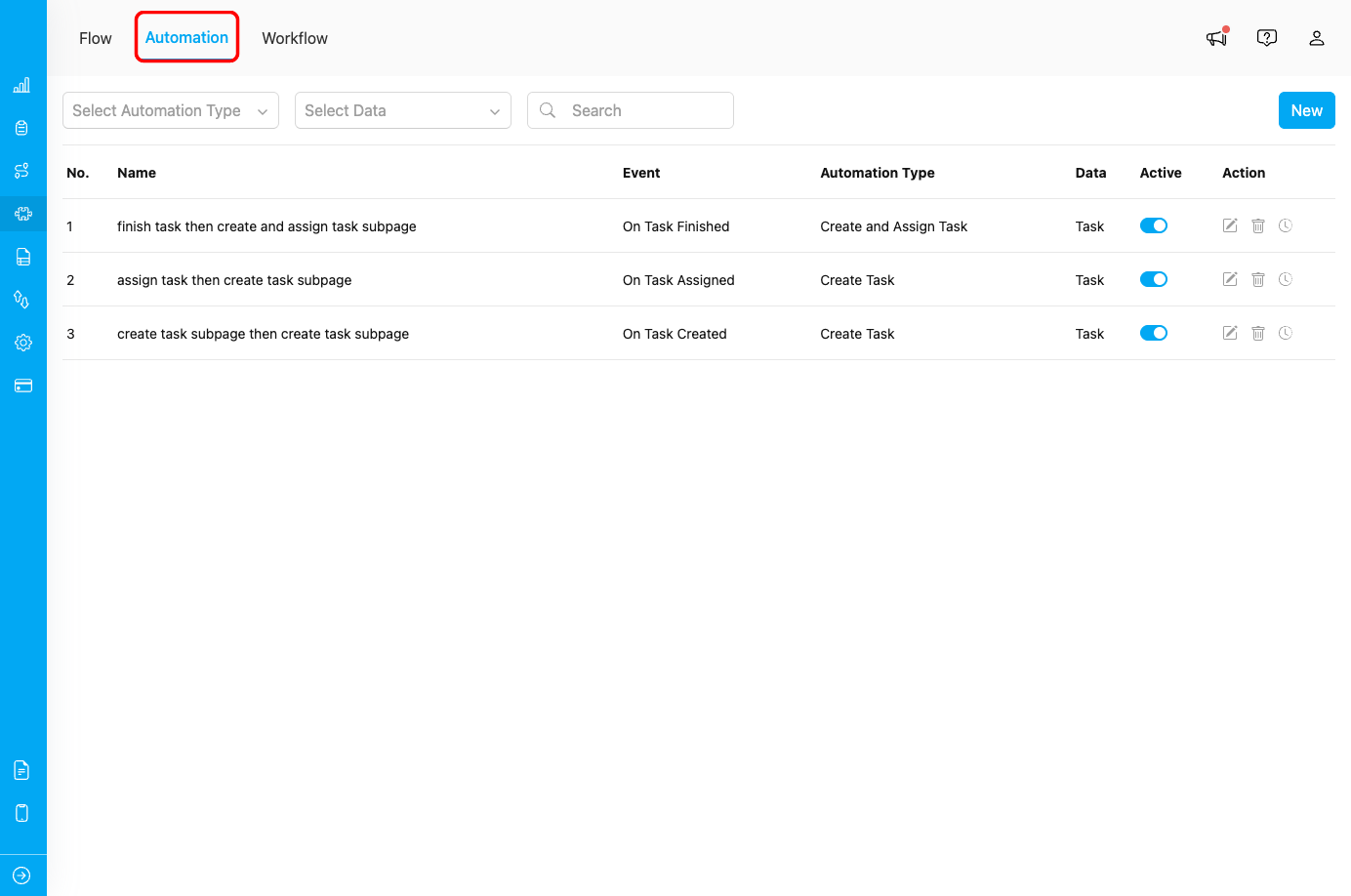
Automation tab in Flow menu
Step 2: Create New Automation
- Click the New button in the Automation page
- The “Create Automation” dialog will appear
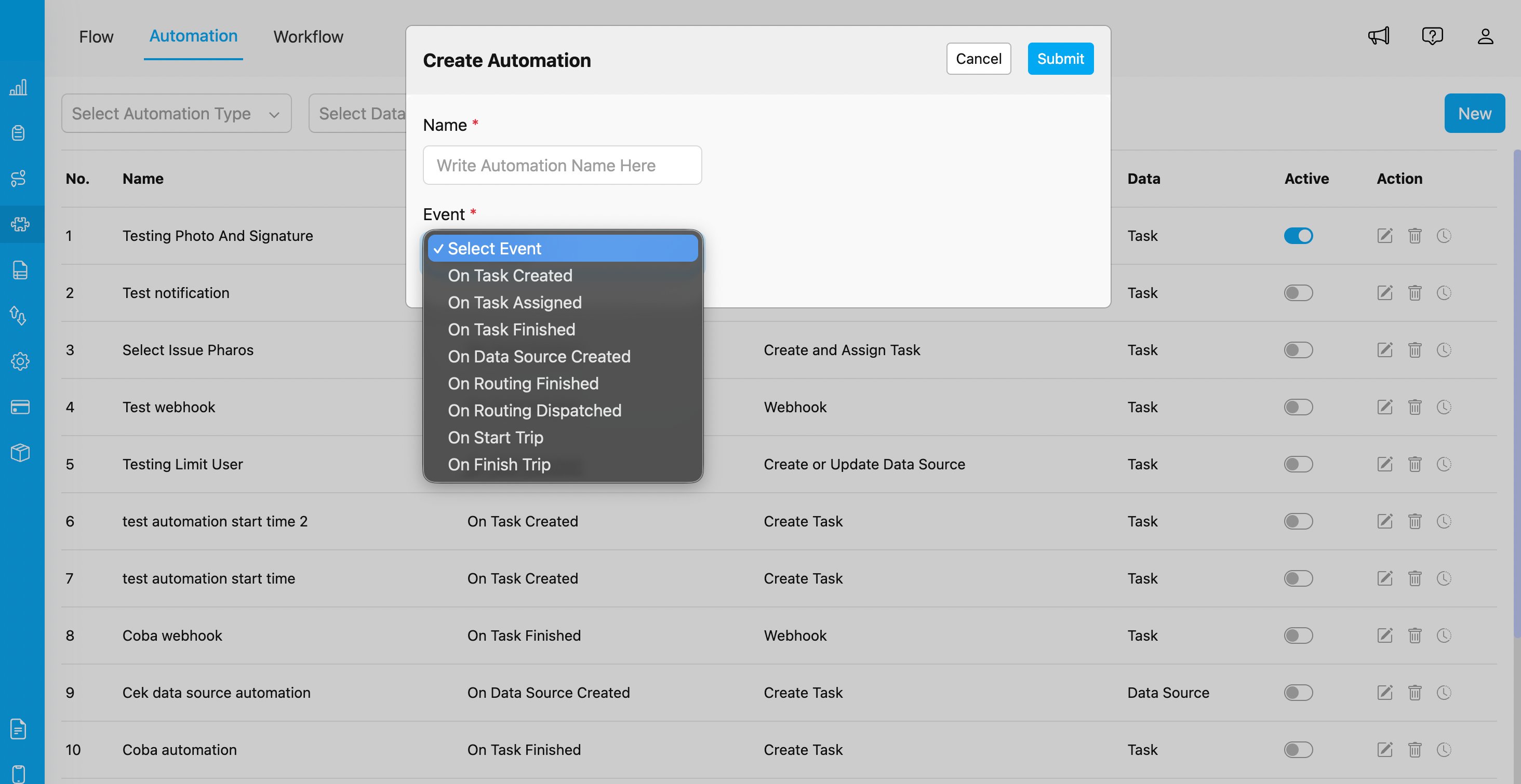
Create Automation dialog with event selection showing all available automation events
Step 3: Configure Automation Details
Fill in the following information:- Automation Name: Provide a descriptive name (e.g., “Notify Worker on Delivery Assignment”)
- Event: Select “On Task Assigned” from the dropdown
- Flow: Select the Flow you want to monitor (e.g., “Delivery”, “Visit”, “Installation”)
-
Automation Type: Choose the action type:
- Create Task - Automatically create a new task
- Webhook - Send data to external URL
- Notification - Send notifications to users
- Configure type-specific settings based on your chosen Automation Type
Step 4: Configure Webhook Settings (For Webhook Only)
If you selected Webhook as the Automation Type, configure the following:- URL: Enter the endpoint URL where task assignment data should be sent
- Header (Optional): Add custom HTTP headers (e.g., Authorization, Content-Type)
- Value (Optional): Provide corresponding header values
Step 5: Configure Rules (Optional)
You can add conditional rules to control when the automation should execute. Rules are configured based on field and value matching to filter when the automation triggers.Step 6: Save and Activate
- Click Submit to create the automation
- Ensure the automation is set to Active (toggle enabled)
- Test the automation by assigning a task with the selected Flow to a user
Webhook Integration Details
This section applies only if you’re using the Webhook automation type.Payload Structure
When “On Task Assigned” triggers a webhook, MileApp sends a POST request with the following data structure:Assignment Types and Behavior
Single Task Assignment
When a single task is assigned to a user:- Automation triggers once for that specific task
- Webhook receives data for the single task
Bulk Assignment
When multiple tasks are assigned at once (e.g., via routing dispatch):- Automation triggers for each task individually
- Each webhook call contains data for one task
- Be mindful of webhook rate limits for large assignments
Reassignment
When a task is reassigned from one user to another:- Automation triggers again with the new assignee information
- The payload includes the current assignee (new) and assigner details
- Useful for notifying the new assignee and tracking assignment changes
Monitoring and Troubleshooting
Viewing Automation Logs
To verify your “On Task Assigned” automation is working correctly:- Go to Flow > Automation
- Find your automation in the list
- Click the clock history icon to view execution logs
- Review successful executions and any errors
Common Issues
Issue: Automation not triggering when tasks are assigned Possible Causes:- Automation is not set to Active
- Task’s Flow does not match automation’s Flow configuration
- Rules/filters exclude the assigned tasks
- Task status doesn’t change to “assigned”
- Verify automation is enabled (toggle is ON)
- Check that task Flow matches automation Flow setting
- Review rules to ensure they don’t overly restrict triggering
- Verify assignment is to individual users, not just teams
- Check task status after assignment
- Multiple automations configured for the same Flow
- Webhook endpoint not responding with 2xx status code (causing retries)
- Review all active automations to identify duplicates
- Ensure webhook endpoint responds with proper status code (200 or 204)
- Webhook endpoint has issues sending notifications
- Assignee’s WhatsApp number is incorrect
- Assignee has disabled notifications
- Check webhook logs for errors
- Verify assignee contact information in user profile
- Test notification service independently
- Confirm user notification preferences