

Overview
The On Task Created automation event triggers immediately after a task is created with the selected Flow. This event captures the moment when a new task enters the system, allowing you to automate subsequent workflows, send notifications, or integrate with external systems right at the point of task creation.When Does This Event Trigger?
The “On Task Created” event is triggered when:-
A task is created through any of these methods:
- Web - Manual task creation via the web interface
- Excel Upload - Bulk task import from spreadsheet
- Mobile App - Task creation from MileApp Field mobile app
- API - Task creation via MileApp API endpoints
- Automation - Task created by another automation rule
- Scheduled Task - Recurring task generation from schedules
- The task is successfully saved to the system
- The task’s Flow matches the Flow selected in the automation configuration
Prerequisites
Before setting up an automation with this event, ensure:- You have access to the Automation feature in MileApp
- You have appropriate permissions to create and manage automations
- You have at least one Flow configured in your organization
- You understand which Flow you want to monitor for new tasks
Required permission:
- View Automation
- Create Automation
Use Cases
1. Automatic Task Chaining
Scenario: When a “Pickup” task is created, automatically create a corresponding “Delivery” task. Configuration:- Event: On Task Created
- Flow: Pickup
- Automation Type: Create Task
- Action: Create new task with Flow “Delivery” linked to the original pickup task
2. External System Synchronization
Scenario: Sync task creation to external ERP, WMS, or CRM systems. Configuration:- Event: On Task Created
- Flow: Customer Visit
- Automation Type: Webhook
- Action: Send task data to CRM to update customer interaction records
3. Customer Notification on Task Creation
Scenario: Automatically notify customers when their delivery or service task is created. Configuration:- Event: On Task Created
- Flow: Delivery
- Automation Type: Webhook
- Action: Send task confirmation and tracking details to customer via email or SMS
Setting Up On Task Created Automation
Step 1: Navigate to Automation Settings
- Log in to MileApp web
- Click on Flow in the main navigation
- Click on the Automation tab
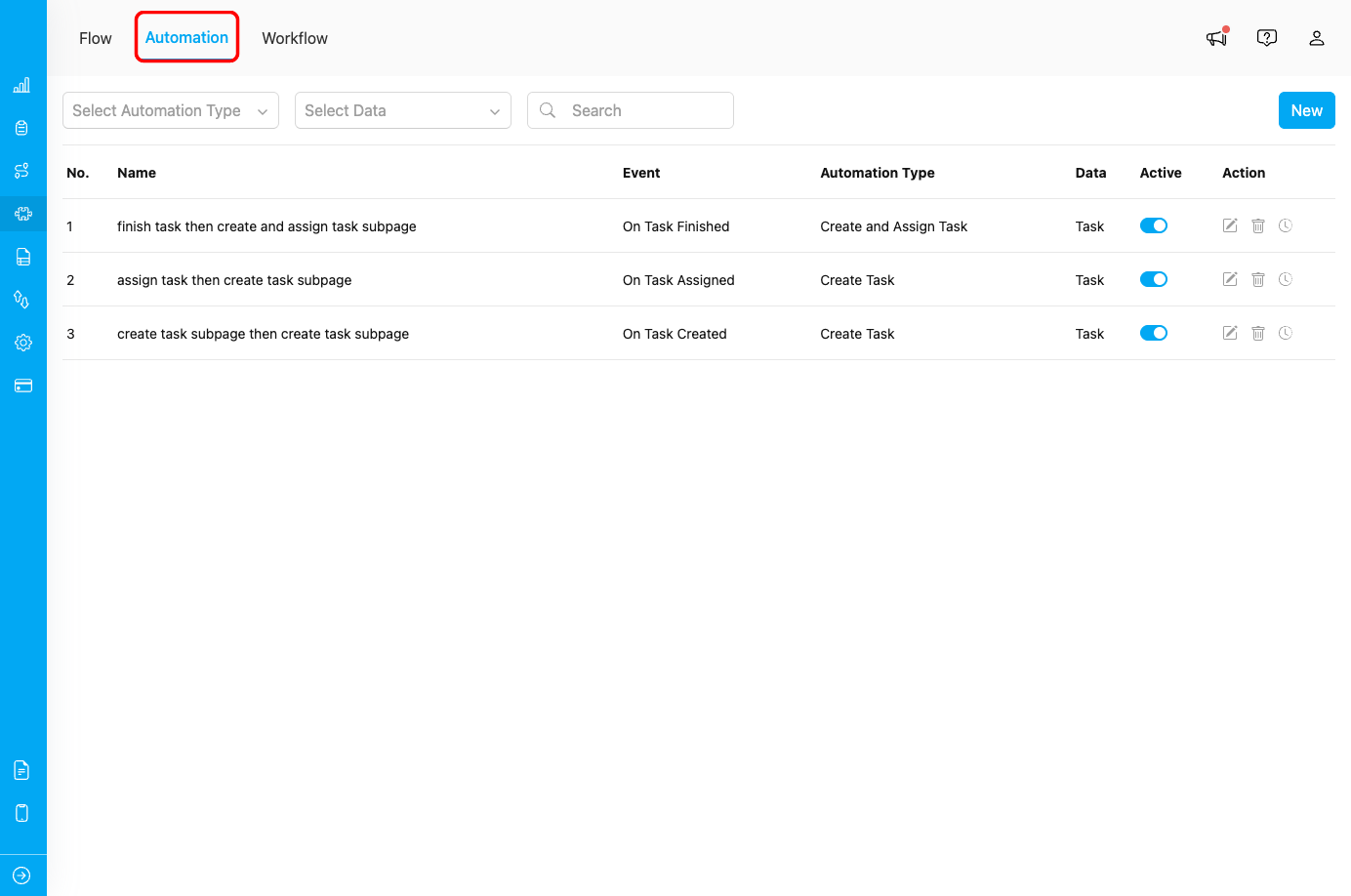
Automation tab in Flow menu
Step 2: Create New Automation
- Click the New button in the Automation page
- The “Create Automation” dialog will appear
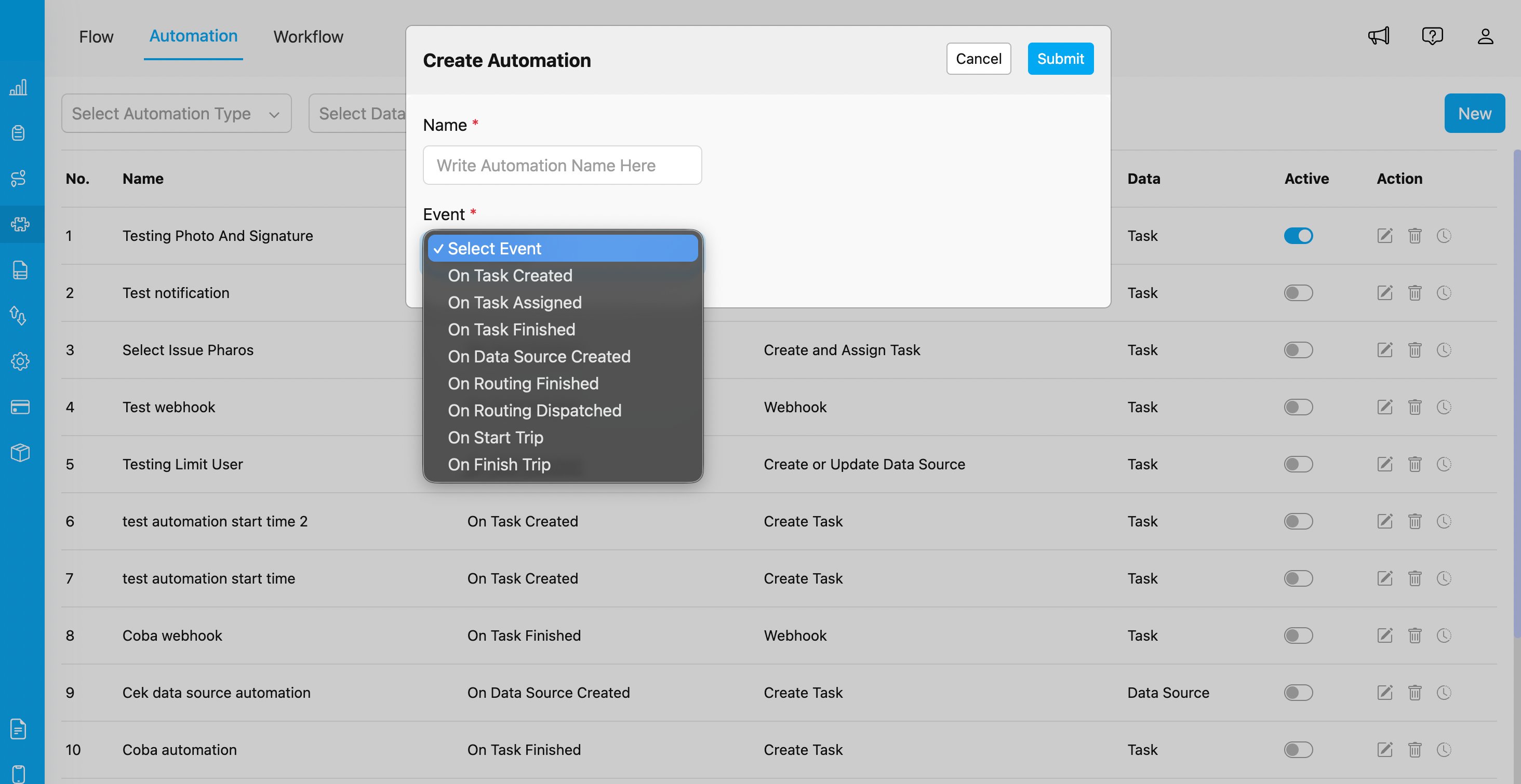
Create Automation dialog with event selection showing all available automation events
Step 3: Configure Automation Details
Fill in the following information:- Automation Name: Provide a descriptive name (e.g., “Create Delivery Task on Pickup Creation”)
- Event: Select “On Task Created” from the dropdown
- Flow: Select the Flow you want to monitor (e.g., “Pickup”, “Delivery”, “Visit”)
-
Automation Type: Choose the action type:
- Create Task
- Create and Assign Task
- Move Task
- Assign Task
- Webhook
- Notification
- Configure type-specific settings based on your chosen Automation Type
Step 4: Configure Rules (Optional)
Add conditional rules to control when the automation should execute:- Filter by specific users or teams
- Apply conditions based on hub or location
- Set task field conditions (e.g., priority, status)
- Filter by time of day or day of week
Step 5: Save and Activate
- Click Submit to create the automation
- Ensure the automation is set to Active (toggle enabled)
- Test the automation by creating a task with the selected Flow
Webhook Integration Details
This section applies only if you’re using the Webhook automation type.Payload Structure
When “On Task Created” triggers a webhook, MileApp sends a POST request with the following data structure:Flow Matching Behavior
The Flow Matching is a critical aspect of the On Task Created automation:How It Works
- Automation Configuration - You select a specific Flow when creating the automation (e.g., “Delivery”)
- Task Creation - A task is created with a Flow assignment (e.g., “Pickup” or “Delivery”)
- Match Check - MileApp compares the task’s Flow with the automation’s Flow
- Trigger Decision:
- ✅ Match - If they match, the automation executes
- ❌ No Match - If they don’t match, the automation is skipped
Example Scenario
Automation Setup:- Event: On Task Created
- Flow: Delivery
- Action: Send webhook to external system
- Task created with Flow “Delivery” → ✅ Automation TRIGGERS
- Task created with Flow “Pickup” → ❌ Automation DOES NOT TRIGGER
- Task created with Flow “Visit” → ❌ Automation DOES NOT TRIGGER
Multiple Automations
You can create multiple automations with the same event but different Flows:- Automation 1: On Task Created → Flow: Delivery → Send to ERP
- Automation 2: On Task Created → Flow: Pickup → Send to WMS
- Automation 3: On Task Created → Flow: Visit → Send to CRM
Monitoring and Troubleshooting
Viewing Automation Logs
To verify your “On Task Created” automation is working correctly:- Go to Flow > Automation
- Find your automation in the list
- Click the clock history icon to view execution logs
- Review successful executions and any errors
Common Issues
Issue: Automation not triggering when tasks are created Possible Causes:- Automation is not set to Active
- Task’s Flow does not match automation’s Flow configuration
- Rules/filters exclude the created tasks
- User creating task doesn’t have proper permissions
- Automation has syntax errors in webhook URL or configuration
- Verify automation is enabled (toggle is ON)
- Check that task Flow matches automation Flow setting
- Review rules to ensure they don’t overly restrict triggering
- Verify user permissions for task creation
- Check automation logs for error messages
- Flow has optional fields that weren’t filled during task creation
- Custom fields not properly configured in Flow
- Task created via API with minimal data
- Review Flow configuration to identify required vs optional fields
- Implement validation in webhook endpoint to handle missing data
- Add default values for optional fields in automation
- Multiple automations configured for the same Flow
- Task update events being confused with task creation
- Webhook endpoint not responding with proper status code
- Review all active automations to identify duplicates
- Ensure you’re using “On Task Created” not “On Task Finished”
- Implement idempotency in webhook endpoint using task ID
- Automation configured to create task triggers itself recursively
- Multiple automations creating tasks in a loop
- No safeguards against duplicate task creation
- Ensure created tasks use different Flow than trigger Flow
- Add rules to prevent automation loops
- Implement duplicate detection logic in automation or webhook