

Required permission:
- View Sales Target - Manager
The Target Table
The Manager page displays all sales targets in a table with the following columns:
The table shows 25 records per page. Use the pagination controls at the bottom to navigate between pages.
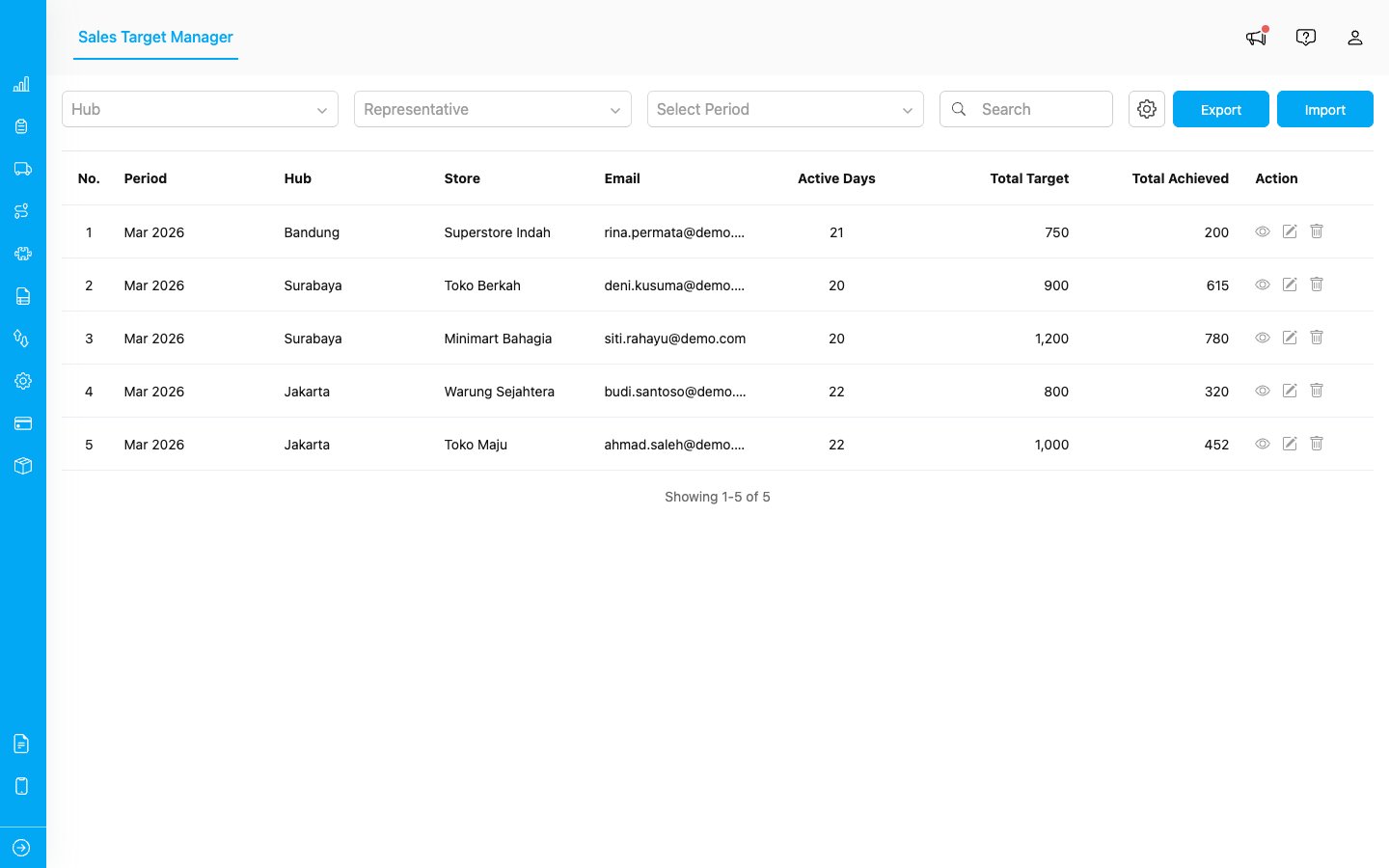
The Manager page lists all sales targets with period, location, email, and achievement data.
Filtering Targets
Use the filter bar at the top of the page to narrow down the displayed targets:- Location: Select a city or hub from the dropdown to filter by location.
- Representative: Select a representative name to see only their targets.
- Period: Select a month to filter by target period.
- Search: Type in the search box to search by email, city, or store name.

The filter bar provides Hub, Representative, and Period dropdowns, a search box, plus Export, Import, and Settings buttons.
Viewing Target Details
To see the full details of a target, click the eye icon in the Actions column. The details modal shows: Header- Representative email and target period
- A progress bar showing the overall achievement percentage
- City/Hub name
- Store name
- Active days for the month
- Total monthly target
- Target broken down by each category (e.g., Food: 500, Beverages: 300)
- Total daily target (calculated automatically: total target divided by active days)
- Daily target per category
- Total achievement to date
- Achievement per category
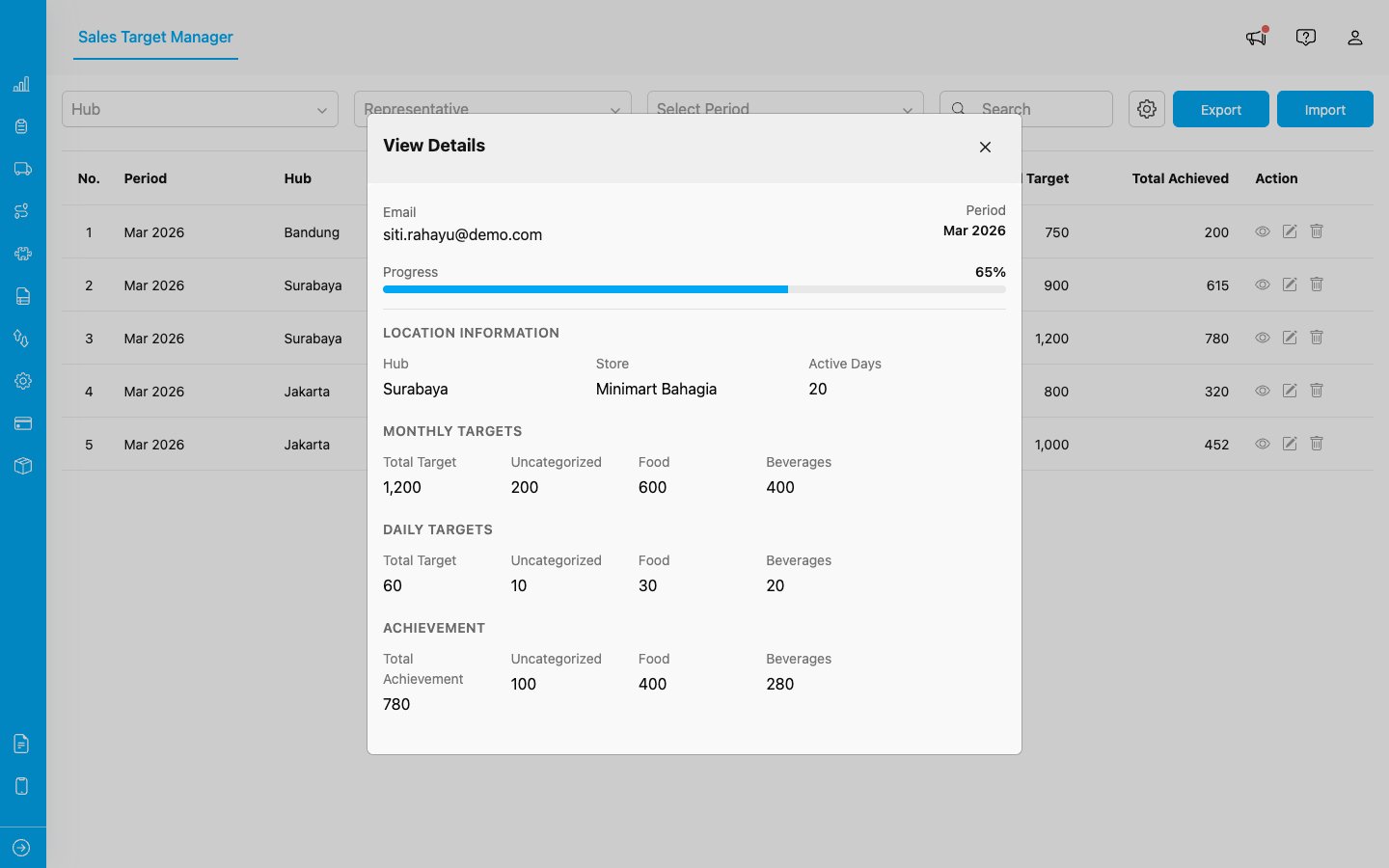
The View Details modal shows the progress bar, location info, monthly targets, daily targets, and achievement breakdown by category.
Editing a Target
To modify a target, click the pencil icon in the Actions column. The edit modal allows you to change:- Active Days: The number of working days (1–31)
- Total Target: The overall monthly goal
- Category Targets: Individual targets for each category
- Daily Targets: Recalculated based on total target and active days
- Achievement: Updated from completed task data
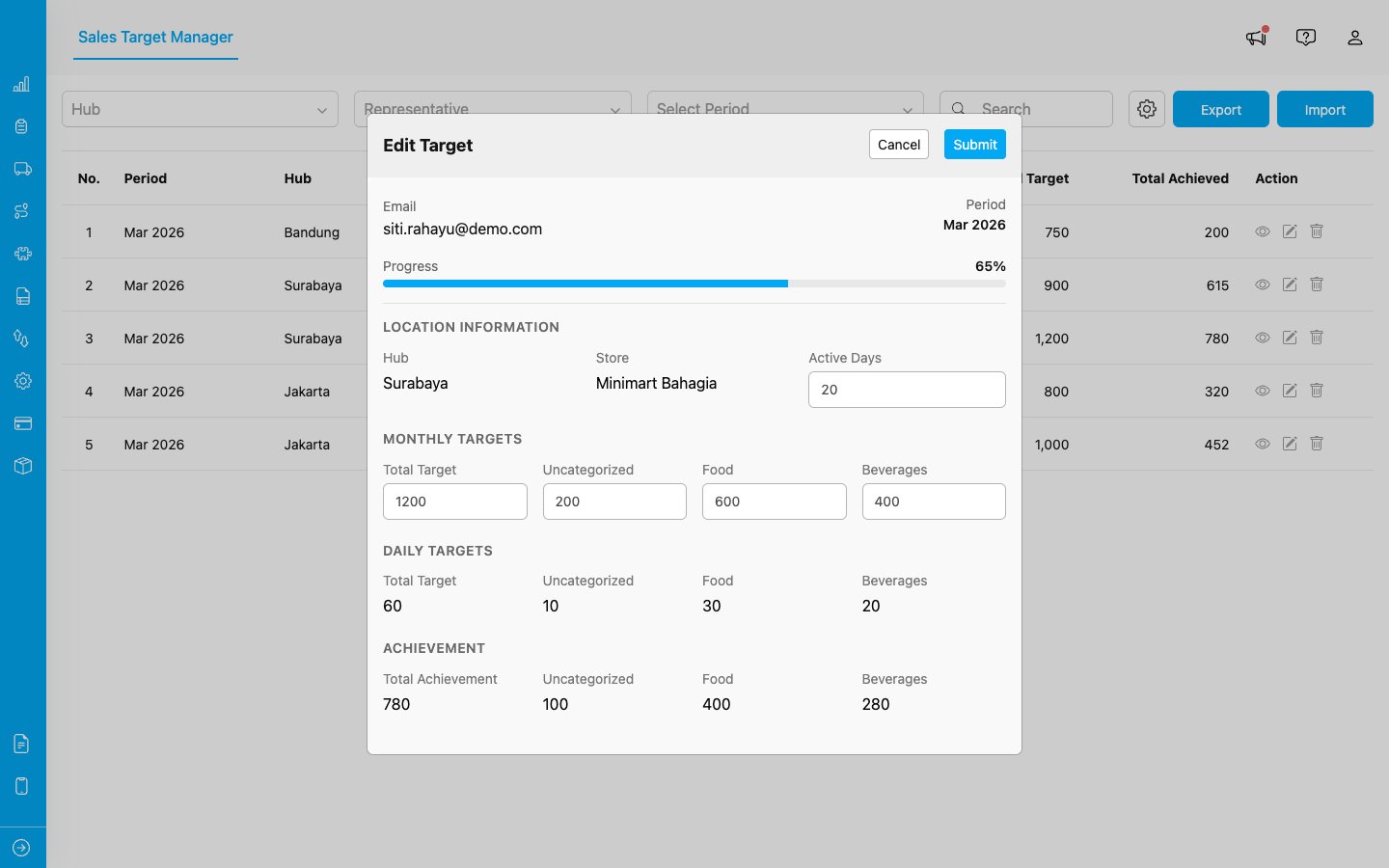
The Edit Target modal lets you update Active Days and target amounts. Daily targets and achievement figures are read-only and update automatically.
The sum of all category targets must equal the total target. A warning will appear if they do not match.
Deleting a Target
To delete a target, click the trash icon in the Actions column. A confirmation dialog will appear showing the target details. Click Delete to confirm or Cancel to go back.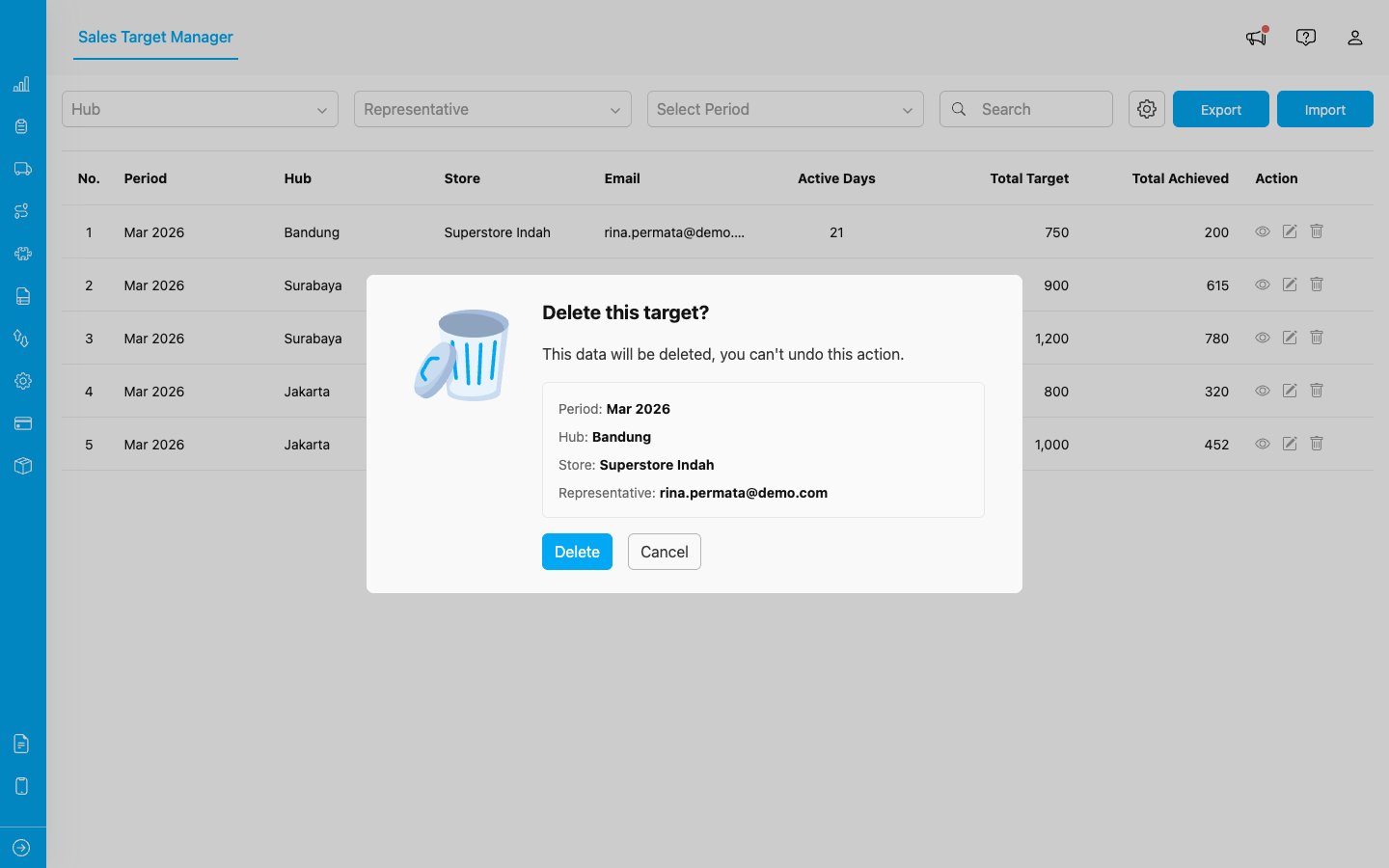
The delete confirmation dialog shows target details and warns that the action cannot be undone.
Deleting a target is permanent and cannot be undone.