

What is Advanced Discount?
Advanced Discount is a feature on the Bill component that lets admins define discount rules directly inside the flow. When a field worker creates or does a task, they select at most one discount from the configured rules, and the bill total updates automatically. The server re-validates and recomputes the discount on every save. A per-bill toggle controls whether it is active. Turning the toggle off leaves the Bill exactly as it is today (classic Cost and Discount add-ons).Enabling Advanced Discount on a Bill
Advanced Discount is configured in the Flow Builder, inside the Bill component’s settings.- Open the Flow Builder and select the Bill component you want to configure.
- Scroll below the Item and Add-on sections to find the Advanced Discount toggle.
- Turn the toggle on.
- The simple Discount add-on type is removed from the Add-on section — only Cost remains. If the bill already has Discount add-ons, you are asked to confirm, and they are removed (your Cost add-ons are kept).
- The Discount Rules section appears below the toggle.
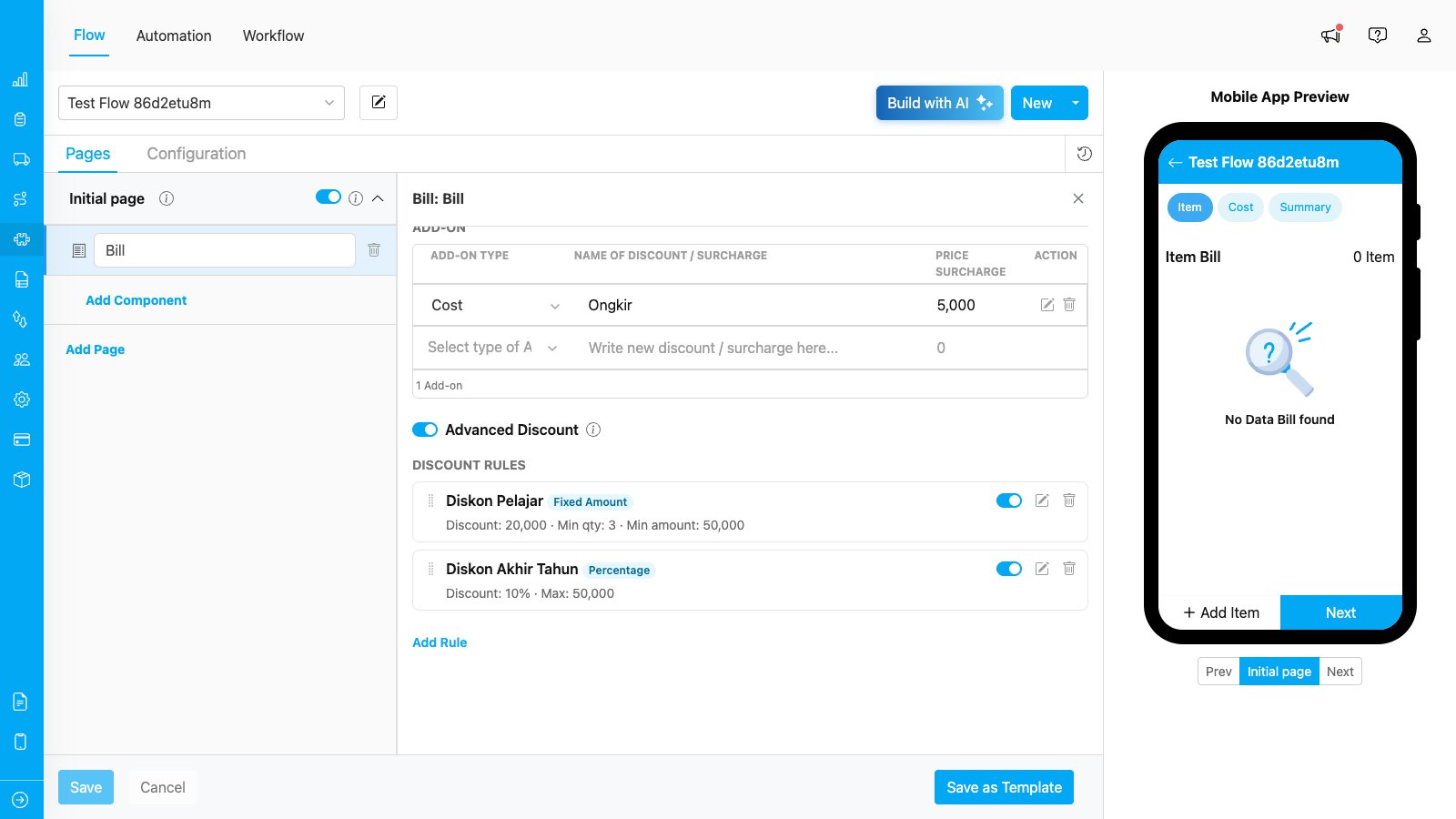
The Advanced Discount toggle and the Discount Rules section in the Flow Builder.
Authoring Discount Rules
Each rule you create appears as a selectable option for the field worker at task time. To add a rule, click Add Rule in the Discount Rules section, then fill in the following fields: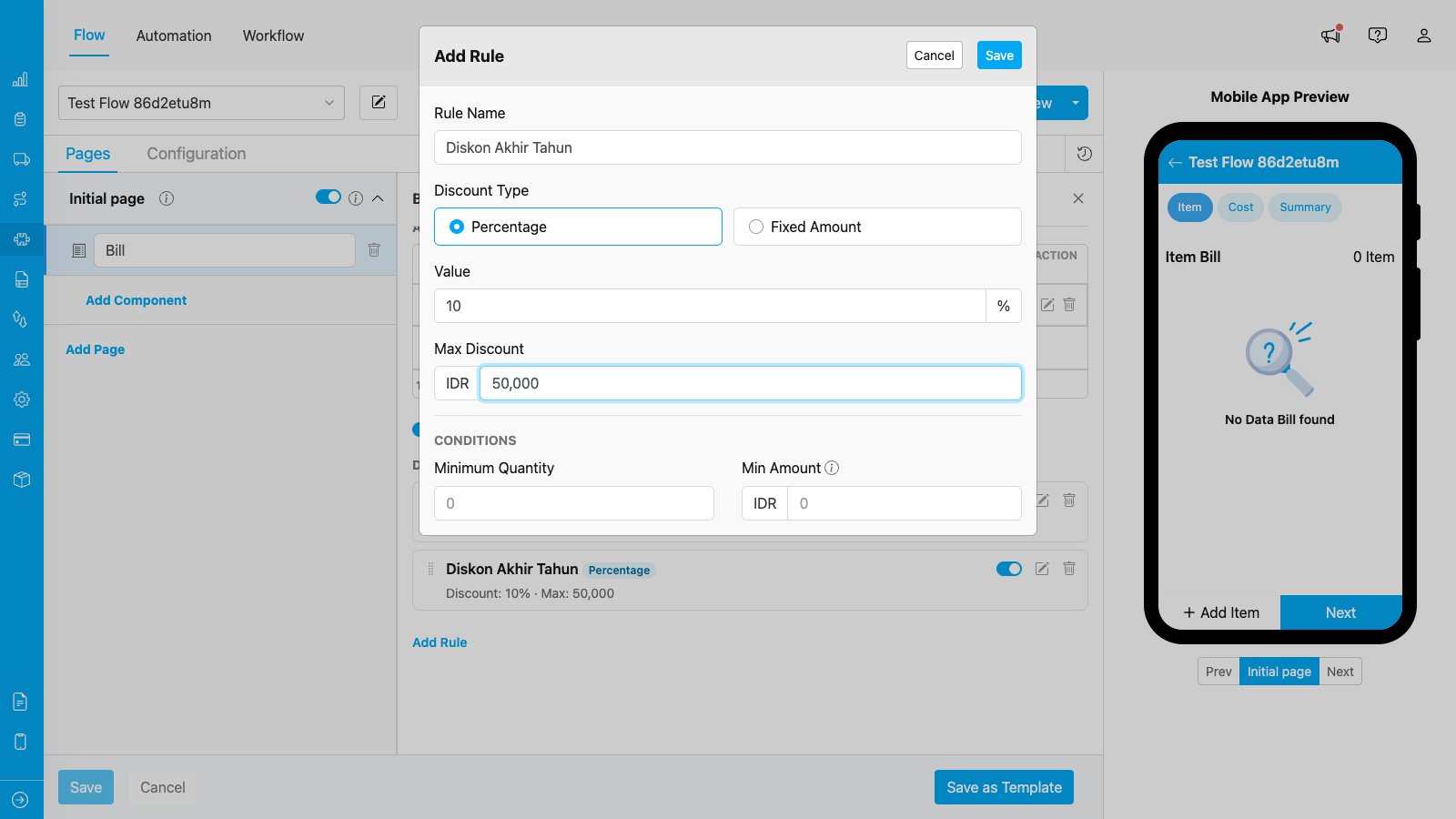
The Add Rule form — name, type, value, an optional cap, and optional conditions.
Click Save to add the rule. You can add multiple rules; they can be edited, deactivated, or deleted (with a confirmation) at any time.
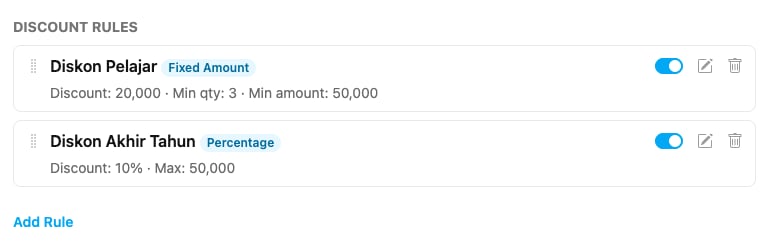
Saved rules appear in the Discount Rules list, each showing its type and a short summary.
Conditions are combined with AND — when you set both Minimum Quantity and Min Amount, both must be met for the rule to apply.
The discount base is the items subtotal only. Cost add-ons (delivery fee, tax, etc.) are not part of the base used to compute percentage discounts or to evaluate the Min Amount condition.
Calculation examples
Percentage rule — 10%, maximum 50,000. Items subtotal 200,000 → 200,000 × 10% = 20,000. The cap does not apply (20,000 < 50,000). Discount = 20,000. Same rule, larger order. Items subtotal 600,000 → 600,000 × 10% = 60,000. The cap applies. Discount = 50,000. Fixed rule — 30,000. Discount = 30,000, regardless of order size (capped at the items subtotal if it would exceed it).How a Field Worker Applies a Discount
When a field worker opens a task with a Bill in Advanced mode, they see the items, cost add-ons, and a Discounts section. This section appears only when the bill has at least one active rule. “No discount” is always the default — a discount is applied only when the field worker selects one. Each rule is shown as an option with its computed amount next to it. A rule whose conditions are not met (for example, the order is below the minimum amount) is shown greyed out with a hint such as “Min amount 50,000”, and cannot be selected.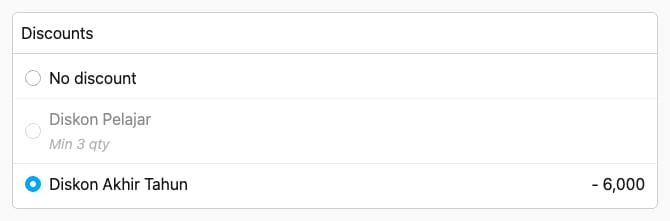
The Discounts section on a task — select one rule to apply it (its amount appears and the bill total updates). A rule whose conditions are not met is greyed out with a hint and cannot be selected.
The total updates live. As item quantities change, each rule’s amount recomputes automatically. If the selected rule becomes ineligible, the selection reverts to “No discount” and the field worker is notified. Saving and reopening. The selected discount is saved with the task. When the task is reopened to edit, the rule is restored automatically — as long as it still exists, is still active, and its conditions still hold with the current items. Otherwise the bill reopens with “No discount”.Bulk Create and Sheet Import
Discounts can also be set when creating tasks in bulk.- Bulk-create dialog: each bill row shows the same Discounts control, and each row picks its discount independently.
- Sheet import: add an optional column named
{billTitle}.discount(where{billTitle}is the Bill component’s title) and enter the exact rule name in each cell. On import, the value is matched to a rule by name; if the rule is found, active, and its conditions are met for that row’s items, the discount is applied. A blank, unknown, inactive, or ineligible value simply results in no discount for that row.
How it stays accurate
The server recomputes every discount on save and rejects any mismatch — for single tasks, bulk-created tasks, and imported tasks alike. It checks that the selected rule exists and is active, that its conditions are met for the submitted items, and that the submitted amount matches the server’s own calculation. The amount stored on the task always reflects the server’s computation, so the saved total is always trustworthy. When you export tasks, a bill with a discount shows a dedicated Discount row named after the rule, with a negative amount; cost add-ons are unaffected. Tasks saved without a discount show no discount row.Related
- Introduction Component Bill — full Bill component reference, including items and costs.
- Creating a Bill Component