

What is Access Control?
Access control determines which platforms users in a specific role can use to log in to their MileApp accounts. Currently, MileApp supports two access modes:- Full Access (default) - Users can log in from both Web App and Mobile App
- Mobile App Access Only - Users can only log in from MileApp Field (Mobile App)
Mobile App Access Only
This setting restricts users in a specific role to only log in through the MileApp Field mobile application, preventing web access entirely. When enabled for a role, all users assigned to that role will be limited to mobile-only access.When to Use Mobile App Access Only
This restriction is particularly useful for roles such as:- Field workers and drivers who only need mobile app functionality
- Security compliance requiring platform-specific access control
- Role-based restrictions for users who should only access field operations
- Operational control to prevent unauthorized web portal usage
How Mobile App Access Only Works
When this option is enabled for a user: ✓ Allowed:- Login from MileApp Field (iOS/Android mobile app)
- All mobile app features and functionality
- Task management and completion on mobile
- Location tracking and check-ins
- Login from web portal (web.mile.app)
- Access to web-based features
- Desktop browser access
“Your account is only allowed to log in from the Mobile App (MileApp Field). Please contact your admin to request web access.”
Configure Mobile App Access Only
To enable Mobile App Access Only for a role:- Go to Setting > Permission menu
- Select the role you want to configure
- Scroll down to the Advanced section
- Find the Access section
- Check the “Mobile App Access Only” checkbox
- Click Save to apply the changes
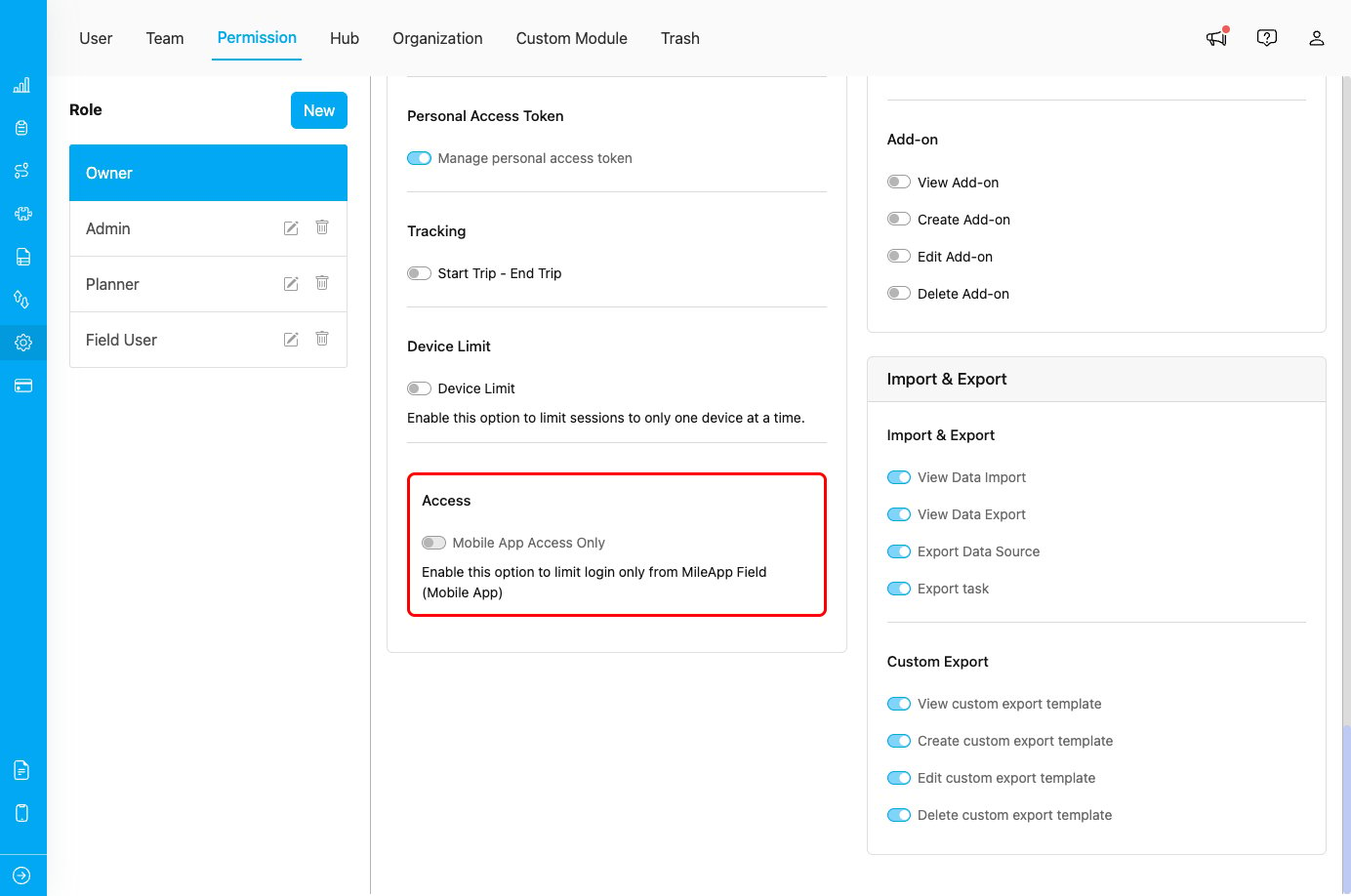
Mobile App Access Only configuration in role permissions
Required permission:
- View Permission
- Edit Permission
Use Cases
Use Case 1: Field Workforce Security
Scenario: Logistics company with 50 field drivers who should only use mobile devices for security reasons. Configuration:- Create a “Driver” role with Mobile App Access Only enabled
- Assign all 50 drivers to the “Driver” role
- Drivers use only MileApp Field mobile app
- Web access reserved for office staff roles only
Use Case 2: Role-Based Access Control
Scenario: Organization with distinct roles - office planners and field executors. Configuration:- Office staff (Planner, Admin): Full access (web + mobile)
- Field staff (Driver, Field User): Mobile App Access Only
- Clear separation of access by role type
Use Case 3: Compliance Requirements
Scenario: Company policy requires field workers to only use company-provided mobile devices. Configuration:- Create “Field Worker” role with Mobile App Access Only enabled
- Mobile device management (MDM) on company devices
- Web access blocked to enforce device usage policy
Use Case 4: Temporary Field Assignments
Scenario: Office employee temporarily assigned to field operations. Configuration:- User normally assigned to “Office Staff” role with full access
- Temporarily change user’s role to “Field User” role with Mobile App Access Only
- Change back to “Office Staff” role when returning to office duties
Best Practices
When to Enable Mobile App Access Only
✓ Enable for:- Dedicated field workers and drivers
- Users who only perform mobile-based tasks
- Roles requiring platform-specific restrictions
- Security-sensitive field operations
- Users without need for web features
- Users who need to create or plan tasks
- Administrators and planners
- Users who manage multiple users
- Roles requiring web-based reporting
- Users who need access to all features
Access Management Guidelines
- Review user roles regularly - Ensure access settings match current responsibilities
- Document access policies - Maintain clear guidelines for when to restrict access
- Communicate changes - Inform users when their access level changes
- Test before deploying - Verify mobile app functionality before restricting users
- Provide clear instructions - Help users understand their access limitations
Combining with Other Settings
Access control works alongside other user settings:Impact on User Experience
For Users with Mobile App Access Only:
For Administrators: